AI tool tutorial article | Fact-checked October 8, 2026
| This tutorial compares three AI video workflows that can reduce or eliminate generation costs: SnapGen AI, Pruna Playground, and Vheer. It explains the exact free-access tricks shown in the video, the catches behind each one, and which claims still match the platforms' current official information. |
|---|
AI video generation has a frustrating habit of becoming expensive just when a workflow starts to become useful. A service launches with generous free access, creators build a process around it, and then credits, waitlists, or subscription gates appear.
The video behind this guide starts from exactly that problem. The creator says two previously useful free options had become unavailable or paid, while an urgent project still needed realistic-looking footage, clean motion, and sound that matched the scene. Instead of accepting lower quality, he tested replacements and settled on three services: SnapGen AI, Pruna Playground, and Vheer.
The important part is that these three are not "free" in the same way. SnapGen uses a rotating zero-credit model strategy. Pruna's recording shows a limited daily playground allowance spread across several models. Vheer is the closest to a genuinely open-ended free workflow, but even there, current premium models and higher-quality settings can use credits.
That distinction matters more than the headline. If you understand what is actually free, what is temporary, and what disappears when a session ends, these tools can still be useful without turning your production pipeline into a surprise bill.
| Current-status note, October 8, 2026: Some pricing and limits have changed since the video was recorded. The walkthrough below preserves what the creator demonstrates, while the fact-check notes explain what the official product pages say now. |
|---|
To see how other platforms handle free access, compare TikTok Symphony, Google Vids, CreatorBase, and Seedance 2.5 in our free AI video tools comparison.
Quick Comparison: What "Free" Means on Each Platform
| Tool | Free method shown in the video | Main strength | Biggest catch today |
|---|---|---|---|
| SnapGen AI | Sign in and choose a model currently priced at 0 credits | Access to high-end video models without using credits | Free models can rotate or become unavailable |
| Pruna Playground | Use the playground's per-model daily free generation quota | Long clips, high resolution, strong controls | Official Pruna pricing now emphasizes paid per-second generation |
| Vheer | Use free creative workflows, especially image-to-video | Broad all-in-one image and video toolkit | Premium models and some quality settings use credits |
The source video also contains a sponsored Higgsfield segment. It is useful because it shows a polished image-to-video production workflow, but it is not one of the three free recommendations and should be evaluated separately.
1. SnapGen AI: Look for the Models That Cost Zero Credits
SnapGen AI is the first tool in the video and probably the easiest one to misunderstand. The interface looks like a conventional paid generator: it has credits, model choices, and a pricing section. If you open the Studio without knowing the trick, it is easy to assume every useful generation consumes a balance.
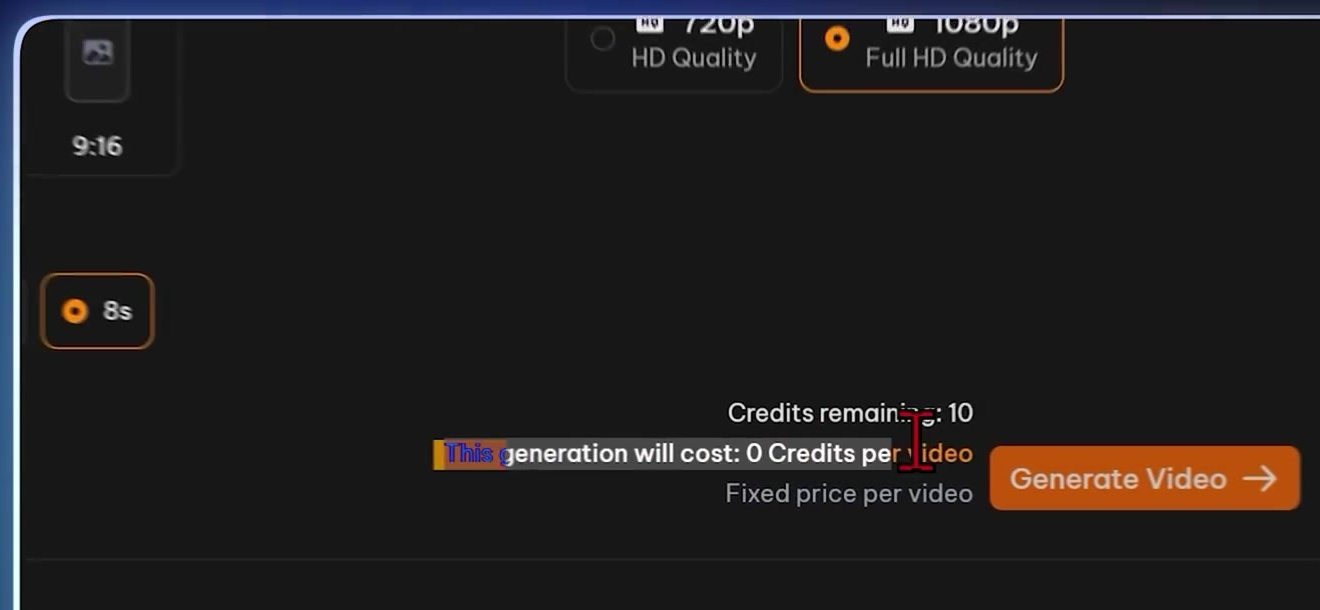
The workflow shown in the video is different. The creator signs in, selects an eligible video model, and checks the cost displayed beside the Generate button. In his example, Veo 3.1 Fast is configured for an eight-second video at 1080p, yet the interface says the generation will cost 0 credits.
Do not assume every model is free
The key is to treat the zero-credit label as a live status, not as a permanent plan benefit. The video explains that SnapGen rotates which models are free. A model that costs nothing today may require credits later, while another model may become the current free option.
That means the practical workflow is:
- Sign in before evaluating the price.
- Open Studio and select the model you actually want to use.
- Configure duration, resolution, and aspect ratio.
- Check the displayed generation cost before submitting.
- If it does not show zero credits, test another model instead of assuming the whole platform has become paid.
This is also why the creator uses SnapGen's Status page. Rather than opening models one by one and waiting for an error, the Status screen shows which services are operational and which are unavailable or under maintenance.
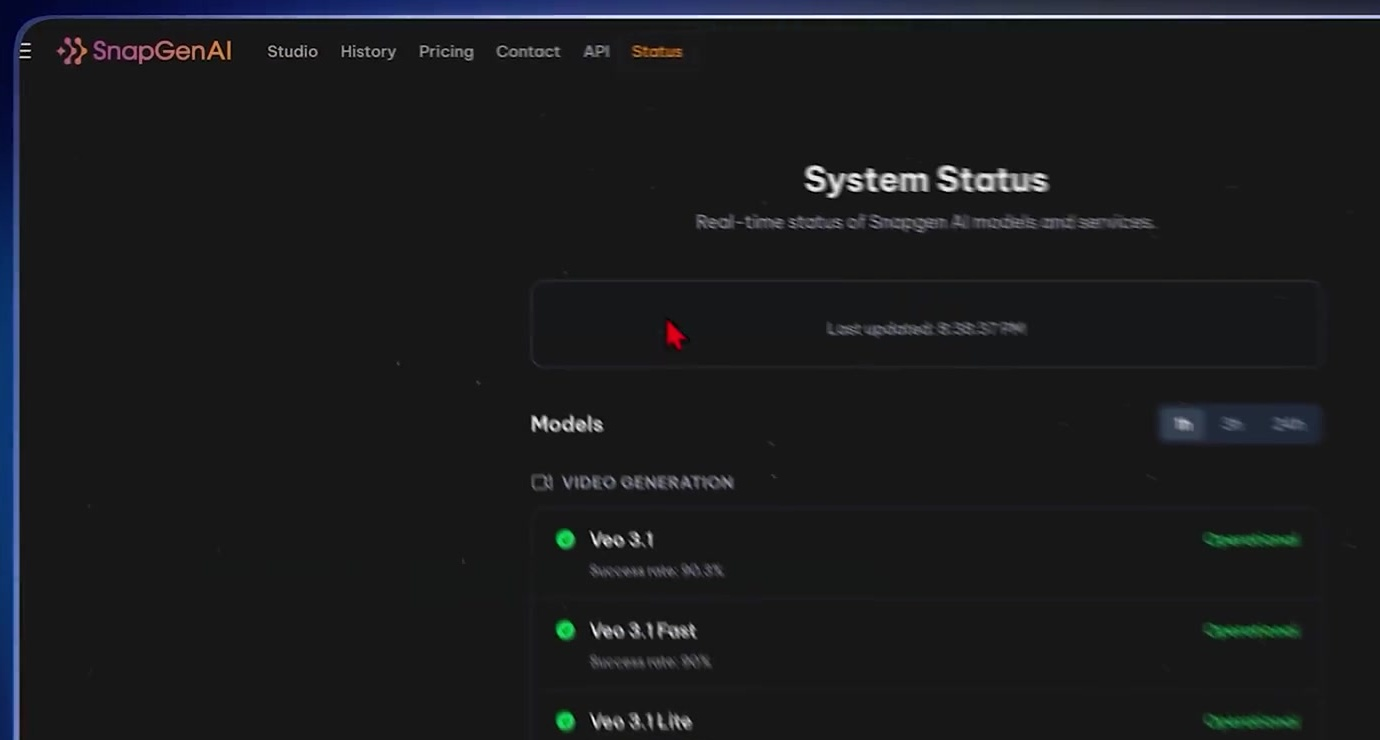
The combination of "working" and "0 credits" is what matters. A zero-credit model is not useful if the underlying service is down, and an operational model is not free if the Generate button suddenly shows a credit charge.
Download every useful result immediately
SnapGen also demonstrates a storage limitation that is easy to miss. The History page warns that data older than seven days is automatically deleted and tells users to download anything they want to keep long term.
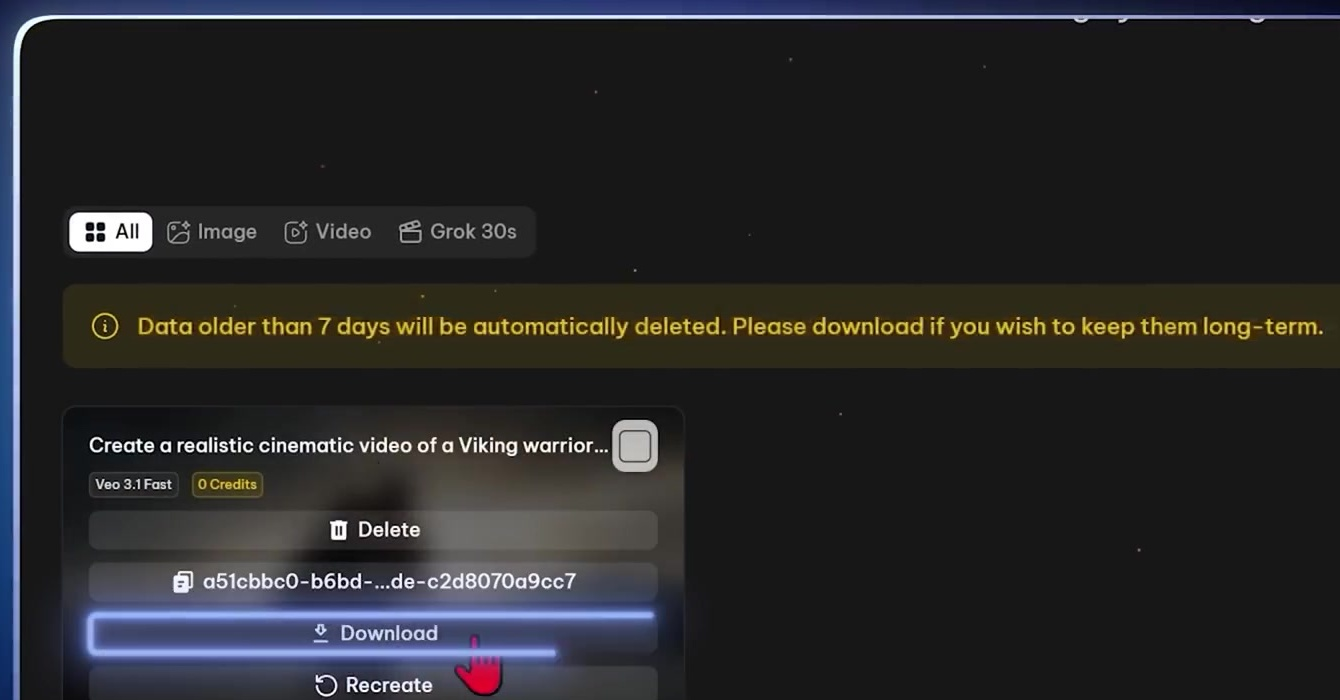
For casual experimentation, a seven-day history may be fine. For client work, YouTube production, advertising, or any multi-step editing process, it is safer to download the original file as soon as a generation finishes. Keep the prompt in your own notes as well. If the free model changes later, recreating the exact clip may not be possible under the same settings.
Does SnapGen AI still offer free video generation?
As of October 8, 2026, SnapGen's official homepage still describes itself as a free unlimited AI video generator and specifically promotes free Veo 3.1 access. That supports the basic idea shown in the video.
What the public page does not clearly document is a permanent guarantee that every model, resolution, or generation type will remain at zero credits. The safer interpretation is the one the video itself teaches: check the live cost and status before each batch. SnapGen is best treated as an opportunistic zero-credit gateway rather than infrastructure you can assume will behave identically every month.
A Sponsored Higgsfield Detour: Useful Workflow, Different Cost Model
Roughly halfway through the video, the creator pauses the free-tool comparison for a sponsored Higgsfield demonstration. That disclosure matters because the segment is not evidence that Higgsfield belongs in the same free category as the other three services.
The workflow itself is worth understanding. The creator starts in an image-generation area, creates several candidate stills, picks the strongest image, and then sends it into a video workflow. The appeal is continuity: instead of asking a video model to invent everything from scratch, you establish the visual direction in a still image first and then animate it.
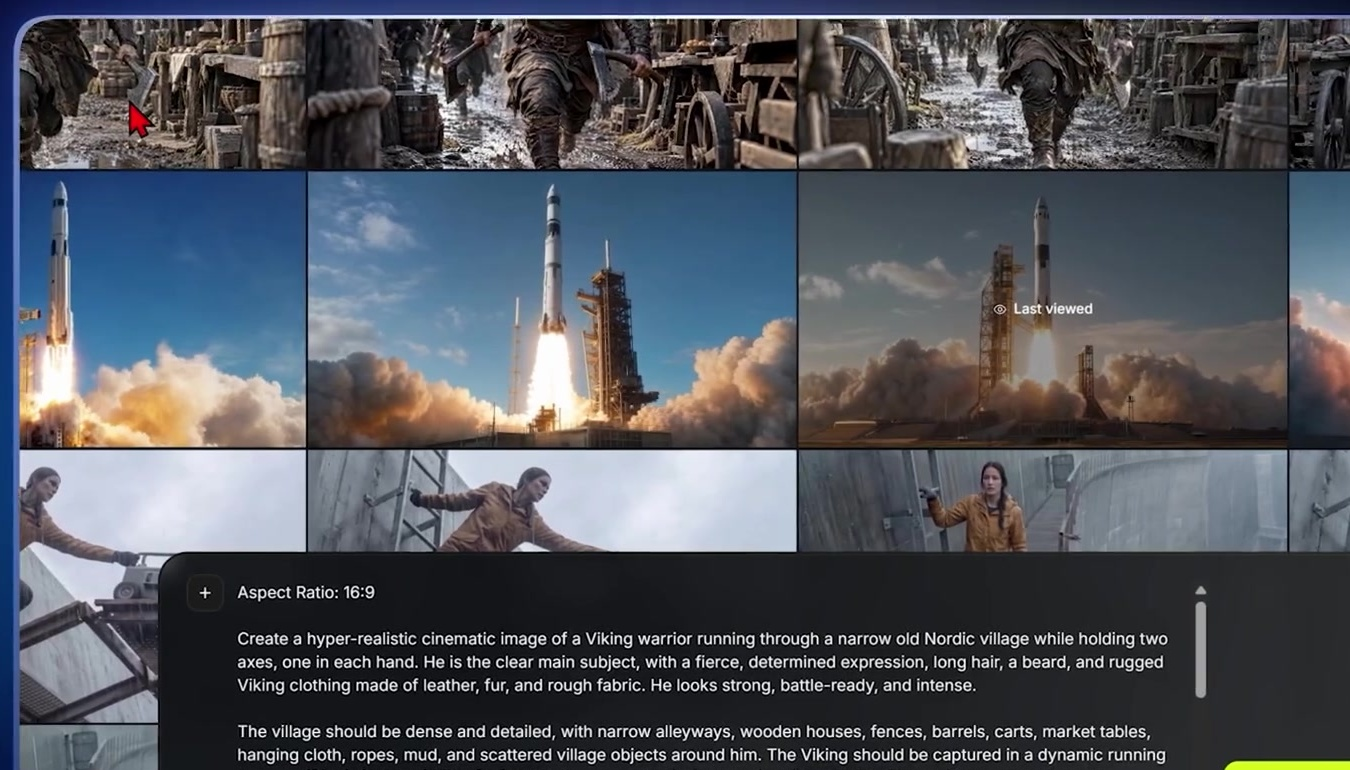
This image-first approach is useful well beyond Higgsfield. A strong reference image can give an image-to-video model clearer information about character appearance, wardrobe, environment, lighting, and framing. For shots where consistency matters more than surprise, that is often easier to control than pure text-to-video.
The video also emphasizes reference assets, scene changes, camera movement, and synchronized audio. Those are meaningful capabilities, but readers should keep the sponsorship context in mind. Higgsfield is presented as a premium production option, not one of the three free generators this article is comparing.
2. Pruna Playground: The Video's Best "Spend the Free Runs Wisely" Strategy
Pruna is the most interesting example because the interface itself contains two apparently contradictory ideas: it displays normal per-second prices for the model, while the playground also shows a free daily generation counter.
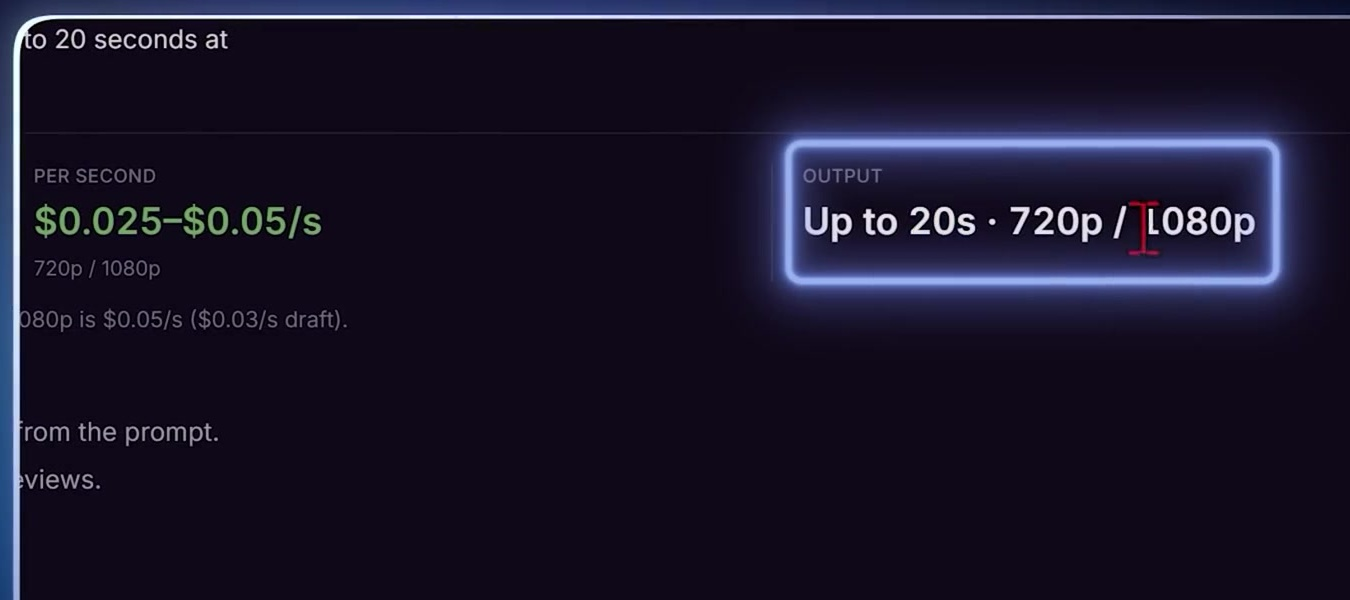
The creator selects P-Video-2, which the interface describes as supporting text-to-video, image-to-video, and audio-conditioned generation. The page shown in the recording advertises up to 20-second outputs at 720p or 1080p.
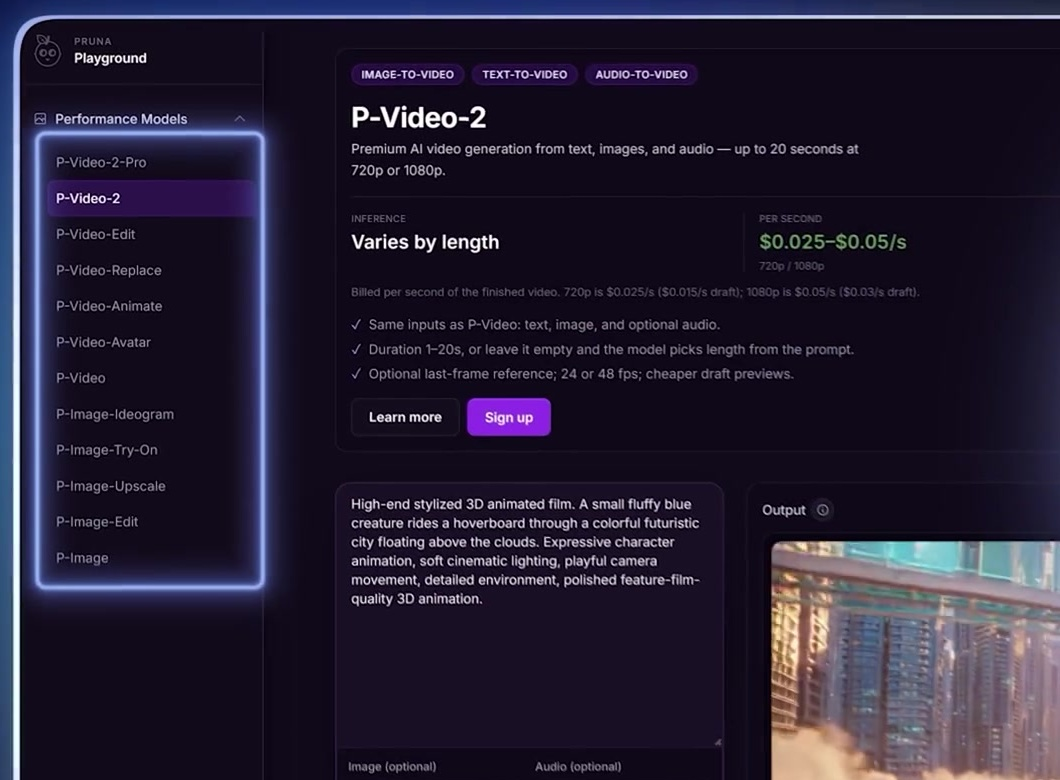
The same screen also exposes the normal paid rate. P-Video-2 is priced by the second, with different costs depending on resolution and draft mode.
Yet lower on the playground, the source video shows a 0/5 free daily generations counter for the selected model.
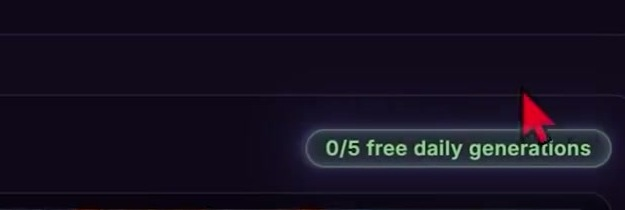
That detail clarifies the presenter's "up to 15 free videos per day" claim. He is not showing fifteen unlimited generations from one model. He is combining the allowances of multiple eligible video models, with five free generations visible on an individual model in the recording.
Why the creator chooses the longest, highest-quality generation
In the workflow shown, a free use is counted as one generation rather than being reduced according to output length. That leads to a sensible optimization: if a two-second draft and a twenty-second high-quality clip consume the same free generation slot, use the slot on the output that would otherwise cost the most.
The presenter therefore recommends selecting the longest useful duration and the highest useful quality when spending a daily free run. This is a creator-specific tactic based on the playground behavior he demonstrates, not a general Pruna billing rule.
That distinction is important. Pruna's normal paid pricing is explicitly per second. If you are using a paid account, API access, or a version of the playground without the same free allowance, generating twenty seconds costs more than generating two.
Download before you refresh or change models
The recording also demonstrates Pruna without a signed-in project history. In that anonymous workflow, the creator warns that a generated clip can disappear when you reload, change tabs, or move to another model.
The practical lesson is the same as with SnapGen but even more urgent: if you like the result, save it before you continue experimenting.
This is especially important when you are rotating through models to stretch a free allowance. The fastest way to waste a scarce generation is to create a good clip and then lose it because you assumed the site would preserve your session.
What about P-Video-2-Pro and the fallback model?
The video checks P-Video-2-Pro but says it is unavailable at the time of recording. The creator then points to the standard P-Video model as another option and describes it as close enough in quality to continue generating after the preferred allowance is exhausted.
This is another reason not to memorize one "best" model name. Availability changes. A useful free workflow needs a fallback: know which models support video, know what each counter says, and be prepared to move to another eligible option when the preferred one is unavailable.
Does Pruna still offer the same free daily allowance?
This is where the current fact check matters most.
Pruna's official pricing page and current P-Video-2 documentation now emphasize paid per-second usage. P-Video-2 is documented at up to 20 seconds and up to 1080p, but the official docs list paid prices rather than promising five free generations per day. The current playground still exposes a quota mechanism, but I could not verify an official public statement that permanently guarantees the exact daily free allowance seen in the video.
So the tutorial remains useful as a walkthrough of the playground, but readers should not build a production budget around "15 free Pruna videos every day" unless the live quota counter confirms it for their session.
3. Vheer: The Broadest Free Creative Toolkit in the Video
Vheer is the final tool and the one with the widest scope. It is not just a video generator. The interface shown in the recording includes text-to-image, text-to-video, image-to-image, multi-image editing, image-to-video, image-to-prompt, image-to-text, background removal, portrait styles, templates, image utilities, file compressors, and more.
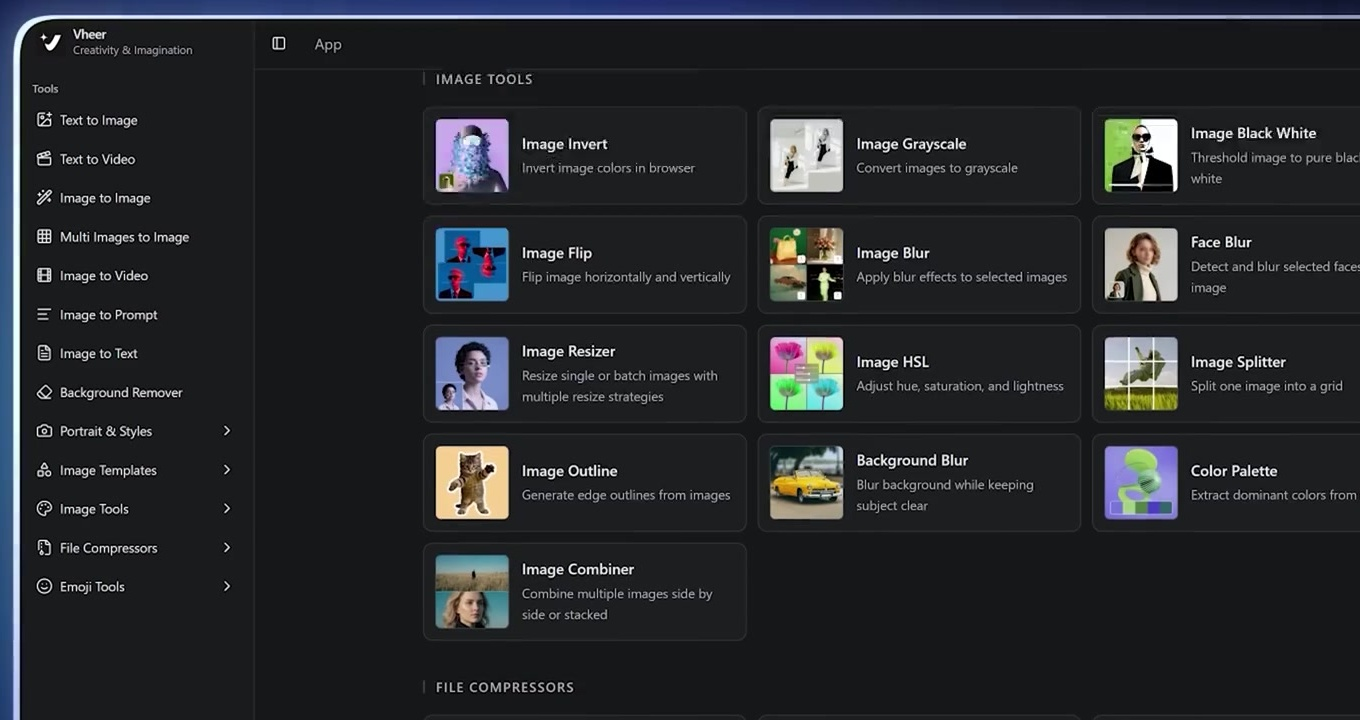
For a creator trying to keep costs low, this matters because the expensive step is not always video generation itself. You may also need reference images, transparent product cutouts, style variants, thumbnails, visual cleanup, or resized assets. Keeping those tasks in one browser-based toolbox can reduce the number of separate subscriptions you need.
Start with a still image, then animate it
The presenter's recommended Vheer workflow starts with Text to Image. He creates the visual content first, then uses that image as the source for the video.
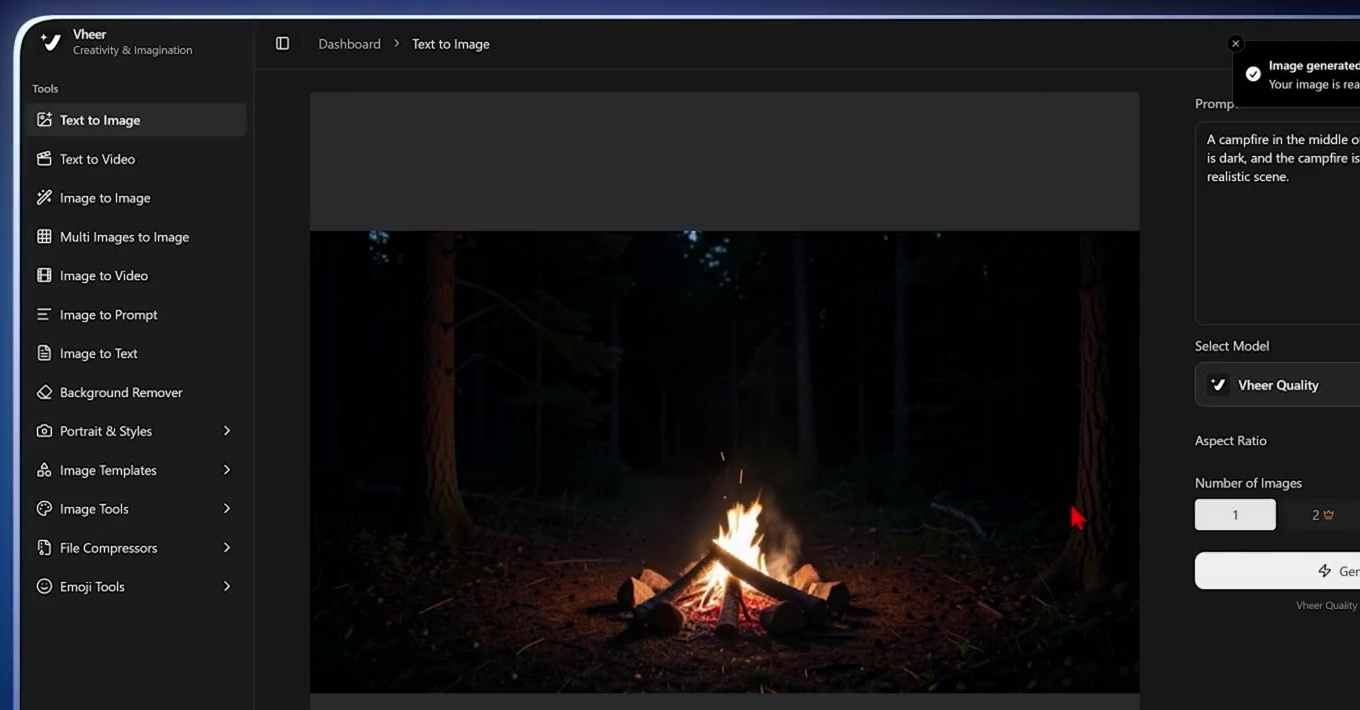
This is a practical choice. If the first frame already has the composition you want, image-to-video can focus on motion instead of trying to solve character design, scene design, lighting, and movement all at once.
After generating the image, the creator moves to Image to Video, loads the image from the library, enters a motion prompt, selects a model, and adjusts settings such as duration and aspect ratio.
In the video, the creator specifically avoids the text-to-video route because it is not free under the setup he is demonstrating. He chooses image-to-video because that is where the free workflow is available.
If a long generation breaks near the end, split the shot
One of the better practical tips in the video has nothing to do with credits. The presenter notes that a long AI video can look good at first and then deteriorate near the end. Motion becomes strange, objects drift, or the model loses track of the scene.
His solution is simple: do not insist on generating the entire twenty-second idea in one pass. Reuse the same prompt and create the scene in several shorter pieces, then join them in an editor.
That is often a better strategy even when a model technically supports longer duration. Shorter generations give the model less time to accumulate visual errors, and they give you more editorial control over pacing and shot selection.
Vheer is more useful than its video tab
The last part of the tutorial explores Vheer's utility tools. A background remover is one concrete example: upload an image, isolate the subject, and reuse the transparent result in a product graphic, thumbnail, ad, or reference-image workflow.
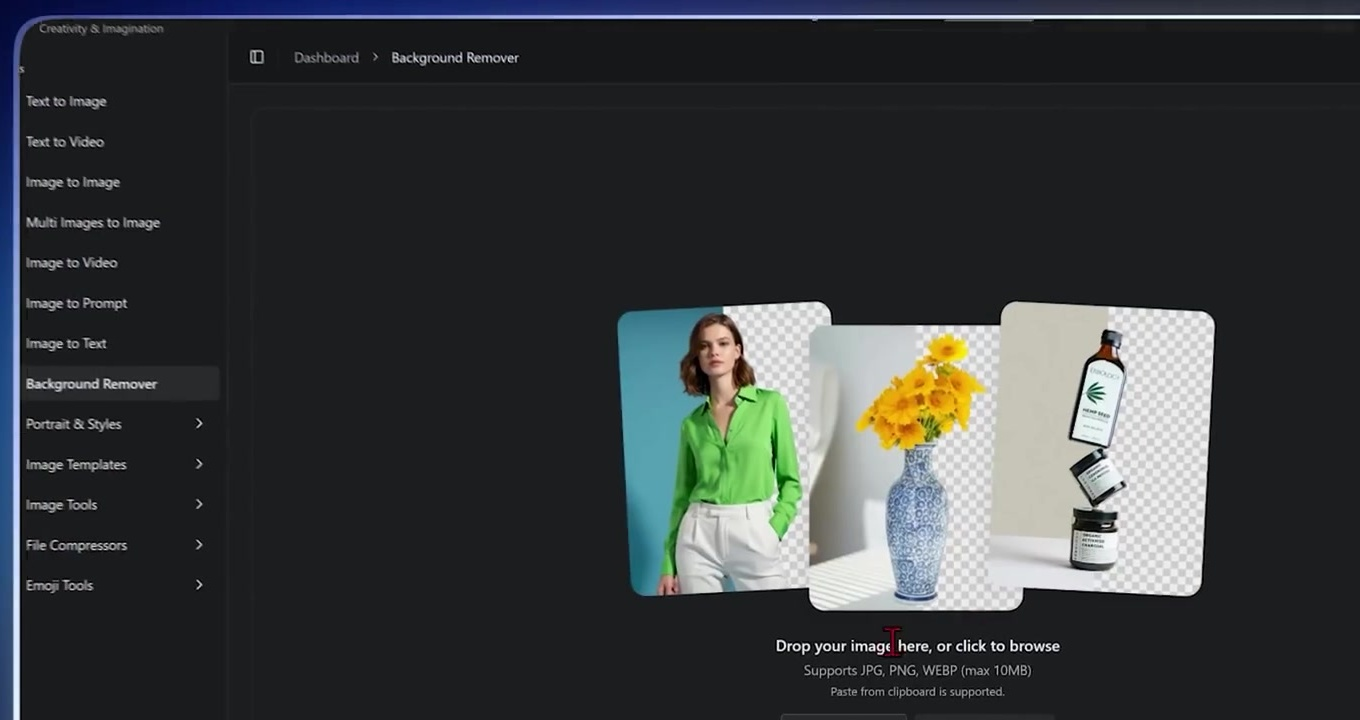
The creator also points to business-logo generation, a map creator, and portrait/style tools that can transform a set of images into a consistent visual style. His broader recommendation is to browse the suite instead of treating Vheer as a single-purpose video site.
That is a sensible way to evaluate AI platforms in general. The best free service is not always the one with the highest benchmark score. A platform that handles several small production tasks can save more time and money than a slightly better model that solves only one step.
Is Vheer still free and unlimited?
Vheer's current official homepage still markets the service as a free AI image and video generator with unlimited generations, no signup, and watermark-free exports for its free workflows. That is stronger current support than we have for Pruna's exact daily-free claim.
However, Vheer's pricing page now also lists a free account tier with monthly credits and paid plans that unlock premium models. In other words, "unlimited" applies to designated free workflows, not to every model and every quality setting on the platform.
The image-to-video specifications have changed as well. The current official image-to-video page documents 5- or 10-second duration choices, 768p for free users, and 1080p for premium users. That differs from the 20-second configuration shown in the source video.
The safest way to describe Vheer today is: it still has genuinely free, repeatable creative workflows, but the exact model, duration, and resolution shown in an older tutorial may no longer be the current free configuration.
Which of These Three Should You Use?
If your only goal is to generate as many experimental clips as possible without spending money, start by checking Vheer and SnapGen AI.
Vheer has the clearest current official support for ongoing free workflows and gives you useful image tools around the video generator. It is especially attractive when you can create a still first and animate it second.
SnapGen AI is appealing when a high-end model is currently marked at zero credits. The tradeoff is volatility. Check the displayed cost every time, check Status when a model fails, and download the result immediately.
Pruna is still worth knowing because P-Video-2 offers serious controls and long outputs, but the current official product pages are much more clearly paid than the video headline suggests. Treat any free playground quota as a bonus that must be verified live, not as a permanent entitlement.
For paid production, the ranking could be different. Reliability, queue speed, commercial terms, API access, character consistency, and repeatable output matter more than squeezing every clip out of a free allowance. The video is strongest as a guide to opportunistic free generation, not as a procurement comparison for a studio.
A Better Workflow Than Chasing "Unlimited" Forever
The most durable lesson from the video is not the name of any one website. Free access changes too quickly.
A stronger workflow is to keep your creative process portable:
- Write prompts and shot plans outside the generator so you can move them to another service.
- Create reusable reference images before animation when consistency matters.
- Download every successful result immediately instead of trusting temporary galleries.
- Check a model's live cost before generating, even if yesterday's tutorial called it free.
- Use short clips when long generations start to drift or break.
- Keep at least two backup generators so one pricing change does not stop a project.
With that approach, SnapGen AI, Pruna, and Vheer become interchangeable production resources rather than single points of failure.
Once you choose a source for clips, our long-form AI video workflow shows how to combine generated footage, narration, music, and editing into a complete production.
Final Takeaway
The three services in the video solve the same problem in different ways. SnapGen AI hides useful zero-credit opportunities behind a model-by-model cost check. Pruna's playground demonstrates how a limited daily quota can be stretched across multiple video models. Vheer combines a free image-to-video path with a much broader set of creative utilities.
But the fact check is just as important as the tutorial. Free AI video access is unusually fluid. Pruna's current official pricing no longer supports treating its daily allowance as a guaranteed permanent feature, while Vheer's current site still promotes unlimited free workflows but separates premium models and higher-end settings into credit-based access. SnapGen still advertises free video generation, yet its model availability can change.
Use the video as a workflow guide, not a lifetime pricing promise. Check the live interface, save every good result, and keep your prompts portable. That is the part of the strategy that will still work after the next "free" AI video generator changes its rules.
Current Product Sources
Current product details were checked on October 8, 2026 against the following official pages:
- SnapGen AI: https://snapgen.ai/
- Pruna pricing: https://www.pruna.ai/pricing
- Pruna P-Video-2 documentation: https://docs.pruna.ai/en/stable/docs_pruna_endpoints/performance_models/p-video-2.html
- Vheer homepage: https://vheer.com/
- Vheer pricing: https://vheer.com/pricing
- Vheer image-to-video documentation: https://vheer.com/ai-image-to-video