This tutorial compares three practical ways to test AI video without committing to a large subscription first: TikTok Symphony Creative Studio, Google Vids, and CreatorBase AI. It also explains what has changed since the source video was recorded, including current credit rules, native landscape support in Google Vids, Seedance 2.5 availability, and how CreatorBase's GPT-6 Astra MCP connection actually works.
Paying for an AI video subscription before you know whether the model can produce usable motion is an expensive way to experiment. The workflow demonstrated in this video takes a more practical approach: start with tools that let you test the core generation experience, reuse the same prompt across platforms, compare the outputs, and only spend money when a tool proves that it belongs in your workflow.
The video tests three different environments rather than three identical products. TikTok Symphony Creative Studio is a TikTok-focused AI production suite. Google Vids is a collaborative video editor with generative AI built into the creation process. CreatorBase AI is a broader research-and-production workspace that includes multiple video models, including Seedance 2.5, plus scripting, thumbnails, voice, SEO tools, and an MCP connection for ChatGPT or Claude.
That distinction matters because the word free means something different on each platform. Some features are free but quota-limited. Some accounts receive generation credits. Some AI features require an eligible plan even when the base app is available. And some offers that were free when the video was recorded have already changed.
The most important update: “free” is not the same as “unlimited”
Before copying the workflow, it is worth separating what the video demonstrates from what the products officially support now.
| Platform | What the video demonstrates | Current reality to know |
|---|---|---|
| TikTok Symphony Creative Studio | A substantial weekly credit balance, short video generation, image generation, downloads, and a landscape workaround | Symphony itself is free to use, but AI video generation consumes plan-based weekly credits. TikTok currently documents video usage at one credit per generated second. |
| Google Vids | AI video, avatars, voiceover, image generation, and a prompt-to-video workflow | Basic Vids features can be available with a Google account, but Gemini-powered features depend on account type and plan. Google now supports both 16:9 and 9:16 AI video directly. |
| CreatorBase AI | Seedance 2.5, other video models, image tools, and a GPT-6 Astra/MCP workflow | A free account exists, but CreatorBase says free video generation is limited to an eligible starter clip while shared capacity is available. Other generation uses credits. |
That does not make the video useless. In fact, the testing method is still excellent. The useful idea is to minimize your cost while you test motion quality, prompt following, audio, consistency, aspect ratio, and export behavior. The exact free allowance is the part that needs to be checked before you start.
1. TikTok Symphony Creative Studio: a serious free testing environment
The first platform in the video is TikTok Symphony Creative Studio. It is easy to overlook because many people still think of TikTok's creator tools as ad utilities rather than general-purpose AI generation software. TikTok now describes Symphony Creative Studio as a free AI-powered creation tool for both organic and paid TikTok content.
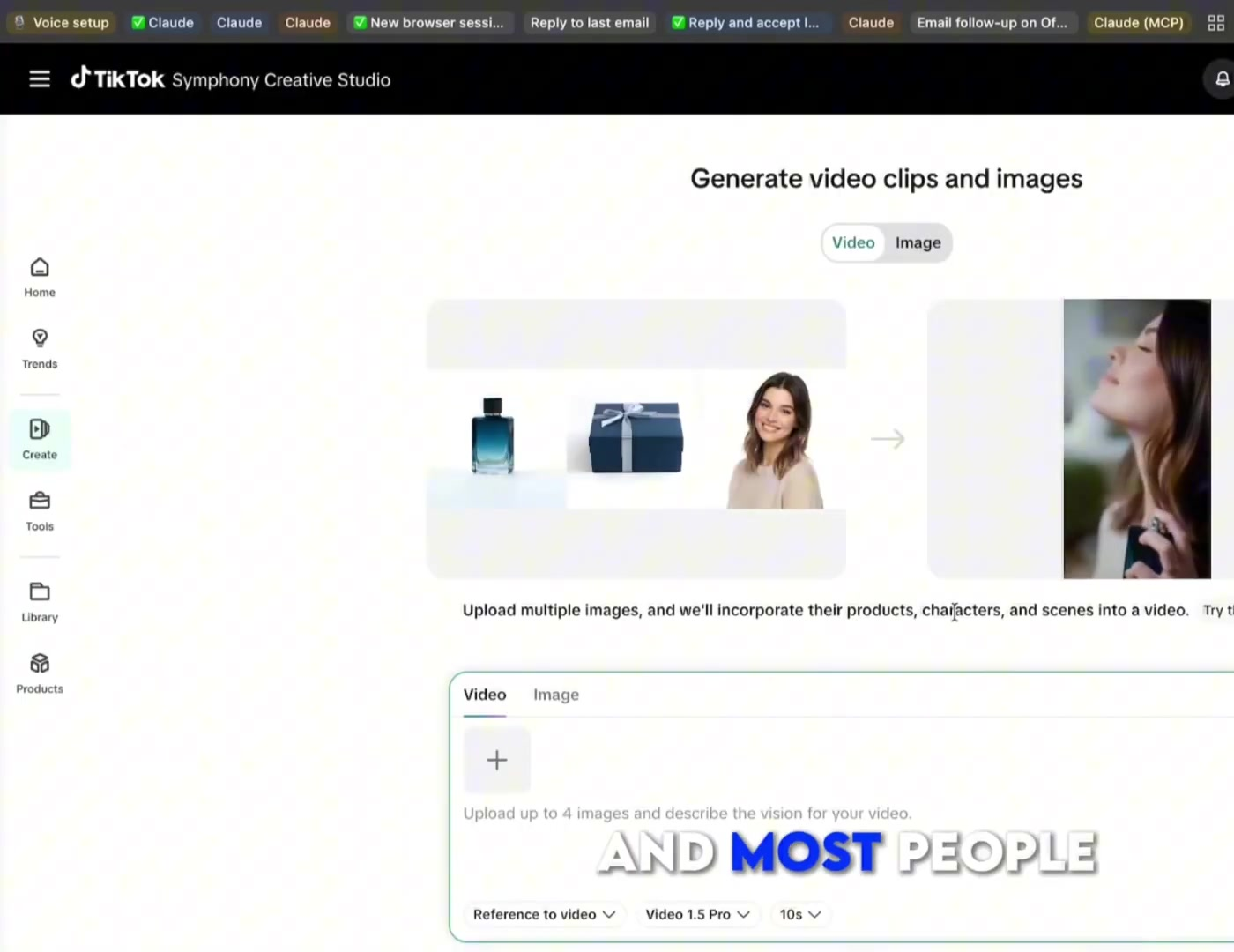
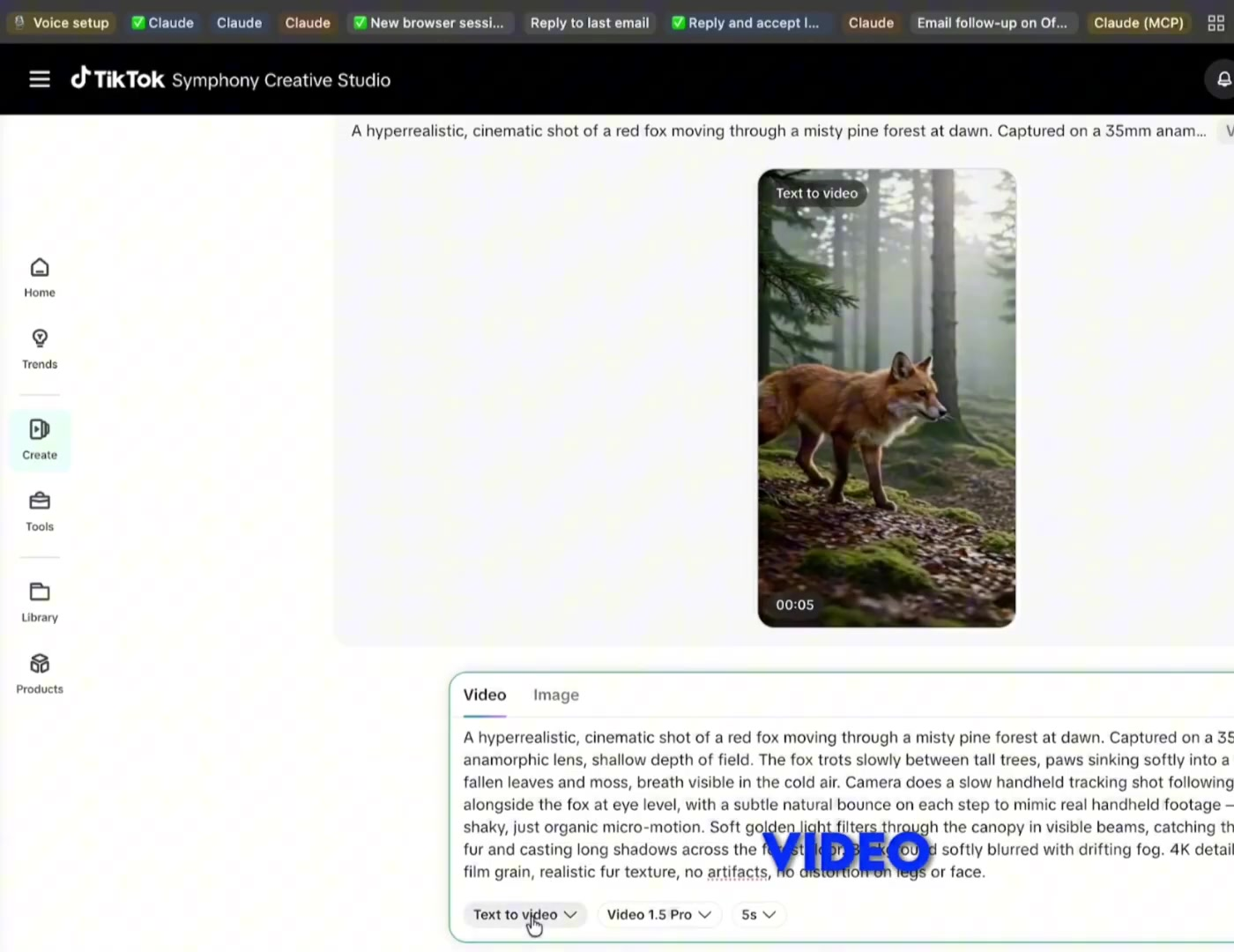
The video opens the Create area and shows a clean generation panel with separate Video and Image modes. The presenter tests the platform with a detailed cinematic prompt about a fox moving through a misty forest. Instead of starting with a complex commercial project, the workflow uses a short clip so the model can be judged quickly and cheaply.
Three useful generation modes
TikTok's current documentation confirms three video-generation routes: text to video, image to video, and reference to video. That gives you a practical progression for testing.
Text to video is the fastest quality check. You describe the subject, action, location, lighting, camera behavior, and mood, then see how much the model can infer from language alone. Image to video is better when composition and character appearance matter. Reference to video gives you more control by allowing multiple visual references plus a text instruction.
The source video begins with a straightforward text-to-video test. It keeps the duration short, pastes in the prompt, and generates a five-second result. The output is then judged on the details that actually matter for AI video: whether the animal's gait feels coherent, whether fur and environmental motion hold together, whether the camera behaves naturally, and whether the scene collapses into obvious artifacts.
What changed with Symphony credits
The video shows an account with 400 credits and says that a five-second video costs five credits. The second part of that statement lines up with TikTok's current rules: TikTok now documents video generation at one credit per second. A five-second render therefore costs five credits.
The 400-credit balance should not be treated as a universal promise, however. TikTok says Symphony credits are a plan-based weekly allocation. Your plan depends on factors such as whether a TikTok Ads Manager account is linked and whether advertising activity meets the relevant requirements. Credits refresh each Monday at 12:00 AM UTC and unused weekly credits do not roll over.
So the practical lesson is better phrased like this: Symphony can give you a meaningful amount of low-cost testing capacity, but check your current weekly balance before planning a production schedule around the number shown in somebody else's account.
The landscape workaround shown in the video
Later in the tutorial, the creator demonstrates a useful aspect-ratio workaround: generate a landscape image first, then use that image as the reference for a video generation. The logic is simple. If the starting composition is already 16:9, the motion model has a landscape frame to preserve instead of being asked to invent a new composition from scratch.
This is best treated as the creator's workflow rather than a formal TikTok requirement. Symphony's interface and available models change over time, so the exact controls may move. The underlying technique remains useful across AI video products: when a generator resists your target aspect ratio, establish the composition with a still image first, then animate it.
Who Symphony is best for
Symphony makes the most sense if you create TikTok-first ads, product demos, short social clips, or visual concepts that you intend to finish in a vertical workflow. It is especially attractive as a testing environment because the same suite also includes image generation, avatars, translation and dubbing, and editing tools.
There is one policy detail worth remembering. TikTok says exported AI-generated videos receive an AI-generated label and generated assets are still subject to moderation and policy review before they are cleared for publishing on TikTok. A successful render is not the same thing as automatic approval for every use case.
2. Google Vids: generative video inside an editor instead of a standalone generator
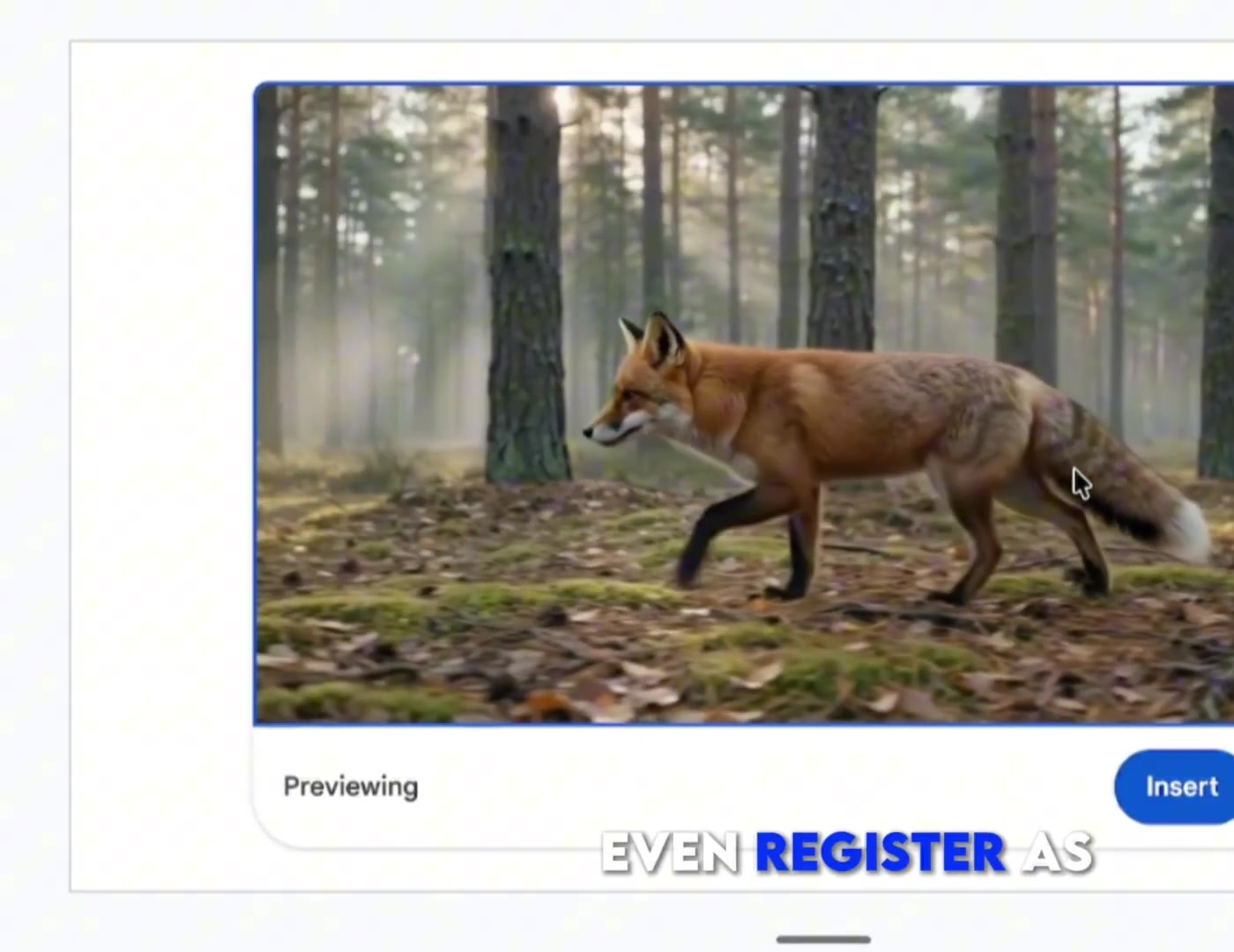
The second workflow is Google Vids. This one is different because the AI generator is only part of a larger editing environment. The video shows a creation panel with AI video, avatars, voiceover, image tools, and a canvas where generated material can be inserted into a project.
That makes Vids more useful when your goal is not simply “make one clip,” but “turn clips, narration, visuals, and edits into a finished piece.”
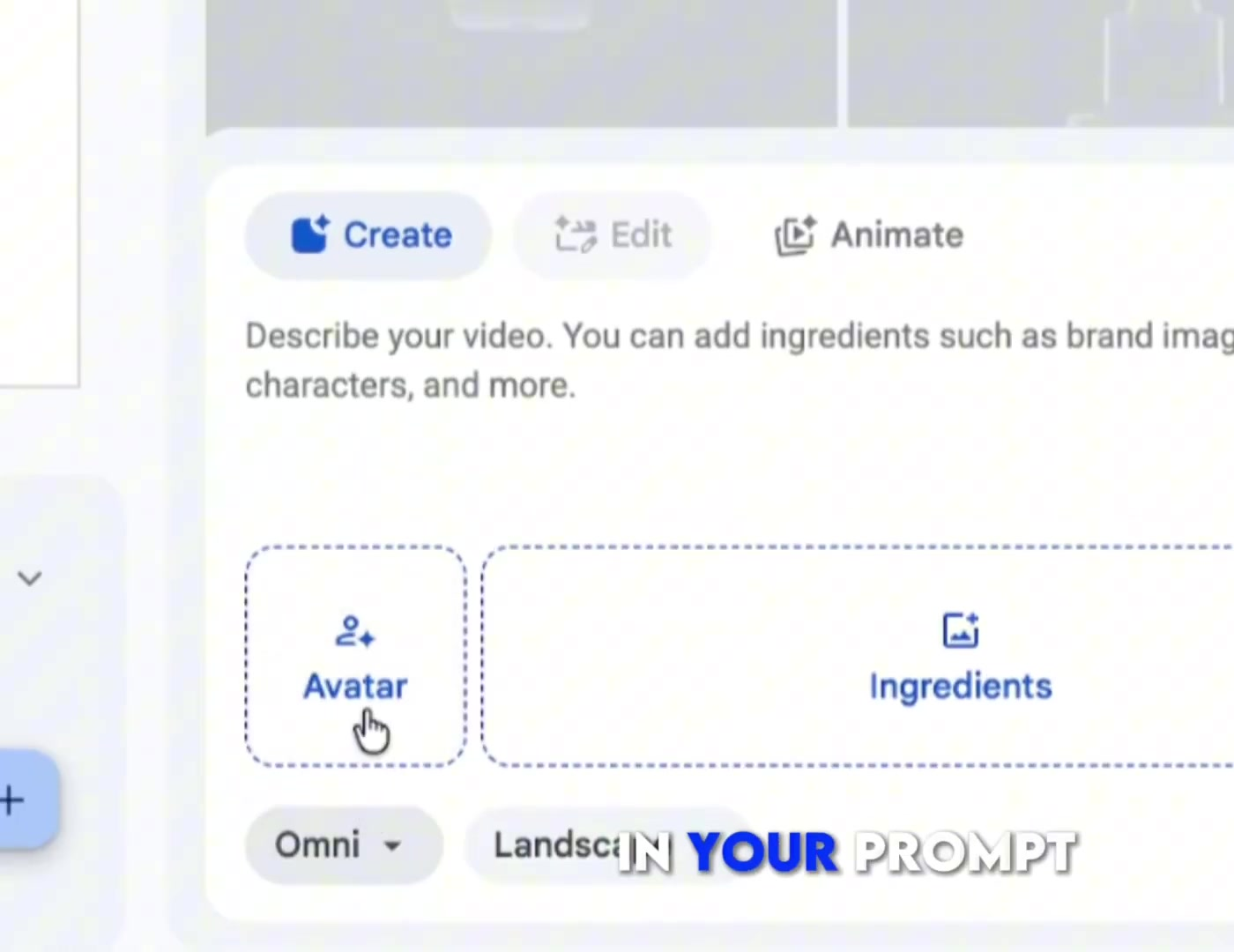
The workflow shown is deliberately comparable to the first platform. The creator pastes essentially the same cinematic prompt and generates another fox sequence. Reusing the same prompt is a smart benchmarking technique because it reduces one major variable. If one platform produces more coherent movement, cleaner anatomy, better lighting, or more convincing environmental motion, the difference is easier to see.
Google Vids now has direct landscape and portrait generation
One of the biggest changes since the source workflow was recorded is aspect-ratio handling. Google currently documents native AI video generation in both 16:9 landscape and 9:16 portrait. The Vids interface can also match the generated clip to the canvas ratio.
That means the image-first landscape workaround shown later in the video is no longer the only way to obtain a widescreen result in current Google Vids. The workaround can still be useful when you want tighter composition control, but if your interface exposes the Landscape or Portrait selector, use the native control first.
What is actually free in Google Vids?
Google's availability rules are more complicated than the video suggests. Google says basic Vids features can be used with a Google Account, but Gemini-powered capabilities vary by account type and plan. Workspace administrators can also disable access for managed accounts.
Current Google documentation lists plan-specific limits for AI video clips, avatars, image generation, and other Gemini features. In a separate help page, Google says most users can generate up to 50 videos per month, while its plan table expresses some quotas as seconds of generated video. The exact allowance therefore depends on the account you are using and can change over time.
The safe interpretation is: Vids may be inexpensive to test, and some accounts receive meaningful AI capacity, but do not assume that every Google account gets unlimited AI video generation at no cost.
Why Vids can be more useful than a pure generator
A standalone video model is usually optimized around one transaction: prompt in, clip out. Vids is built around an editable project. You can generate a clip, insert it, add other scenes, combine narration, bring in uploaded footage, use avatars, and continue editing rather than downloading every experiment into a folder and rebuilding the project elsewhere.
That is a meaningful advantage for explainers, presentations, internal videos, product walkthroughs, and structured YouTube content where the AI-generated shot is only one element of the final piece.
3. CreatorBase AI: multiple video models plus the rest of the creator workflow
The third platform changes the scope again. CreatorBase is not presented as a single model. The homepage and dashboard shown in the video combine research, script creation, SEO, thumbnails, video generation, image tools, voice generation, and storyboarding in one workspace.
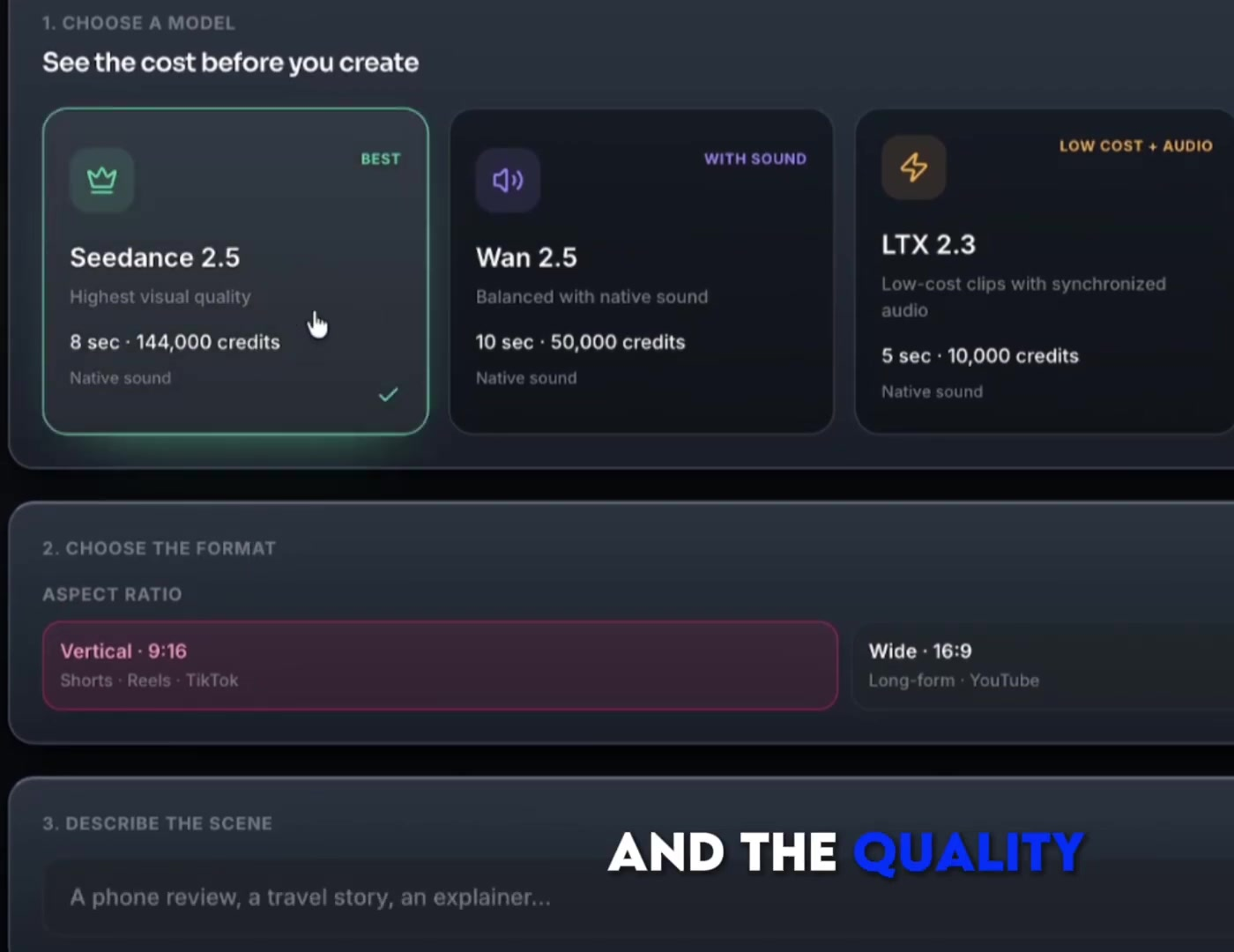
This is the section that gives the video its Seedance 2.5 headline. In the model picker shown on screen, CreatorBase offers Seedance 2.5 alongside alternatives such as Wan 2.5 and LTX 2.3. The current CreatorBase site still lists Seedance 2.5, Wan 2.5, LTX 2.3, and a faster low-cost option among its video engines, although the exact lineup and credit costs can change.
The Seedance 2.5 test
The video chooses a wide 16:9 format, pastes in the test prompt, and generates a cinematic tiger sequence. The result is used to highlight motion, visual authority, and native sound rather than just still-frame sharpness.
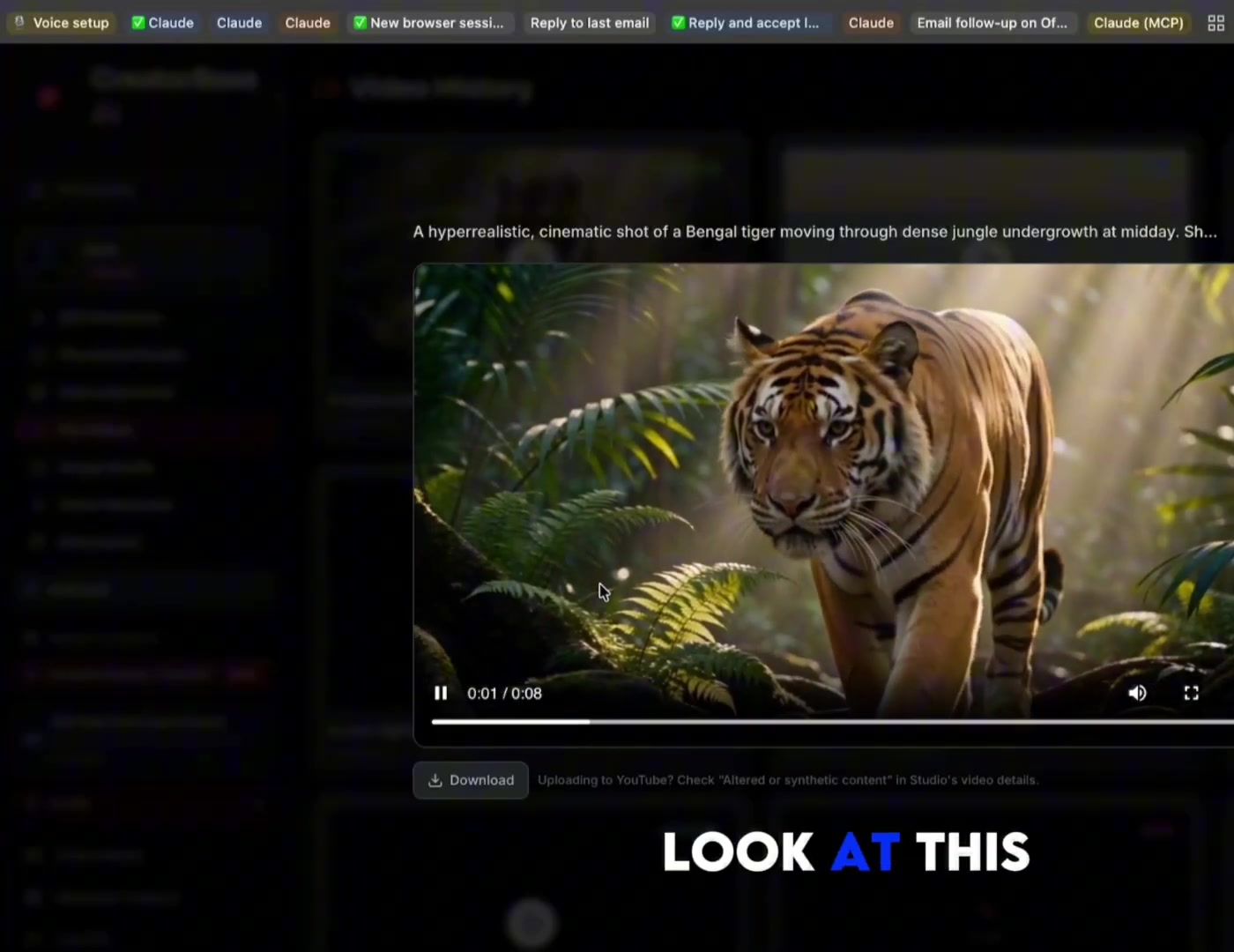
That is the right way to evaluate modern AI video. A single screenshot can make almost any model look impressive. The real test is temporal consistency: do the legs remain coherent over several steps, do the shadows track the subject, does foliage react plausibly, does the camera motion feel intentional, and does generated audio belong to the same scene?
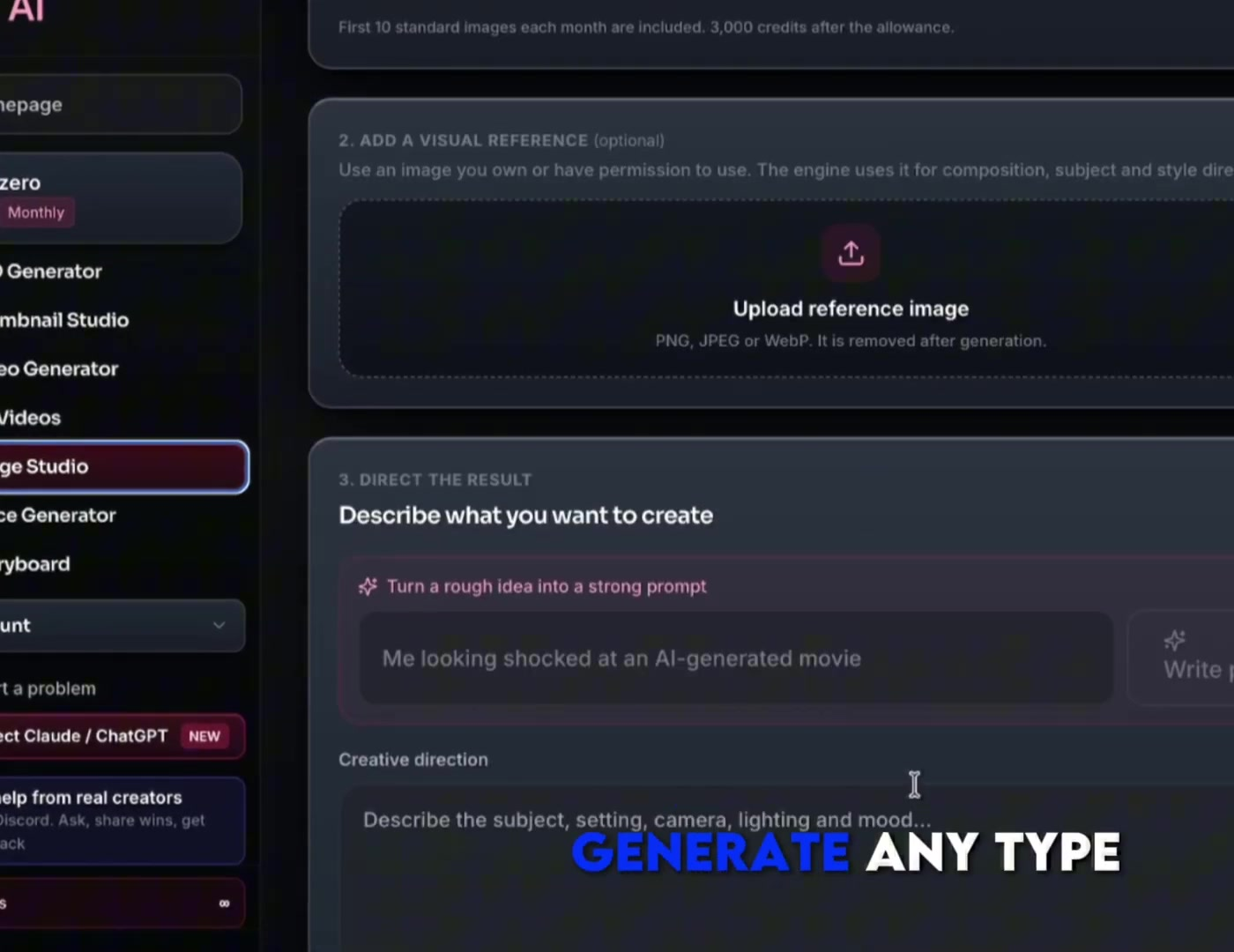
CreatorBase also exposes image-generation and thumbnail tools in the same environment, which means you can create a visual reference before you spend more expensive video credits.
Seedance 2.5 itself is real and substantially more capable than earlier generations
ByteDance officially launched Seedance 2.5 on July 31, 2026. The official Seed team describes it as a next-generation joint audio-video model with up to 30-second single-pass generation, multi-round extension, multimodal references, and more precise editing controls.
The reference system is one of its most important upgrades. ByteDance says Seedance 2.5 can accept large collections of images, video clips, and audio references in one generation, then use those materials to control characters, scenes, camera language, movement, and sound. The company also highlights timestamp-level editing, green-screen workflows, camera-perspective editing, and reference-based modifications.
So the video's enthusiasm about the model is understandable. The part that needs correction is the price claim, not the existence or capability of Seedance 2.5.
CreatorBase is not currently unlimited free Seedance 2.5
The video repeatedly describes the final platform as completely free. CreatorBase's current official product information is more limited.
A free account is available, and eligible users can claim a starter clip while the shared campaign budget is available. CreatorBase explicitly says this is not unlimited free video generation. Other video and image generations use credits. Its current paid plans include a monthly generation allowance, and the launch-rate monthly plan is listed at $14.99 with 300,000 credits per calendar month.
That means CreatorBase can still be a low-risk place to try the workflow, especially if a starter clip is available, but readers should not plan around unrestricted free Seedance 2.5 rendering.
4. What the GPT-6 Astra + MCP connection actually does
The most interesting part of the CreatorBase section is not the video generator itself. It is the MCP connection.
MCP, or Model Context Protocol, gives an AI assistant a standardized way to call tools exposed by another service. In this case, CreatorBase can expose research and project actions to a compatible ChatGPT or Claude account. Instead of switching between tabs, you can ask the assistant to research a niche, find outlier videos, draft a project, and save an approved plan into CreatorBase.
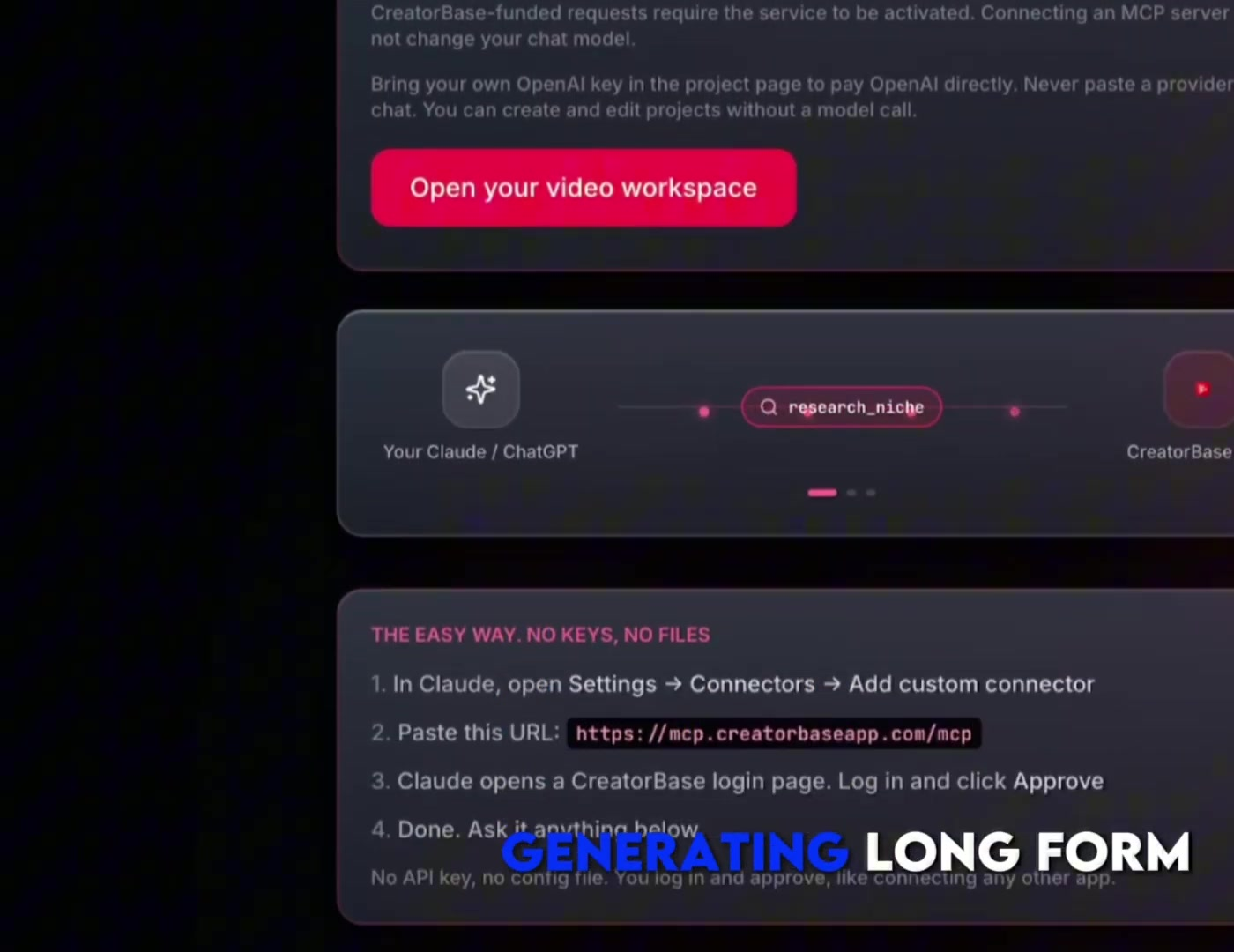
CreatorBase's current documentation lists tools for researching niches, finding outlier videos and faceless channels, creating and reading video projects, saving project plans, generating thumbnails, and optionally invoking a GPT-6 Astra planning flow.
There are two important cost boundaries that the source video moves past quickly.
First, connecting CreatorBase does not give you a free ChatGPT, Claude, or OpenAI API subscription. Your assistant account keeps its own model availability and usage limits. Second, saving a project plan through MCP may be free, but generating or rendering the actual clips uses CreatorBase credits.
CreatorBase also documents an optional “GPT-6 Astra Director.” That is a separate GPT-6 API call when configured, and the site tells users to check the available allowance or funding method before using it. Rendering costs are separate from the planning call.
OpenAI's current model documentation confirms that GPT-6 Astra supports MCP as a tool capability. The practical interpretation is that Astra can be the reasoning layer that researches and plans a production, while CreatorBase remains the workspace that stores the project and renders media through its own credit system.
That separation is useful. Expensive video generation should happen only after the script and scene plan are approved.
5. A better way to compare AI video tools without burning credits
The strongest idea in the video is the test methodology. You can make it even more systematic.
Use one benchmark prompt
Pick a prompt that contains several failure opportunities: a moving subject, textured surfaces, environmental motion, changing light, and a clear camera instruction. Animals walking through natural environments are useful because bad anatomy and inconsistent contact with the ground are easy to see.
Keep the wording identical across tools for the first pass. Do not “help” one model with a better prompt unless you are also willing to retest the others.
Start with the shortest useful duration
A five-second test is usually enough to reveal obvious motion problems without wasting a large credit balance. If the tool charges by the second, short tests let you compare several models before committing to longer clips.
Judge motion, not just the prettiest frame
Pause the video at several points, but also watch the full sequence repeatedly. Look for foot sliding, morphing faces, changing object shapes, disappearing details, inconsistent reflections, broken shadows, and unnatural acceleration.
If the model supports audio, listen for synchronization. Native audio is valuable only if it belongs to the scene instead of sounding like a generic effect layered on top.
Establish aspect ratio before animation when necessary
If a tool struggles with the frame shape you need, create a still image in the target ratio first. A landscape reference gives the video model a composition to preserve and often produces more predictable results than asking it to reinterpret a vertical shot.
On platforms such as current Google Vids that already provide a native Landscape/Portrait selector, use the direct control first and keep the image-first method as a fallback for composition control.
Separate planning from rendering
This is where the CreatorBase MCP workflow becomes genuinely useful. Research, scripting, scene planning, and prompt refinement are cheap compared with repeated premium video renders. Do the thinking first. Approve the plan. Generate one representative scene. Only then commit the remaining credits.
6. Which platform should you use?
Choose TikTok Symphony Creative Studio if your priority is TikTok-native creation, short social clips, ads, product demonstrations, dubbing, avatars, or a free suite that can support repeated experiments within your weekly credit allowance.
Choose Google Vids if you want generation inside an editable project rather than as a separate clip factory. It is especially useful when your final video combines AI footage with narration, slides, avatars, uploaded assets, or collaborative editing.
Choose CreatorBase AI if your workflow extends beyond generation into YouTube research, scripts, thumbnails, voice, SEO, project planning, and model selection. It is also the most relevant option from the video if you specifically want to test Seedance 2.5 without building your own API workflow.
Use ByteDance's own Seedance access routes if your main goal is to evaluate Seedance 2.5 itself rather than CreatorBase's surrounding toolset. ByteDance says the model is available through its own products and is rolling out through its developer platforms as well.
To compare another set of platforms, see our test of three free AI video generators: SnapGen AI, Pruna, and Vheer.
7. Limits, rights, and “safe to use” claims
The video describes the tools as completely legal and safe. That wording is too broad for a publication-ready guide.
A platform can provide a legitimate generation service, but it cannot automatically guarantee that every prompt, uploaded reference, face, logo, copyrighted asset, or final video is lawful to publish in every jurisdiction and on every platform. The creator is still responsible for the rights to source material and for complying with the rules of the destination platform.
TikTok applies moderation and AI labeling to Symphony-generated content. Google warns users not to violate copyright or privacy rights when using generative features. CreatorBase's own current policy similarly says users are responsible for what they generate and publish.
The practical rule is simple: use these tools to create original work, use references you have the right to use, review every output before publication, and check the current terms before building a commercial workflow around a model.
Final takeaway
The video starts from a sensible frustration: paying for AI video before you know whether the model can produce something useful. Its solution is still valid even though several product details have changed.
TikTok Symphony Creative Studio gives creators a real AI video test bed with weekly generation credits. Google Vids puts video generation inside a broader editor and now supports both landscape and portrait output directly. CreatorBase combines Seedance 2.5 and other engines with the surrounding research, scripting, thumbnail, voice, and planning workflow, while its MCP connection can move some of that planning into ChatGPT or Claude.
The biggest update is that none of these should be described as “unlimited free AI video.” Treat free access as a testing budget. Use it to compare models, refine prompts, validate motion and audio, and decide which workflow deserves your money before you scale production.
Current product sources
- TikTok for Business, “About Symphony Creative Studio”: https://ads.us.tiktok.com/resources/help/article/about-symphony-creative-studio
- TikTok for Business, “How to generate videos with Symphony Creative Studio”: https://ads.us.tiktok.com/resources/help/article/how-to-generate-videos-with-symphony-creative-studio
- TikTok for Business, “About Symphony credits”: https://ads.tiktok.com/resources/help/article/about-symphony-credits?lang=en
- Google Docs Editors Help, “Use AI to generate video clips in Google Vids”: https://support.google.com/docs/answer/16143507?hl=en
- Google Docs Editors Help, “Learn about availability of Gemini features in Google Vids”: https://support.google.com/docs/answer/15609411?hl=en
- Google Workspace Blog, “Introducing Gemini Omni Flash in Google Vids”: https://workspace.google.com/blog/product-announcements/introducing-gemini-omni-flash-in-google-vids
- ByteDance Seed, “Introducing Seedance 2.5”: https://seed.bytedance.com/en/blog/one-take-creation-flexible-referencing-introducing-seedance-2-5
- ByteDance Seed, Seedance 2.5 model page: https://seed.bytedance.com/en/seedance2_5
- CreatorBase AI, product facts: https://creatorbaseapp.com/about
- CreatorBase AI, pricing: https://creatorbaseapp.com/pricing
- CreatorBase AI, MCP setup: https://creatorbaseapp.com/mcp
- OpenAI, GPT-6 Astra: https://openai.com/index/gpt-6-astra/
- OpenAI API, GPT-6 Astra model documentation: https://developers.openai.com/api/docs/models/gpt-6-astra