
A structured, illustrated guide to the Git and GitHub commands you actually need when AI agents write most of your code: save points, undo, branches, remotes, issues and pull requests.
Reading map
- Why Git now — AI writes code faster than anyone can read it; Git is how you go back.
- Save points — configure Git once, initialize a repository, stage and commit.
- See and undo — diff, staged diff, HEAD, restore, checkout an old commit and return.
- Branches — the “sacred timeline” and safe alternate timelines for experiments and agents.
- GitHub — remotes, private repositories, protecting secrets with .gitignore, push, clone and pull.
- Agents and pull requests — issues as a to-do list, agents working on branches, review, merge, conflicts and revert.
Why Git Matters More in the AI-Coding Era
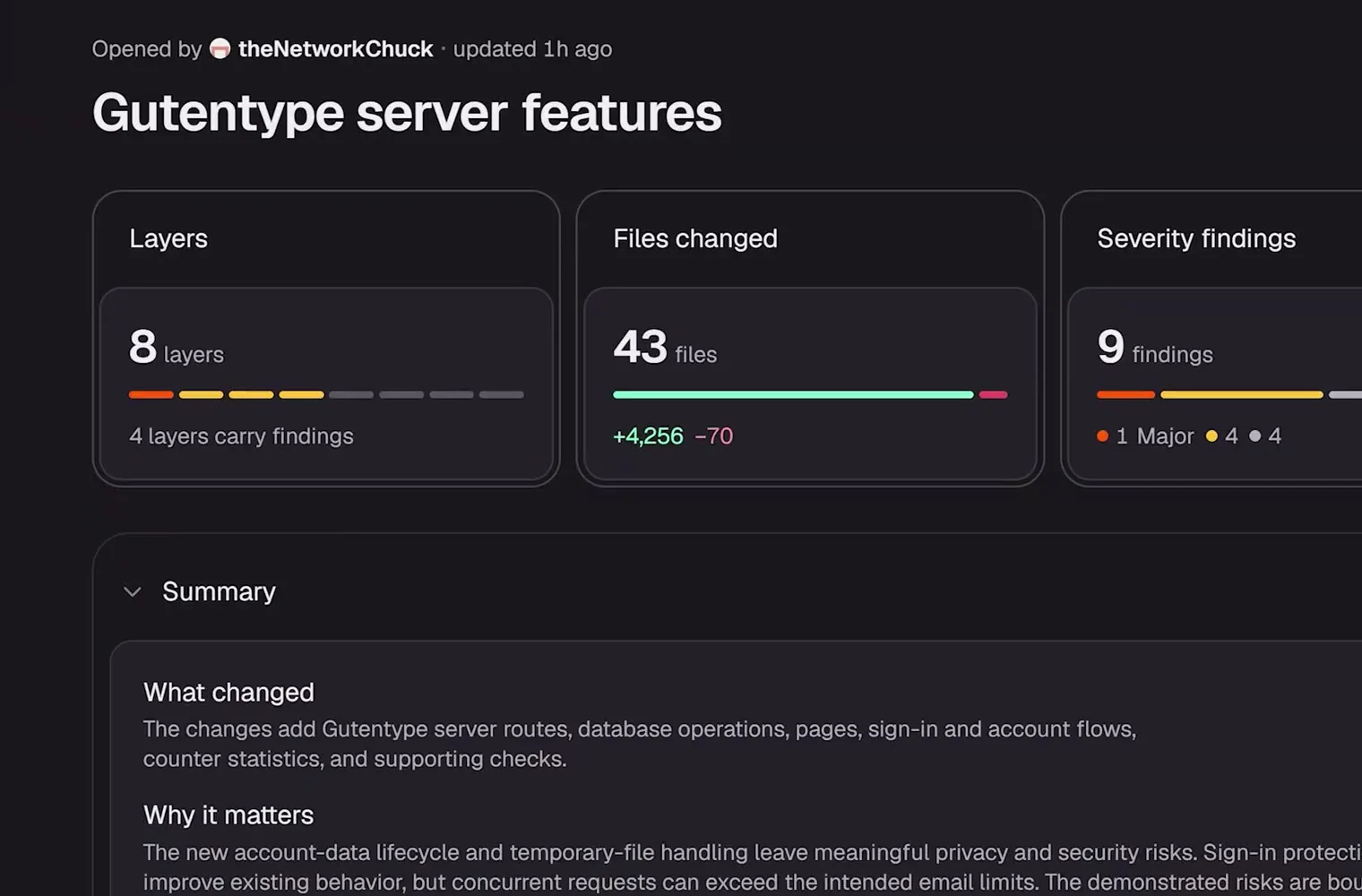
In the original lesson, NetworkChuck opens with a real pull request from an app he is building: an AI produced a change touching 43 files and roughly 4,000 lines of code. Nobody reads that line by line. Sooner or later an AI-written change breaks something, and the only question that matters is whether you can get back to a version that worked.
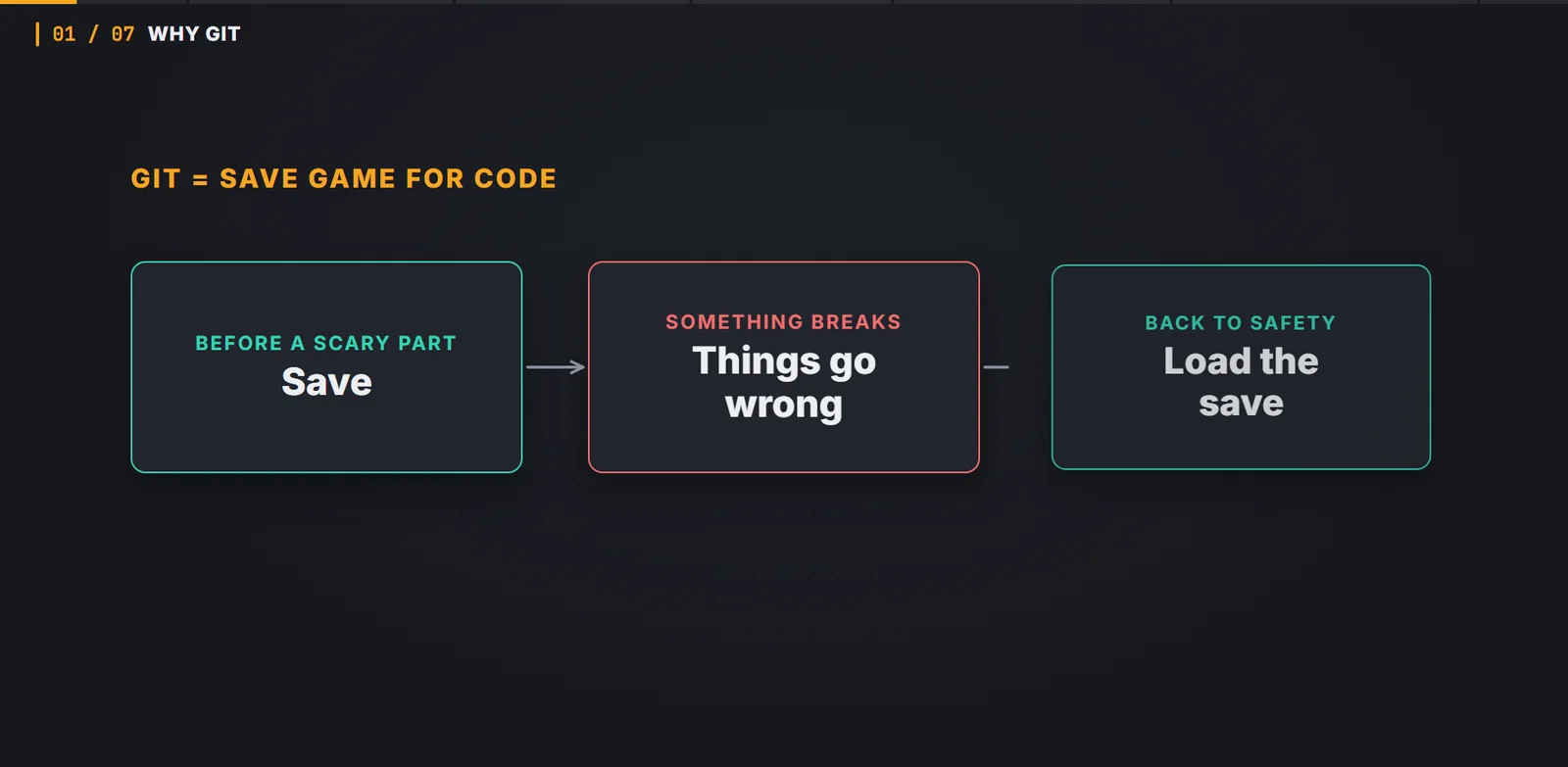
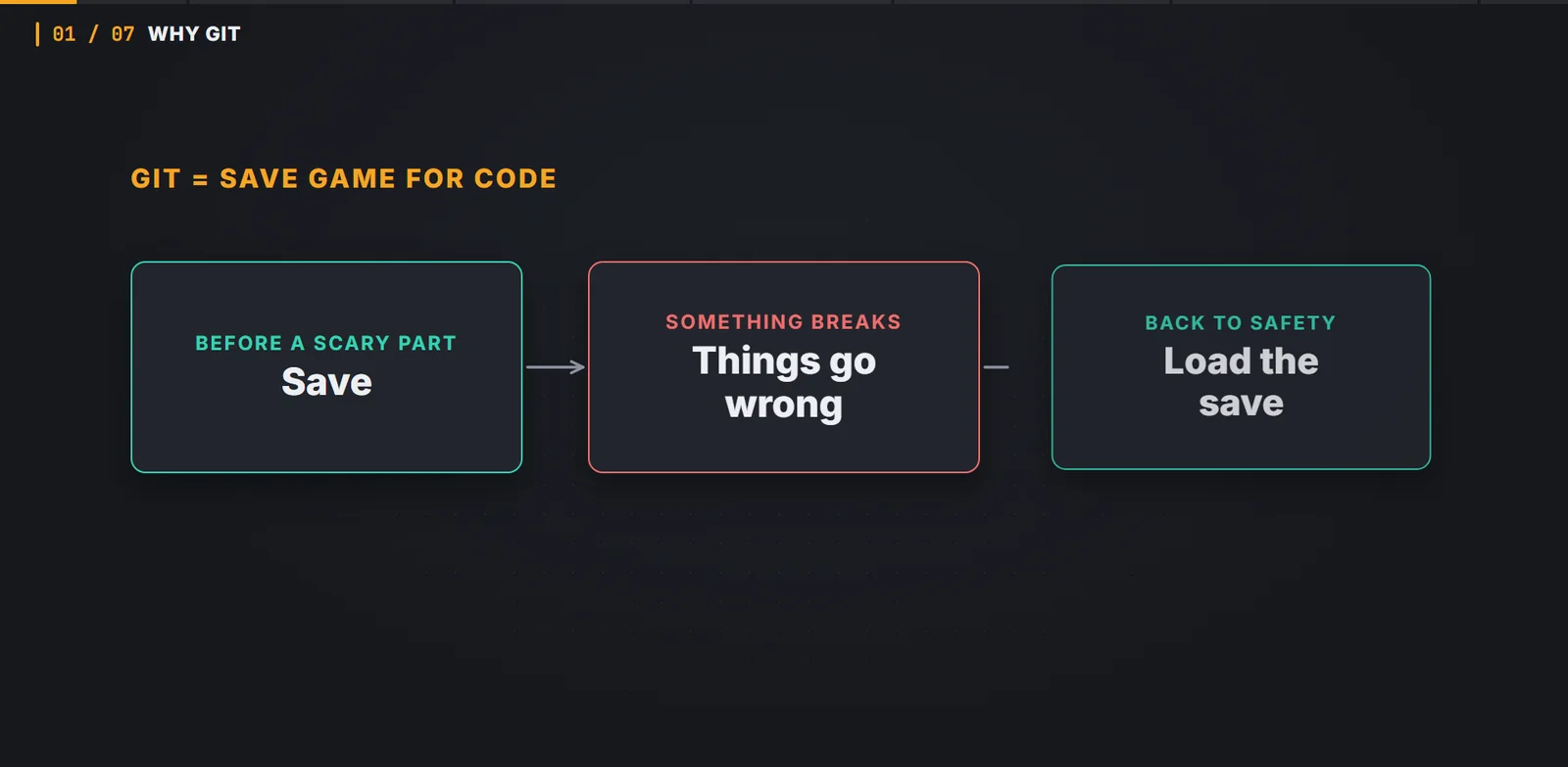
Git answers that question. The simplest way to think about it is the save-game feature in a video game: before a dangerous section you save, and if things go wrong you load the save. Every commit is a save point for your project.
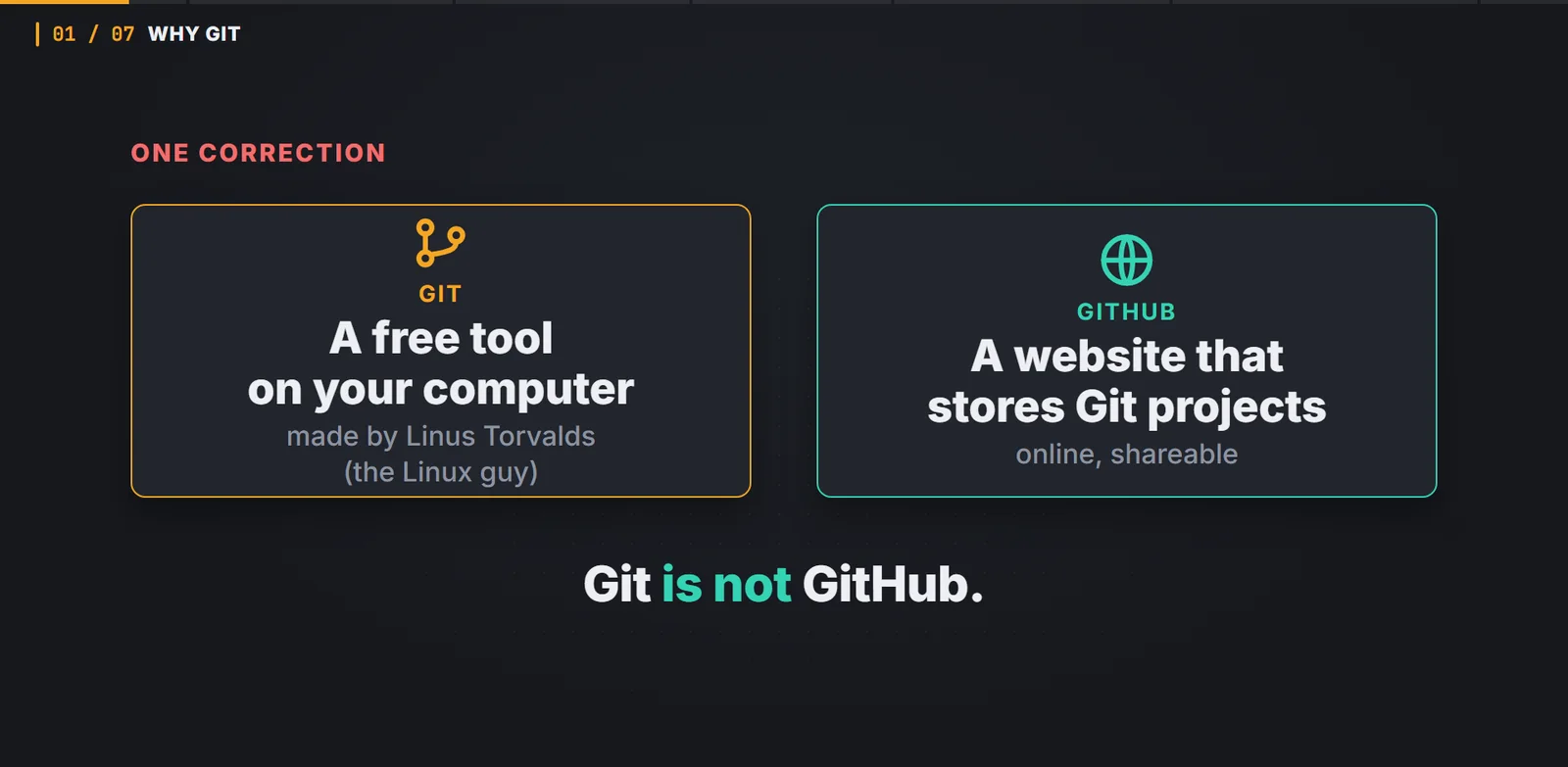
Git is not GitHub
The two names are often used as if they were one thing. They are not:
| Git | GitHub | |
|---|---|---|
| What it is | A free version-control tool that runs on your computer | A website that stores Git repositories online |
| Made by | Linus Torvalds, the creator of Linux | A company (one of several hosts) |
| Works offline | Yes, everything in this guide’s first three parts | No, it is the remote copy |
| Alternatives | — | GitLab, Bitbucket, self-hosted Gitea |
Part I — Save Points: Your First Repository
1. Check that Git is installed
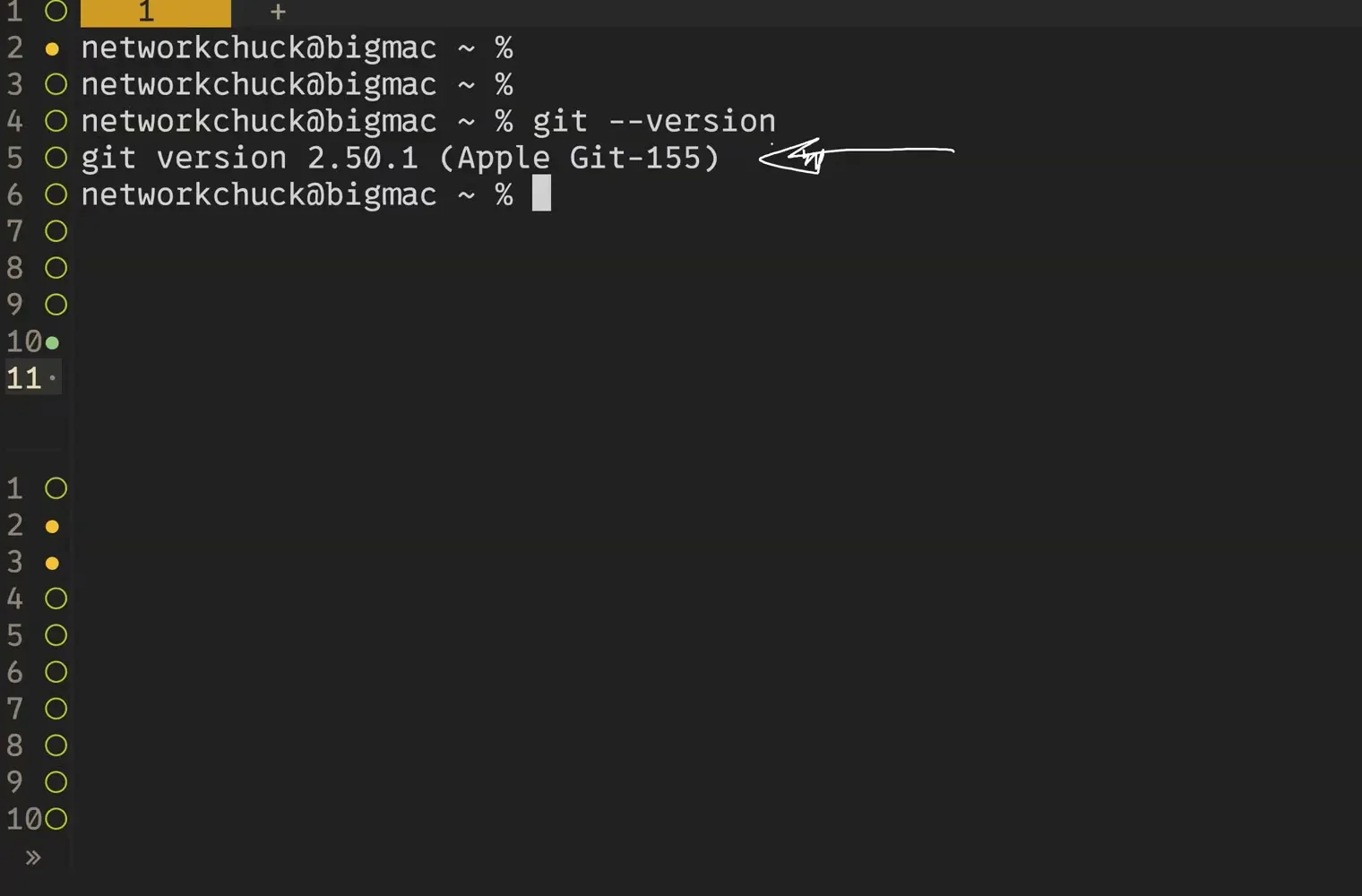
Run git --version in a terminal. On most Macs and Linux machines Git is already installed; on Windows it can be installed with WinGet. If you see a version number, you are ready.
2. Tell Git who you are (once per computer)
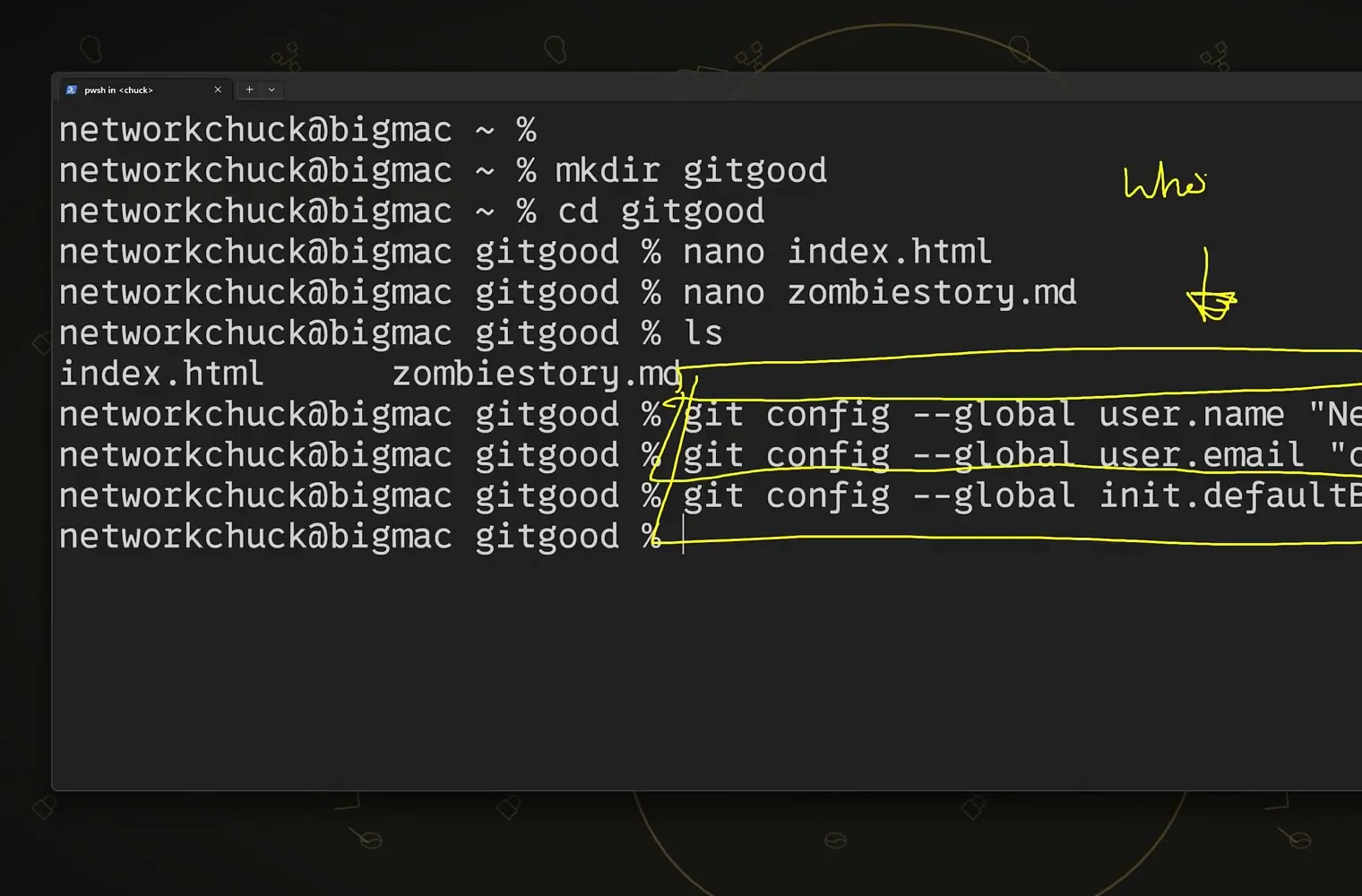
Every commit is signed with a name and an email, and new repositories should start on a branch called main:
git config --global user.name "Your Name"
git config --global user.email "you@example.com"
git config --global init.defaultBranch main
These three settings are global, so you only set them once per computer.
3. Turn a folder into a repository
Create a project folder, add a couple of files, and run git init. It looks as if nothing happened, but a hidden .git folder now exists. That folder holds the entire history of the project; deleting it deletes the history.
mkdir git-gud && cd git-gud
git init
ls -la        # the hidden .git folder appears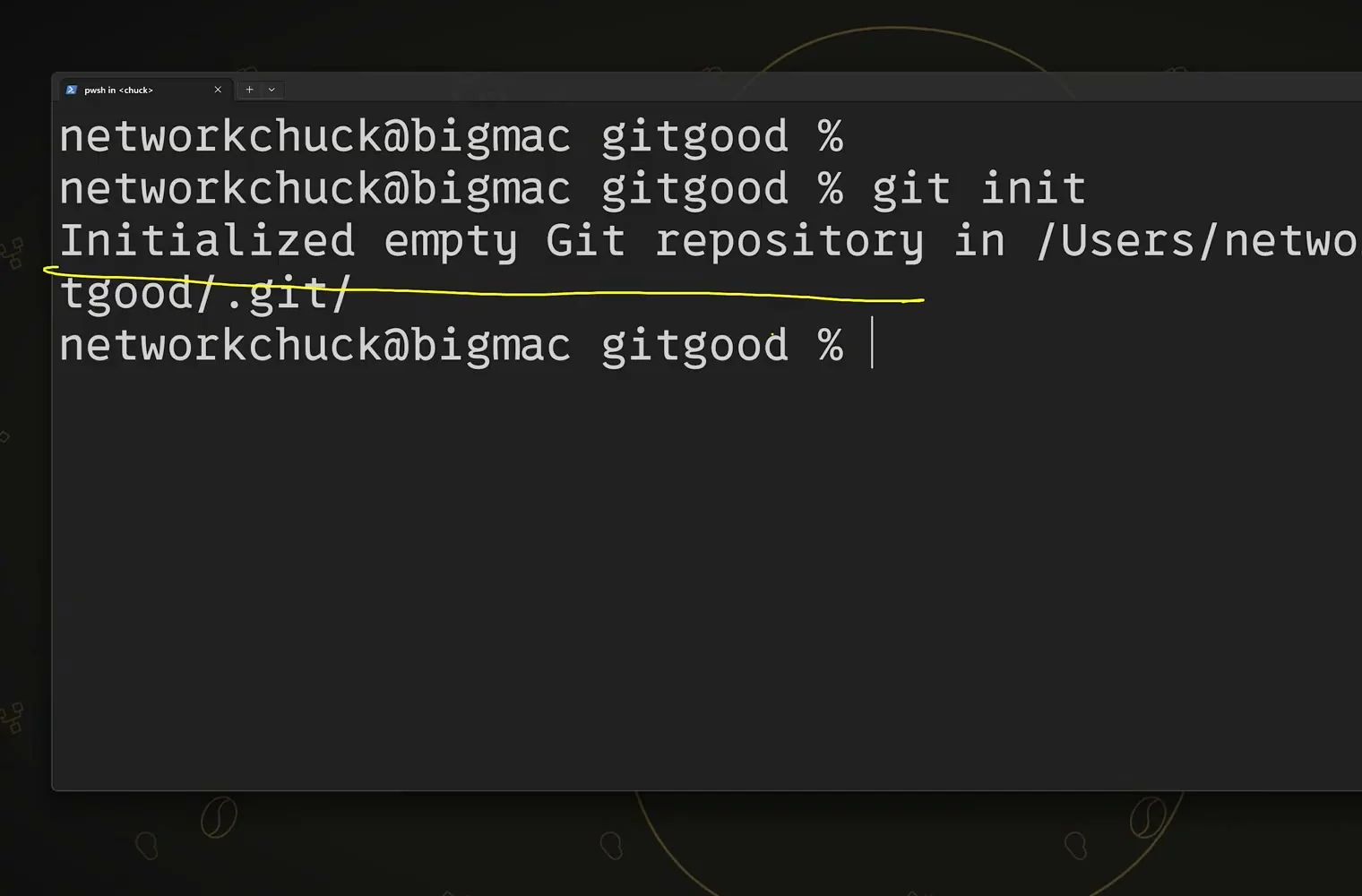
4. Read the situation with git status
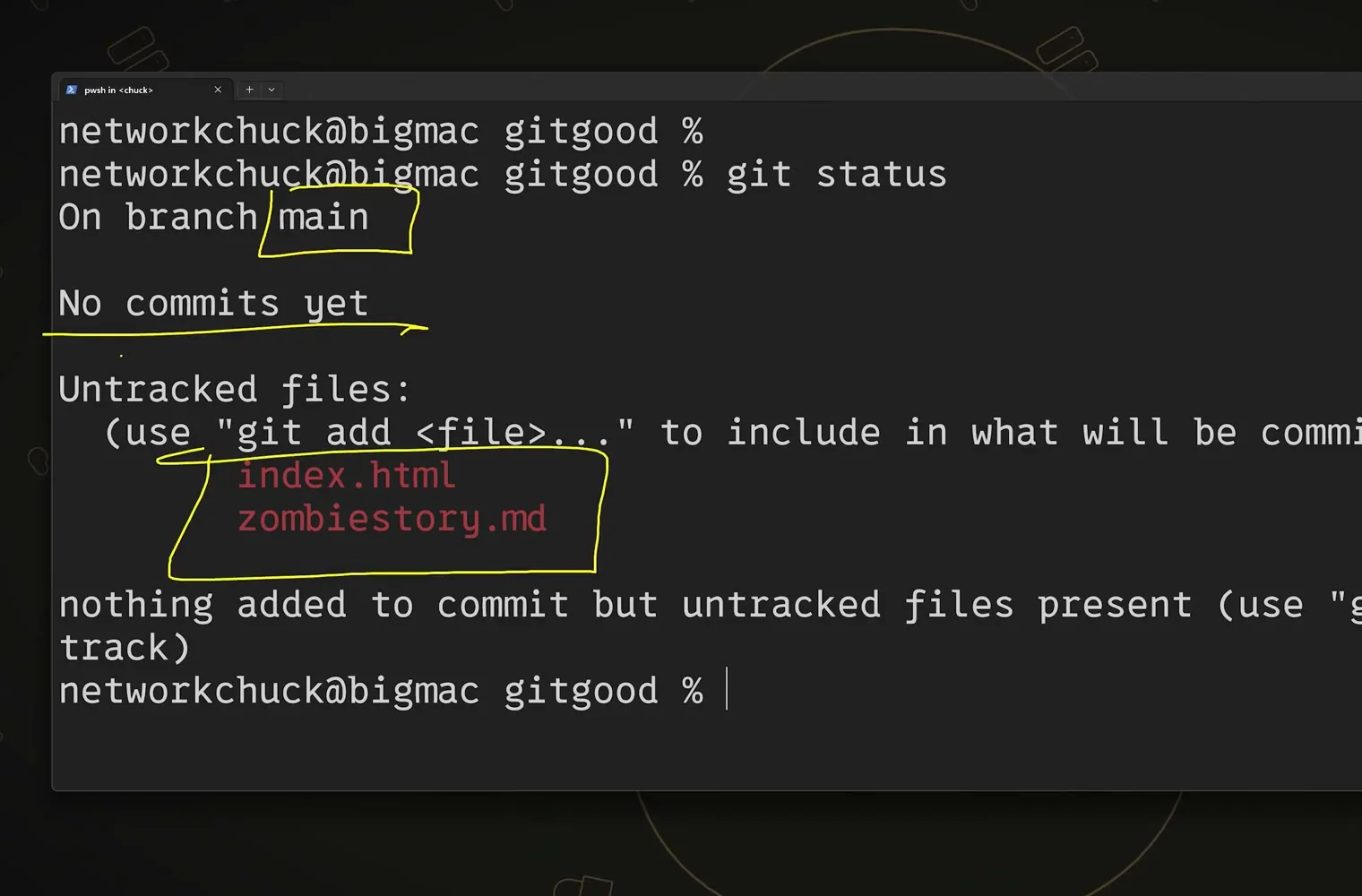
git status is the command you will type most often. In a fresh repository it reports the current branch (main), that there are no commits yet, and that your new files are untracked: Git can see them but is not recording their history.
5. Stage changes with git add
git add index.html stages one file; git add . stages everything in the folder. Staging is a waiting area between your working files and the official history. The lesson’s analogy works well: you have written the letter and put it in an envelope with a stamp, but it is not in the mailbox yet.
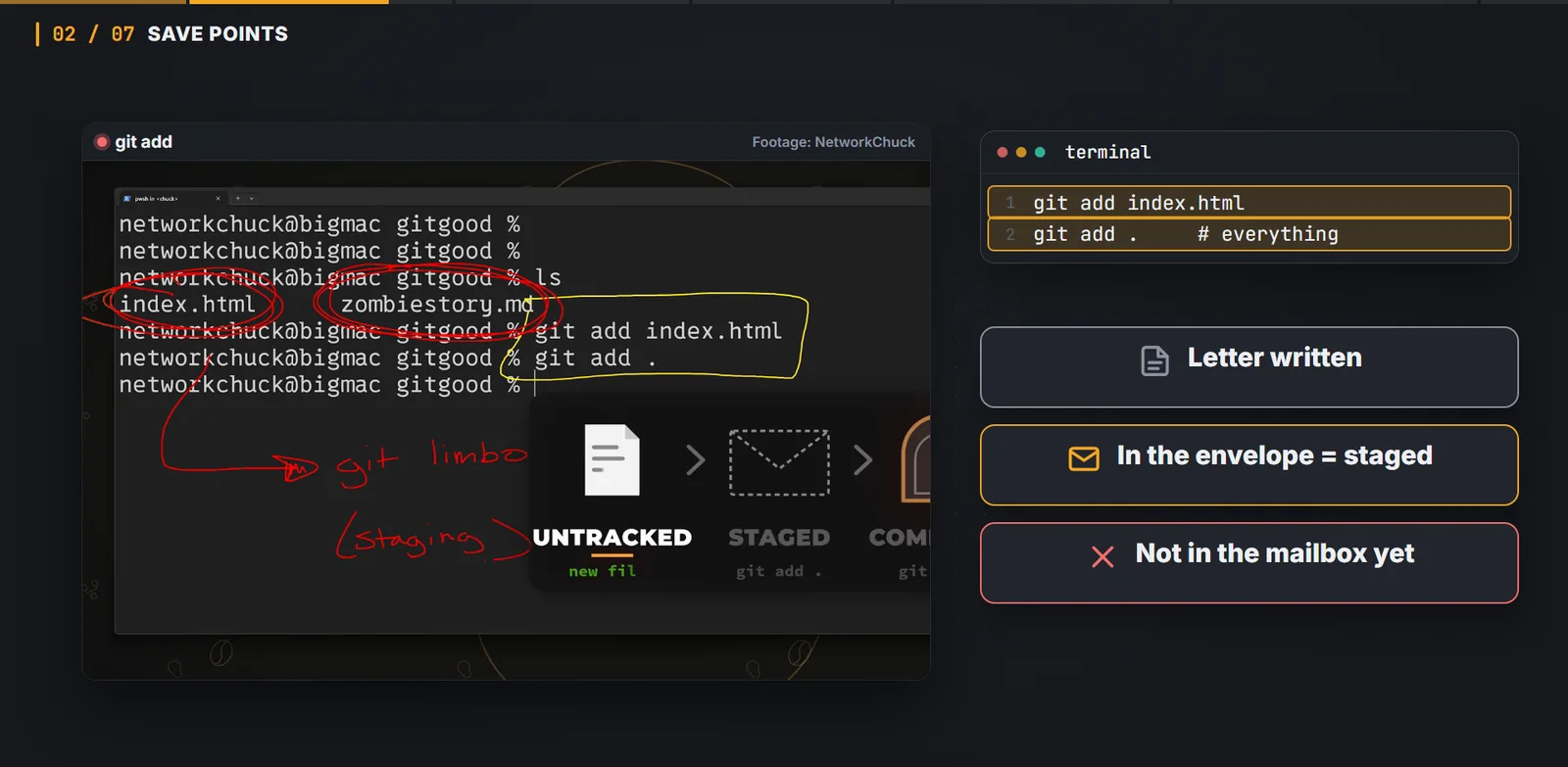
6. Commit: put the letter in the mailbox
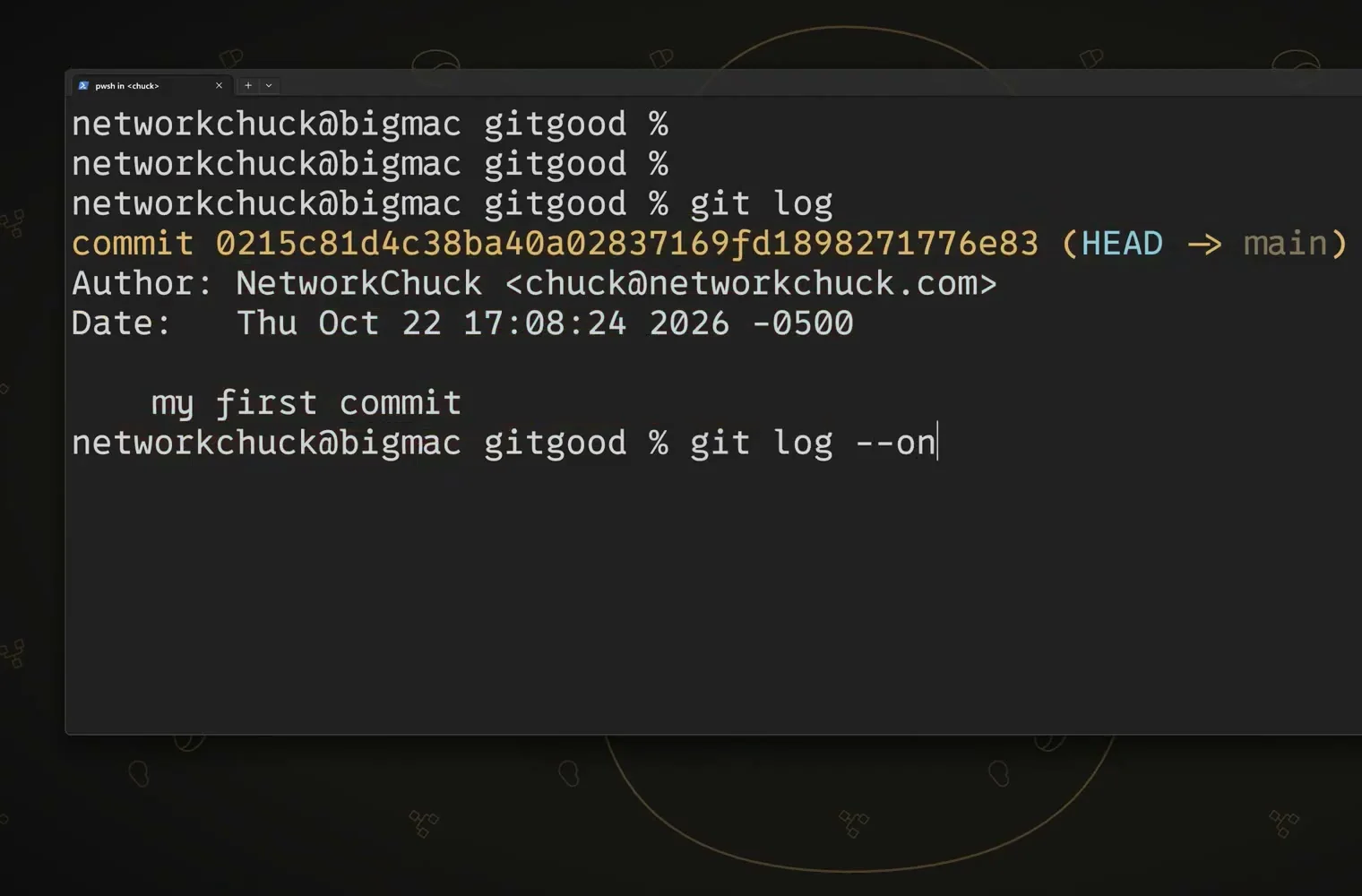
git commit -m "my first commit" records the staged changes as a save point with a short message. git log shows the history in detail (author, date, message, hash), and git log --oneline gives a compact list that is easier to scan.
Commit small and often. Each commit should be a state you would be happy to return to.
Part II — See and Undo
7. git diff shows exactly what changed
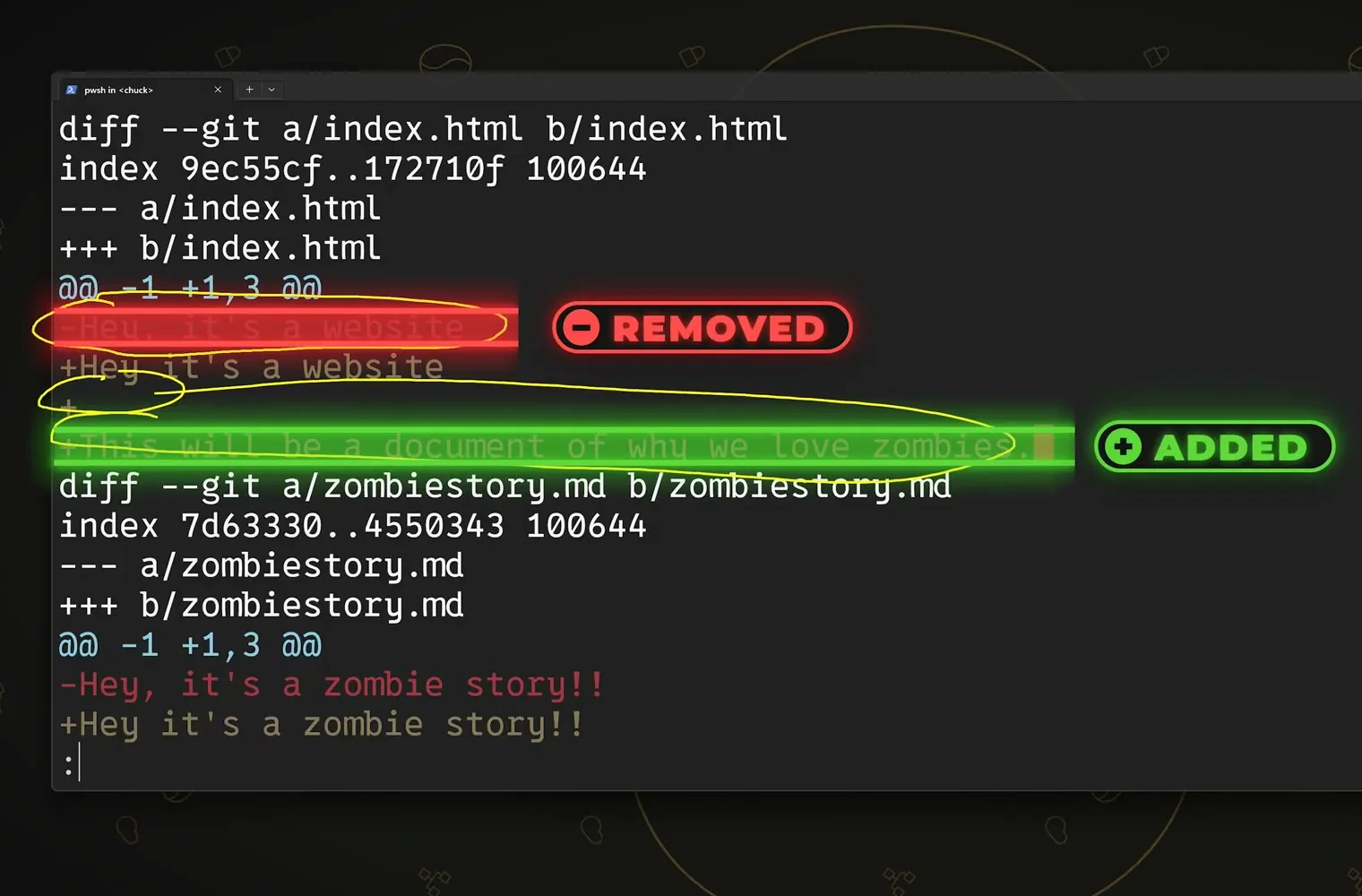
After editing files, git diff lists every change: removed lines in red, added lines in green, down to a single deleted comma. This is the fastest way to see what an AI agent actually did to your files.
8. Staged changes need –staged
Once you run git add, the changes disappear from plain git diff because they have moved to the staging area. Use git diff --staged to review them before committing. Then commit them as the next save point.
git add .
git diff            # shows nothing now
git diff --staged   # shows what will be committed
git commit -m "first change"
9. HEAD is the “you are here” marker
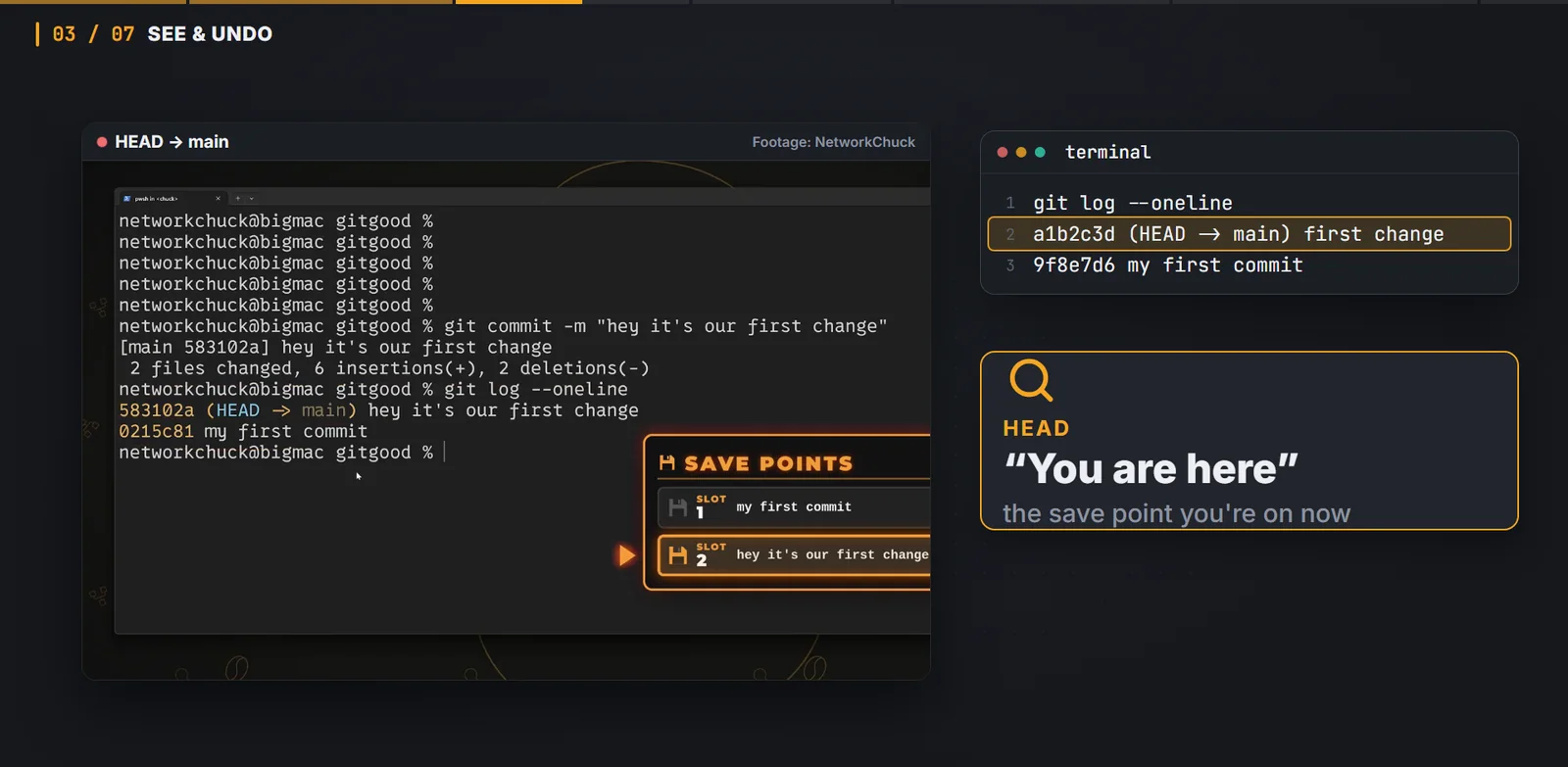
In git log --oneline you will see HEAD -> main next to the latest commit. HEAD is like the “you are here” arrow on a shopping-mall map: it marks the save point you are currently on.
10. Undo a broken file with git restore
If you break a tracked file, git restore <file> replaces it with the version from the last commit, instantly. This only affects changes you have not committed yet.
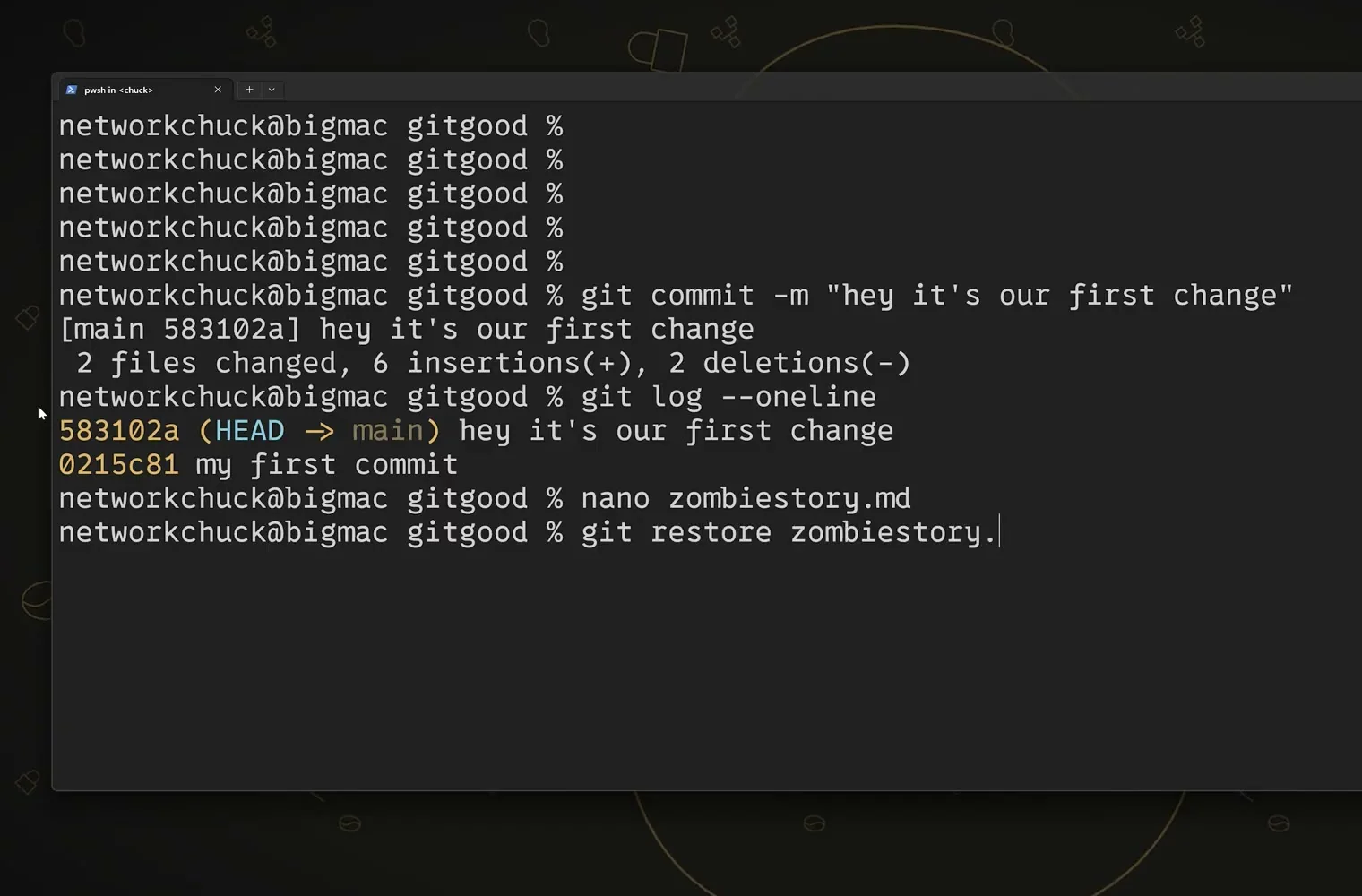
11. Travel back to an old commit and return
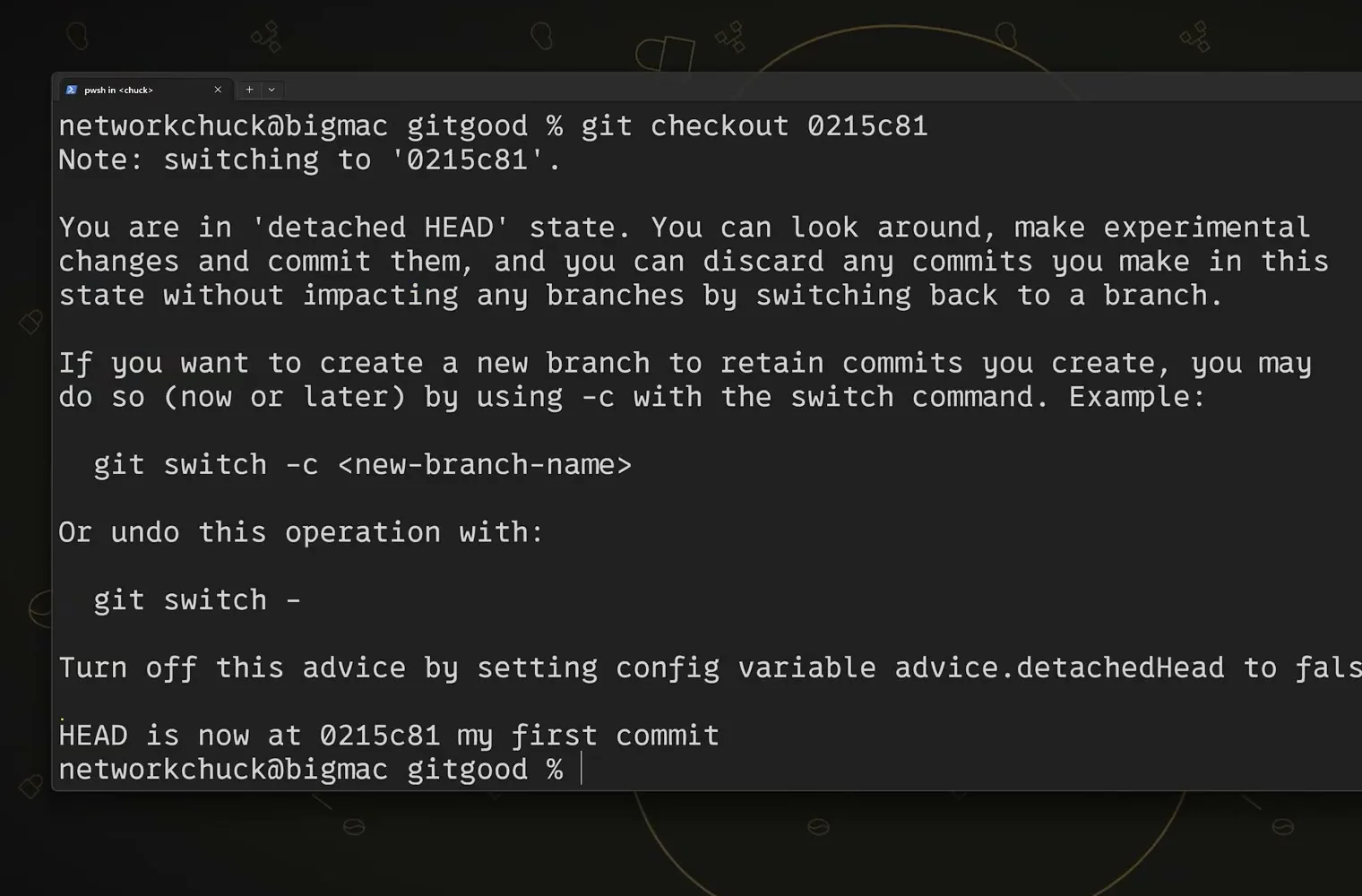
Copy the hash of an older commit from git log --oneline and run git checkout <hash>. Your files now look exactly as they did at that save point, and the newer commits are hidden from view. Git calls this a “detached HEAD”: fine for looking around, not for new work.
To return to the present, run git switch main. Nothing was lost; every commit still lives in the .git folder.
| Situation | Command | Effect |
|---|---|---|
| A file is broken, not committed yet | git restore file |
Back to the last committed version |
| You want to look at an old version | git checkout <hash> |
Files match that commit (detached HEAD) |
| Back to the latest work | git switch main |
Return to the tip of main |
Part III — Branches: A Safe Place to Break Things
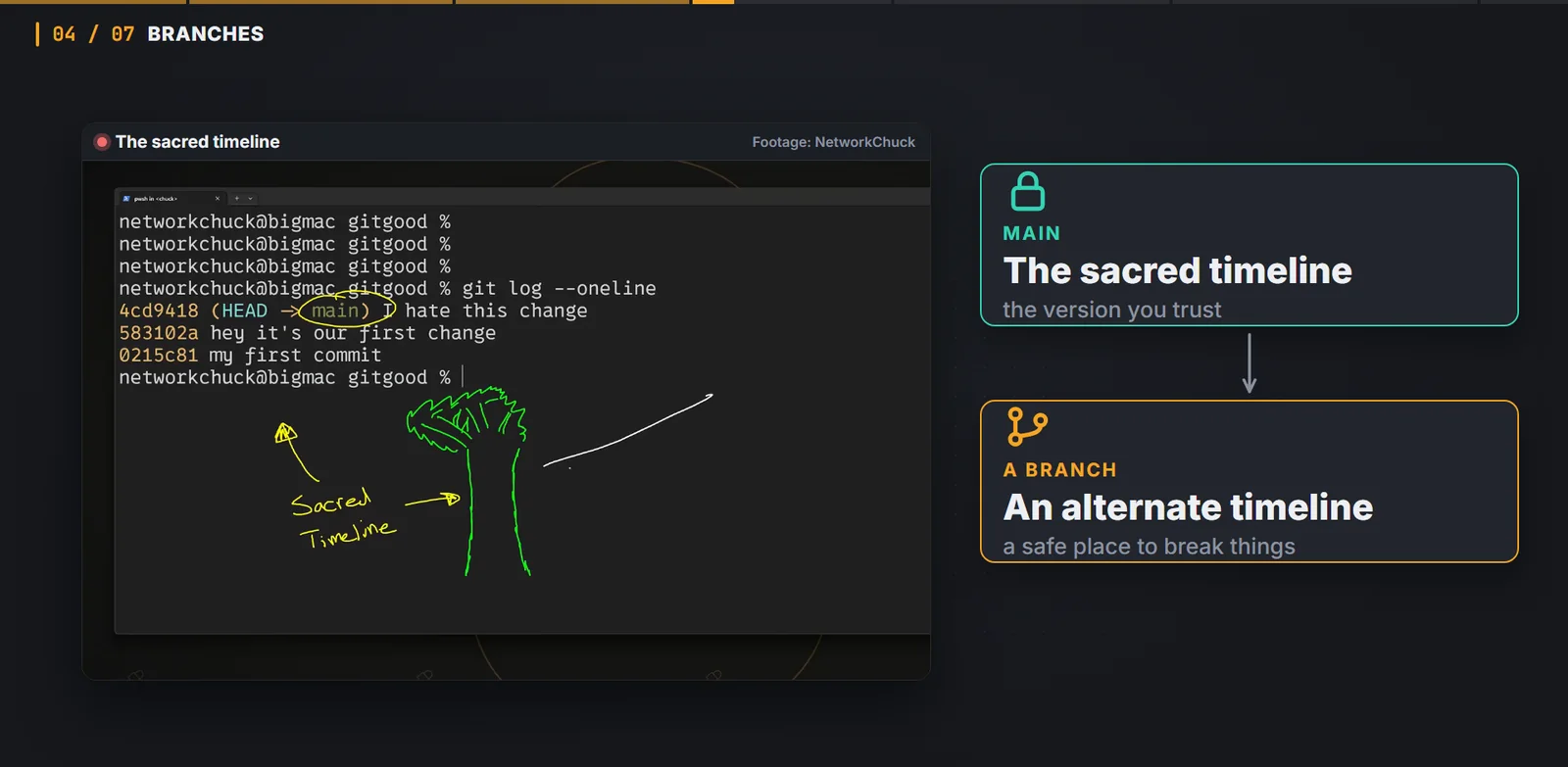
12. main is the sacred timeline
The lesson calls main the sacred timeline: the version you trust. A branch is an alternate timeline that starts from the same history, where you can experiment without touching main.
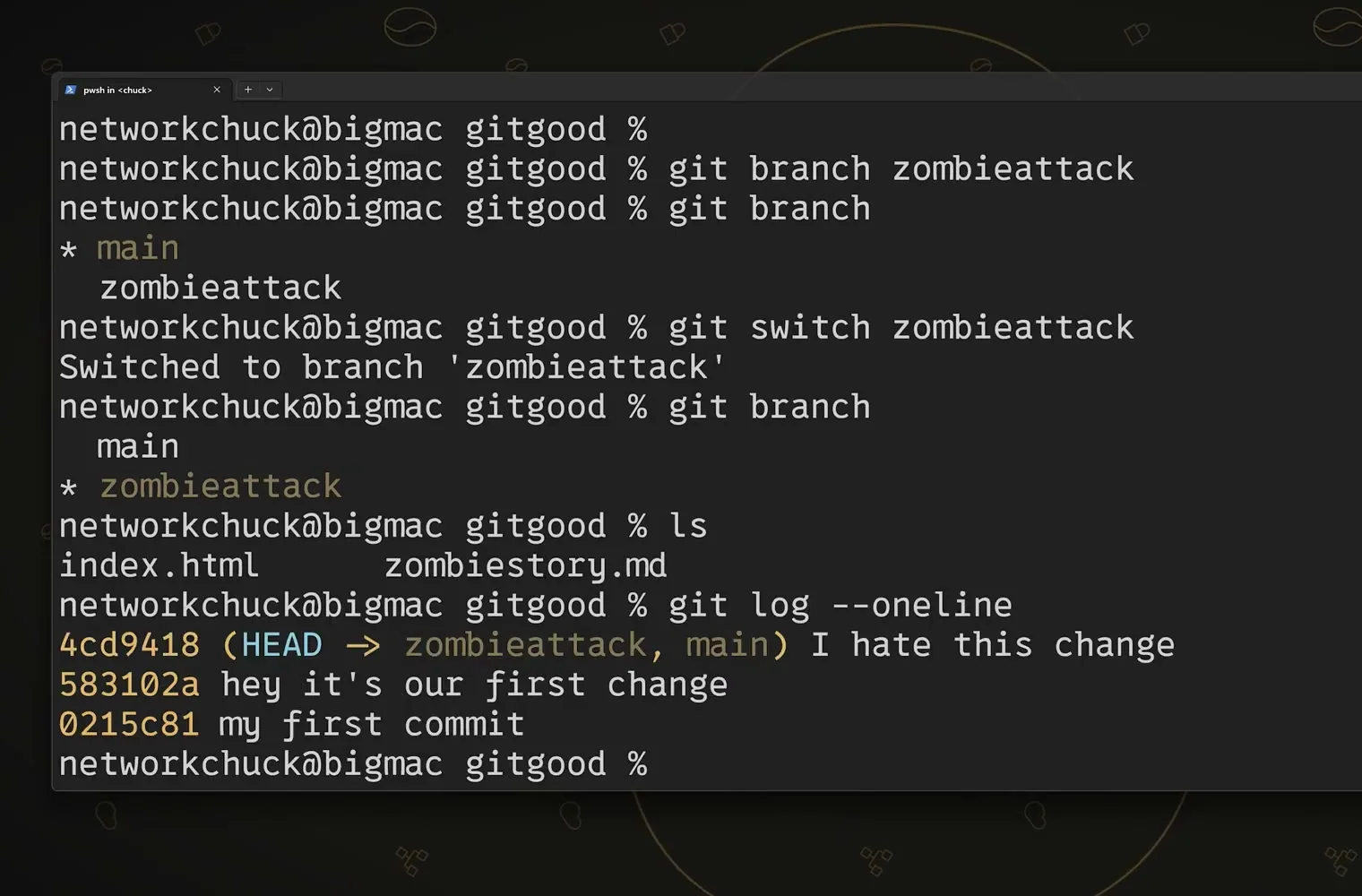
13. Create a branch and move onto it
git branch zombie-attack     # create the branch
git switch zombie-attack     # move onto it
git branch                   # the * shows where you are
The files and history are the same at first. Commits you make now move only the branch forward.
14. Two timelines side by side
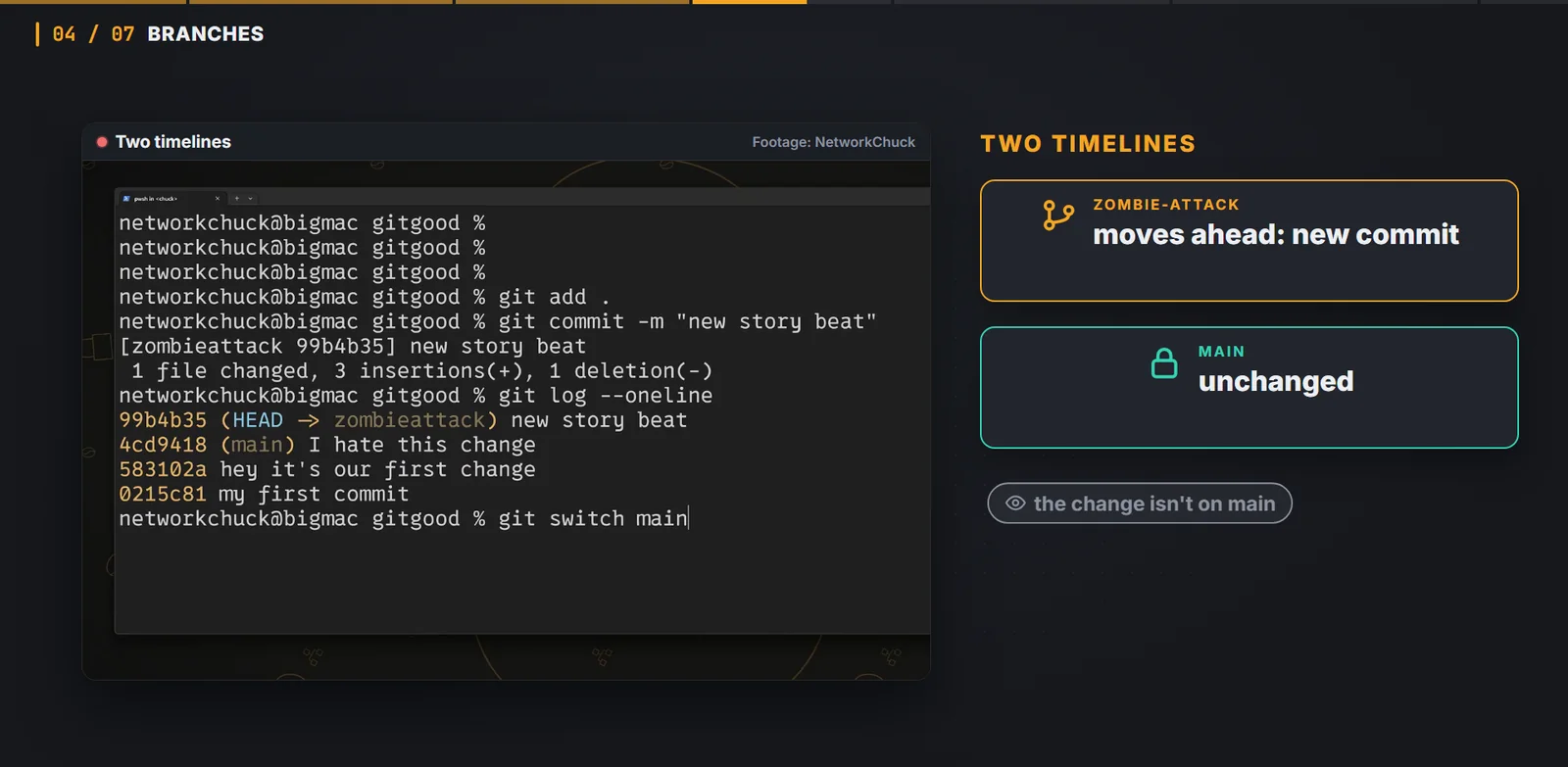
Commit a change on zombie-attack, then git switch main: the change is not there. Switch back and it reappears. git log --oneline shows the branch one commit ahead of main.
15. Merge when you like the result
When the experiment is good, switch to main and merge it:
git switch main
git merge zombie-attack
git branch -d zombie-attack   # the branch has done its job
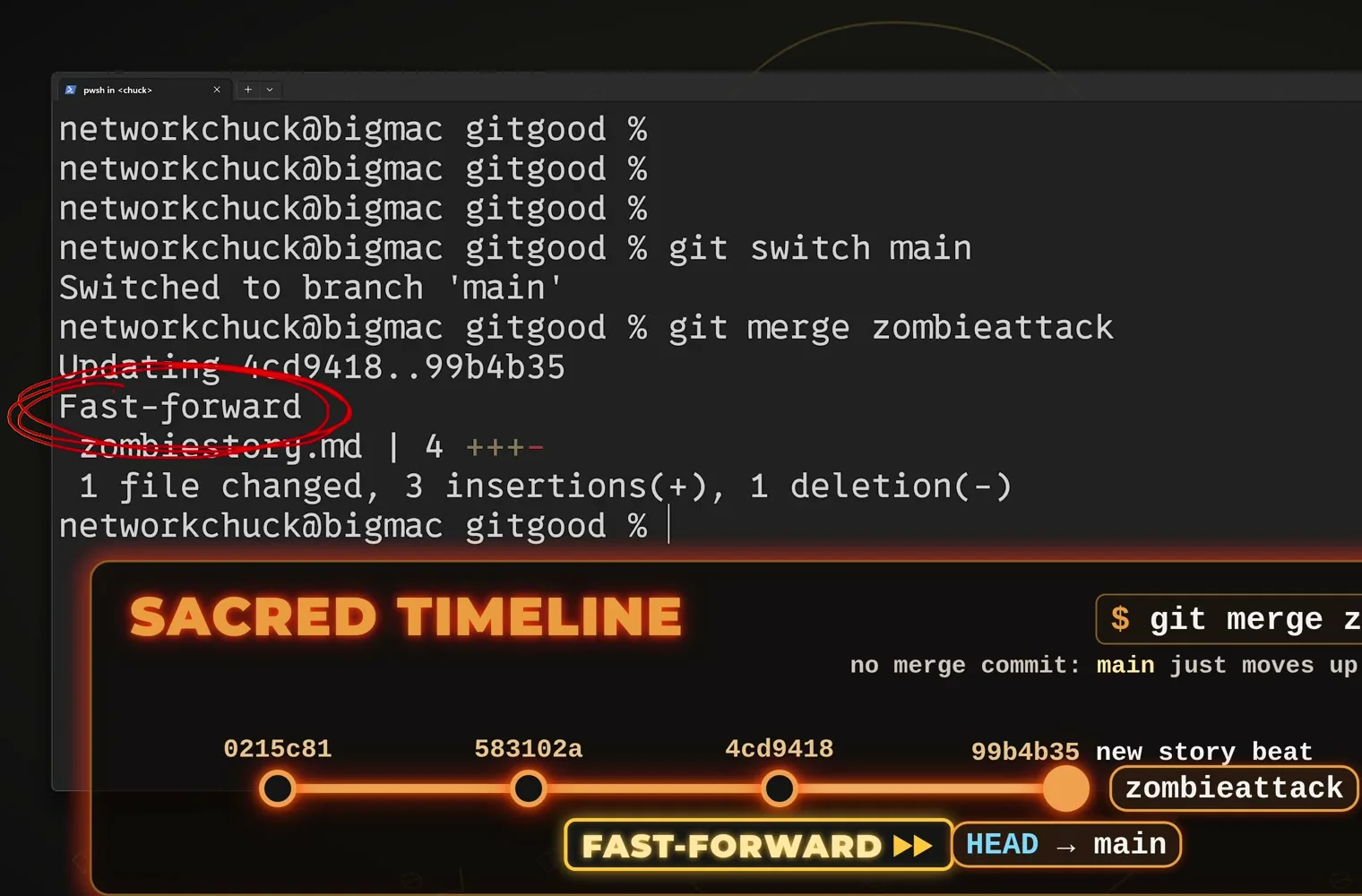
When main has not changed in the meantime, Git simply moves main forward to the branch’s latest commit (a “fast-forward”).
The rule for AI agents: let them work on a branch, never directly on main.
Part IV — GitHub: Back Up, Share and Work Together
16. Why a remote
Everything so far lives in one folder on one computer. A remote copy lets you back up the project, share it, and work with other people or agents on other machines. GitHub is the best known host; GitLab and Bitbucket work the same way.
17. GitHub CLI: log in and create a private repository
gh --version
gh auth login
gh repo create git-gud --private
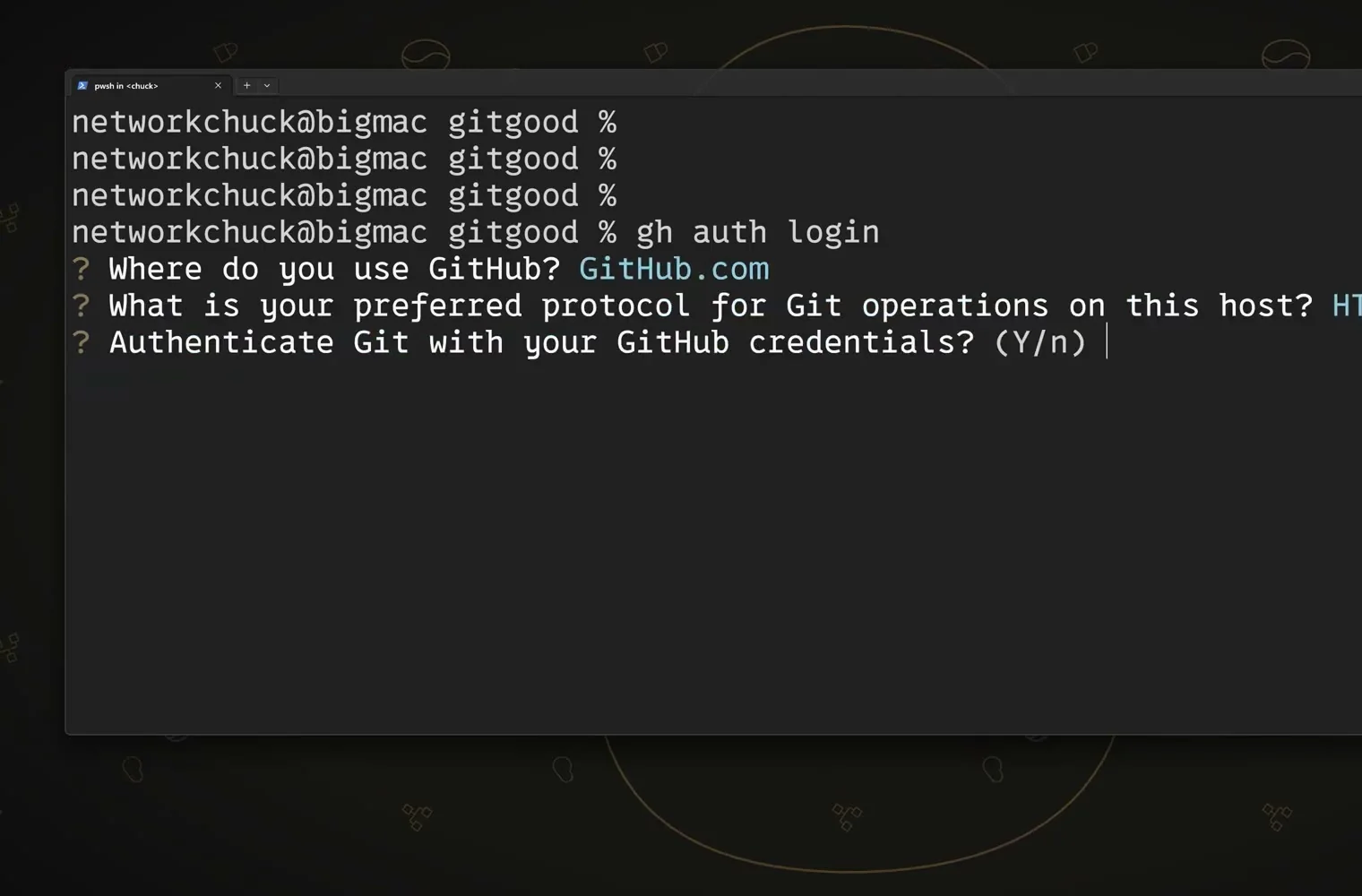
gh auth login walks through a browser login once. gh repo create --private makes an empty repository that only you can see.
18. Protect secrets with .gitignore before the first push
Projects often keep passwords and API keys in a .env file. Anything pushed to GitHub may be seen by others and stays in history, so list such files in .gitignore first. Git will then never upload them.
nano .gitignore
.env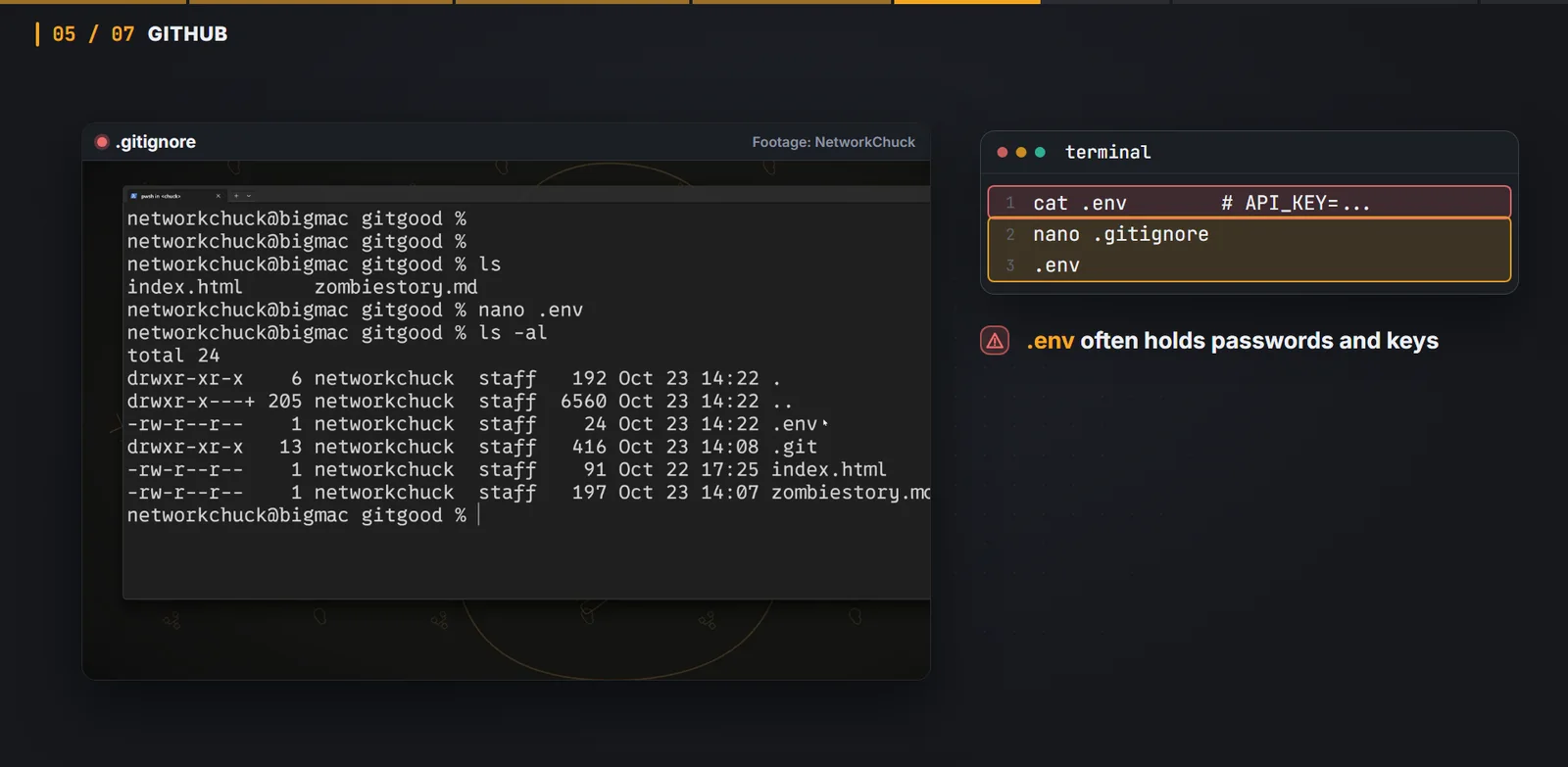
19. Connect, push, clone and pull
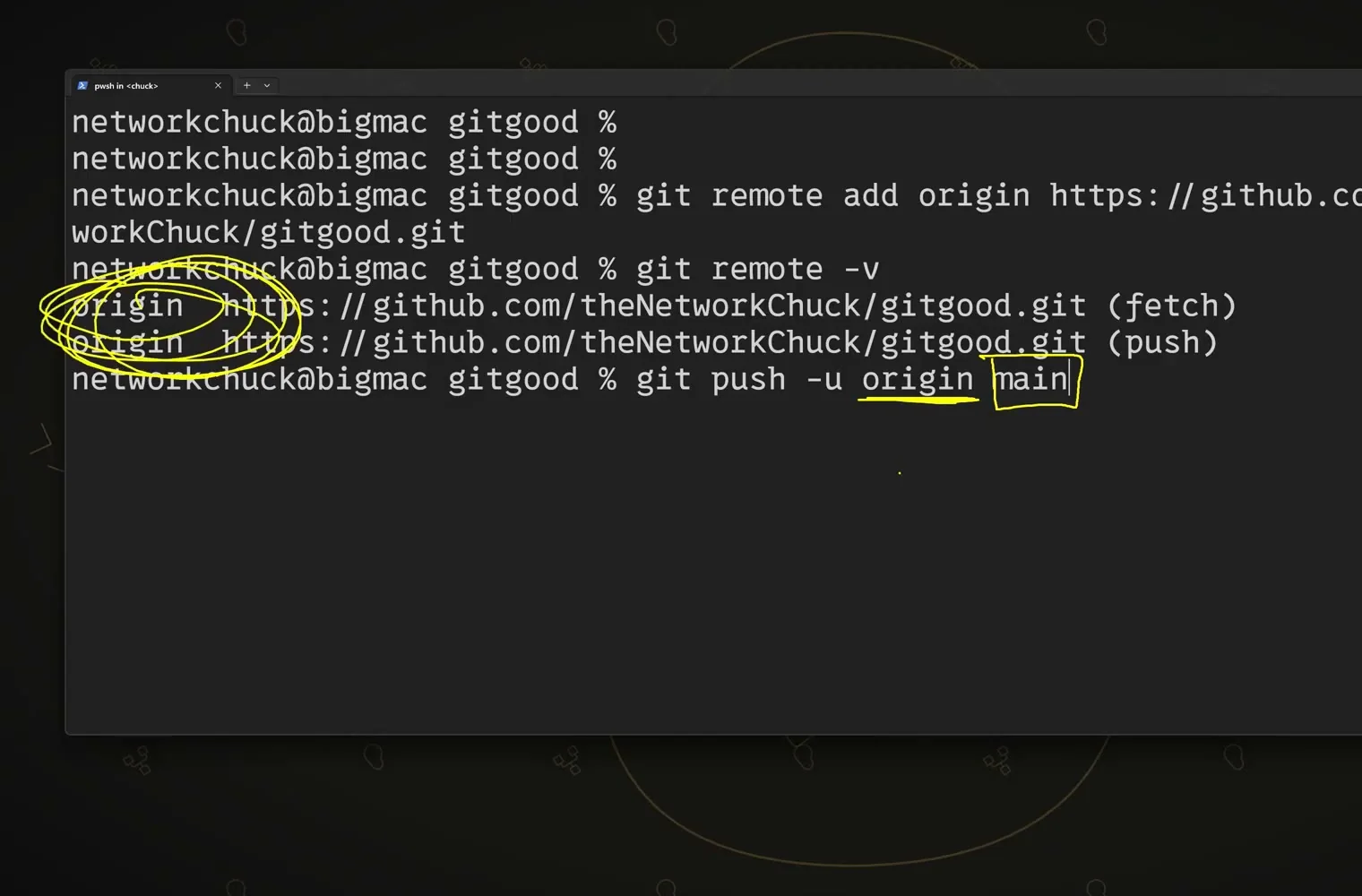
git remote add origin https://github.com/you/git-gud.git
git push -u origin main     # first push; -u remembers the target
git push                    # every later push
git clone https://github.com/you/git-gud.git   # another computer
git pull                    # bring down changes made elsewhere
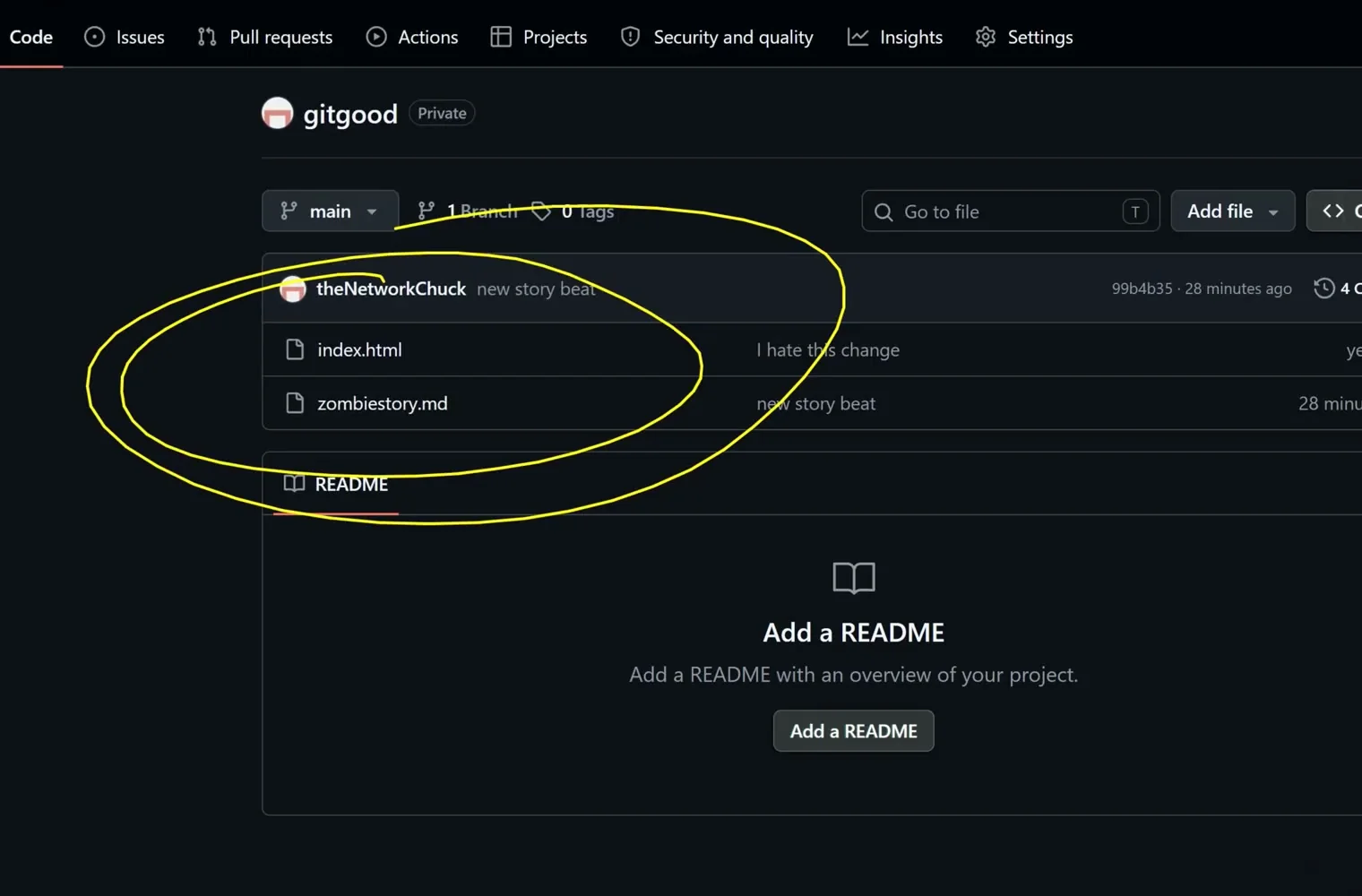
After the first push, refresh the repository page: every commit is there, and the .env file is not.
Part V — Agents and Pull Requests
20. Issues are GitHub’s to-do list
An issue is a task written down in the repository: a title and a body that says what to do. They can be created from the terminal:
gh issue create --title "Add a line to the story" --body "Add one scary line"
gh issue list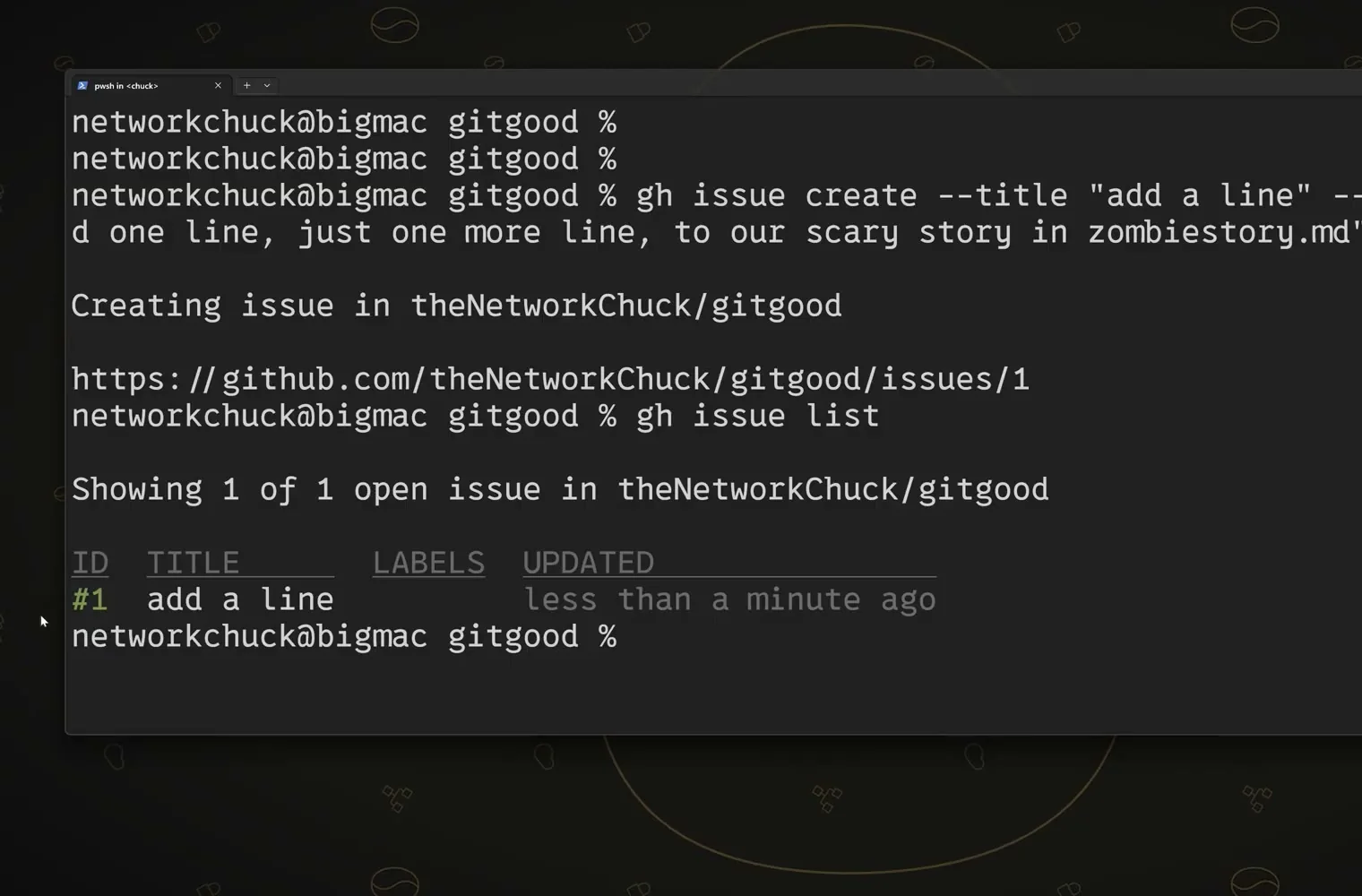
21. Let an agent work the issue on a branch
In the lesson, a coding agent is started in a second copy of the repository and told: work issue number one, in a branch. It uses the same tools covered above (Git and the GitHub CLI), commits on its own branch and pushes that branch to GitHub.
22. Fetch the agent’s branch without merging anything
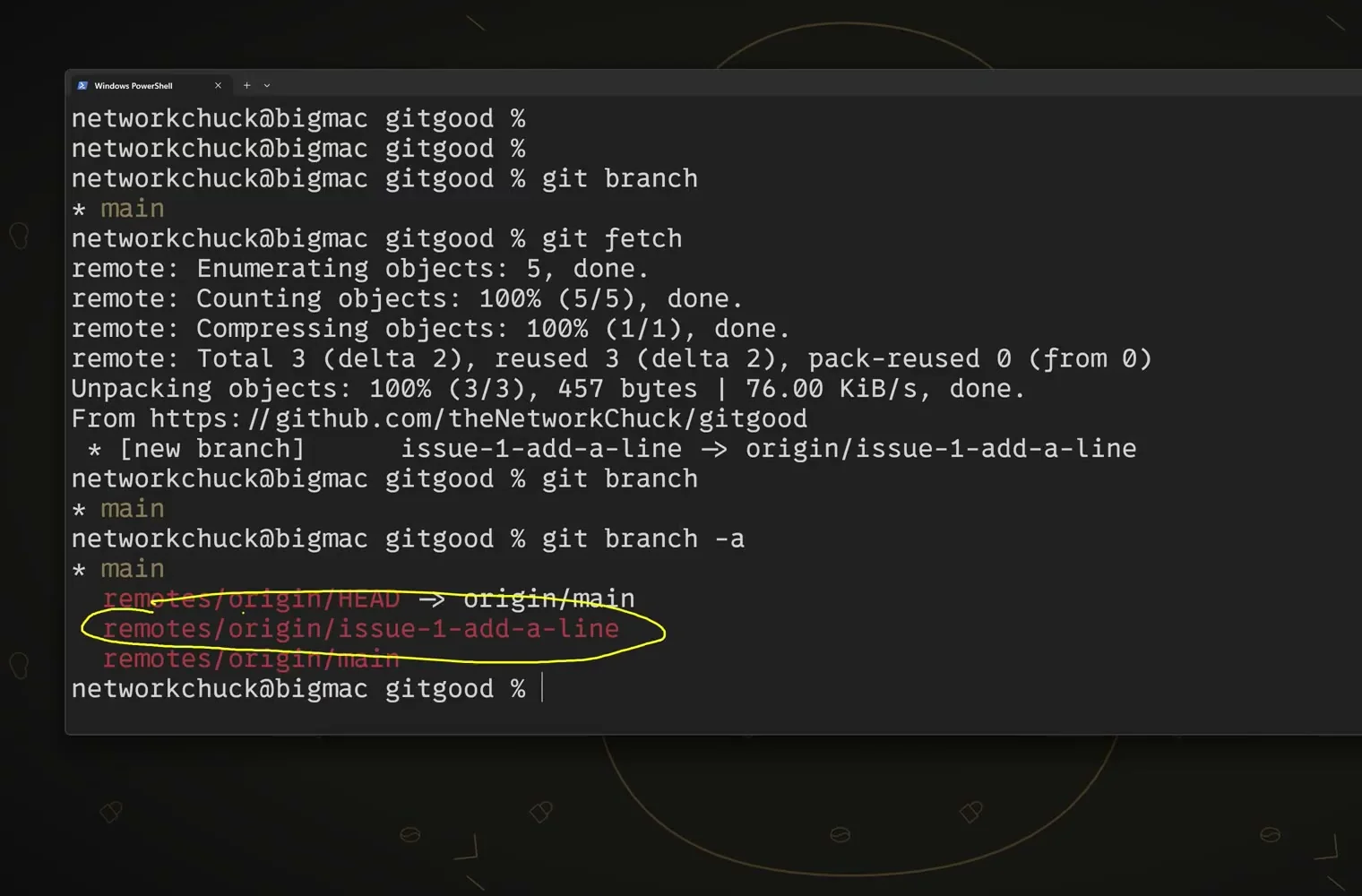
git fetch
git branch -a                  # lists remote branches too
git switch issue-1-branch      # look around safely
git fetch downloads the new branch but does not change your main. Switching to it lets you inspect what the agent did.
23. Pull requests: “please merge my branch”
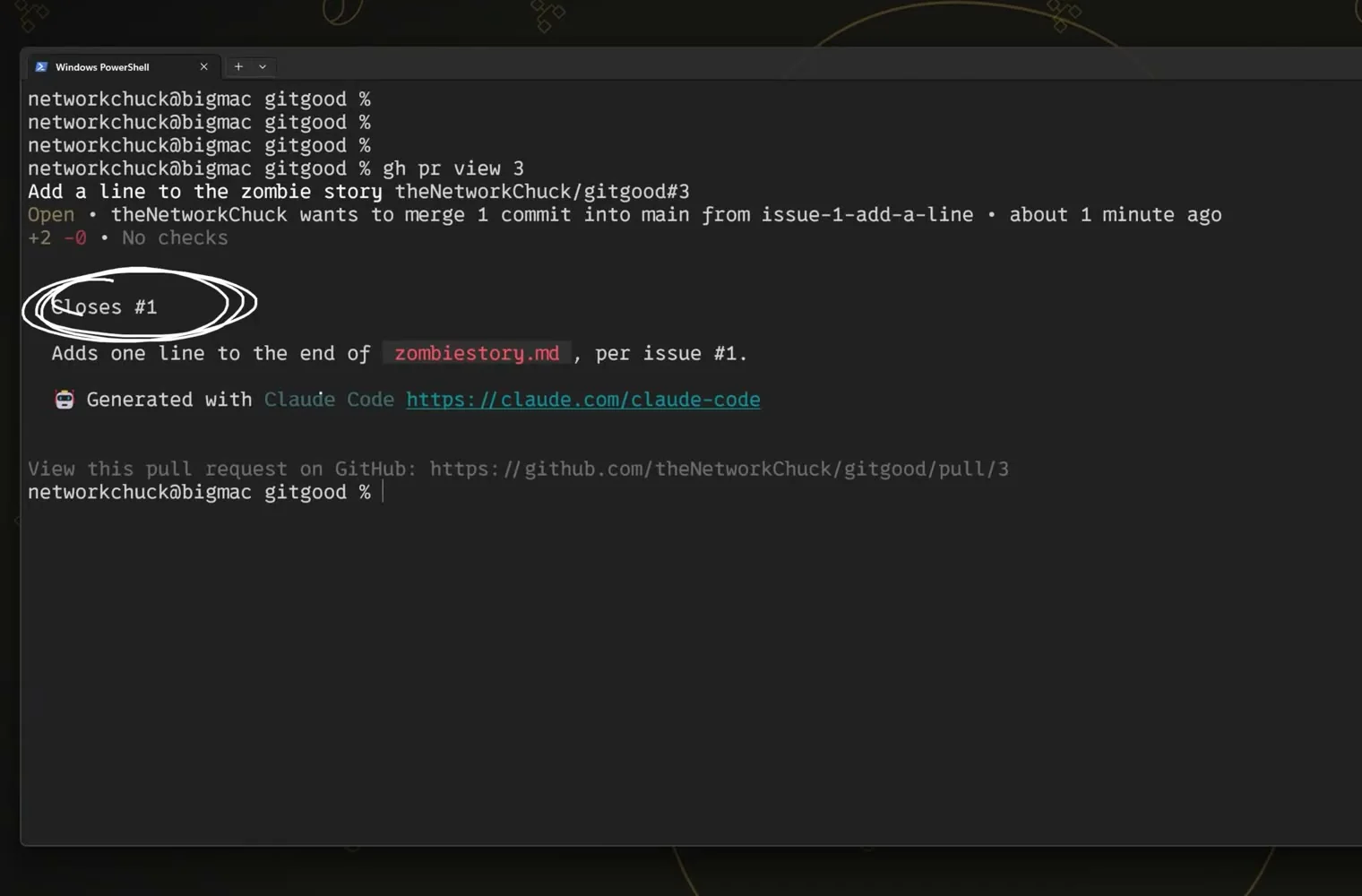
A pull request is a GitHub feature, not a Git one: a request to merge one branch into another, with a page for review. The agent can open it with gh pr create, and if it references the issue, merging the pull request closes the issue automatically.
gh pr create
gh pr view 3
gh pr merge 4 --merge
git pull
Review first, merge on GitHub or with gh pr merge, then git pull so your local copy has the result, and delete the finished branch.
24. Conflicts: both sides changed the same lines
If you change main while the agent works on its branch, the two versions can collide. GitHub shows both changes side by side; you keep yours, keep theirs, or keep both, then commit the merge.
25. Undo a merged pull request with revert
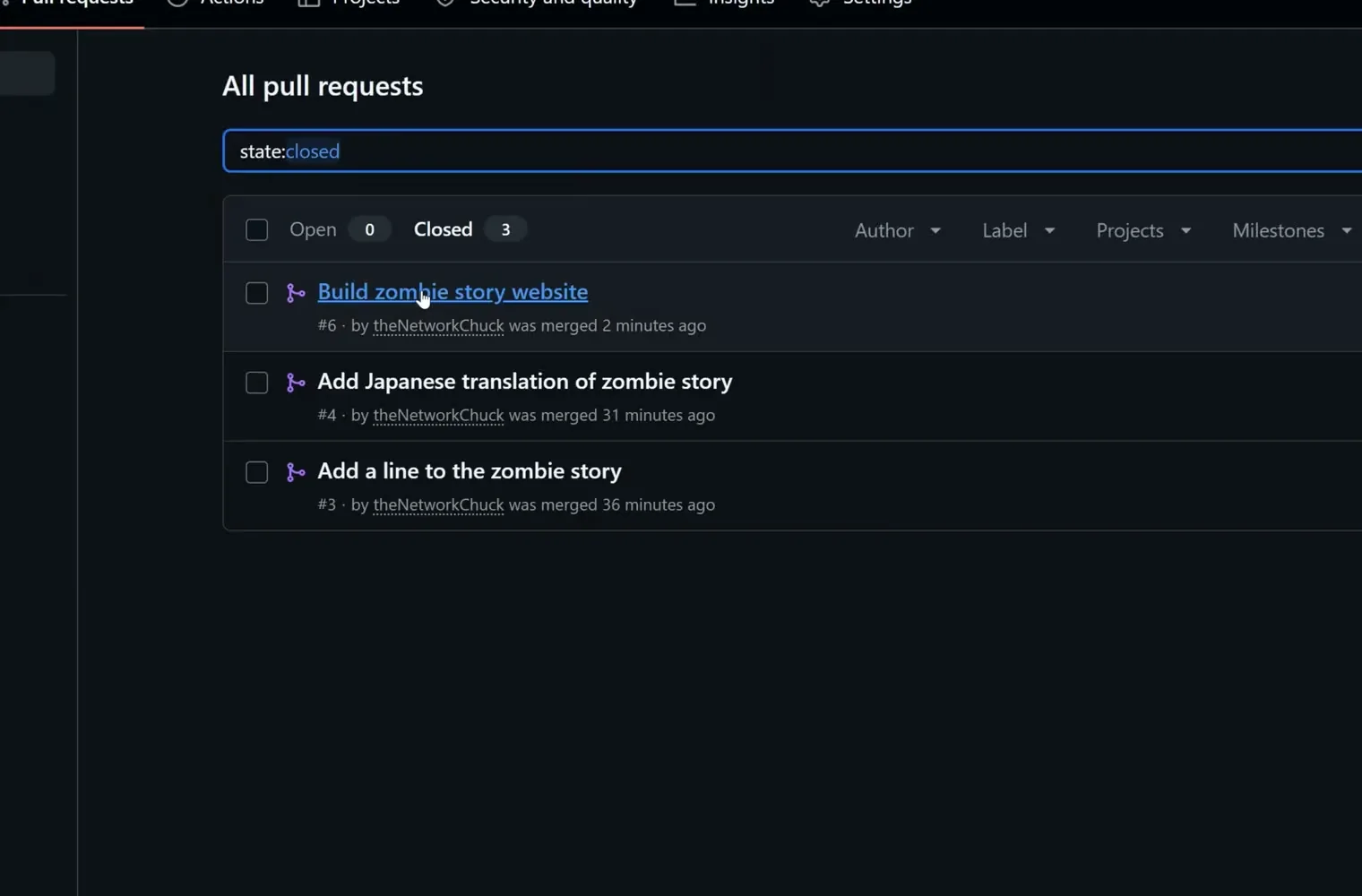
If a merged change turns out to be bad, open the closed pull request and click Revert. GitHub creates a new pull request that undoes the change, which you merge like any other.
Final Perspective — Three Habits That Matter
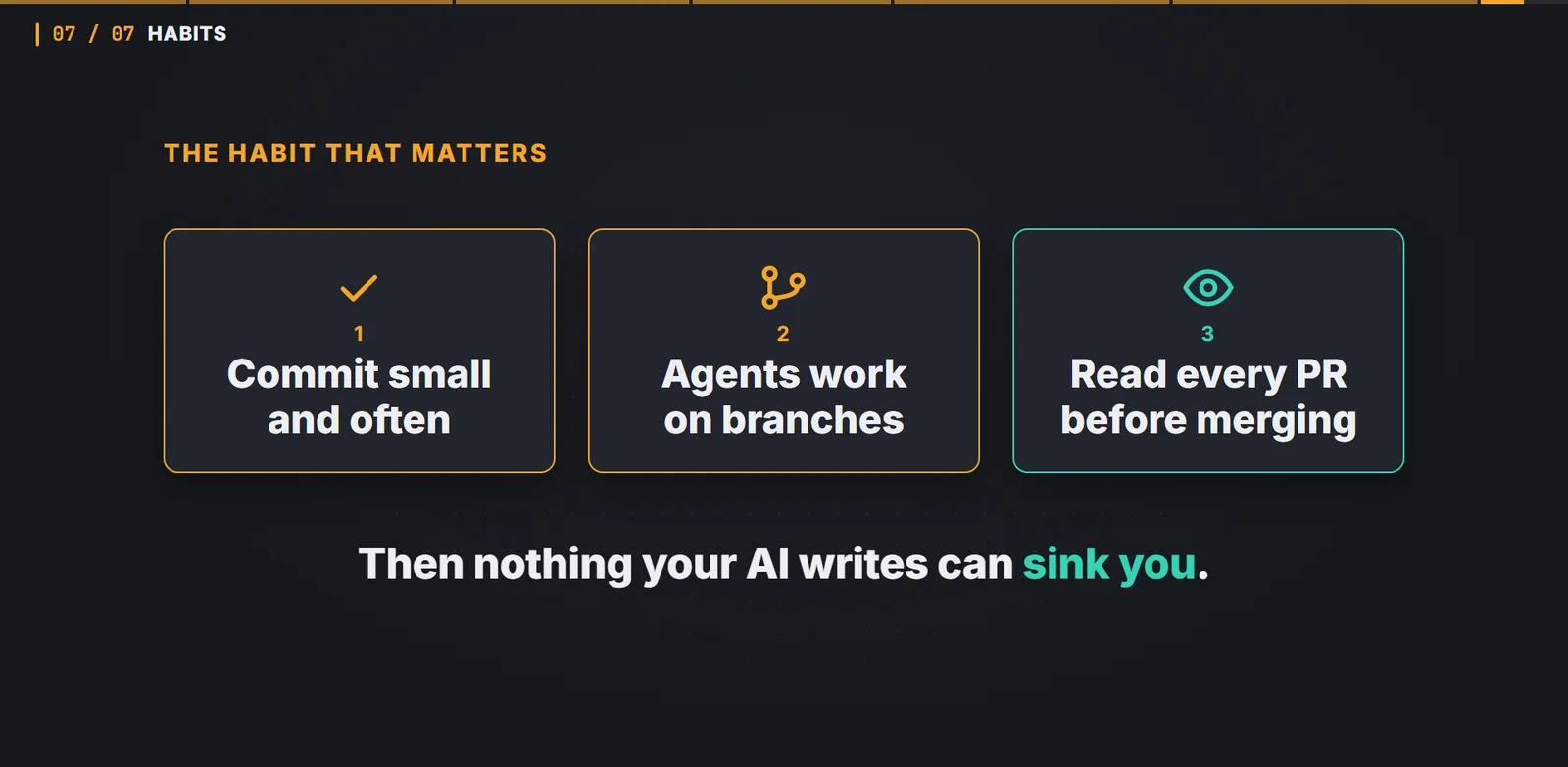
| Habit | Why it matters with AI agents |
|---|---|
| Commit small and often | Every commit is a known-good state you can return to |
| Agents work on branches | Main stays trustworthy while experiments run |
| Read every pull request before merging | You stay the reviewer, not a rubber stamp |
With these habits, nothing an AI writes can sink your project: you can always see the change, refuse it, or undo it.
Command Quick Reference
| Goal | Command |
|---|---|
| Set identity (once) | git config --global user.name/user.email |
| Start a repository | git init |
| See what is going on | git status, git log --oneline |
| Stage and save | git add ., git commit -m "message" |
| See changes | git diff, git diff --staged |
| Undo an uncommitted file | git restore file |
| Look at an old version | git checkout <hash>, back with git switch main |
| Branches | git branch name, git switch name, git merge name, git branch -d name |
| Remote | gh repo create --private, git remote add origin URL, git push -u origin main |
| Other computers | git clone URL, git pull, git fetch |
| Issues and PRs | gh issue create, gh pr create, gh pr merge --merge |
Further Reading and Source Notes
- Source video: “you need to learn Git RIGHT NOW!!” by NetworkChuck
- Video summary by AIBotRadar: “Learn Git in 10 Minutes (Before Your AI Breaks Your Code)”.
- Screenshots are frames from the original lesson, shown for commentary and education with credit to NetworkChuck. Diagrams are original.
- The original video was sponsored by CodeRabbit; the sponsor segment is not covered here.
Educational summary and commentary. Commands are shown as typed in the original lesson; check them against your own setup before using them on real projects.