
Adobe Firefly Video Editing Tutorial
8 AI Features Worth Knowing in 2026
| Disclosure: The source tutorial used for this walkthrough was sponsored by Adobe. The workflow demonstrations below come from that video, while current feature, availability, and plan details have been checked against Adobe’s official documentation. |
|---|
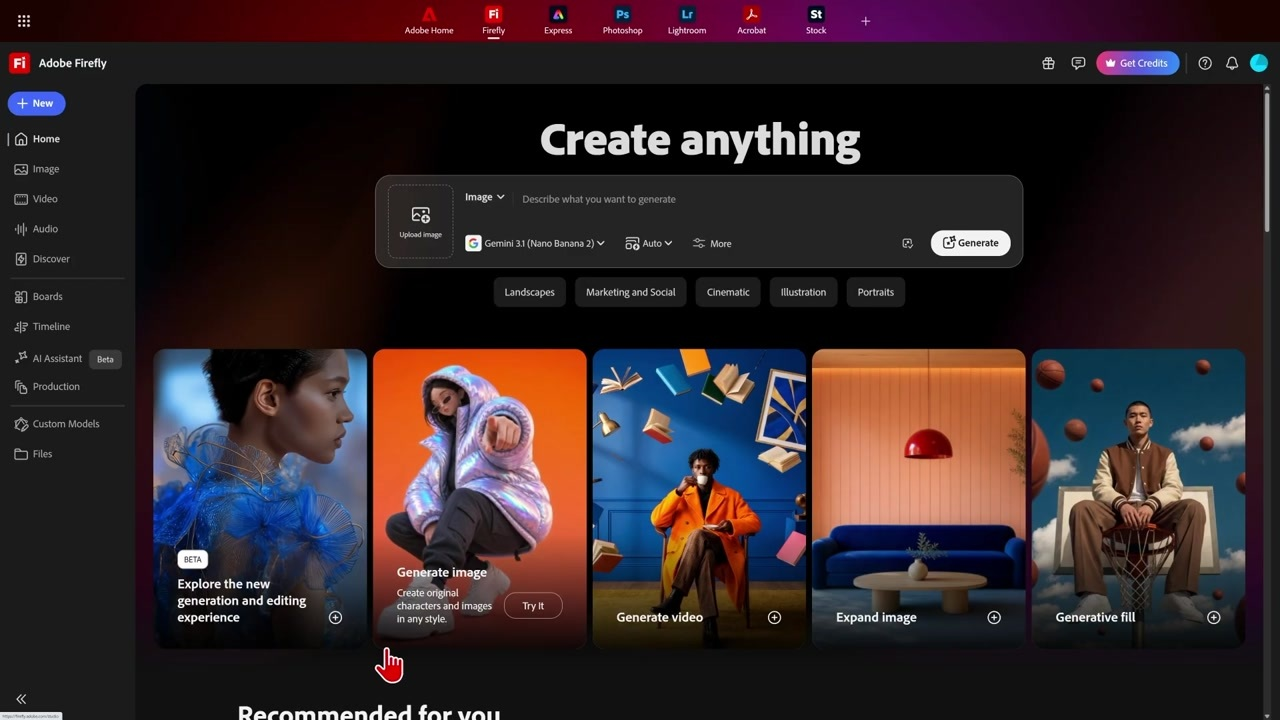
Adobe Firefly has grown into something broader than an image generator. In its current form, Firefly combines image, video, audio, generation, editing, project organization, and timeline-based workflows in a browser interface. Adobe still labels the Firefly video editor as a beta product, but it already covers a surprising amount of everyday post-production work.
The most useful way to understand Firefly is not as a replacement for Premiere Pro. It is better viewed as a fast AI-assisted workspace for jobs that are normally scattered across an editor, a stock-media library, an audio-cleanup tool, a dubbing service, and several generative-AI websites.
The source tutorial demonstrates eight features that make that idea concrete. Some save time on existing footage. Others create new media for an edit. A few blur the line between editing and generation entirely.
The eight Firefly video features at a glance
| Feature | What it does | Best use |
|---|---|---|
| Detect Cuts | Splits an already edited clip at scene changes | Re-editing exported videos or long flattened clips |
| Enhance Audio | Improves speech clarity and reduces background problems | Fast dialogue cleanup |
| Generate Sound Effects | Creates custom effects from text, with optional voice timing | Foley, ambience, game sounds, transitions |
| Generate Music | Creates original music based on vibe, style, purpose, energy, and tempo | Background tracks matched to an edit |
| Translate Video | Dubs spoken content into other languages | Localization and multilingual distribution |
| Prompt to Edit Clip | Changes existing video with natural-language instructions | Restyling, object/clothing changes, visual revisions |
| Generate New Video | Creates B-roll and insert shots with Adobe or partner models | Filling timeline gaps with custom footage |
| Upscale Video | Enhances uploaded or generated footage to higher resolutions | Improving soft or low-resolution clips |
See the Adobe Firefly tool profile for a wider overview of its generation and editing tools.
1. Detect Cuts turns a flattened video back into editable sections
The first workflow starts with an already edited four-minute video placed on the Firefly timeline as a single clip. It contains talking-head sections, B-roll, picture-in-picture moments, and multiple shot changes. Normally, editing a flattened export means manually finding those scene boundaries again.
Firefly’s Detect Cuts command analyzes the clip and automatically splits it wherever it finds a visual edit.
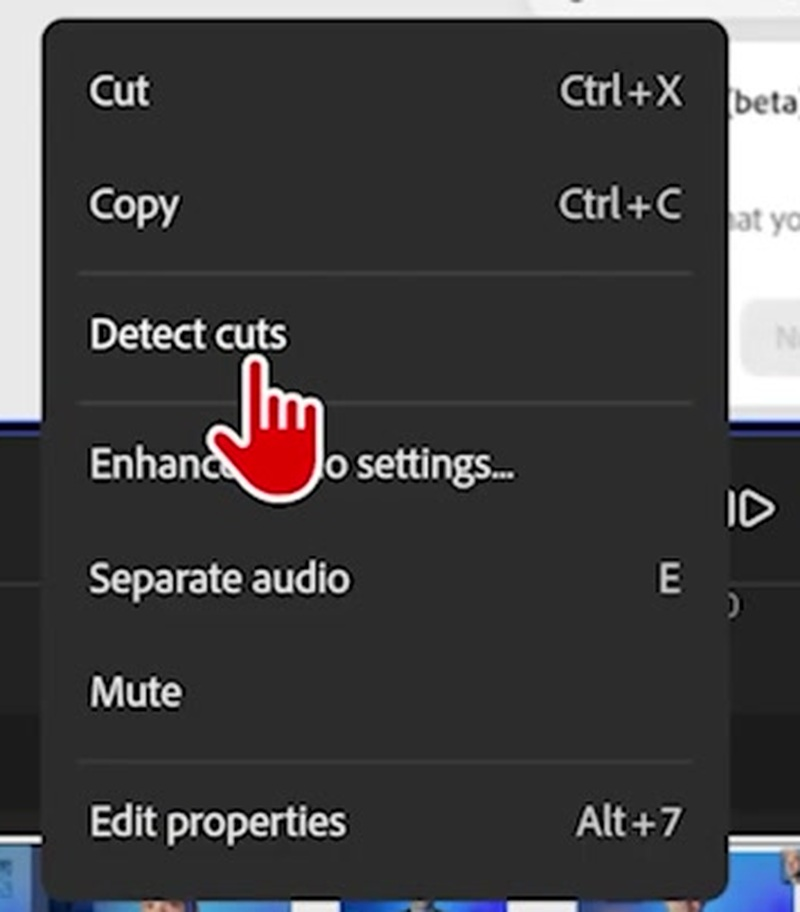
In the demonstration, the creator right-clicks the clip, selects Detect Cuts, and waits for the analysis to finish. Firefly then places cuts at the shot changes it detects. That immediately makes the flattened video easier to repurpose: a transition can be dropped directly onto a newly detected cut, or an unwanted visual segment can be selected and deleted without manually trimming its in and out points.
Adobe’s current documentation describes the same basic behavior. Detect Cuts works best when the transitions between shots are visually clear. Gradual changes or subtle camera movement can still require manual splitting, so this is a first-pass automation rather than a guarantee of frame-perfect segmentation.
This is particularly useful for creators who only have a final exported MP4, social teams adapting a long video into short clips, or anyone rebuilding an edit when the original project file is unavailable.
2. Enhance Audio gives dialogue a one-click cleanup pass
The second feature is less flashy, but probably more useful on a daily basis. The source clip contains dialogue recorded while the microphone was farther away than ideal. Instead of manually tuning multiple audio settings, the creator selects the clip, opens Properties, and enables Enhance Audio.
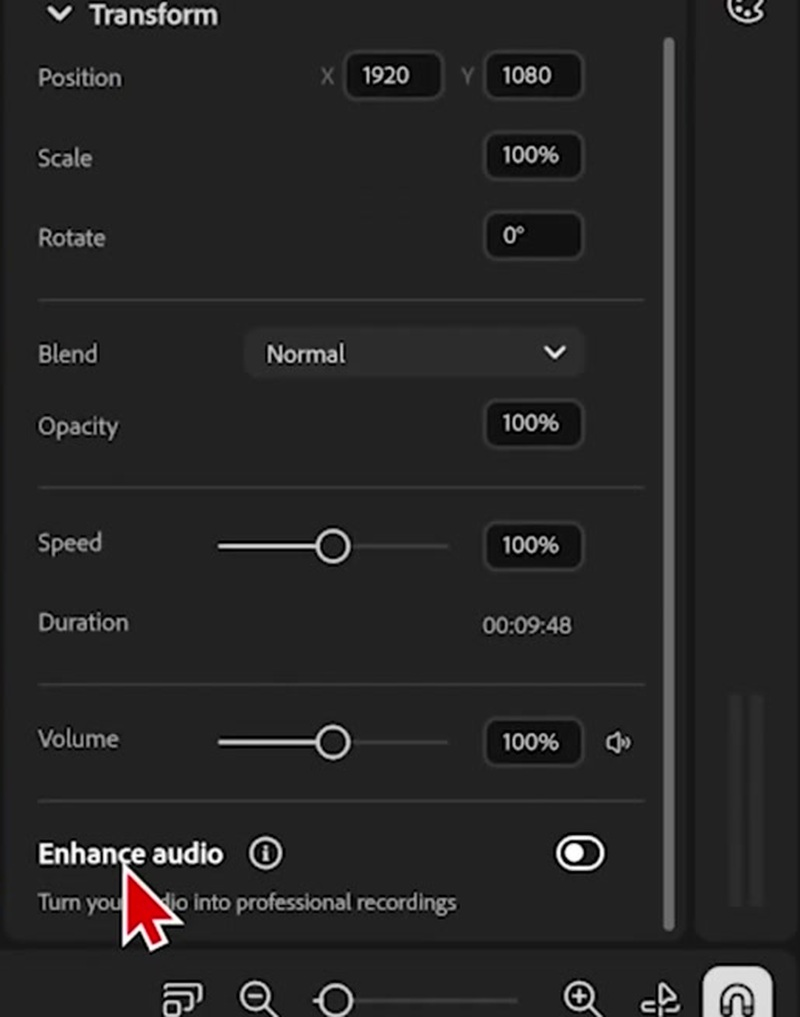
Firefly processes the clip and produces a cleaner, more focused voice. Adobe says the current Enhance Audio feature is designed to reduce background disturbance and improve voice clarity by isolating speech, music, sound effects, and background audio. Current controls also provide adjustment over the speech/background balance after processing.
The important point is not that a single switch will outperform a careful professional mix. It is that the feature can solve the common “this dialogue is usable but not polished” problem quickly enough to keep an edit moving.
For interview footage, tutorials, screen recordings, and social videos, that can be a better tradeoff than leaving the browser, exporting the audio, processing it elsewhere, and bringing it back in.
3. Generate Sound Effects can follow the timing of your voice
Firefly’s sound-effect generator is one of the more distinctive tools in the tutorial because it combines a normal text prompt with voice timing.
The creator isolates a short gaming sequence and asks for retro gaming gun sounds. The text prompt describes what the effect should sound like, while a microphone recording is used to mime the desired rhythm. Firefly then generates several audio variations whose timing follows that performance.
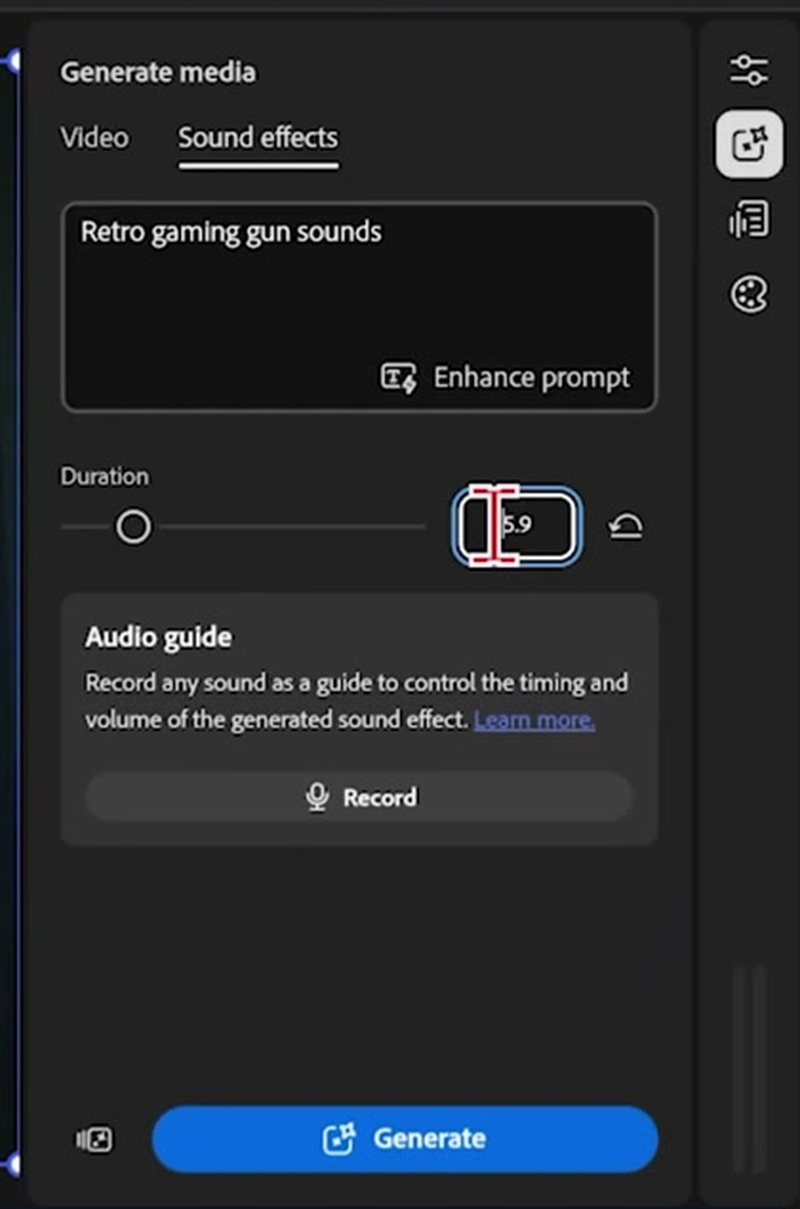
Adobe’s current Firefly documentation confirms this workflow. You can describe a sound effect in English, choose the duration, and optionally record your voice to control timing and intensity. The generated variations can then be previewed and added directly to the timeline.
That voice-timing option matters because sound-effect generation is usually not just about the type of sound. Timing is often the hard part. A generic “laser blast” effect may be easy to create, but it is much more useful when it lands exactly on a hand movement, cut, impact, or animation beat.
The feature is therefore well suited to Foley-style work, UI sounds, game-like effects, ambience, comedic beats, or rough sound design before a final mix.
One current limitation is worth noting: Adobe says the text prompt for Generate Sound Effects is presently English-only.
4. Generate Music builds a custom track instead of sending you to a stock library
The tutorial then moves out of the timeline to Firefly’s Generate Music tool. The idea is simple: instead of searching a stock-music library for a track that is close to the mood of an edit, generate one that is built around the brief.
The example asks for a nostalgic, retro-electronic track for a retro gaming video, then adjusts energy, tempo, and duration. Firefly produces several variations, and the chosen track is downloaded and placed back under the edit.
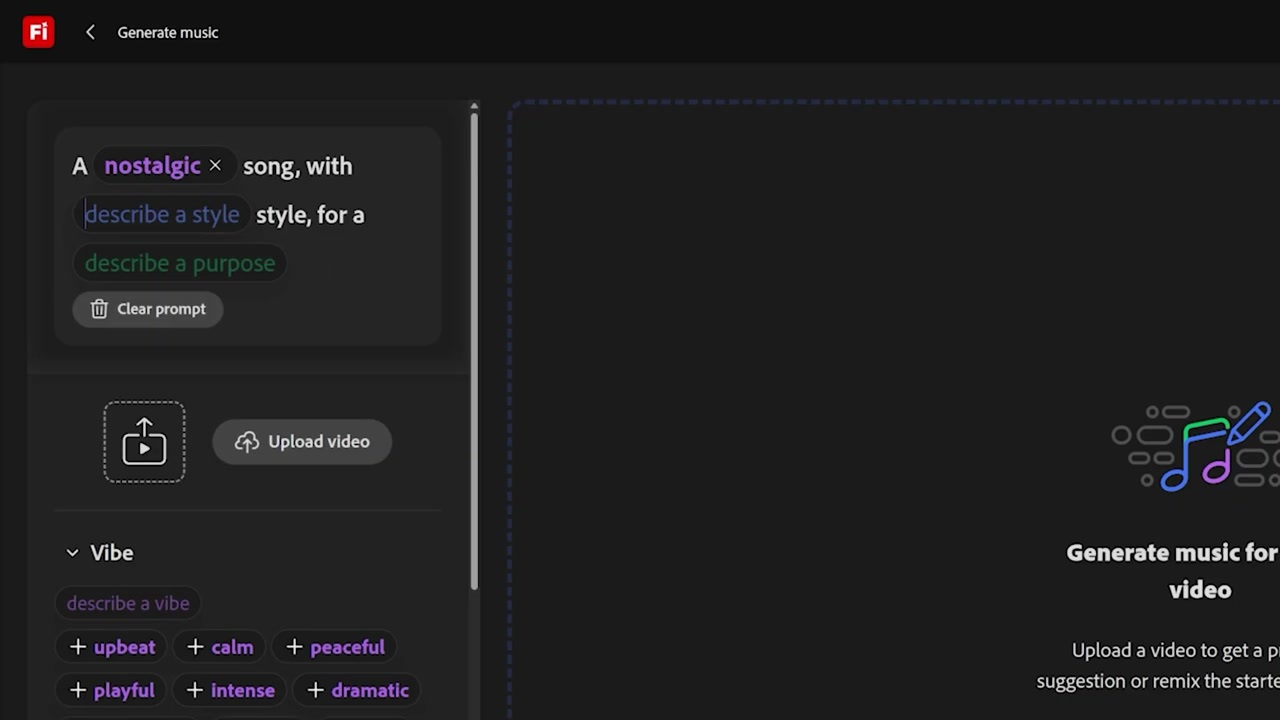
Adobe currently describes Generate Music in terms of five main creative controls: vibe, style, purpose, energy, and tempo. You can also upload a video so Firefly can suggest a music prompt based on the footage, then refine that suggestion before generating.
That is a stronger workflow than simply typing “make background music” because music for video is contextual. A product montage, a tutorial, a gaming retrospective, and a travel reel can all need different pacing even when they share a similar genre.
It is also important to separate this feature from Generate Sound Effects. Adobe’s sound-effect generator creates effects and ambience, not music. Generate Music is the dedicated soundtrack tool.
For creators who repeatedly need short background tracks, the ability to set duration and creative attributes directly can reduce the amount of time spent searching, auditioning, licensing, and trimming library music.
5. Translate Video now has an optional lip-sync path
The fifth workflow demonstrates Translate Video. Firefly detects the source language, produces a transcript, and lets the user choose one or more target languages. In the video, English dialogue is translated into Italian without hiring another speaker or recording a new track manually.
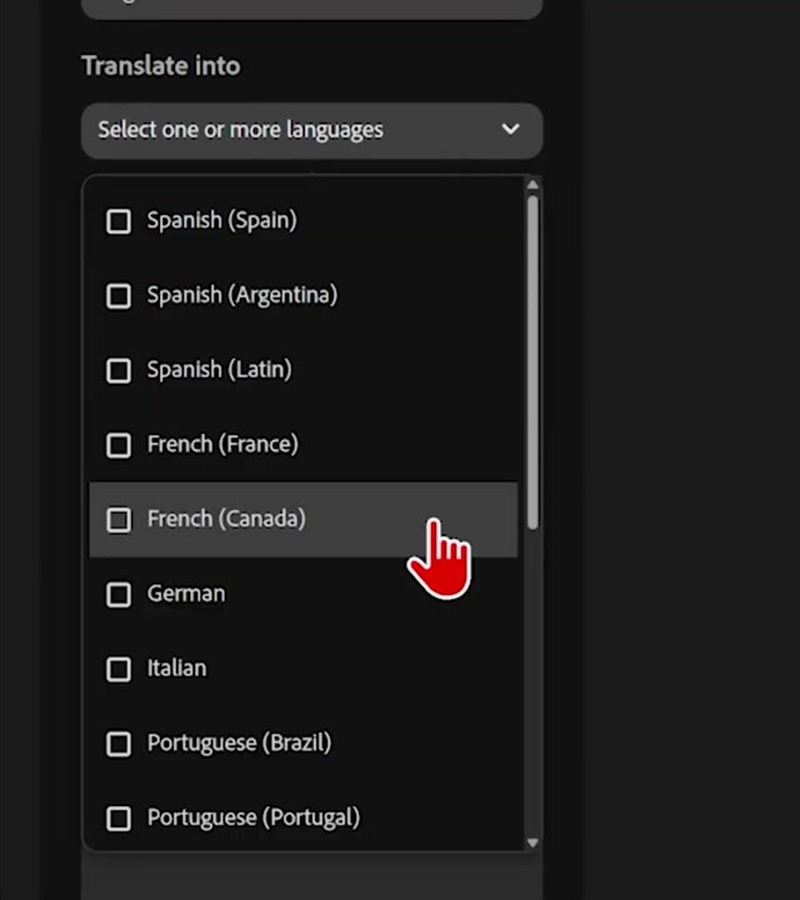
The source tutorial calls out one missing capability: the translated speech does not change the speaker’s lip movement. That is the clearest example in the video of a claim that has changed since recording.
Adobe’s current Translate Video documentation includes a Lip Sync option that adjusts mouth movement to the translated audio. There is an important restriction, however: Adobe currently says Lip Sync is available only to enterprise customers with eligible Firefly plans.
For everyone else, Translate Video still provides automated dubbing without lip synchronization.
Adobe also documents a few practical constraints that are useful to know before relying on the feature. Input video can be MP4 or MOV, can be up to 4K, and must contain enough continuous spoken audio. The web workflow currently works best with a single speaker and one source language throughout the recording. Translated outputs also receive Content Credentials indicating that generative AI was used.
This makes Firefly a realistic localization shortcut for tutorials, explainers, product demos, and creator videos, but it is not yet a universal replacement for a full multilingual dubbing workflow – especially when multiple speakers overlap or transcript editing is critical.
6. Prompt to Edit Clip changes the content of existing footage
The sixth feature is where Firefly starts behaving less like a conventional editor and more like a generative visual-effects tool.
The tutorial loads a short clip of a man sitting in a room, then uses Prompt to Edit Clip to request a wardrobe change. Instead of masking the clothing frame by frame, the workflow asks the model to replace the man’s clothes with a clown outfit while maintaining the motion of the original clip.
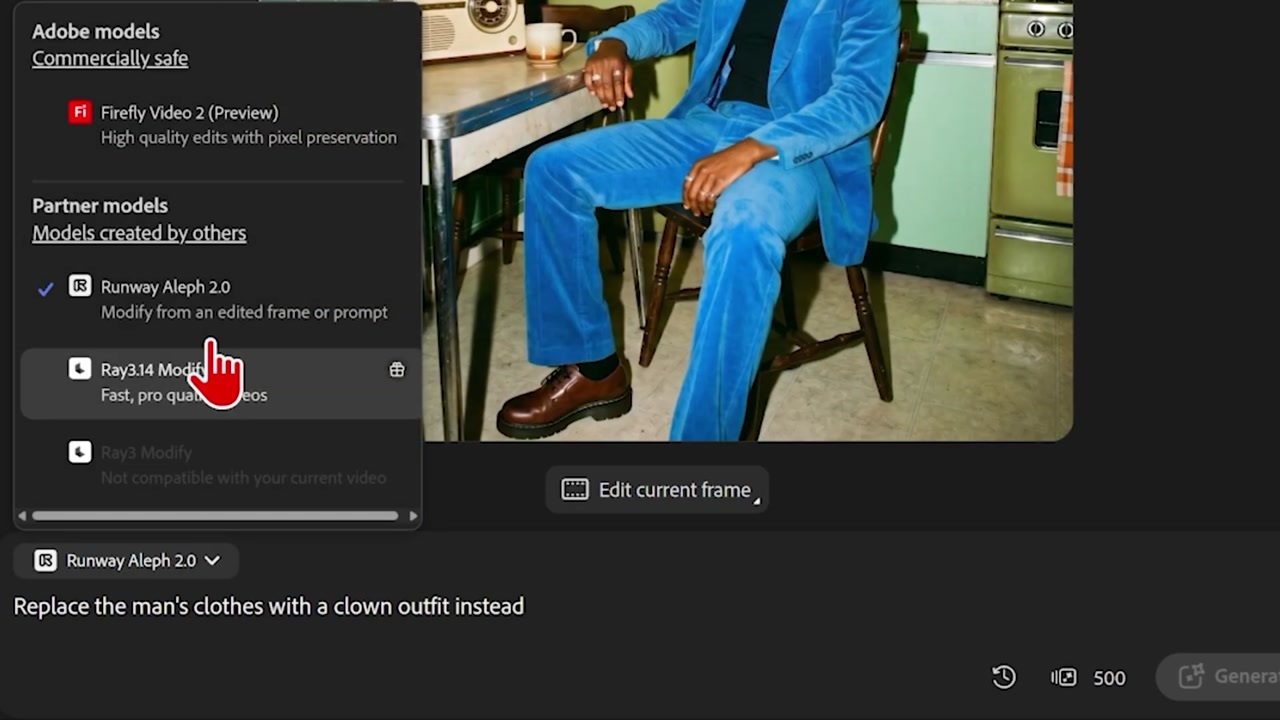
Adobe’s current documentation says Prompt to Edit Clip can use both Adobe and partner models to refine uploaded or generated video using natural-language instructions. The supported model list evolves over time; current documentation includes Firefly Video 2 (Preview), Kling 3.0 Omni, Runway Gen-4 Aleph, and Ray3.14 Modify among the options for this kind of editing.
That changing model list is worth emphasizing. Firefly is increasingly a model hub as well as an Adobe AI product. The interface may stay consistent while the underlying model you choose changes the cost, controls, style, and output quality.
Prompt-based video editing is best viewed as a creative revision tool rather than deterministic frame-by-frame compositing. It is powerful when you want to change a visual idea – clothing, color, style, atmosphere, or other scene properties – but you should still review continuity, identity consistency, motion, and small details before using the result in a final production.
7. Generate Video creates B-roll directly inside the same ecosystem
The next workflow solves a common editorial problem: the voiceover refers to something that was never filmed.
In the tutorial, the creator needs a short childhood-gaming B-roll shot. The process begins by generating a still image that represents the desired scene, then moves into Firefly’s video generator to animate that idea into a clip that fits the timeline gap.
This is one of Firefly’s strongest strategic advantages. Instead of treating AI generation as a separate pre-production step, the generated media can live close to the editing workflow and be pulled into a project when needed.
Firefly’s current interface also exposes a broad selection of partner video models.
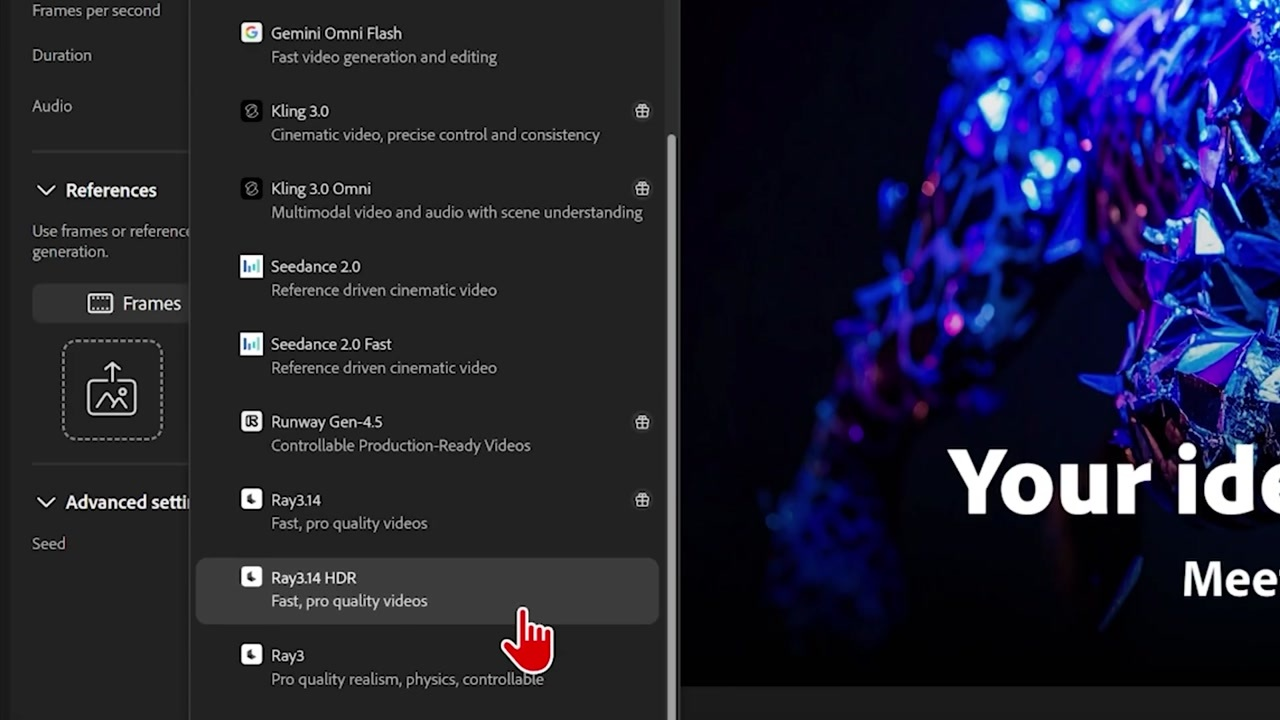
Adobe’s current documentation lists options including Kling 3.0 and Kling 3.0 Omni, Runway Gen-4.5, Ray3.14, Veo 3.1, Gemini Omni Flash, and others, alongside Adobe’s own Firefly Video models. Availability can vary by workflow, country, and account.
The video uses this model choice as part of a practical B-roll workflow: choose a model, add a reference image, set the shot duration, describe the action, generate the result, and place the clip into the timeline.
For documentary-style editing, tutorials, marketing content, and social video, this can be useful for establishing shots, cutaways, visual metaphors, product concepts, or inserts that would otherwise require a reshoot or stock search.
The risk is obvious as well: generated footage can introduce inaccuracies, inconsistent objects, or misleading visual details. When AI B-roll represents real events, products, or people, editorial judgment still matters more than convenience.
For the workspace around projects, Elements, and timelines, see our Adobe Firefly Studio beta guide.
Our Adobe Firefly image-to-video guide focuses on directing motion from a still image.
8. Upscale Video can push soft footage to 1080p or 4K
The final demonstrated feature is video upscaling. Firefly can take uploaded or generated footage and process it to increase clarity and output resolution.
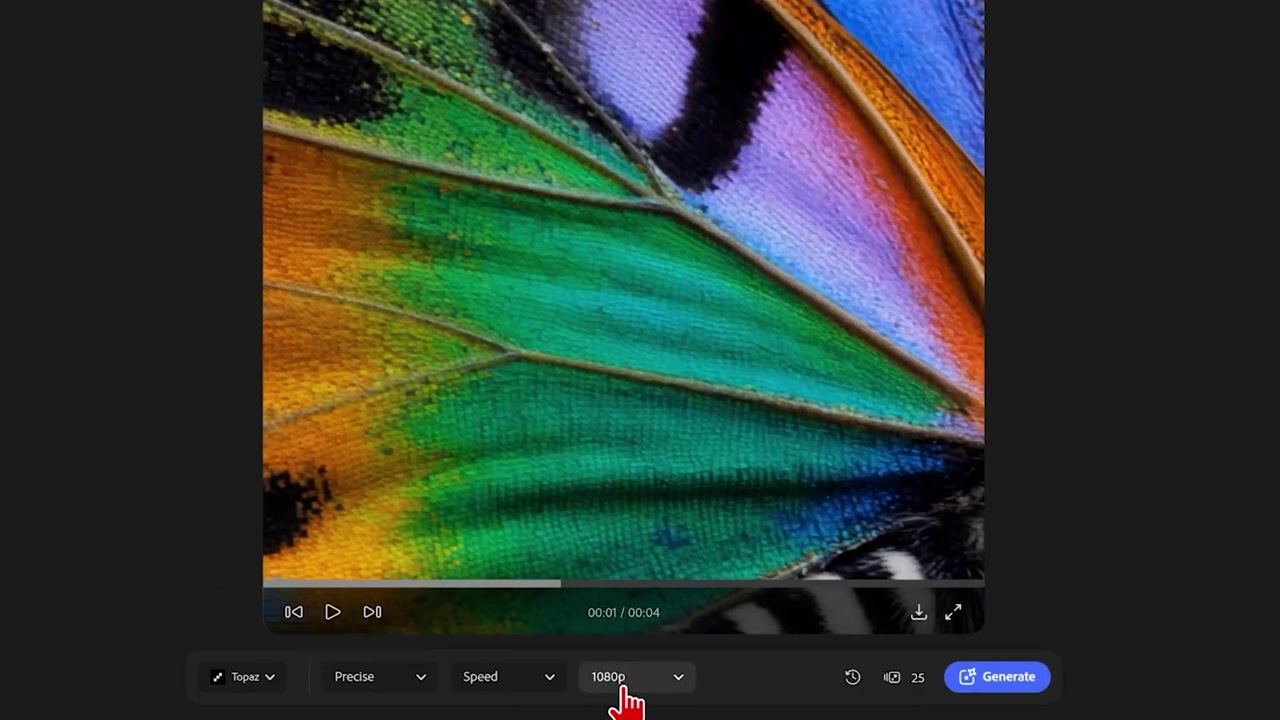
The source video reaches the tool through the prompt-edit area, but Adobe’s current interface now documents a dedicated Video > Upscale video workflow. Current controls include enhancement modes such as Precise or Creative, detail settings, and output resolution choices of 1080p or 4K.
Adobe’s current help pages also describe Topaz-based upscaling inside Firefly. That means the exact UI path in the source tutorial has evolved, but the underlying capability remains available and has become more explicit.
Upscaling is useful for older footage, heavily cropped clips, low-resolution assets, or AI-generated video that needs to sit beside sharper source material. It can add perceived detail and improve presentation, but it cannot recover information that was never captured. For important footage, treat it as enhancement rather than restoration magic.
What has changed in Firefly since this tutorial was recorded?
The eight workflows in the video are still a good map of Firefly’s video-editing direction, but the product has continued to expand.
Adobe’s 2026 release notes show that the Firefly video editor remains in beta while gaining features such as voiceover recording, Auto Reframe for different aspect ratios, improved transitions, expanded partner-model generation, and automatic video-background removal. Adobe has also introduced a newer unified generation-and-editing workspace that brings project assets, generation history, image/video creation, and timeline editing closer together.
The practical lesson is that button locations and model names are likely to move faster than the core workflows. It is safer to learn Firefly in terms of tasks – clean dialogue, generate audio, translate speech, modify footage, create inserts, upscale media – rather than memorizing a particular menu layout.
Our Adobe Firefly Pro workflow guide explains how editing fits into a broader creative pipeline.
Firefly pricing and generative credits: what to expect
Many of the editing operations in Firefly are normal timeline tasks, but generative features consume generative credits. The exact amount depends on the feature and, in some cases, the model used.
As of this writing, Adobe’s individual Firefly plans list:
- Firefly Standard: $9.99/month with 2,000 generative credits.
- Firefly Pro: $19.99/month with 4,000 credits.
- Firefly Pro Plus: $49.99/month with 10,000 credits.
- Firefly Premium: $199.99/month with 50,000 credits and unlimited access to the Firefly Video Model in Generate Video, subject to Adobe’s plan terms.
Adobe also sells credit add-ons. Because video generation, translation, partner models, and AI edits can consume credits at different rates, anyone building Firefly into a regular production workflow should check the credit indicator before generating rather than assuming that every Creative Cloud subscription provides the same allowance.
The source tutorial correctly notes that some existing Adobe customers may already have generative credits through their plan, but the amount depends on the subscription.
Is Firefly a replacement for Premiere Pro?
Not really – and it does not need to be.
Premiere Pro remains the stronger environment for complex editorial work, detailed trimming, color, multi-track audio, professional finishing, plugins, and mature project management. Firefly’s advantage is different: it puts AI generation and lightweight editing in the same browser-based environment.
A creator could realistically use Firefly to:
- import a flattened clip and detect its scene cuts;
- clean up rough dialogue;
- create missing sound effects;
- generate a custom background track;
- translate a finished version for another market;
- alter a visual element with a prompt;
- create a missing B-roll shot with a partner model; and
- upscale a weak clip before export.
That sequence explains why the product is interesting. Each individual feature exists somewhere else, often in a more specialized tool. Firefly’s value is the reduction in tool switching.
Who should try these workflows?
Firefly makes the most sense for creators who already work with Adobe tools but want a faster path to generative media, as well as teams producing social, marketing, education, product, or creator content where speed matters.
It is especially attractive when the problem is “I need one missing thing for this edit” – a cleaner voice, a four-second sound, a custom music cue, a translated version, a replacement visual, or a short B-roll clip.
Editors who need deterministic control, long-form project reliability, complex collaboration, or precision finishing will still want a full nonlinear editor. But Firefly is increasingly useful as a companion workspace around that editor.
Final takeaway
The most important thing in this tutorial is not any single AI trick. It is how much of the video-production pipeline Adobe is pulling into one Firefly workspace.
Detect Cuts and Enhance Audio attack repetitive editing tasks. Generate Sound Effects and Generate Music create audio that fits the edit. Translate Video expands distribution. Prompt to Edit Clip changes existing footage. Generate Video fills missing visual gaps. Upscale Video helps weaker media sit more comfortably in a finished piece.
The product is still moving quickly, and some of the details in the source video have already changed. Lip-sync translation now exists for eligible enterprise plans, the partner-model roster has expanded, the upscaling workflow has evolved, and Adobe has added other video features beyond the eight shown here.
For creators, that is the reason to watch Firefly closely. It is becoming less of a single AI generator and more of an AI-assisted production layer that sits between ideation, asset generation, editing, localization, and delivery.
Official Adobe sources
- Adobe Firefly video editor (beta) overview: https://helpx.adobe.com/firefly/web/firefly-video-editor/about-firefly-video-editor/about-firefly-video-editor.html
- Detect Cuts: https://helpx.adobe.com/uk/firefly/web/firefly-video-editor/add-and-organize-media/automatically-split-scenes-in-videos.html
- Enhance Audio: https://helpx.adobe.com/firefly/web/firefly-video-editor/add-and-organize-media/enhance-speech.html
- Generate Sound Effects: https://helpx.adobe.com/firefly/web/firefly-video-editor/generate-audio/generate-sound-effects.html
- Generate Music: https://helpx.adobe.com/mena_en/firefly/web/work-with-audio-and-video/work-with-audio/generate-music.html
- Translate Video: https://helpx.adobe.com/ca/firefly/web/work-with-audio-and-video/work-with-video/translate-video.html
- Prompt to Edit Clip: https://helpx.adobe.com/ph_en/firefly/web/work-with-audio-and-video/work-with-video/edit-generated-video-using-text-prompts.html
- Partner video models: https://helpx.adobe.com/firefly/web/work-with-audio-and-video/work-with-video/generate-videos-using-non-adobe-models.html
- Upscale Video: https://helpx.adobe.com/ca/firefly/web/work-with-audio-and-video/work-with-video/upscale-videos.html
- Firefly plans: https://www.adobe.com/products/firefly/plans.html
- Firefly What’s New: https://helpx.adobe.com/firefly/web/whats-new/new-features/whats-new.html