

Publication-ready guide | Adobe Firefly + Photoshop | Updated October 2026
Adobe Firefly is increasingly useful as a companion to Photoshop rather than a replacement for it. This guide walks through four practical workflows demonstrated in an Adobe-sponsored tutorial, then updates them for the current 2026 Firefly experience: slider-based image refinement, Gallery Remix, AI upscaling, and multi-step work with Firefly AI Assistant.
Source context: The source video is Adobe-sponsored. Current product details were checked against Adobe documentation before publication.
Adobe Firefly has grown from a place to generate images into a broader creative workspace for editing, remixing, upscaling, and automating batches of content. That makes it especially interesting for Photoshop users: you can use Firefly for fast exploration and repetitive AI-heavy tasks, then move the result into Photoshop when you need precise selections, layers, masking, typography, compositing, or finishing work.
The source tutorial behind this article was sponsored by Adobe, so its enthusiasm should be read in that context. The demonstrations are still useful, but product names, availability, credit rules, and beta interfaces change quickly. The workflow below keeps the practical substance of the video while updating the product details against Adobe’s current documentation.
The four ideas are:
- Generate a range of controlled image edits from one prompt instead of retrying one result at a time.
- Use the Firefly Gallery as reusable inspiration by remixing a community image and its prompt.
- Upscale images inside Firefly with Adobe or Topaz models before sending them into Photoshop.
- Use Firefly AI Assistant to turn one instruction into a multi-step batch workflow, such as preparing social-media variants.
Together, they show a useful pattern: let Firefly handle breadth, variations, and repetitive operations; use Photoshop when you want exact control over the final pixels.
1. Use slider-based variations to refine an image faster
The first workflow starts with a familiar AI-editing problem. You know roughly what you want – warmer light, a different mood, more flowers, a stronger seasonal effect – but a single text prompt can produce an unpredictable result. If the model misses the target, the usual response is to regenerate and hope the next version is closer.
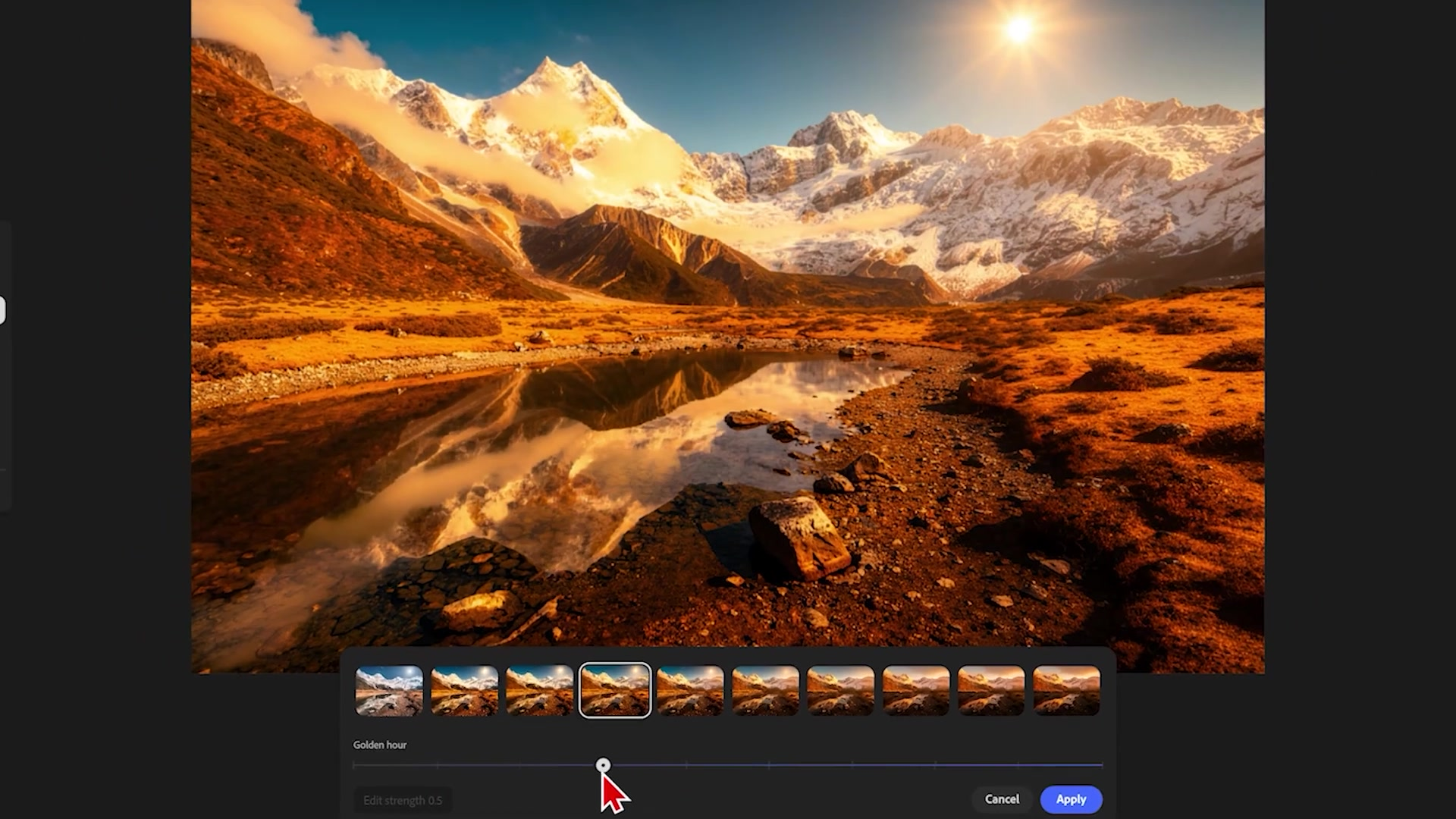
The video demonstrates a Firefly beta tool labeled Tune. The creator uploads a mountain landscape, asks for “golden hour” lighting, and receives a range of versions at different intensities. Instead of treating each generation as a separate dead end, the interface lays the variants out along a visual spectrum so the user can scrub through them and choose the degree of change that feels right.
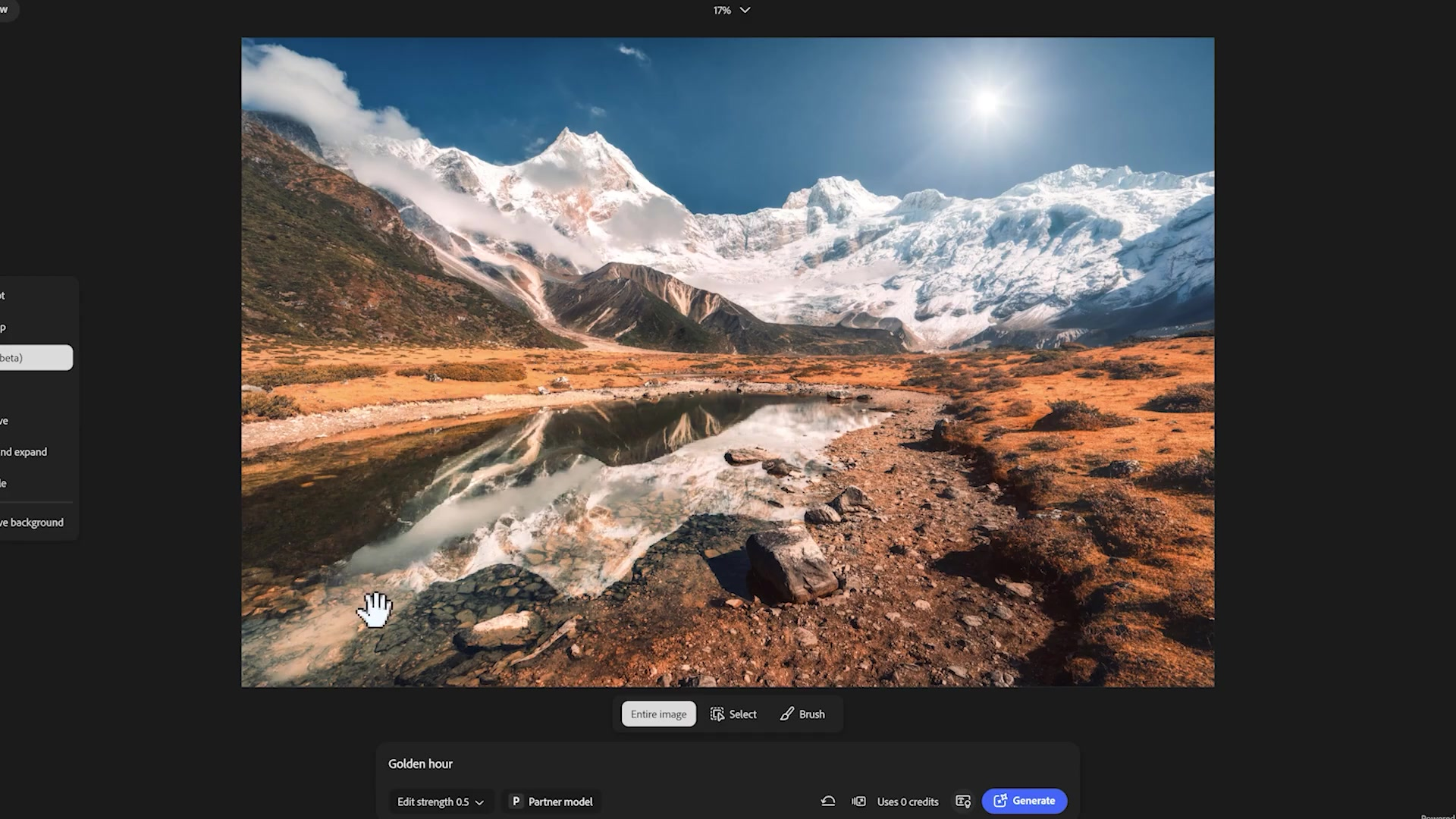
The benefit is not merely that Firefly creates several images. It is that the variations are organized around the same editing intent. When the creator asks for golden-hour lighting, the resulting strip moves through different strengths of that look rather than presenting unrelated alternatives.
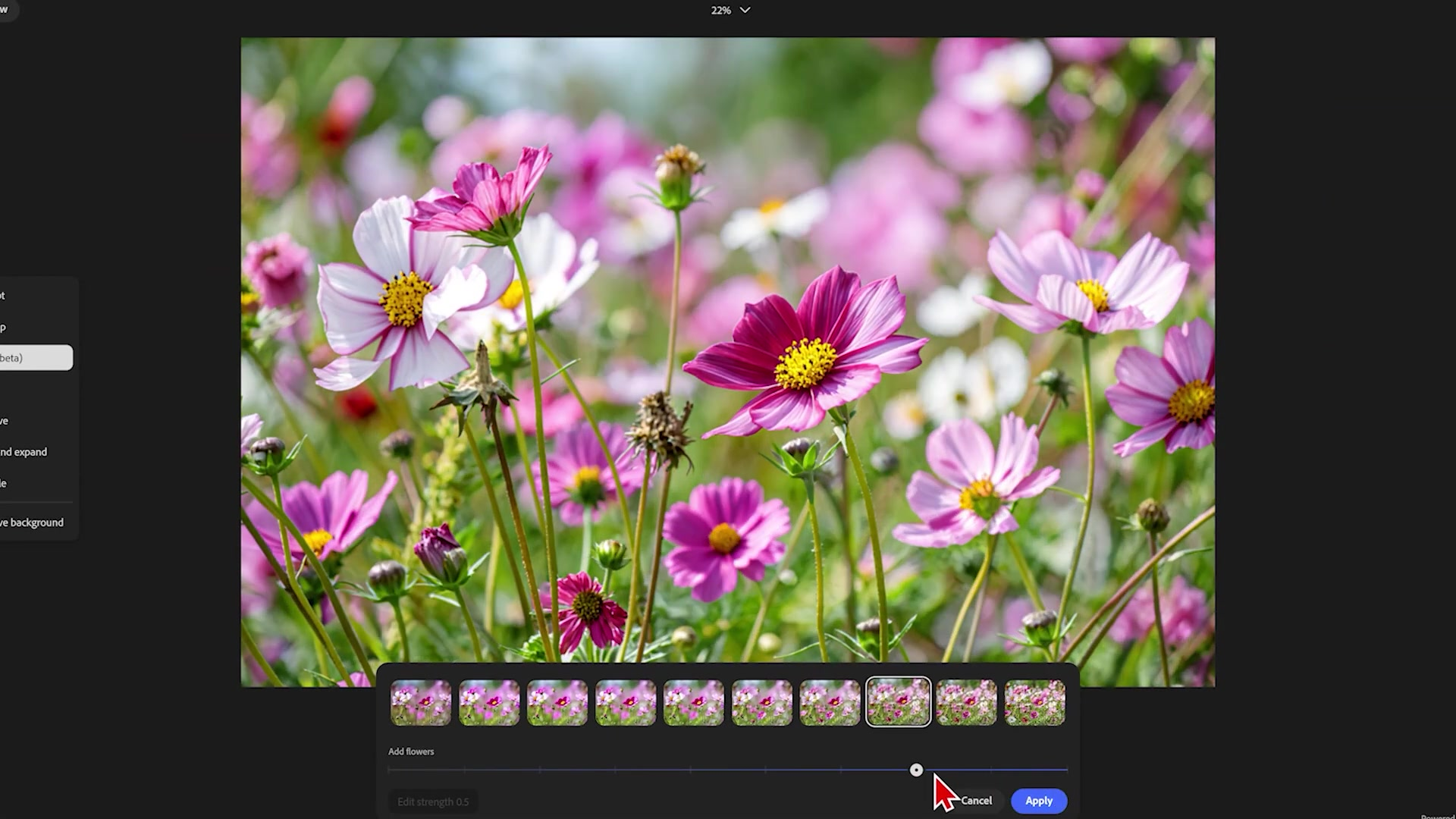
The same idea is then used for content changes. The creator asks Firefly to add flowers, and again receives several versions to compare immediately.
What this feature is called now
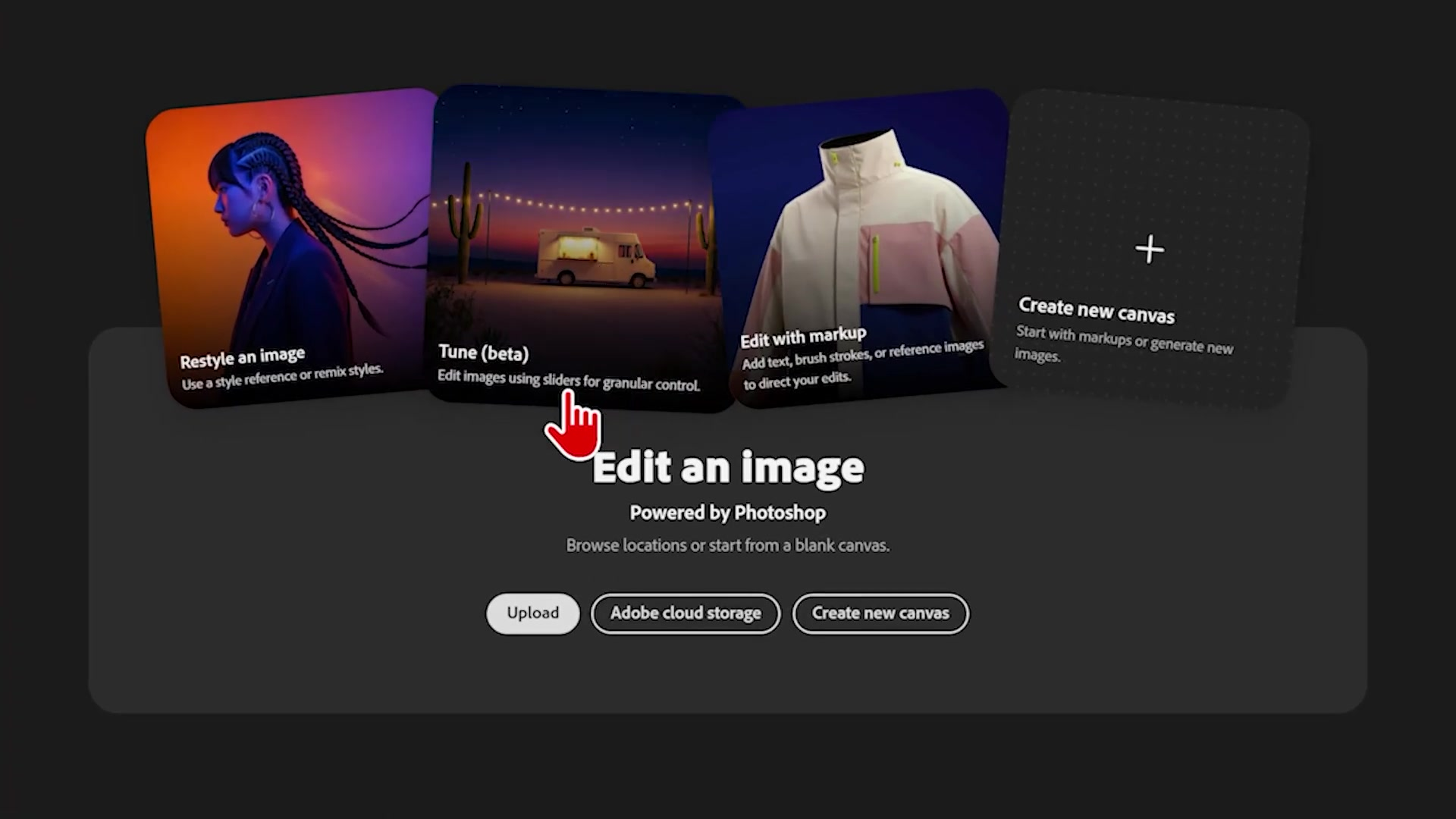
The recording shows an entry called Tune (beta) inside the image editor. Adobe’s current public documentation prominently describes a closely matching slider workflow as Precision Flow (beta): one prompt generates a range of image variations, and an intensity slider lets you explore subtle through dramatic results without rewriting the prompt each time.
Adobe still references “Tune (beta)” in some documentation for custom-model editing, so the exact label can differ by Firefly workspace and account. For a current user, the safest instruction is not “look for a button with exactly this old name,” but rather: open the Firefly image editor and look for the beta variation/refinement tool that lets you generate a spectrum of edits and scrub through them.
Where this is genuinely useful
This approach is strongest when the desired edit is continuous rather than binary. Good examples include:
- warm versus cool lighting;
- bright versus moody exposure;
- subtle versus dramatic weather;
- more or fewer scene elements;
- gentle versus aggressive stylization;
- shifting the time of day;
- increasing or decreasing the strength of a visual effect.
For a Photoshop user, this is a productive early-stage tool. You can find the right direction quickly, then move the selected version into Photoshop and solve the small local problems with masks, adjustment layers, retouching, or compositing.
It also highlights an important difference between generative editing and conventional Photoshop adjustments. A Curves layer changes pixels according to a mathematical transform. A generative edit may reinterpret objects, textures, lighting, or geometry. That makes the AI workflow much more flexible, but it also means every result needs visual inspection. A beautiful version can still contain a malformed object or a detail that changed unexpectedly.
2. Turn the Firefly Gallery into a starting point, not just a mood board
The second workflow uses Firefly’s Gallery. At first glance, it resembles any other stream of creative work: a wall of images and videos that can be filtered and browsed for inspiration.
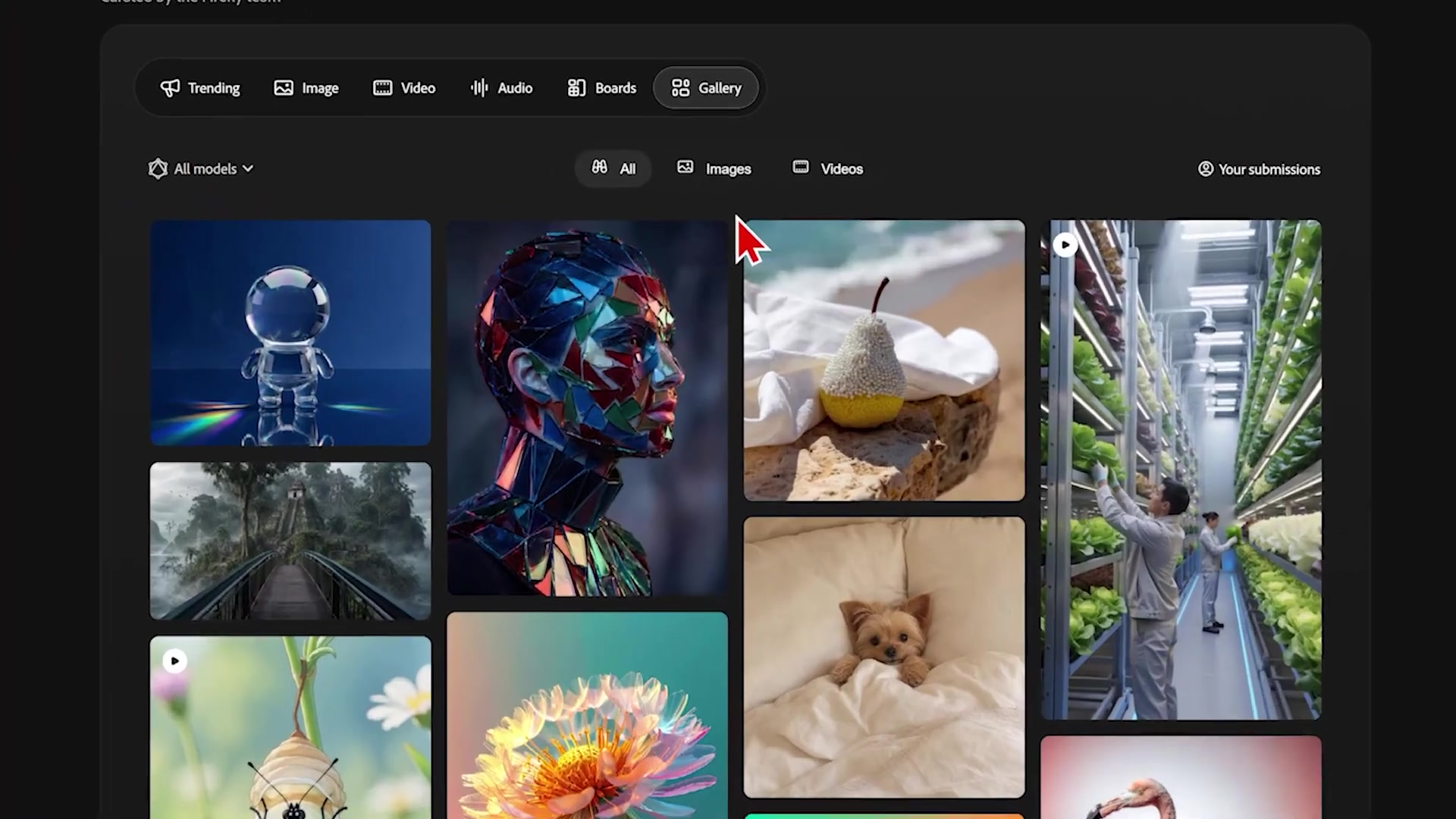
The useful difference is the Remix workflow. When a community image is available for remixing, Firefly can open it in the editor with the prompt and relevant generation settings. You can then make your own variation instead of trying to reverse-engineer the visual from scratch.
In the video, the creator chooses a flamingo image, opens the remix workflow, and generates a new version from the source prompt.
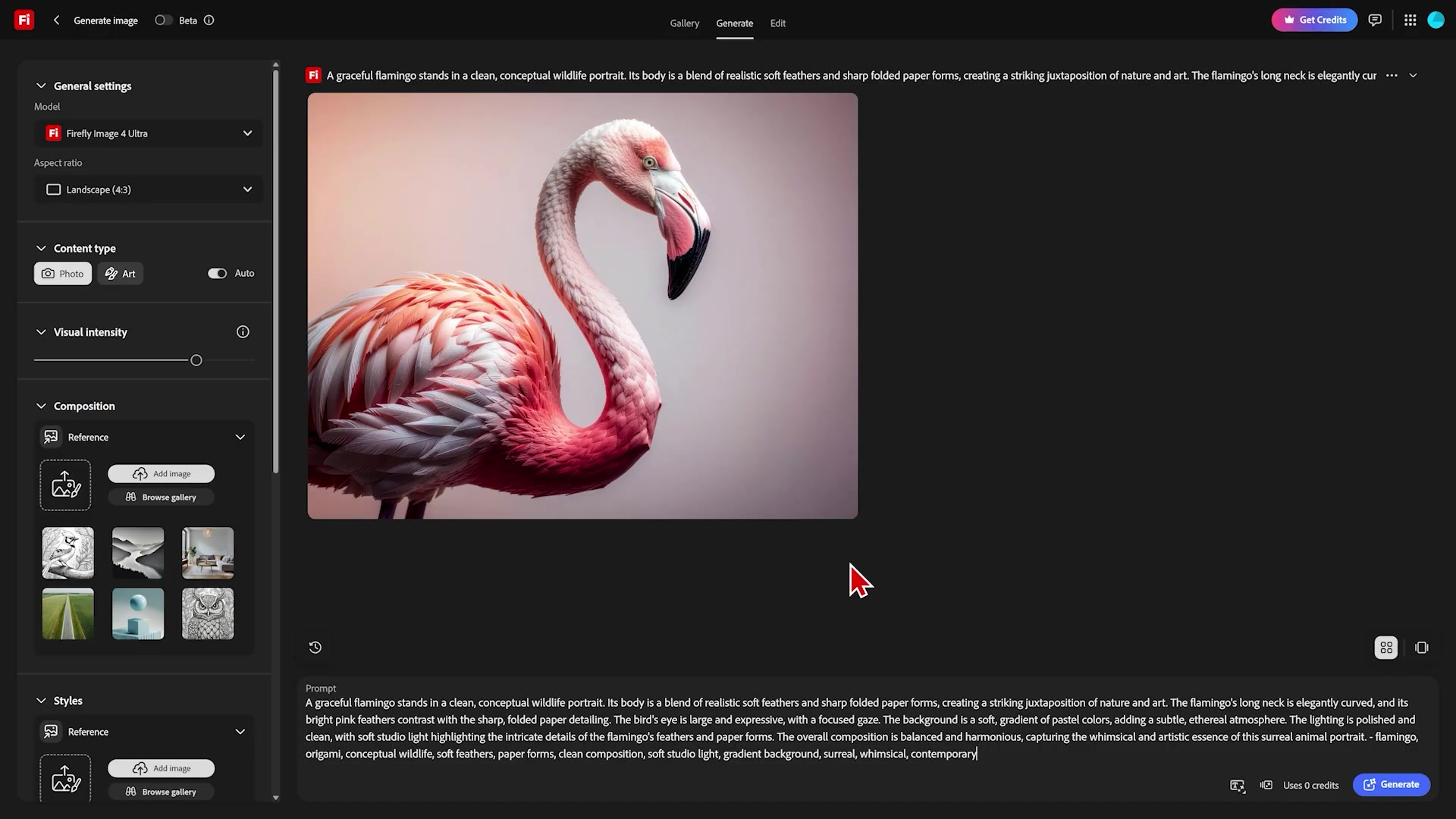
This changes how inspiration can work. Instead of looking at an image on another website, mentally describing it, and rebuilding the idea from zero, you can study the prompt structure and generation settings that produced a similar aesthetic. Then you can modify the ingredients that matter for your own project.
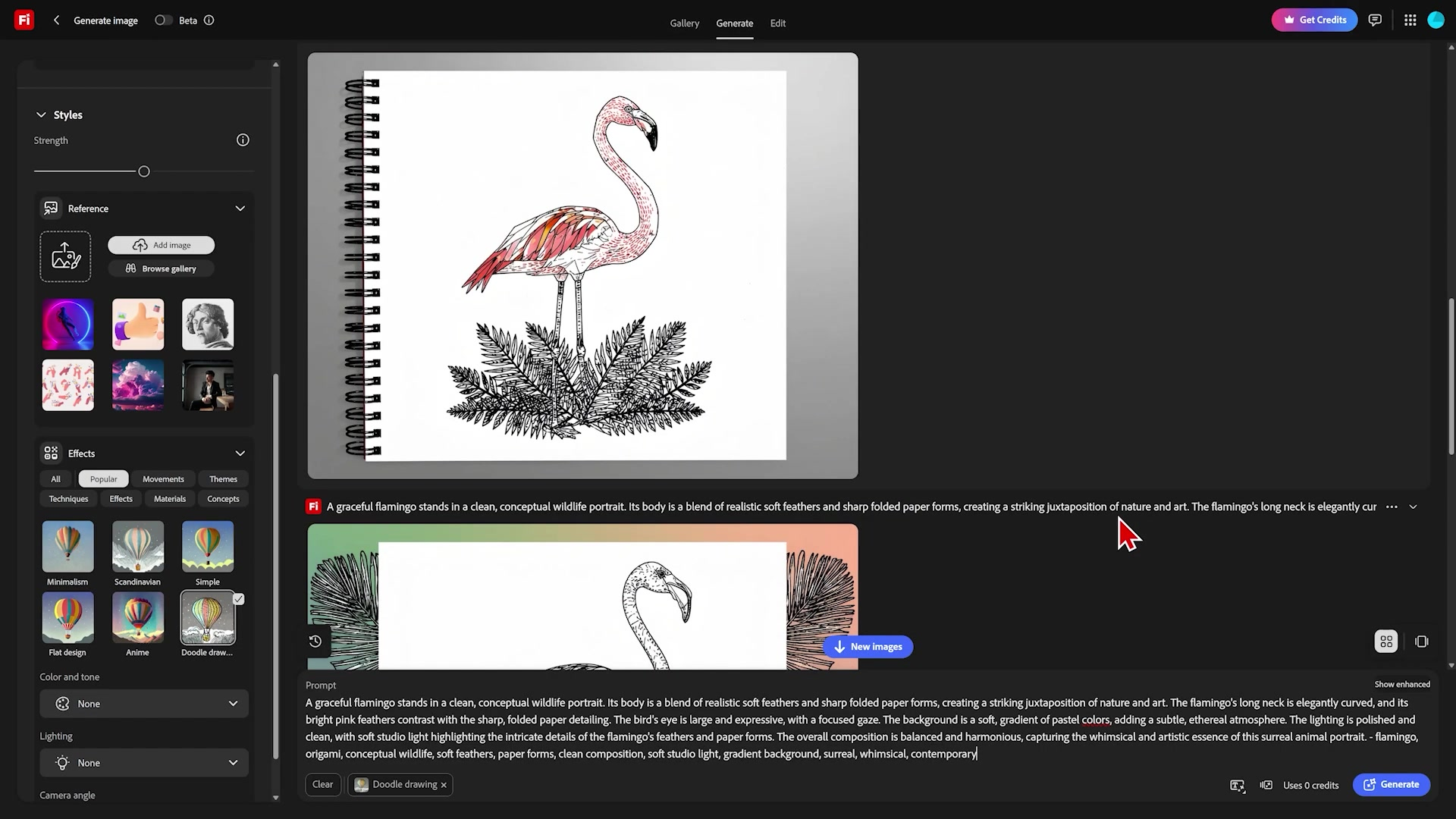
The creator goes one step further and switches the visual style toward a doodle-like illustration. Firefly generates several new flamingo interpretations while preserving the basic subject idea.
Why Remix is better than copying a finished image
The point of Remix is not to download someone else’s artwork and treat it as yours. It is to use the source generation as a reproducible starting point and create a new generation with modified instructions.
That is particularly useful for learning prompt construction. A well-made gallery image can reveal that the final look came from more than a subject noun. The prompt might also encode the camera angle, lighting, material, composition, medium, mood, or illustrative treatment. Once that structure is visible, you can adapt it to a completely different subject.
For designers, this can shorten the gap between “I like that visual language” and “I have something usable for my own composition.” Photoshop then becomes the place to combine the generated asset with typography, layout, brand graphics, photography, or precise retouching.
Adobe still documents Gallery Remix as a current workflow: open a gallery submission, modify the prompt or settings, generate a new variation, and continue editing or downloading from there.
3. Upscale before the final Photoshop pass
The third feature is simpler but extremely practical: Generative Upscale inside Firefly.
The source video shows the creator opening the edit menu, choosing Upscale, selecting a scale factor, and generating a larger result. The reason this matters is workflow friction. If you are already generating or editing in Firefly, you do not have to export a small image, open a separate specialty app, upscale it, save another copy, and then return to Photoshop.
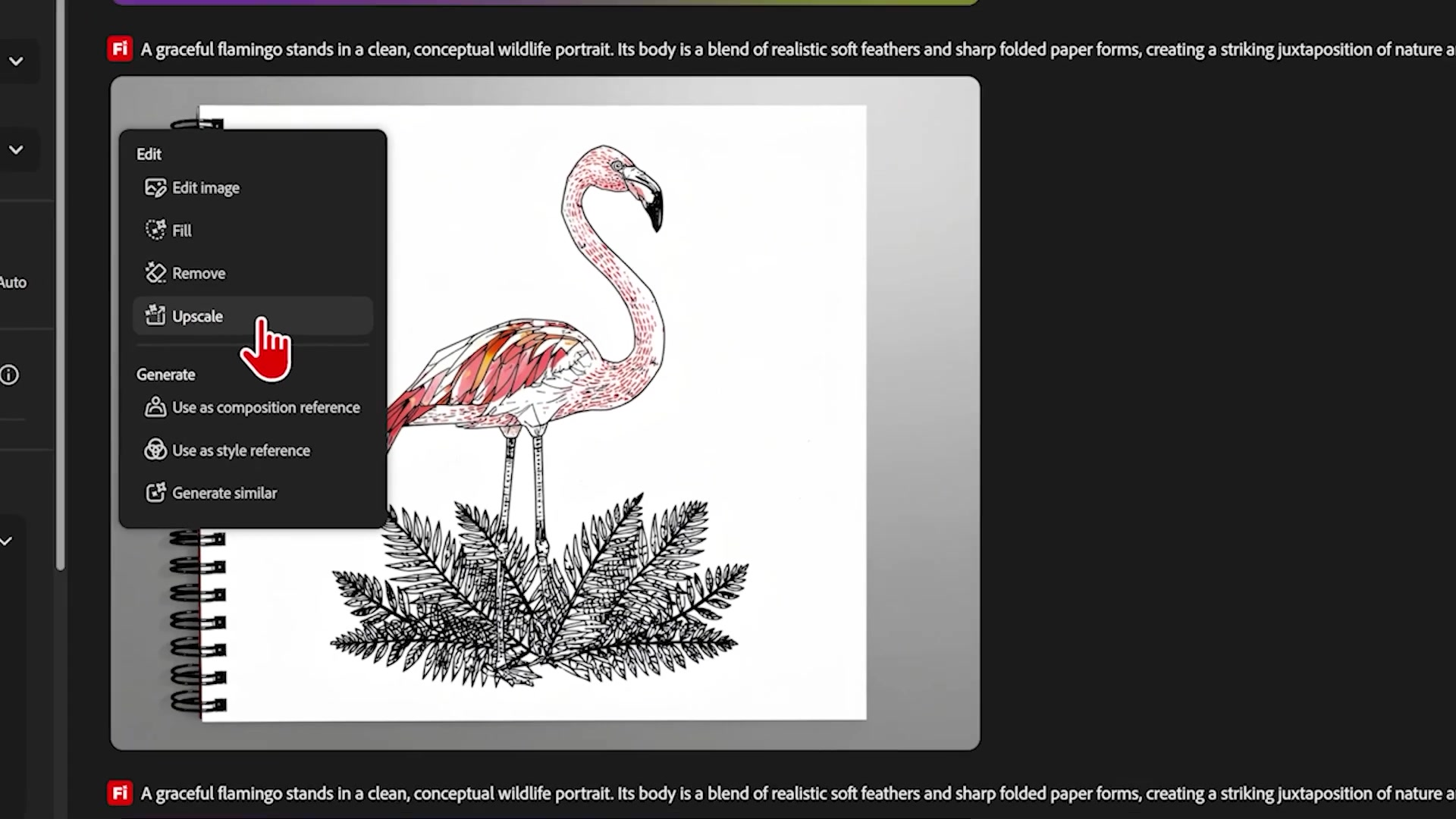
Adobe’s current Firefly documentation lists three image-upscaling choices:
- Firefly Upscaler for general restoration and enlargement;
- Topaz Bloom for a more creative enhancement that can invent additional detail;
- Topaz Gigapixel for preserving existing detail while increasing resolution.
The current interface supports 2x and 4x scaling. Adobe also documents Face recovery with Topaz Gigapixel for blurry or low-resolution faces. That lines up with the video’s second upscaling example, where the creator demonstrates a face-recovery option on an older soft-focus photo.
Preservation versus invention
The model choice matters. Upscaling is not a single operation anymore.
If you are working with a product photo or a scanned document, you may want the model to preserve identity and structure as faithfully as possible. If you are working with concept art or an AI-generated illustration, a creative upscaler that invents plausible texture can be more useful.
This distinction is worth keeping in mind before you judge an upscaled image. “More detail” does not always mean “more true detail.” AI can create believable eyelashes, skin texture, fabric grain, foliage, or lettering that did not actually exist in the source. For restoration or documentary work, compare against the original at high zoom and avoid treating invented detail as recovered ground truth.
Photoshop can now do this too
One part of the original video’s framing has also changed: Firefly is no longer the only convenient Adobe place for this workflow. Current Photoshop includes Generative Upscale as well, with Firefly and Topaz model choices. That means your preferred route can depend on where you are already working.
A sensible division is:
- upscale in Firefly when you are still generating, remixing, or preparing several assets;
- upscale in Photoshop when the image is already in a layered Photoshop workflow and you want to continue editing immediately.
Partner models such as Topaz are treated as premium generative features in Adobe’s credit system, so the credit cost can vary by model, file size, and operation.
4. Use Firefly AI Assistant for multi-step and batch creative work
The fourth workflow is the biggest conceptual shift. Instead of choosing one tool and performing one edit, the creator opens Firefly AI Assistant and describes an outcome.
The video uploads a watch photo and asks for versions in popular social-media and website aspect ratios. It also instructs the assistant to keep the watch fully visible and leave extra empty space around it for later text.
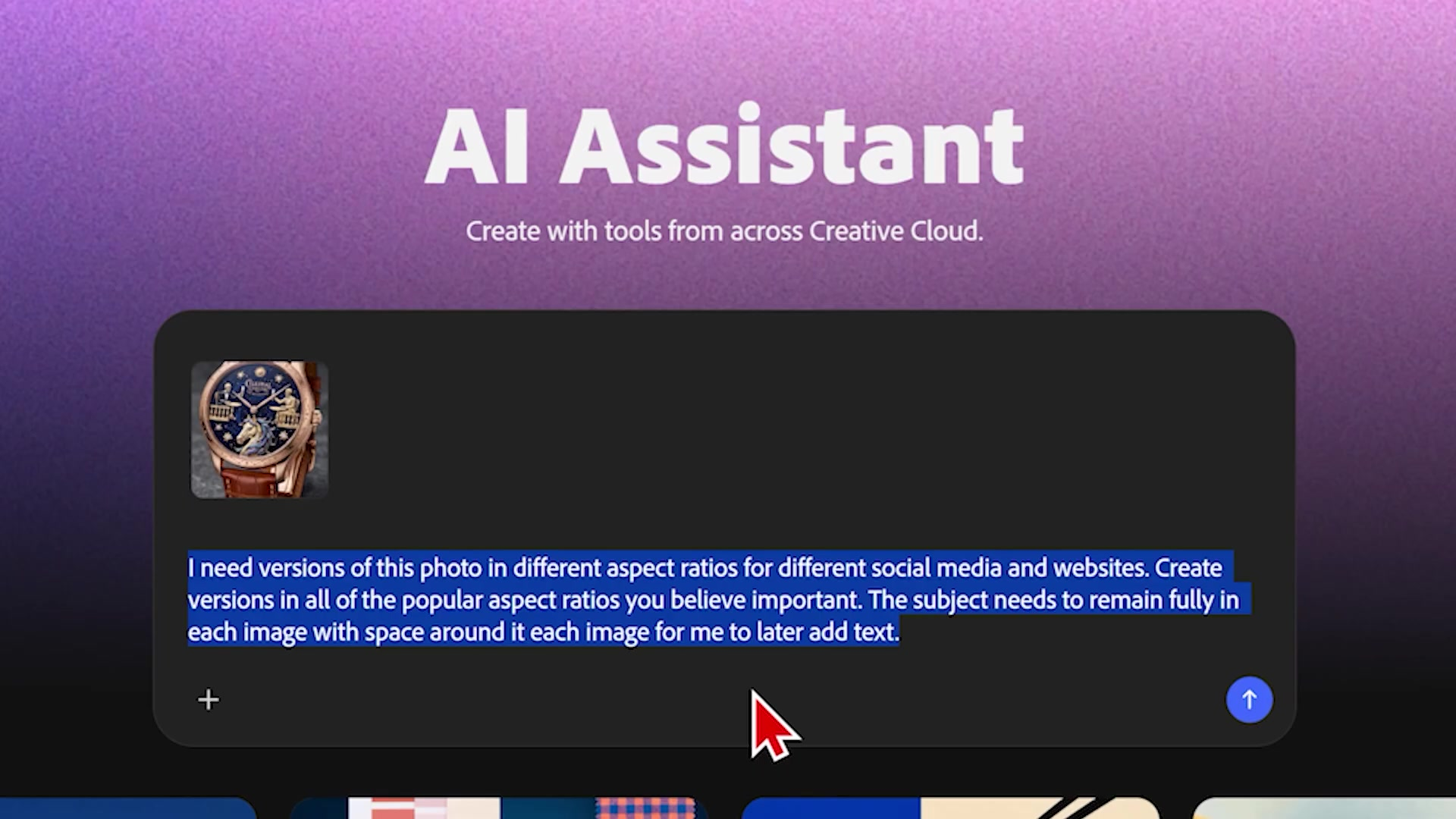
The assistant analyzes the request, identifies target formats, creates multiple versions, and returns a set of outputs. When some variants crop the watch too tightly, the creator follows up conversationally: zoom out on the problematic versions, then upscale the final set.
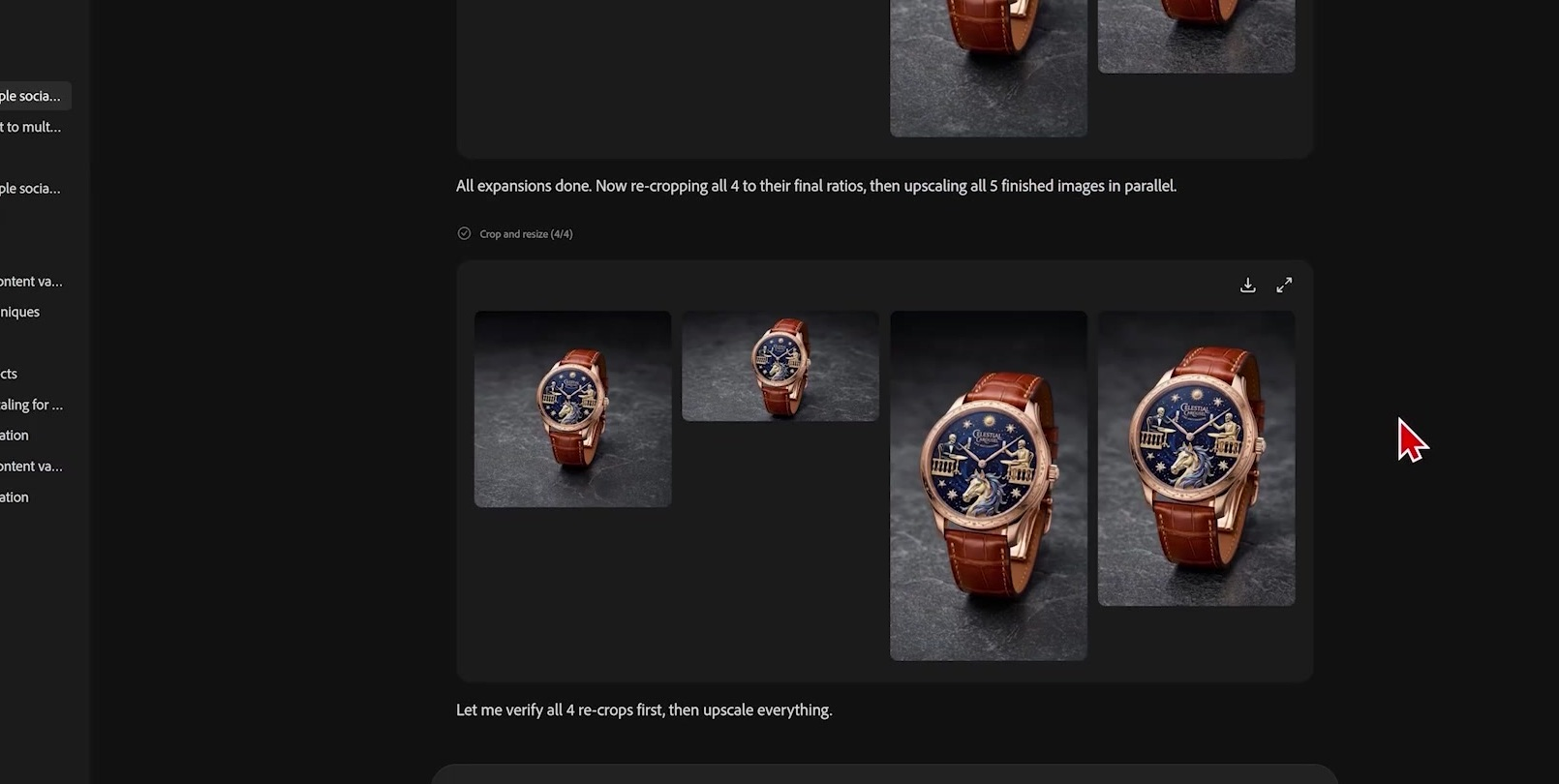
That follow-up is the important part. The workflow is not “write the perfect one-shot prompt.” It is closer to directing a junior production assistant: give the goal, inspect the batch, point out what is wrong, and ask for another operation across the affected files.
Adobe’s current AI Assistant documentation explicitly lists batch photo editing, social resizing, brand kits, mockups, storyboards, and other multi-step creative tasks as intended use cases. The assistant can orchestrate capabilities drawn from Firefly and Creative Cloud apps such as Photoshop, Lightroom, Illustrator, and Premiere.
Creative Skills reduce the need to invent every prompt
The source video also shows a grid of ready-made workflows. Adobe currently calls these Creative Skills: prebuilt multi-step tasks that can be invoked directly or selected by the assistant based on intent.
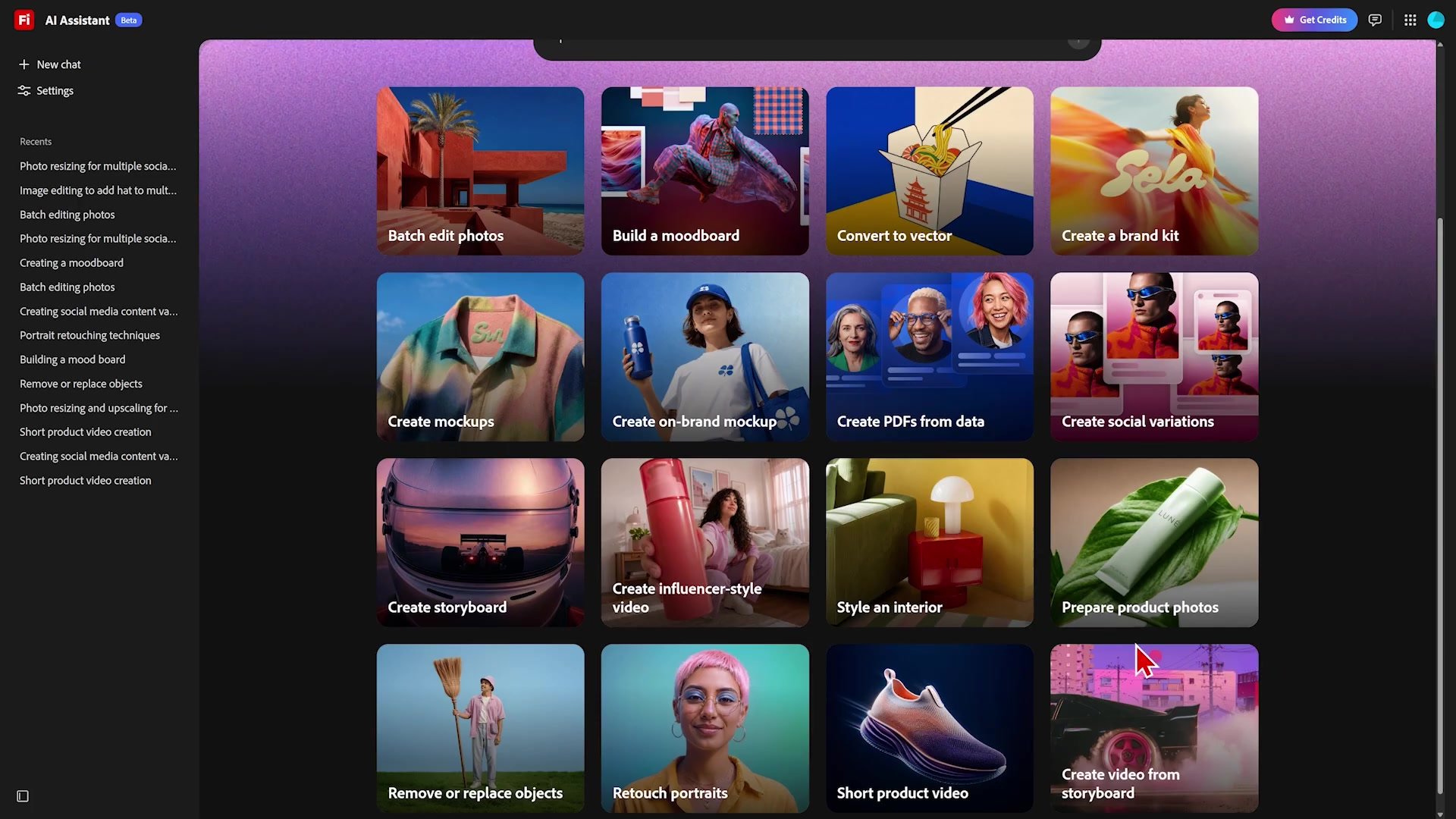
Examples in Adobe’s current experience include portrait retouching, social media assets, product-photo preparation, mockups, and other production patterns. This is significant for less technical users because the difficult part is often not writing prose – it is knowing which operations must happen, and in what order.
A good preset turns “prepare these photos for a campaign” into a repeatable sequence instead of a long checklist of manual edits.
Availability and credits changed during 2026
This is one place where old tutorials can become misleading quickly. Firefly AI Assistant is still labeled beta, but Adobe broadened access during 2026. Adobe’s September 2026 FAQ says the assistant is available across paid Firefly tiers and Creative Cloud plans, with availability expanding to all Creative Cloud plan users from October 1, 2026. A subset of free Adobe accounts can also access a limited experience in select regions.
Credit behavior also changed. Starting October 1, 2026, certain AI Assistant actions on paid plans use the account’s available AI credits. Free users receive a limited number of daily complimentary generations. Because this system is evolving, it is better to check the credit indicator in the interface than to assume a workflow is unlimited.
How Firefly and Photoshop fit together
The most useful interpretation of these features is not “Firefly replaces Photoshop.” The two products solve different parts of the image-production problem.
Firefly is strongest when you want to:
- explore many visual directions quickly;
- generate variations from one idea;
- remix a prompt-driven concept;
- perform generative edits in natural language;
- resize or process a batch;
- use specialized partner models;
- automate a sequence of creative operations.
Photoshop remains strongest when you want to:
- make exact selections and masks;
- work with a deliberate layer structure;
- retouch specific pixels;
- composite several assets precisely;
- control typography and layout;
- perform color work with established adjustment tools;
- prepare a final production file.
Adobe has also continued moving Firefly capabilities directly into Photoshop. Generative Fill, Generative Expand, partner-model choices, AI Assistant features on Photoshop web, and Generative Upscale make the boundary less rigid than it used to be.
The practical question is therefore not “Which one should I use?” It is “Which environment gets this particular step done with the least friction?”
A practical four-stage workflow for creators
If you wanted to combine the strongest ideas from the demonstration into one repeatable process, a useful sequence would be:
For a broader product overview, see the Adobe Firefly tool profile.
Our Adobe Firefly Pro workflow covers the surrounding image, video, and production steps.
Stage 1: Find the direction
Use the Firefly Gallery or your own reference material to define the visual language. If a gallery piece is remixable, inspect its prompt and generation settings rather than trying to recreate the style from memory.
Stage 2: Explore controlled variations
Use the image editor’s slider-based refinement workflow – currently documented as Precision Flow (beta) – when the question is “how much?” rather than simply “yes or no.” Pick the closest version instead of spending time on serial retries.
Stage 3: Produce channel variants
Use AI Assistant when one finished image needs to become many deliverables: square social posts, portrait stories, landscape banners, ad variants, or alternate crops. Review the outputs as a batch and issue corrections conversationally.
Stage 4: Upscale and finish
Upscale only after you have chosen the composition you actually want. Then move to Photoshop for exact cleanup, typography, color, masking, or final export.
This order prevents expensive or time-consuming cleanup from being applied to concepts you might later discard.
Current limitations to keep in mind
For more on the evolving workspace and beta features, read our Adobe Firefly Studio beta guide.
Our Adobe Firefly video editor guide covers the separate browser-based editing workflows.
Beta interfaces move
Precision Flow and Firefly AI Assistant are beta experiences. Menu labels, locations, availability, and credit behavior can change. If a tutorial’s button name does not match your account, search Adobe’s current help center for the capability rather than assuming the feature has disappeared.
Generative edits can alter more than you requested
A request to change lighting can also reinterpret texture, shape, reflections, or small objects. A generative upscale can invent detail. Always compare the result with the source when fidelity matters.
Partner-model terms are not identical to Adobe-model terms
Adobe’s AI Assistant FAQ distinguishes Firefly models from partner models. Adobe states that outputs generated using Firefly models within AI Assistant are considered safe for commercial use; when a partner model is used, the user is responsible for determining whether that model is appropriate for the project. That distinction matters for client and commercial work.
Credits matter more as workflows become agentic
A single prompt can now trigger several generations and edits. That is convenient, but it also means one request may execute multiple credit-consuming operations. Check the credit indicator after a workflow instead of estimating usage from the number of prompts you typed.
Final takeaway
The most interesting Firefly improvement is not any single image model. It is the growing collection of workflow tools around the models.
The slider-based editing flow turns vague prompting into controlled exploration. Gallery Remix makes inspiration actionable. Generative Upscale reduces the number of tools required between generation and finishing. AI Assistant moves repetitive production toward outcome-based instructions and batch processing.
For experienced Photoshop users, that can remove a lot of low-value iteration without giving up the precision of Photoshop for the final pass. For newer creators, the same tools reduce the amount of interface knowledge required to get from an idea to a usable asset.
The source video’s four demonstrations remain a useful introduction, but the Firefly interface has continued to evolve. In 2026, the durable lesson is less about memorizing where a particular beta button lives and more about understanding the new division of labor: Firefly for rapid exploration and orchestration; Photoshop for precise finishing and control.
Current-source notes
Product details were checked against current Adobe documentation in October 2026. Useful official references include:
- Precision Flow (beta): Adobe documentation
- Firefly Gallery Remix: Adobe documentation
- Firefly image upscaling: Adobe documentation
- Firefly AI Assistant FAQ and availability: Adobe documentation