
The answer in the video is more nuanced than the headline. Grok is exceptionally fast, comparatively inexpensive in the creator's third-party workflow, and strong at dynamic camera movement and expressive concepts. But it is not automatically the best model for every shot. Some generations contain continuity mistakes, incorrect object details, or visually plausible actions that do not follow the prompt exactly. The creator therefore treats Grok less like a one-click answer and more like a fast iteration engine.
For a concise overview of the product itself, see our Grok AI tool profile.
This article follows that workflow from start to finish, then separates the video's early-2026 product behavior from what xAI officially offers now.
What the Tutorial Is Actually Testing
The tutorial is built around three practical questions:
1. Can Grok Imagine create short-form concepts that look unusual enough to stop a social-media scroll?
2. How does it compare with other AI video models when the same prompt is reused?
3. Can the same tool create polished product reveals, apparel ads, and image-to-video commercials instead of only novelty clips?
That framing matters because “best AI video model” is too broad to be useful. A model can be fast but less realistic, realistic but slow, inexpensive but inconsistent, or excellent at product motion while weaker at precise object continuity. The video deliberately tests several of those trade-offs.
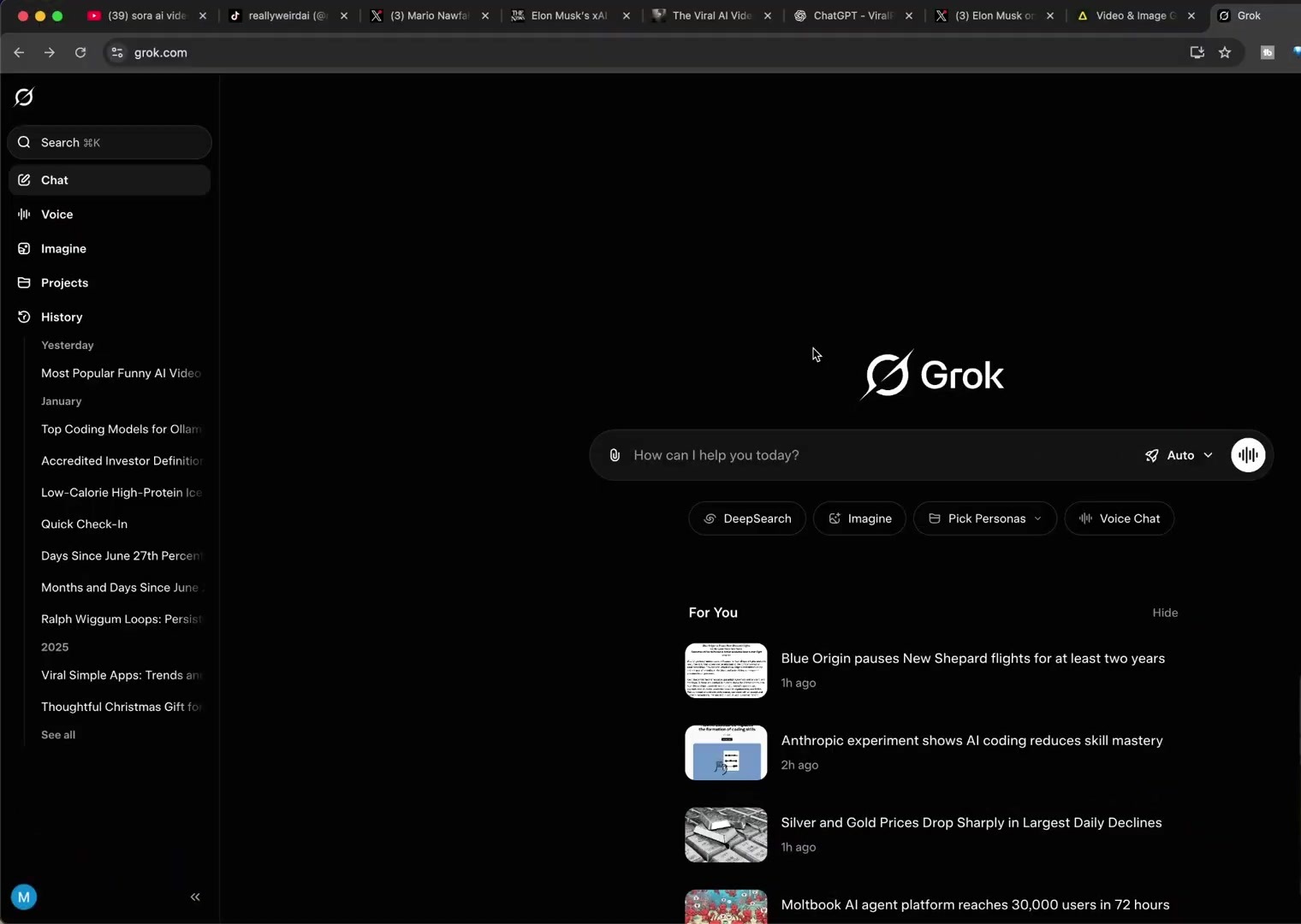
Grok Imagine home interface shown in the tutorial
Start With Grok Imagine on the Web
The demonstrated workflow begins at Grok on the web. After signing in, the creator opens Imagine, where generated images and videos appear alongside community examples.
The first important idea is that the same creative session can begin with a still image and then move into video. The tutorial types a simple prompt to create several image options, picks a direction, then switches the generation mode from image to video.
That makes Grok useful for rapid visual exploration. Instead of writing a perfect cinematic prompt before you know what the concept should look like, you can first generate a visual direction, decide which interpretation is promising, and then animate it.
Choose the Video Format Before You Prompt
The video settings shown in the tutorial expose two decisions beginners should make before generation: duration and aspect ratio.
For long-form YouTube or desktop-first use, the creator recommends a landscape frame such as 16:9. For TikTok, Instagram Reels, and YouTube Shorts, the workflow switches to a vertical format.
That sounds obvious, but it has a direct effect on composition. A vertical prompt should leave room above and below the subject and should not assume the same horizontal staging as a widescreen commercial. When a prompt includes camera motion, entrances, exits, or multiple characters, the frame shape can determine whether the action remains readable.
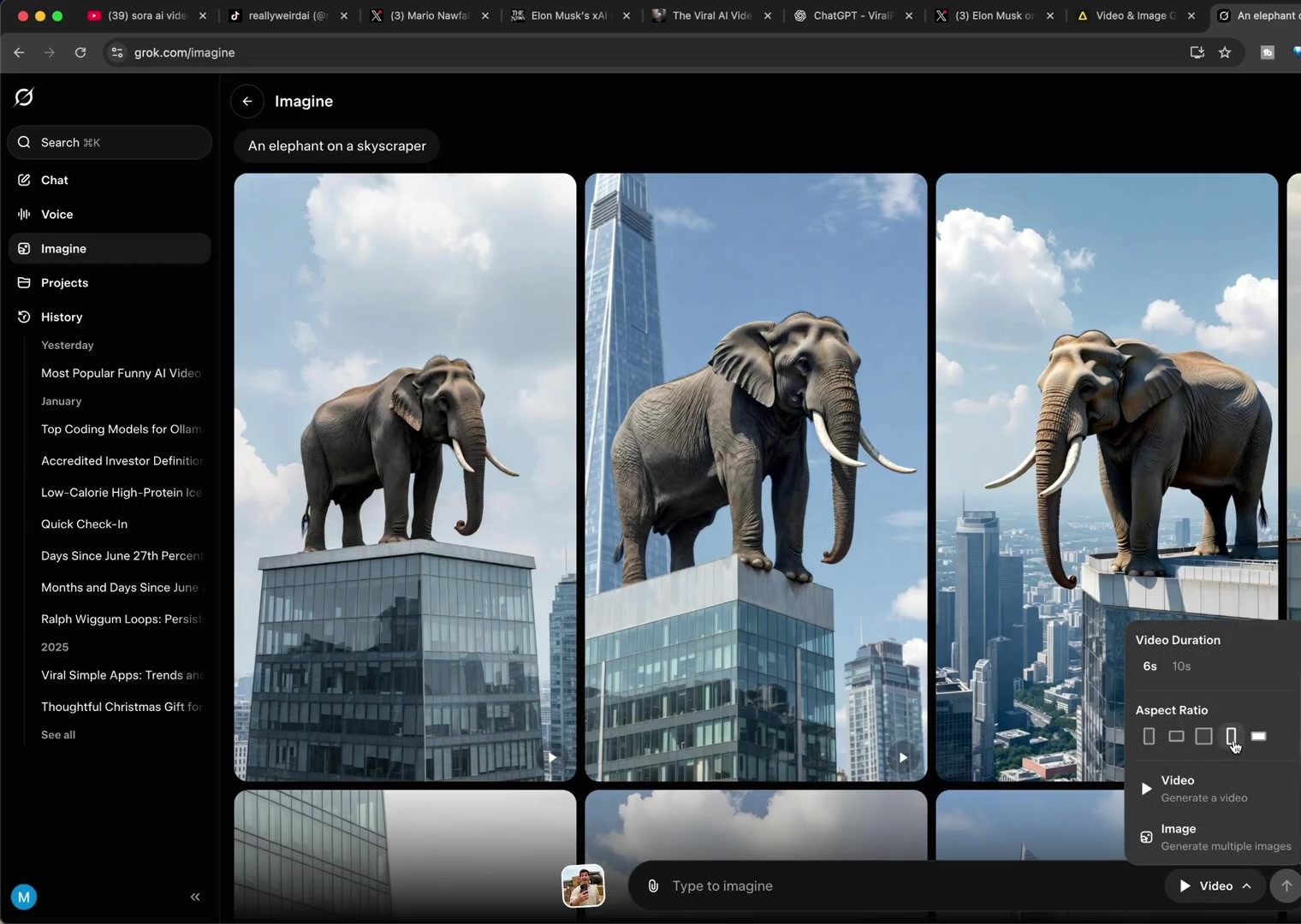
Grok Imagine video options and aspect-ratio controls
A useful beginner rule is to decide these four things before generating:
What platform is the clip for?
Is the shot vertical, square, or landscape?
How many seconds are actually needed for the action?
Is this a one-shot visual or a sequence with multiple beats?
Simple Prompts Work, but Descriptive Prompts Work Better
The tutorial first uses a short prompt and gets an immediately usable result. The next lesson is that Grok responds better when the prompt carries more production information.
Instead of describing only the subject, add details about:
the action;
camera movement;
lighting;
environment;
material and texture;
pacing;
sound or dialogue when relevant;
the exact visual moment that should happen first and last.
The creator uses a custom prompt-writing GPT to expand rough ideas into fuller prompts. That GPT is the creator's own workflow, not an xAI requirement. The transferable lesson is simply to separate idea generation from video generation. A language model can help turn “make a gourmet sandwich assemble itself” into a much more specific shot plan before the video model spends compute on it.
Why Speed Changes the Creative Process
One of the strongest observations in the tutorial is not purely about image quality. It is about generation speed.
When a model returns a clip quickly, iteration becomes cheaper psychologically as well as financially. You are more willing to test a different camera move, remove a bad object, change the duration, or rewrite a prompt because each experiment does not feel like a major commitment.
The video's creator repeatedly uses that advantage: generate, inspect, identify one failure, change the prompt, and regenerate.
That workflow is more reliable than trying to write one enormous “perfect” prompt from the beginning.
Free Access, Paid Limits, and Why the Video Uses a Second Platform
In the source tutorial, Grok can be tried with a free account, but the creator runs into limits when selecting longer clips or after generating several videos. The exact free allowance shown in the video should be treated as a snapshot, not a permanent quota.
By late 2026, xAI officially describes Grok as free to start while paid SuperGrok plans raise usage limits. Paid usage also moved to a shared weekly allowance model rather than the older pattern of separate daily limits for each feature. The number of free or paid generations can therefore change with plan rules and compute cost.
The creator's workaround is to use Artlist's AI toolkit, which exposes multiple image and video models in one interface. This is a third-party workflow, not part of Grok itself.
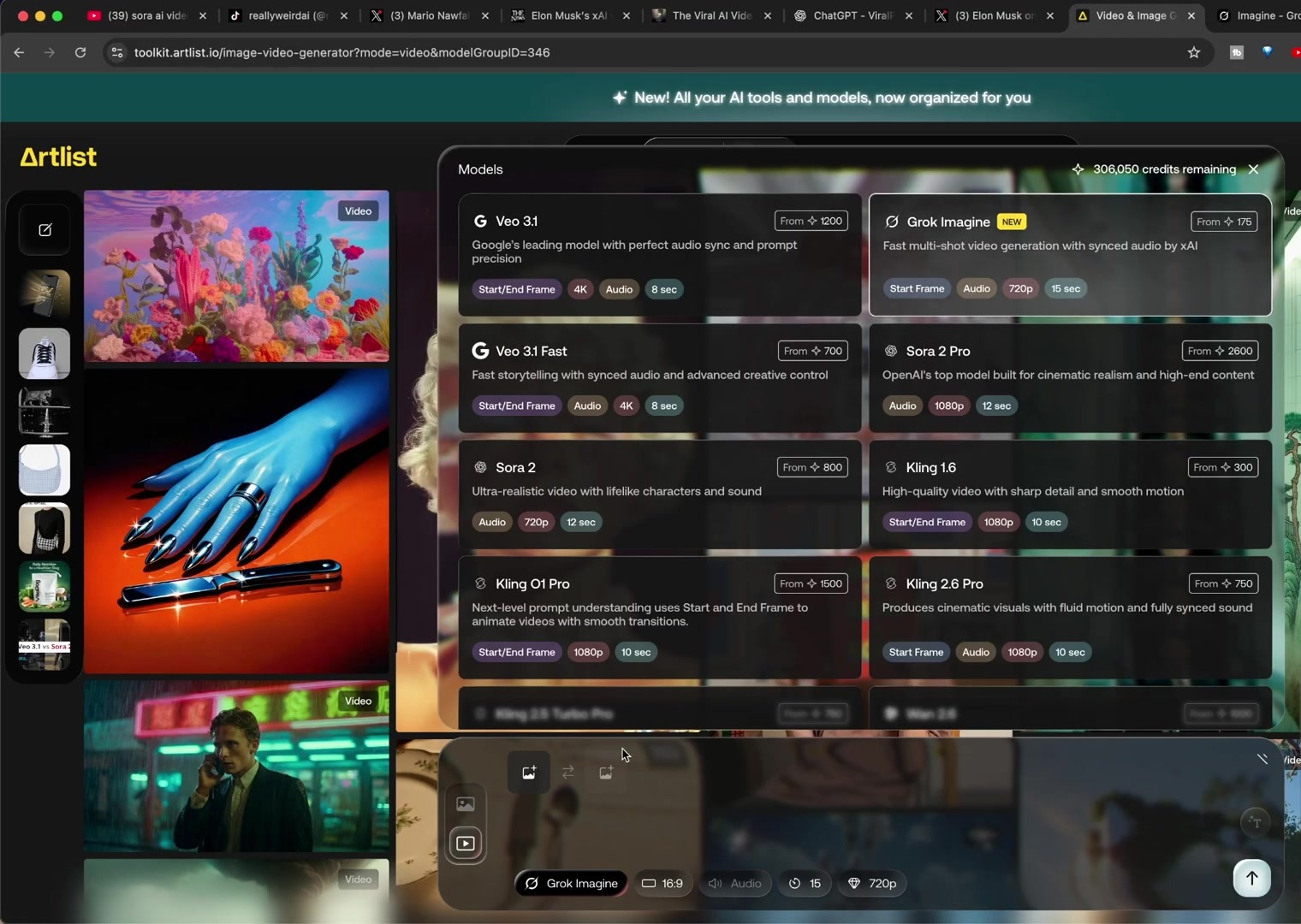
Third-party model picker used to access Grok Imagine alongside other video models
The practical advantage of an aggregator is comparison. The same prompt can be sent to Grok, Veo, Sora, or another model without rebuilding the entire project in a separate interface. The disadvantage is that pricing, model versions, duration options, and limits are controlled by the third party and can differ from xAI's own app or API.
Build a Library of Viral Concepts Instead of Starting From Zero
The tutorial does not brainstorm every clip from scratch. The creator keeps a library of short-form concepts collected from patterns seen on viral channels.
Examples shown in the video include:
unusual animal or security-camera scenarios;
satisfying ASMR-style cutting and material interactions;
miniature worlds;
surreal everyday magic;
comedy built around a simple visual mistake or surprise;
self-assembling food;
short POV situations.
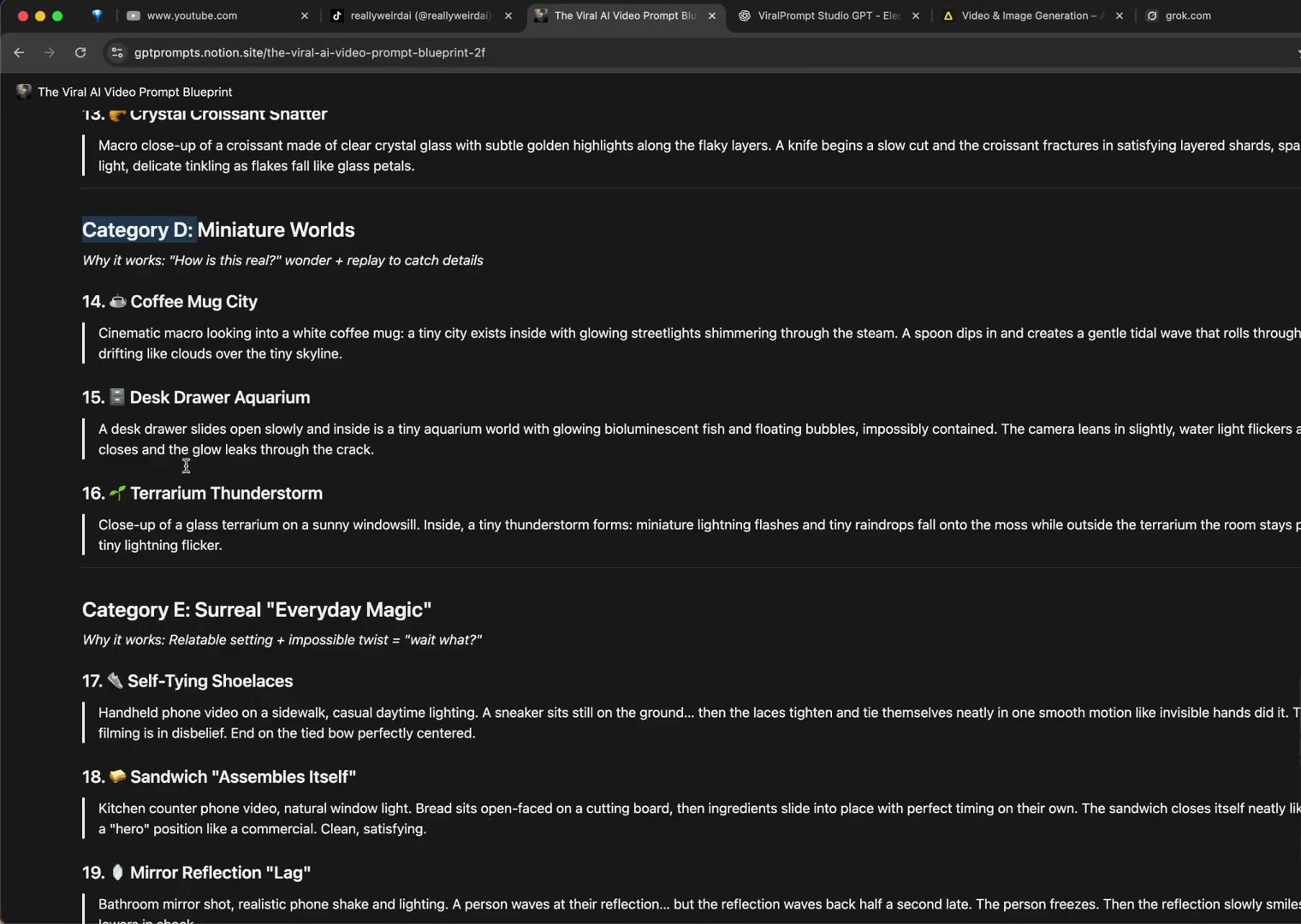
Prompt library of viral short-form concepts used in the workflow
The important part is not copying a viral clip. It is identifying a repeatable visual mechanic. “Miniature workers building a giant object,” “an everyday product assembling itself,” and “a normal environment with one impossible element” are reusable structures. You can change the subject, setting, brand, and camera language while keeping the underlying hook.
For short-form social clips, the creator generally prefers roughly 8 to 12 seconds when the platform permits it. That is presented as a creative sweet spot in this workflow, not an official Grok rule.
Review the First Generation for Specific Failures
A common beginner mistake is to judge a clip only as “good” or “bad.” The tutorial models a more useful review process.
For a raccoon clip, the creator checks whether the action reads clearly. For an elevator skit, he notices an incorrect control detail. For the sandwich example, he spots a piece of cheese appearing where it should not. Those are concrete defects that can be addressed in a new prompt.
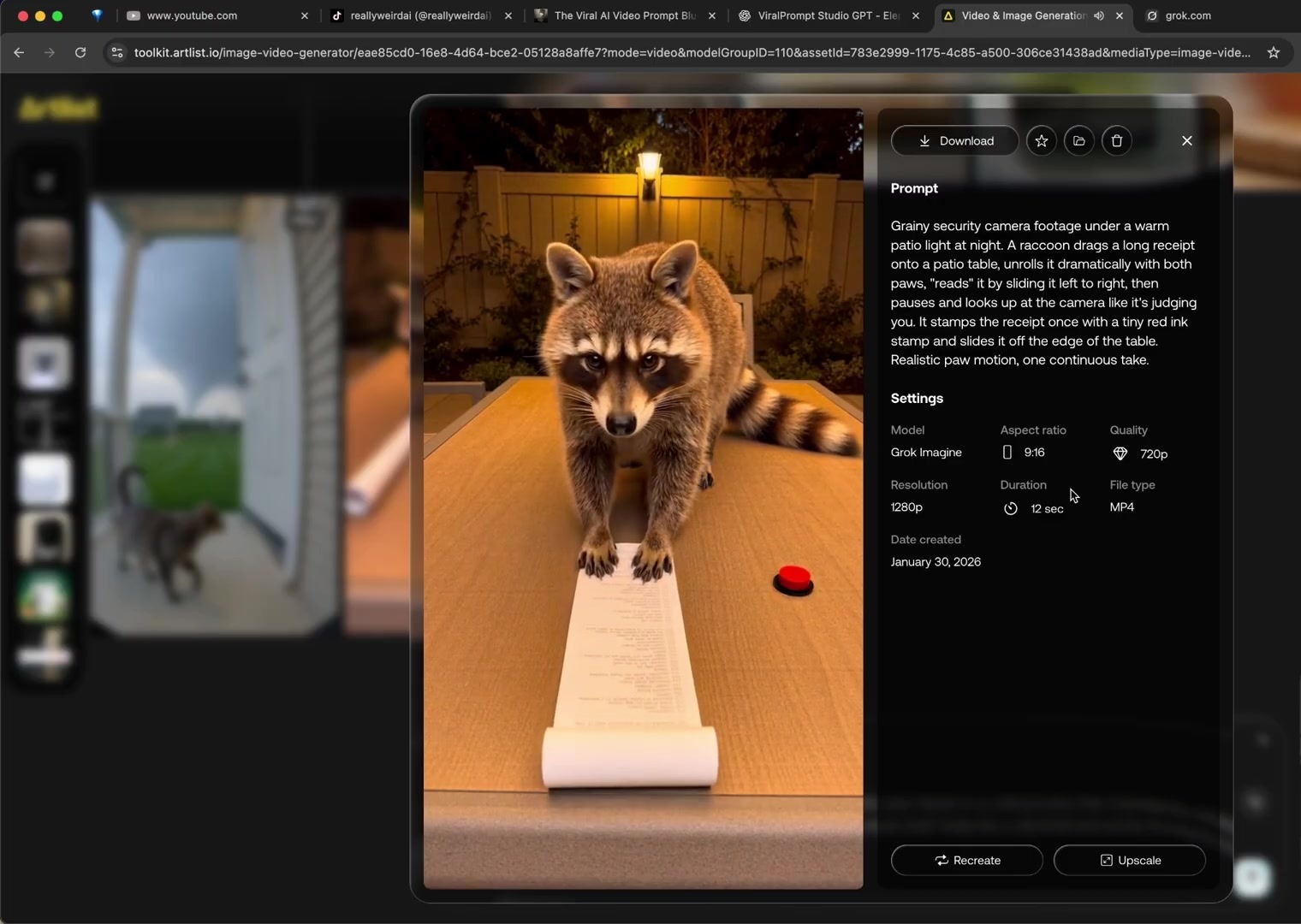
One of the fast Grok video generations reviewed in the tutorial
This is the core loop:
1. Generate a first version.
2. Identify the single most important visual failure.
3. Rewrite the prompt to constrain that failure.
4. Generate again.
5. Compare the new result against the original goal.
That process is especially effective when the model is fast enough to support several attempts.
Compare Models With the Same Prompt, Not Different Ideas
The tutorial also compares Grok with other video models by reusing the same core prompt. That is a better comparison than giving every model a different task.
The sandwich sequence is the clearest example. Grok captures the floating assembly concept well but introduces an unwanted visual element. Another model produces a more realistic image but breaks the action by making an object appear suddenly. A third looks highly realistic but interprets the creative direction differently from the intended floating assembly.
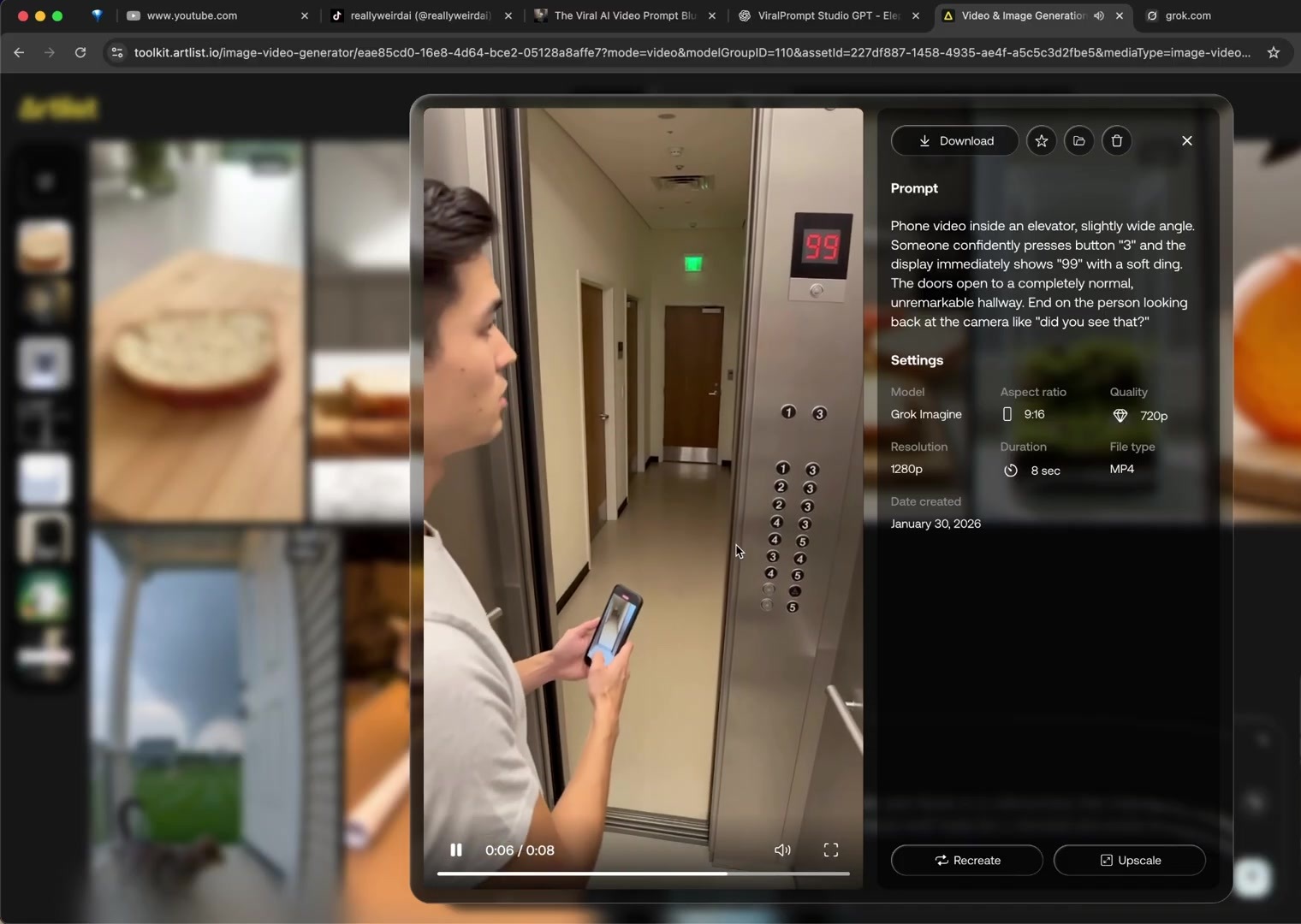
Generation review used to compare how different models interpret the same concept
The creator's conclusion is deliberately specific: one model may win on realism while Grok may better preserve the intended concept. That is more useful than declaring a universal winner.
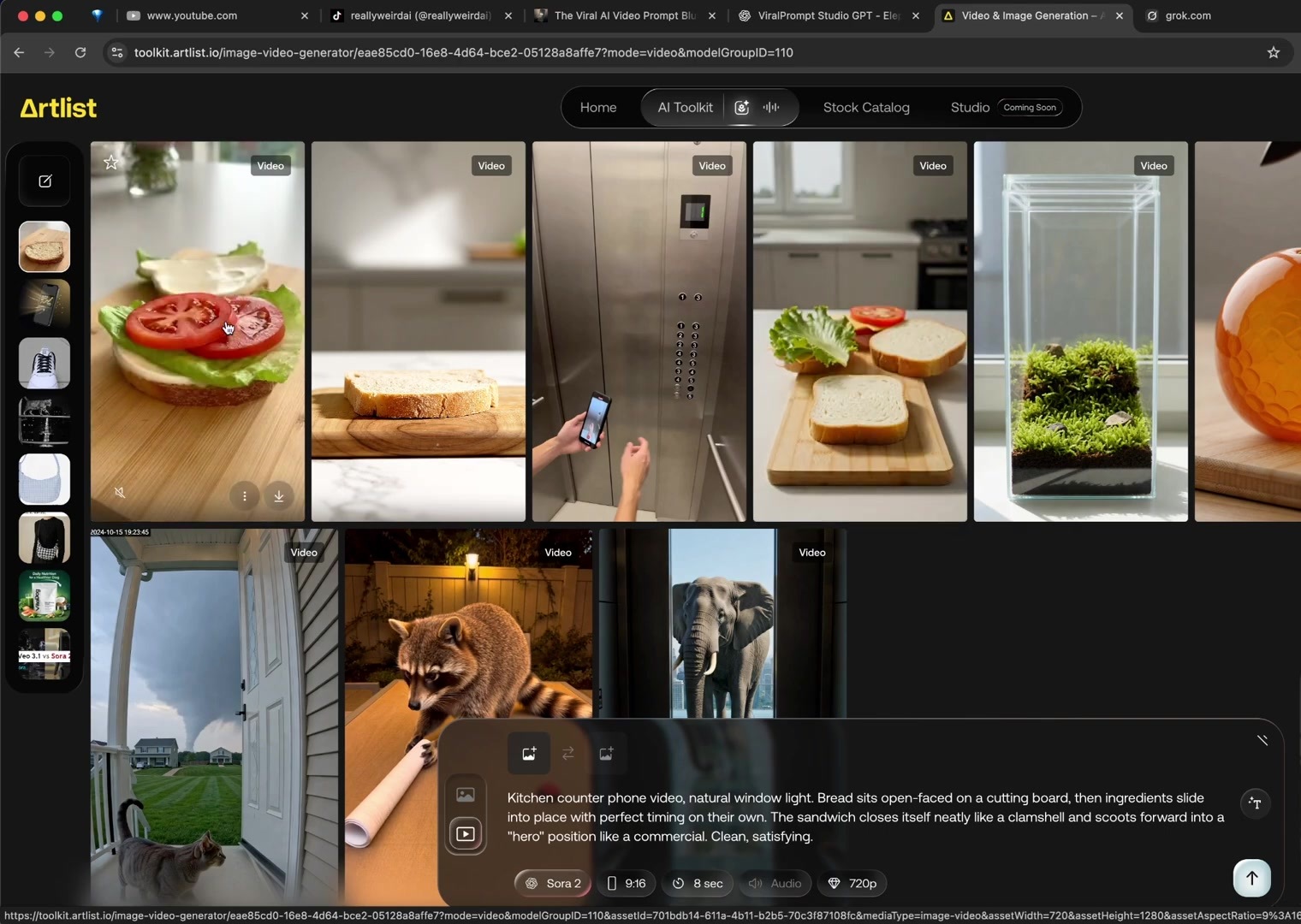
Multiple generated clips reviewed side by side in the creator's comparison workflow
Prompt Refinement Is More Important Than the First Result
After spotting the unwanted cheese in the first sandwich generation, the creator rewrites the request with more detail: the sandwich should look gourmet, ingredients should be deliberate, the result should remain realistic, and the assembly should feel visually satisfying.
The refined generation is noticeably closer to the intended shot.
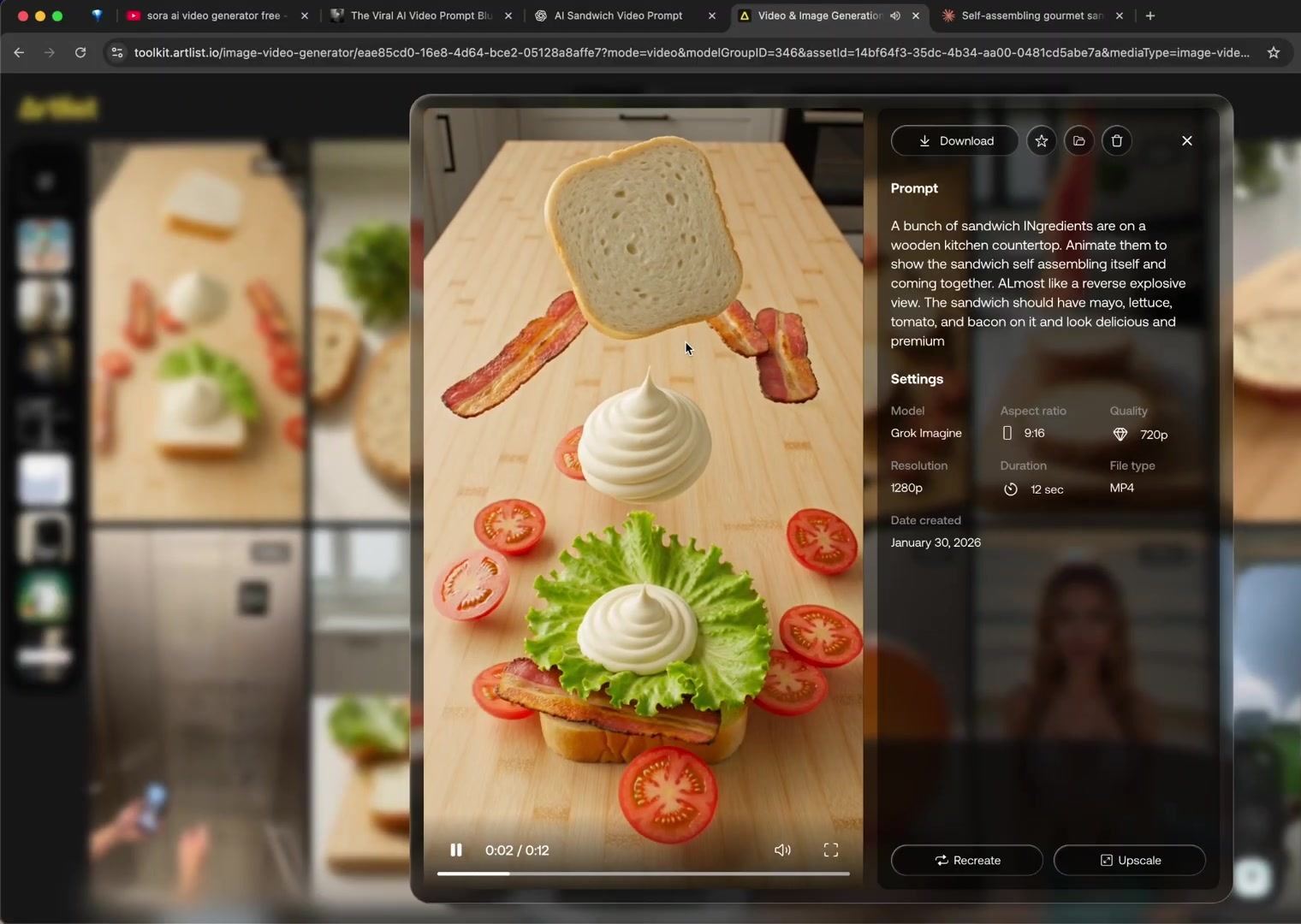
Refined sandwich result after a more specific prompt
The broader lesson is to prompt in layers:
Layer 1: Subject
What is the viewer looking at?
Layer 2: Action
What physically changes during the clip?
Layer 3: Camera
Is the shot static, orbiting, zooming, tracking, handheld, macro, overhead, or POV?
Layer 4: Look
Specify lighting, materials, realism, color palette, depth of field, and environment.
Layer 5: Constraints
State what must not happen: no extra ingredients, no malformed logo, no additional person, no cutaway, no jump in continuity.
Layer 6: Audio
If the model supports generated audio, describe dialogue, ambience, music cues, or sound effects explicitly.
Grok Is Especially Interesting for Product Videos
The second half of the tutorial moves away from novelty content and into a more commercially useful workflow: product reveals.
The creator tests several structures, including:
wireframe-to-product reveals;
“click satisfaction” or mechanism shots;
liquid/material build sequences;
automotive reveals and unboxing;
apparel and lifestyle ads;
dialogue-led influencer-style product clips.
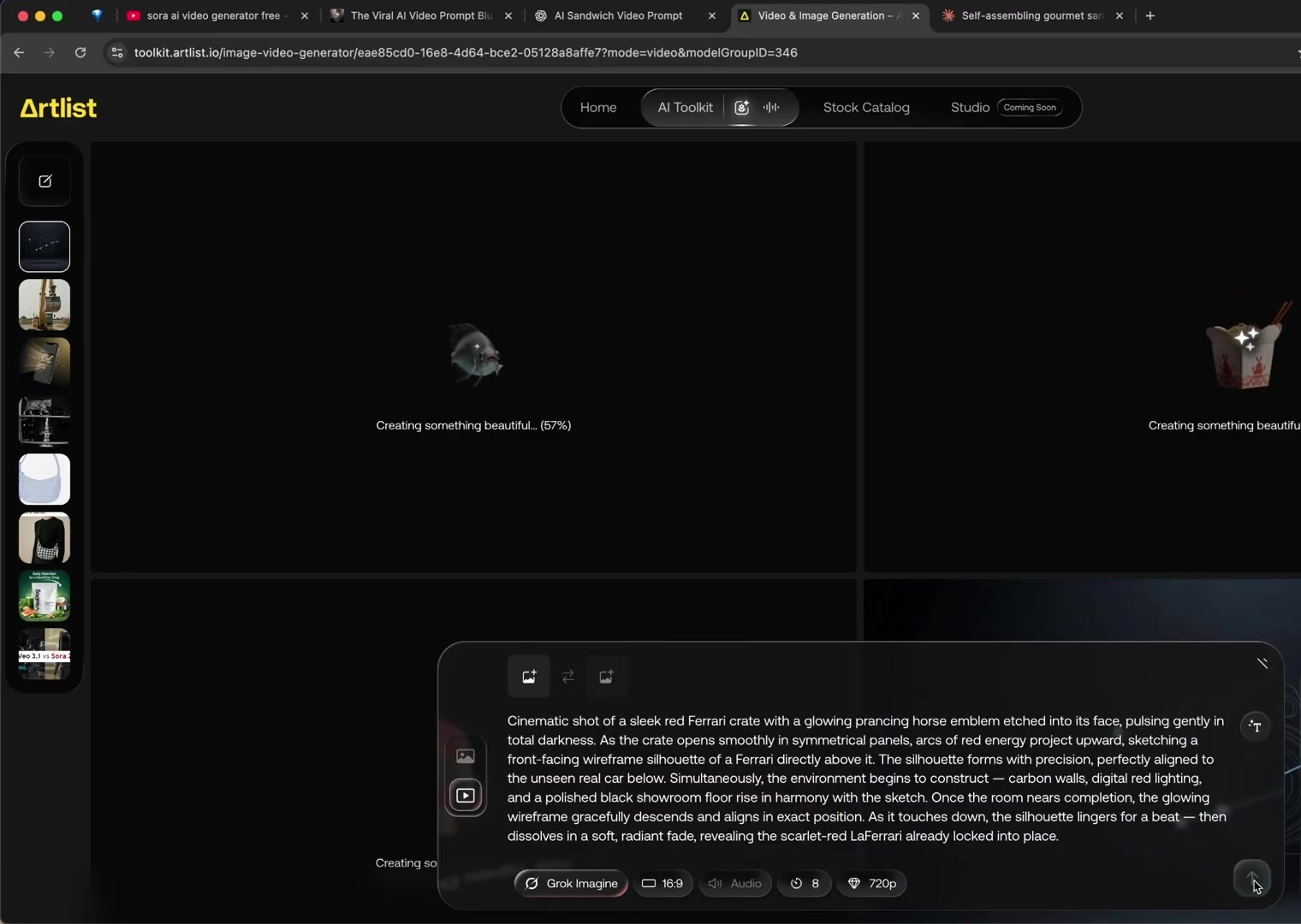
Product-video generation workflow in the third-party interface
These concepts benefit from clear camera direction because the product itself is the hero. A strong product prompt should usually specify the starting composition, the reveal mechanism, the camera move, the hero angle, and the final resting frame.
For example, instead of “make a cinematic camera ad,” a stronger structure is:
A black mirrorless camera begins as a luminous technical wireframe on a dark studio platform. The wireframe fills with physical materials from the inside out until the finished camera is fully formed. Slow push-in, then a subtle 30-degree orbit to the hero angle. Controlled rim lighting, premium commercial look, clean black background, realistic reflections, no extra text.
That kind of prompt gives the model a timeline instead of only a style.
Product Motion Often Looks Stronger Than Complex Story Logic
Several product clips in the tutorial are among the creator's favorite outputs. Mechanical transitions, surface transformations, camera orbits, and isolated hero objects give the video model a visually rich task without requiring long-range narrative consistency.
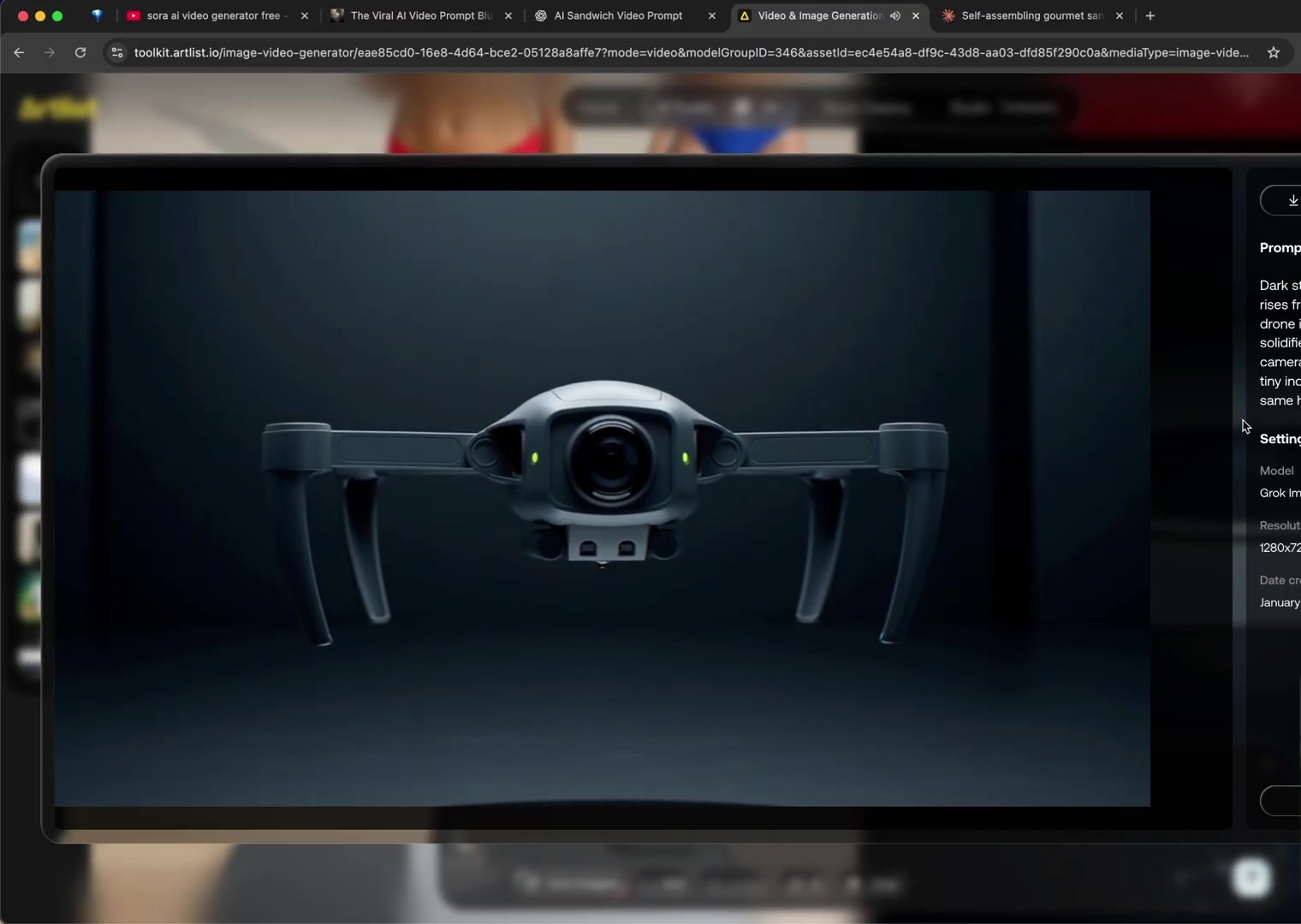
Product reveal result highlighted in the tutorial
This suggests a practical use case for small businesses: even if an AI video model is not yet reliable enough for a dialogue-heavy scene with several characters, it can still be valuable for product teasers, social ads, reveal loops, mood shots, and short launch assets.
Generated Dialogue Can Work, but Context Still Needs Review
The apparel examples test a different capability: a generated person speaking a line about the product.
The creator is impressed that the requested sentence appears, the clothing branding is recognizable, and the scene includes the intended people. But he also notices a story-context problem: it is not always obvious who the speaker is talking to.
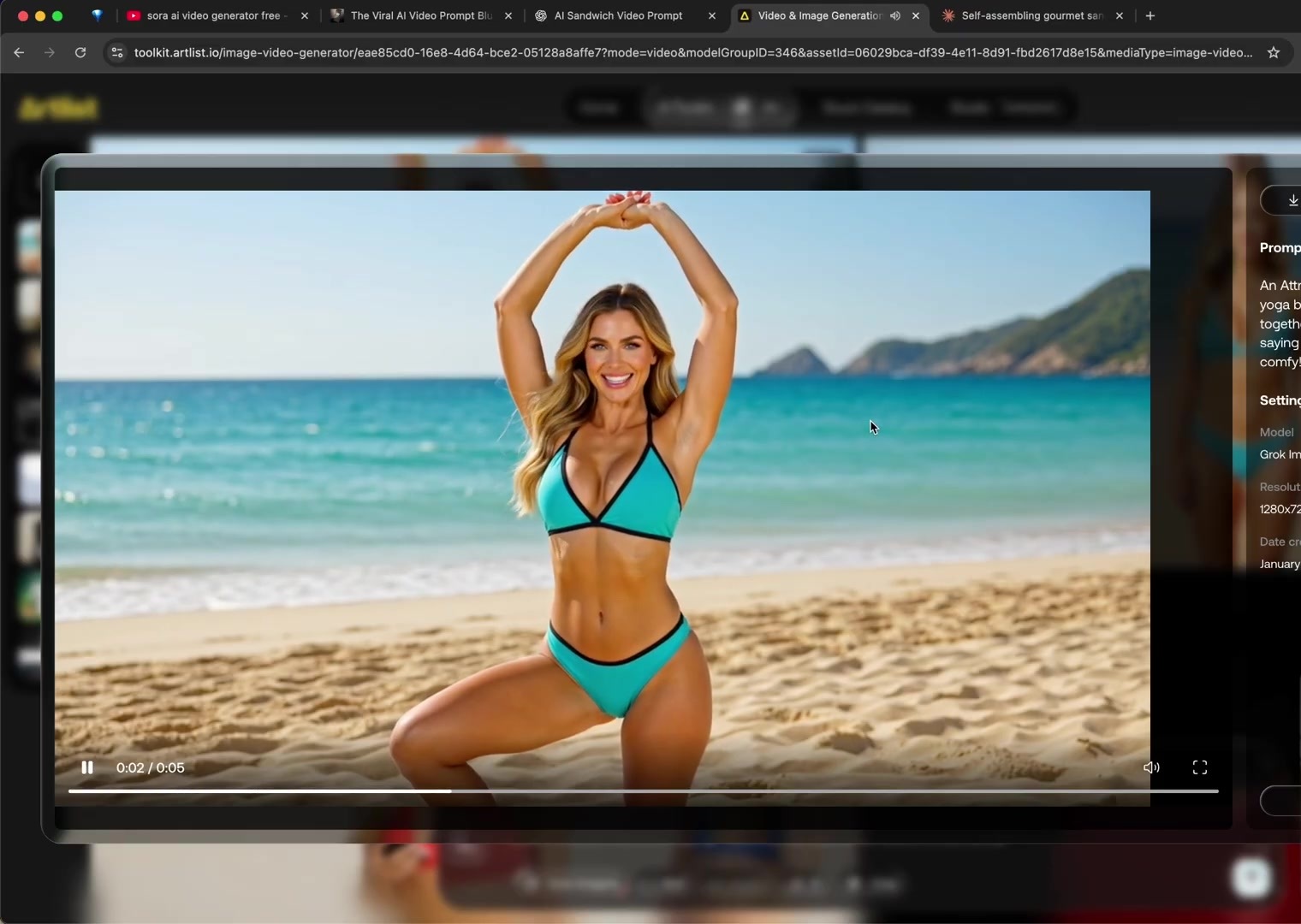
Apparel example with generated dialogue shown in the tutorial
That is a useful warning. Audio can be technically correct while the scene is narratively confusing. When writing dialogue prompts, include the conversational relationship as well as the words:
who is speaking;
who they are addressing;
where the listener is positioned;
whether the speaker looks at camera or at another person;
the tone and pace of the line.
Turn a Product Image Into a Video Ad
The final commercial workflow starts with a product image rather than a pure text prompt. The creator uses a Coca-Cola can as the visual input, asks a language model to analyze the image and produce a suitable video prompt, then generates an ad from that reference.
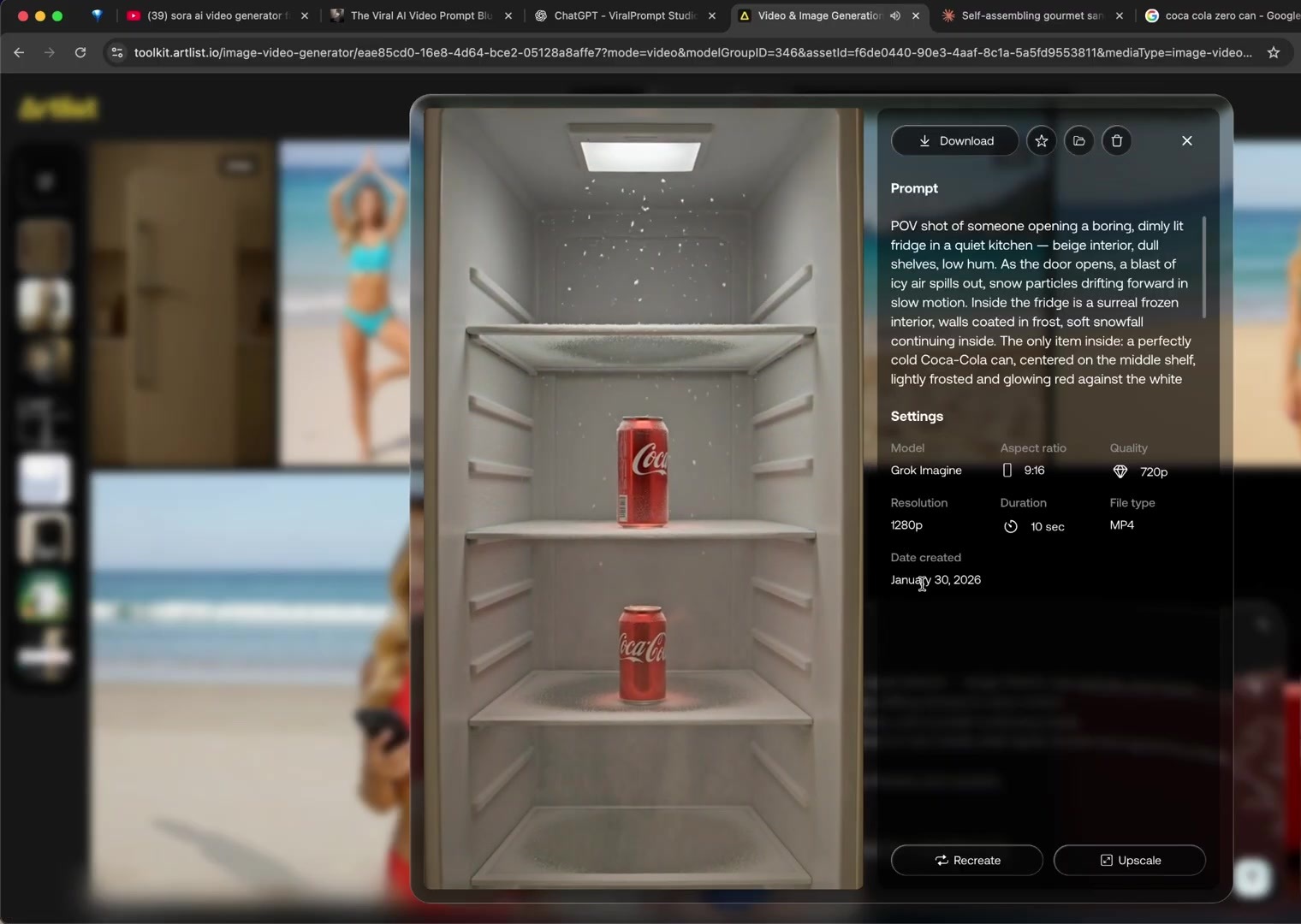
Image-to-video Coca-Cola example from the tutorial
This is one of the most reusable workflows in the video because a business often already has product photography. Instead of asking a video model to invent the product from scratch, you can supply a clean product reference and focus the prompt on motion, environment, camera, and reveal.
A practical image-to-video prompt should describe what must stay stable:
product shape;
logo placement;
label colors;
package proportions;
camera-facing side;
background relationship.
Then describe what may change:
camera motion;
lighting;
condensation, particles, smoke, liquid, or fabric;
supporting props;
environment;
sound and dialogue.
What Changed in Grok Imagine by Late 2026
The source video reflects an earlier 2026 product state. xAI's current official documentation shows a significantly more capable stack.
Grok Imagine Video 1.5
xAI announced Grok Imagine Video 1.5 in June 2026. The current API documentation describes text-to-video and image-to-video with native audio and lip-synced speech, up to 1080p output, richer reference-image support, and pinned frames. xAI also offers a lower-cost Video 1.5 Lite model.
The API currently documents clips of up to 15 seconds, while Grok's consumer Imagine marketing page advertises HD video workflows up to 30 seconds. That difference is best understood as a surface/product distinction: app capabilities and API limits do not always match.
More Structured Creative Workflows
xAI also added Projects, parallel generation agents, and library search to Imagine. Those features make the product more useful for repeated creative work than the simple generation feed shown in the tutorial.
Usage Rules Changed
The tutorial talks about hitting daily limits after a handful of free generations. xAI now describes a free starting tier and paid SuperGrok plans with higher limits. For paid accounts, xAI moved to a shared weekly usage pool in 2026, so old daily-limit numbers should not be treated as current guarantees.
Third-Party Limits Are Different From xAI Limits
The video uses Artlist to access Grok and competing models in one dashboard. Artlist's current help documentation lists Grok Imagine video support, but its available durations, resolutions, and credit costs depend on Artlist's own plan and model implementation. Do not assume that a duration or credit number shown in the tutorial is the same on grok.com, the xAI API, or Artlist today.
A Better Prompt Template for Grok Imagine
For a short social clip, use this structure:
Subject + action + environment + camera + visual style + timing + audio + constraints
For example:
A gourmet sandwich assembles itself in mid-air above a dark stone kitchen counter. Toasted sourdough rises first, followed by crisp lettuce, tomato, grilled vegetables, sliced meat, sauce, and the top slice in a clean vertical sequence. Macro commercial food photography. Slow 20-degree camera orbit with a gentle push-in. Warm side lighting and realistic crumbs. Crisp ingredient sounds and a soft kitchen ambience. Eight-second clip. No extra cheese, no duplicate ingredients, no cutaway, no hands entering frame.
For a product reveal:
A matte-black action camera sits centered on a black reflective platform. A thin neon wireframe traces the product, then solid materials form underneath the lines until the real camera is revealed. Camera begins overhead, drops to eye level, and finishes with a slow hero orbit. Premium studio rim lighting, realistic reflections, subtle mechanical sound design, six seconds, 16:9. Keep the product proportions and logo placement consistent.
The specific words are less important than the structure: tell the model what happens, how the camera observes it, what the final shot should look like, and what errors to avoid.
Where Grok Imagine Shines
Based on the tutorial and current official capabilities, Grok Imagine is especially attractive when you need:
fast creative iteration;
short product reveals;
surreal or high-concept social clips;
dynamic camera motion;
image-to-video from an existing product or character reference;
native sound and dialogue in a compact generation workflow;
several prompt experiments before committing to a final direction.
Where You Still Need to Be Careful
The tutorial also demonstrates why review remains necessary. Common problems include:
objects appearing or disappearing unexpectedly;
malformed brand marks or interface details;
a visually realistic result that ignores the intended action;
incorrect continuity across a multi-step event;
dialogue that is technically correct but contextually unclear;
different platforms exposing different model versions, resolutions, durations, and prices.
For commercial work, treat AI generation as a production step, not the final approval step. Check logos, text, product shape, dialogue, legal rights, and brand accuracy before publishing.
Final Takeaway
The most useful lesson in the tutorial is not that Grok Imagine is “the best” AI video model. The creator actually stops short of that conclusion. Instead, Grok's advantage is how quickly it lets you move through a creative loop: generate a concept, find the flaw, rewrite the prompt, compare alternatives, and generate again.
That makes Grok Imagine especially valuable for short-form ideation and product advertising, where several small experiments can be more productive than waiting for one perfect generation. Current Grok Imagine 1.5 capabilities extend that workflow with better audio, stronger motion, higher resolution, reference inputs, and more structured project tools.
For beginners, the best starting workflow is simple: choose the target platform, keep the first idea short, describe the motion and camera clearly, inspect the first result for one specific failure, then refine. Speed only becomes an advantage when you use it to iterate deliberately.
Current Product Sources
xAI, **Grok Imagine Video 1.5**, June 16, 2026: https://x.ai/news/grok-imagine-video-1-5
xAI Developer Docs, **Grok Imagine Video Overview**: https://docs.x.ai/developers/model-capabilities/video/overview
xAI, **Grok Pricing**: https://x.ai/pricing
xAI Grok Docs, **FAQ / Usage & Limits**: https://docs.x.ai/grok/faq
xAI, **Create Short Videos From Prompts**: https://x.ai/grok/use-cases/video-generation
Artlist Help Center, **Grok Imagine**: https://help.artlist.io/hc/en-us/articles/33638964177053-Grok-Imagine