
Adobe Firefly Studio Explained: Projects, Elements, Files, Models, and Timeline
Publication-ready guide to Adobe Firefly’s new generation and editing workspace
Editorial disclosure
| The source video states that it is sponsored by Adobe Firefly, and the presenter identifies himself as a Firefly ambassador. Current product claims in this article were cross-checked against official Adobe documentation. |
|---|
Adobe Firefly Studio Explained: Projects, Elements, Files, Models, and Timeline
Adobe Firefly is evolving from a collection of individual generative tools into a more persistent creative workspace. The beta experience demonstrated in this walkthrough brings image and video generation, project organization, reusable characters and objects, Creative Cloud media, generation history, and timeline-based video assembly into the same environment.
That change matters because the hardest part of generative creative work is often not producing one good image. It is keeping a campaign, character, product, or story coherent across dozens of generations without losing the files, prompts, references, and model settings that produced the good results.
Adobe’s current help documentation calls this the new generation and editing experience in Firefly. Adobe also uses the broader phrase creative AI studio for the product direction. The exact interface is still a beta and can change, so the video is best treated as a practical snapshot of the workflow rather than a permanent map of every button.
Disclosure: The source video states that it is sponsored by Adobe Firefly, and the presenter identifies himself as a Firefly ambassador. This article preserves the useful workflow demonstrated in the video while separately checking time-sensitive product claims against Adobe’s official documentation.
What Firefly Studio Is Trying to Fix
Traditional AI creation tends to be fragmented. You generate images in one place, create video clips somewhere else, hunt through history for an old prompt, download assets to a local folder, then re-upload them when you need a reference again. If you switch models, the controls change. If you return a week later, the creative context may be gone even when the final files are still on your computer.
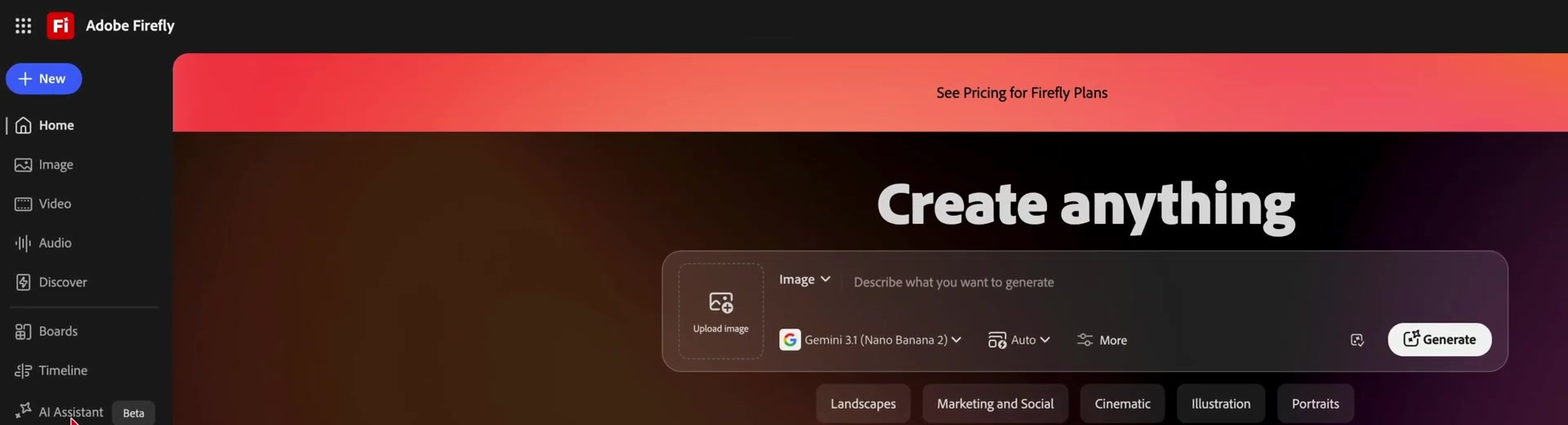
The new Firefly workspace is designed around persistence. Adobe’s current documentation says the beta combines generation, editing, project asset management, generation history, and video timelines in a single environment. It also keeps Project media and Generation history available as you move between generation and editing tasks.
The practical idea is simple: a project should remember more than the final export. It should hold the ingredients and context that let you continue creating.
Getting Into the Beta Workspace
In the video, the presenter enters the experience from Firefly’s image or video generation area and uses the beta control in the upper-left corner. Returning to the Firefly home page takes him back to the standard interface.
Adobe’s current September 2026 help page describes a slightly different entry path: signed-in desktop users can select a Try it control for the new generation and editing experience from the Firefly home page. That difference is a useful reminder that beta navigation is not stable. If your interface does not match the video exactly, the feature may still be available under Adobe’s newer wording.
Officially, Adobe describes the experience as a beta feature available for testing and feedback, with English desktop availability for signed-in Adobe accounts. That is a stronger current statement than relying on the video’s exact beta button placement.
Projects Turn Generations Into a Working Context
One of the first things the walkthrough demonstrates is switching from an all-generation view into a named project. The example project is built around a cartoon character called Glitch, and the project switcher lets the creator create a new project or move among existing ones.
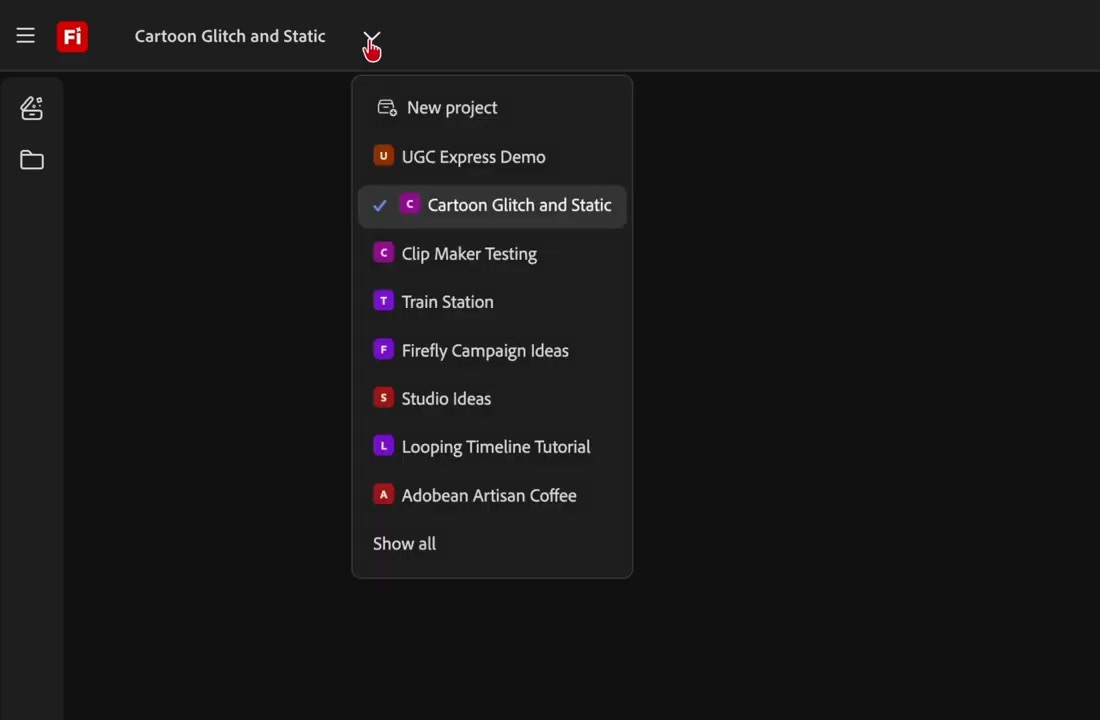
This is more than cosmetic organization. Adobe’s current documentation describes Projects as a way to keep related generations, media, timelines, and other creative assets together. That creates a persistent workspace for a campaign, episode, product concept, or client job rather than a single unstructured stream of outputs.
The video also shows why this matters in practice. When the creator filters the workspace to the current project, the visible generations become relevant to that job instead of being mixed with unrelated experiments.
The Adobe Firefly tool profile provides a broader overview of the product family.
For an end-to-end creative workflow that uses these capabilities, see our Adobe Firefly Pro workflow.
Generation History is not the same thing as Project media
A subtle point in the walkthrough is that generating something does not automatically mean it has been deliberately saved as project media.
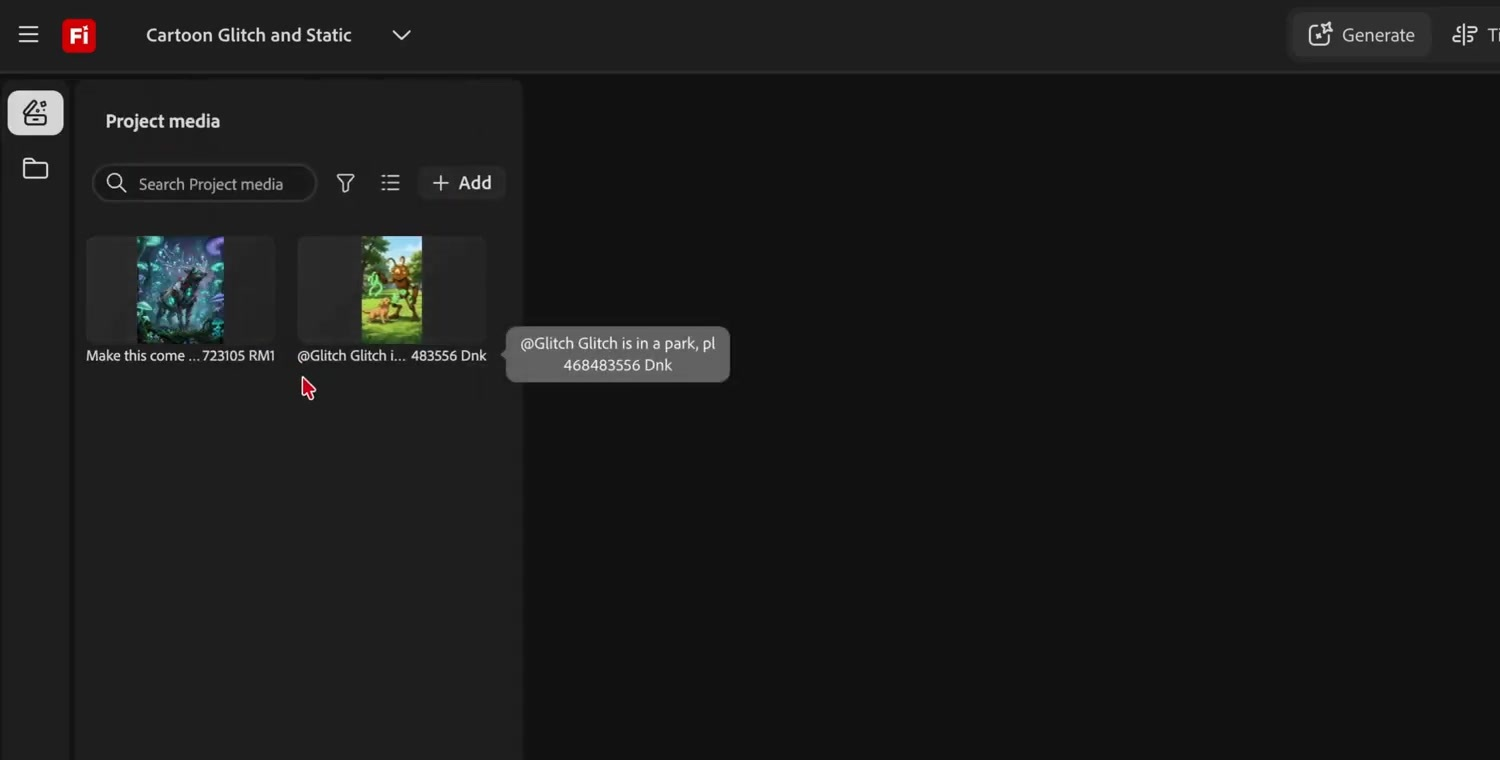
Adobe’s current help pages make the distinction clearer. Generated images and videos are automatically available in Generation history, while Save to project places a generation into Project media for the current project. From a generation’s options, you can also add it directly to the Timeline.
That means a useful mental model is:
- Generation history is the record of what Firefly produced.
- Project media is the collection you intentionally keep close to the project.
- Timeline is where media becomes part of an assembled video sequence.
This separation is one of the most important workflow ideas in the entire beta.
Bringing Creative Cloud Files Into the Same Project
The left-side media area in the video has another useful layer: files are not limited to assets generated in Firefly. The presenter opens his Adobe files and browses folders and assets already available through his Creative Cloud account.
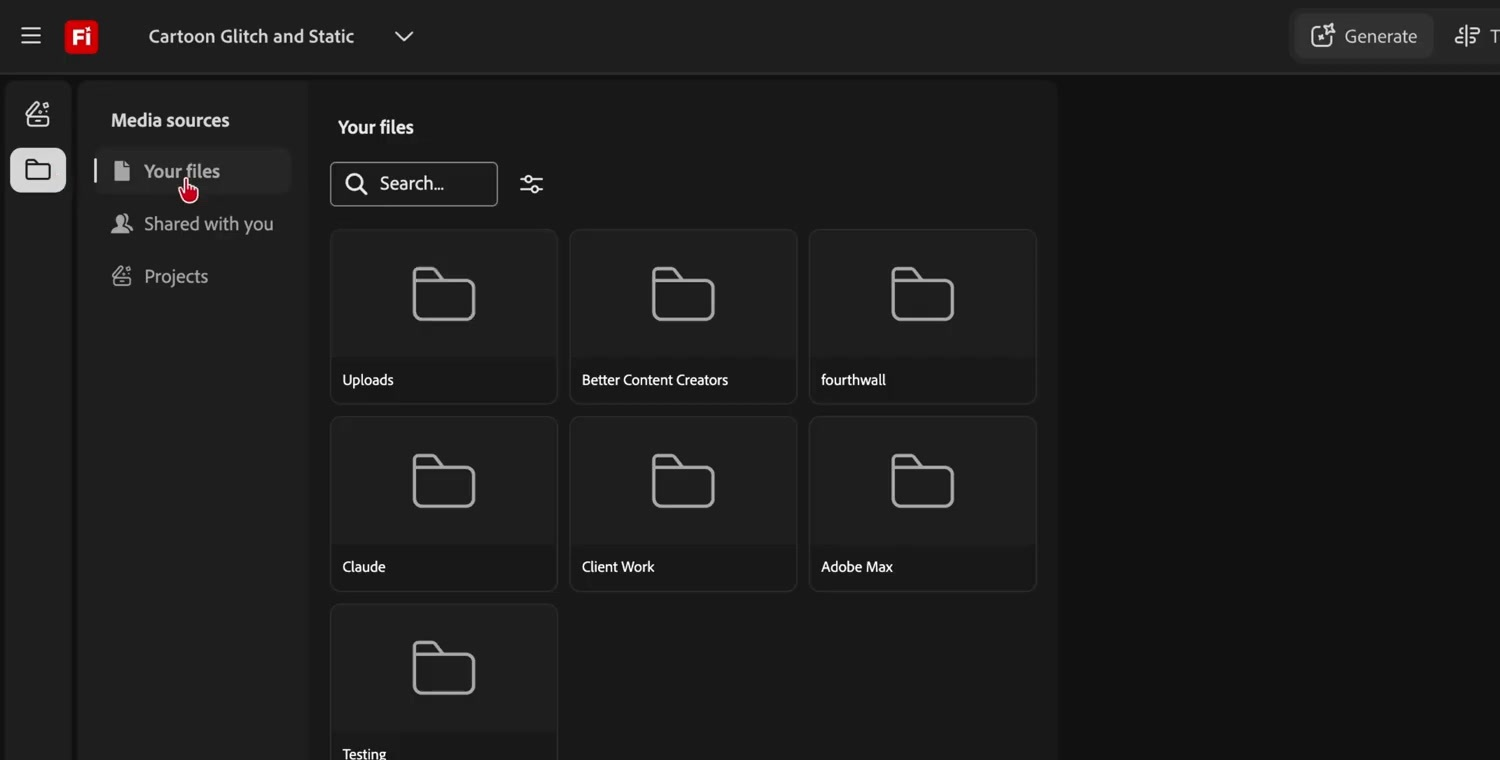
This is important for real production work. A generative campaign rarely starts from nothing. You may already have logos, approved product shots, previous social graphics, references, client assets, or files created in Adobe Express and other Creative Cloud applications. Being able to find those without leaving the project reduces the download-reupload cycle that makes many browser AI tools feel disconnected from a larger creative stack.
The video demonstrates search, location filtering, file-type filtering, and an Add to current project action. It also shows the creator searching for Firefly-related assets and bringing one of them into the active project.
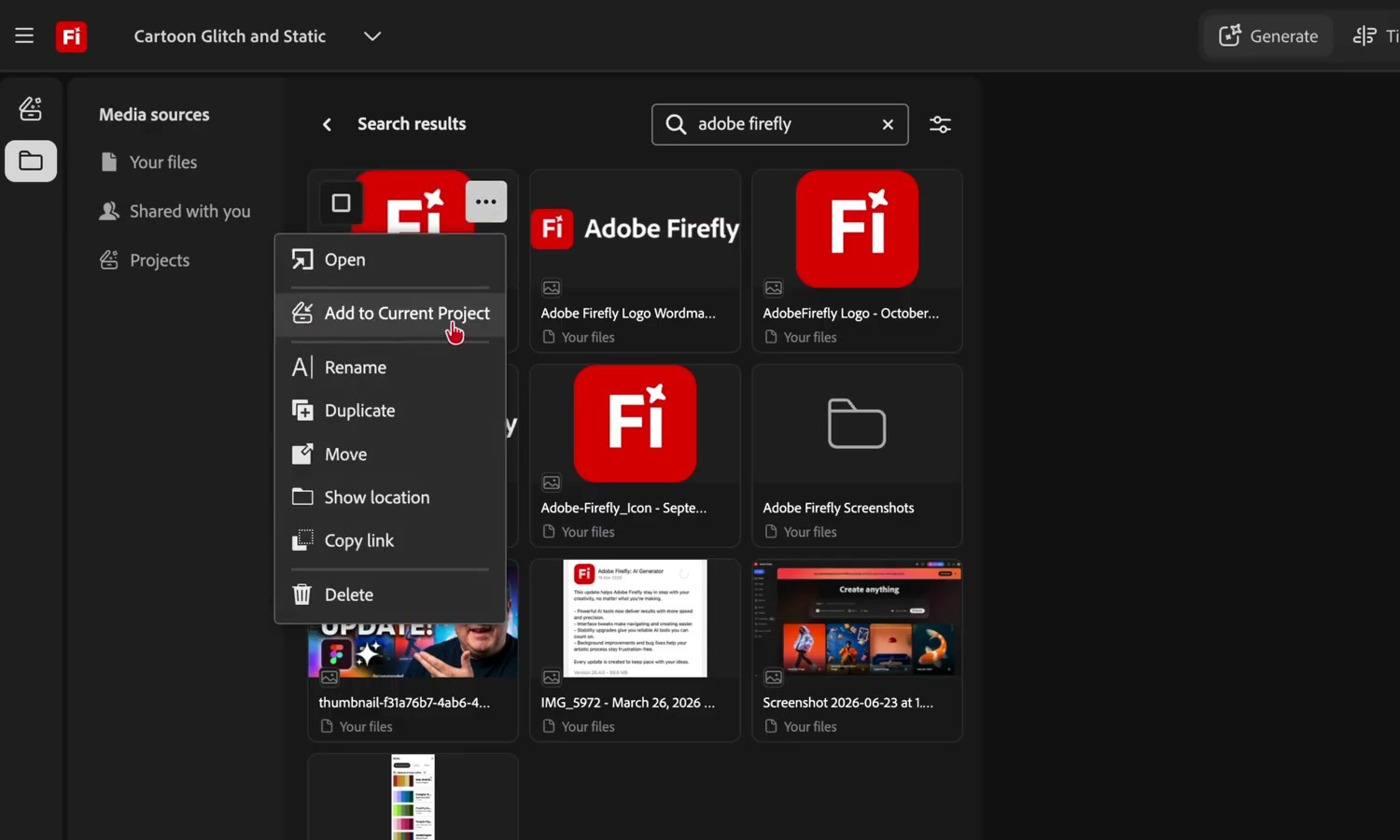
Because this is a beta, the exact filter labels may change. The durable concept is that Firefly’s project workspace is not only a generation history viewer; it is also a place to assemble existing media and new AI output around one job.
Saving the Good Generations Before Building the Timeline
When the walkthrough reaches generated images and clips, the presenter recommends a simple sequence: first save the useful results into the project, then assemble the timeline.
That is not an Adobe-mandated rule, but it is a sensible workflow. Generation history is inherently exploratory. You may produce many variants while testing prompts, references, or models. If you immediately add everything to a timeline, the edit becomes cluttered. Curating the keepers into Project media first creates a cleaner handoff between experimentation and production.
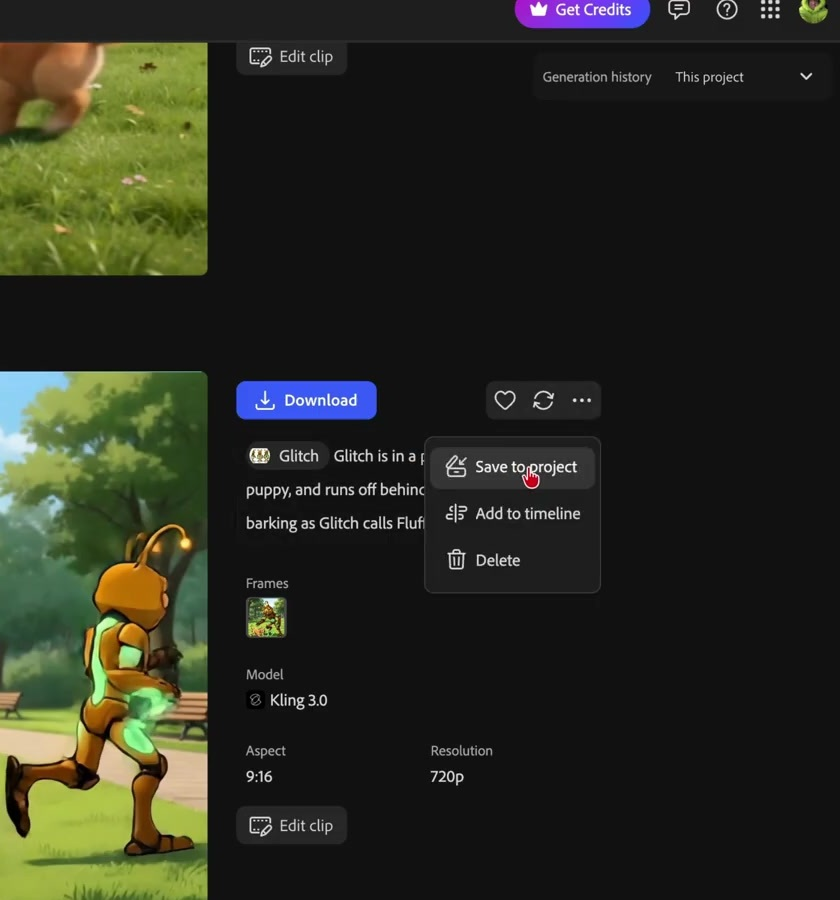
Adobe officially supports both paths. Current help documentation lists Save to project as an action that sends a result to Project media, while the generation options can also add the asset to the Timeline.
For longer-form video work, this creates a useful funnel:
Generate widely -> save selectively -> sequence intentionally.
That workflow is especially helpful when multiple AI models are involved.
One Workspace, Multiple Image and Video Models
The video shows the same character explored with different models, including Google and partner video models, then uses the model picker to switch generation engines without leaving the Firefly workspace.
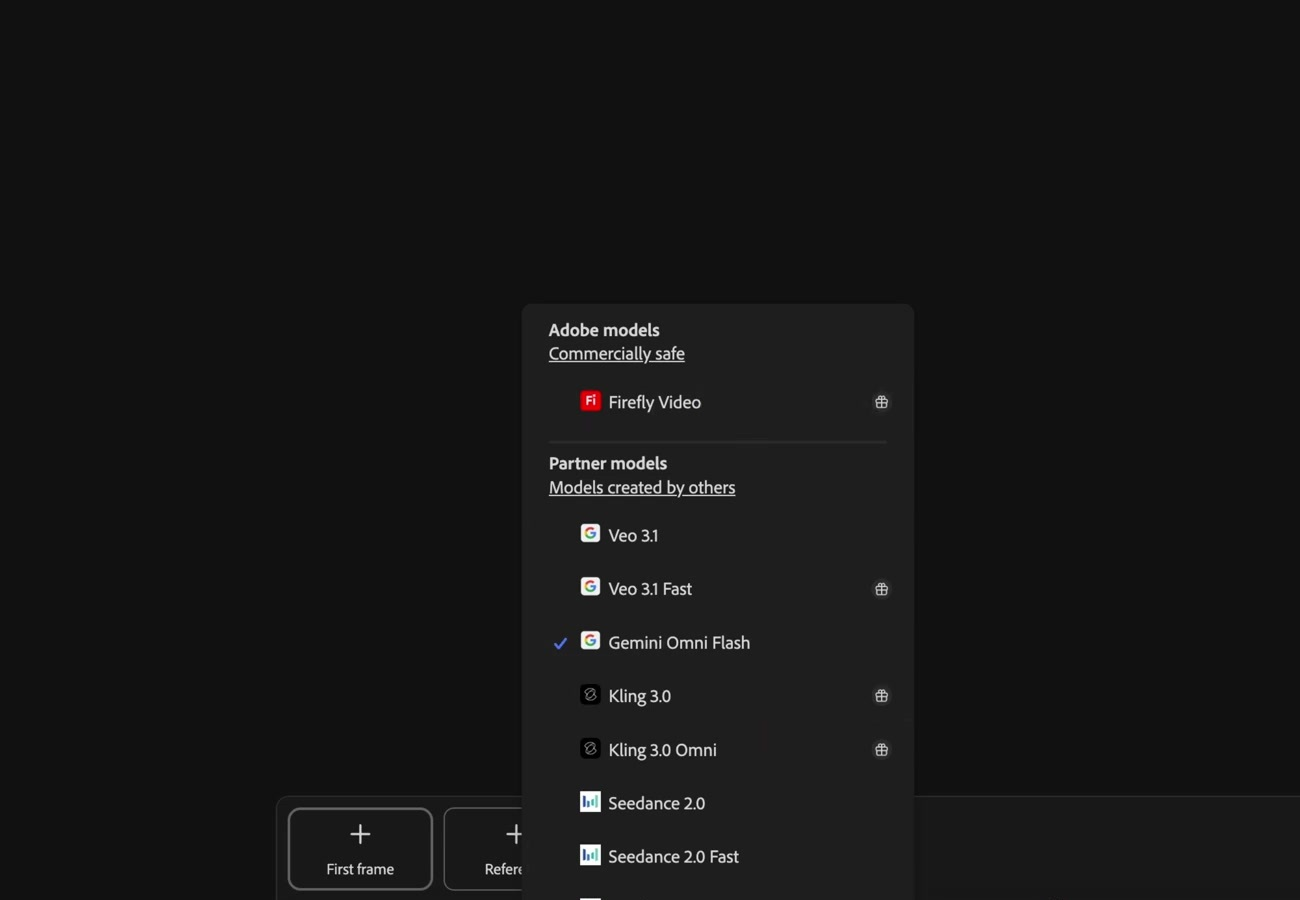
Adobe’s current partner-model documentation confirms a broad model catalog. For video, Firefly currently lists models such as Gemini Omni Flash, Kling 3.0 and Kling 3.0 Omni, Runway Gen-4.5, Veo variants, and others. Adobe also documents Seedance 2.0 and Seedance 2.0 Fast as partner models for reference-driven video generation.
The important caveat is that these models are not interchangeable wrappers around the same controls. Adobe explicitly notes that the unified beta supports a limited set of models and that model-specific settings change when you switch models.
That difference appears directly in the walkthrough: a reference option is unavailable for one model, so the creator switches models to continue the desired workflow. This is exactly the kind of behavior users should expect in a multi-model studio. The interface can stay consistent while the underlying capabilities vary.
Our Adobe Firefly image-to-video guide takes a closer look at generation controls and partner models.
Resolution, aspect ratio, audio, and duration depend on the model
The presenter adjusts aspect ratio, resolution, references, audio, and duration near the end of the video. Those controls should not be memorized as universal Firefly settings.
For example, Adobe’s current documentation says Kling 3.0 supports 720p and 1080p, widescreen and vertical output, up to 15 seconds, and optional synchronized audio. Adobe’s Seedance documentation says Seedance 2.0 can generate clips from 4 to 15 seconds and can also generate synchronized audio, with its available resolution behavior depending on the specific Seedance mode.
The practical rule is to pick the model first, then inspect the controls Firefly exposes for that model.
Elements Are the Most Important Consistency Feature
The feature that receives the most attention in the second half of the walkthrough is Elements. It is also the part of the beta with the clearest long-term value for recurring creative work.
Adobe describes Elements as reusable subjects, characters, locations, or objects that help maintain appearance and identity across generated scenes. Rather than repeatedly attaching the same reference image and rebuilding the same character description, you define an element once and reuse it in new generations.
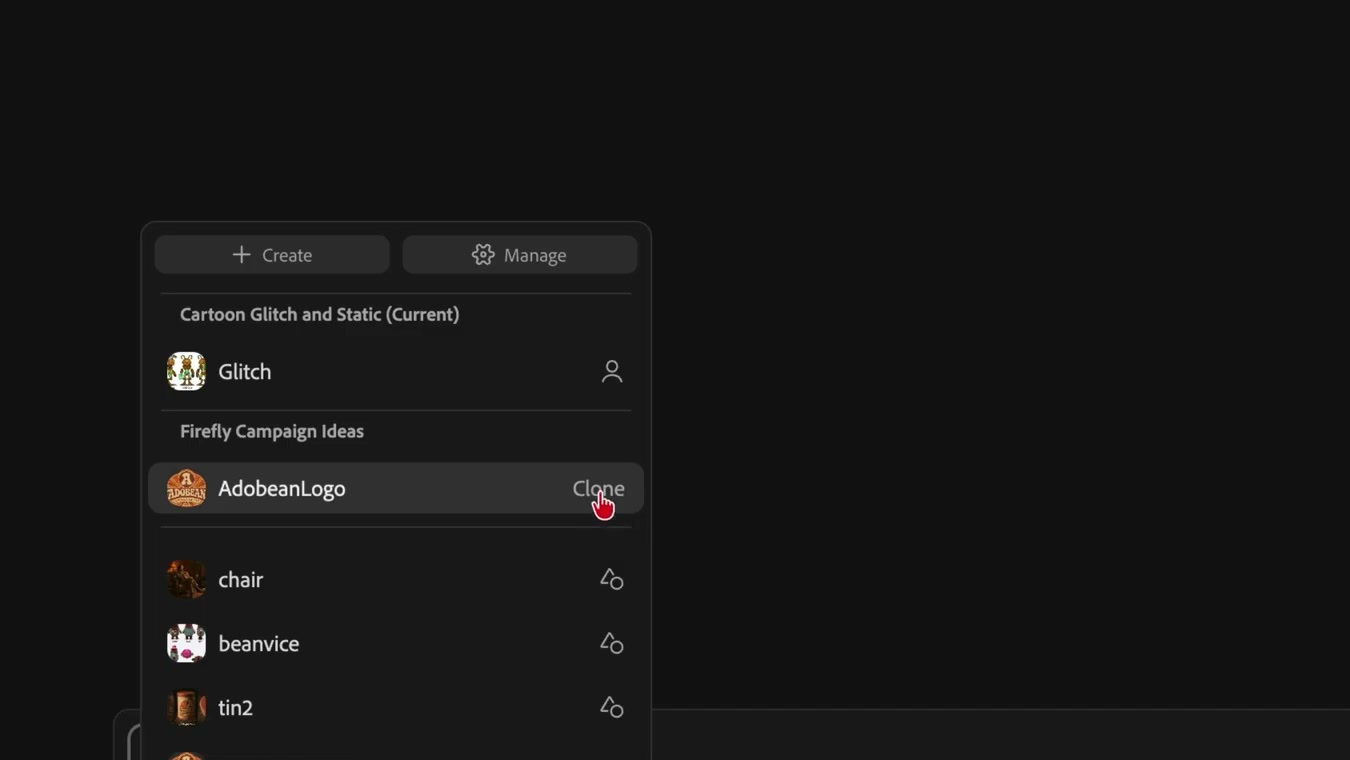
In the source workflow, the creator uses Elements for a recurring cartoon character and for a logo. He also demonstrates bringing an element created elsewhere into the current project by making a project-specific copy. Because this exact beta interaction may evolve, it is better to focus on the underlying principle: reusable elements make persistent creative identity possible across a project instead of forcing every prompt to start from scratch.
Adobe’s current help documentation also includes an important limitation: in the new generation and editing workspace, Elements are available with partner and non-Adobe models. That is the kind of model-dependent rule that may be easy to miss if you only watch the interface casually.
Building a Character Sheet From a Single Element
The walkthrough becomes more concrete when the creator opens the management view for his Glitch character and shows the generated character sheet.
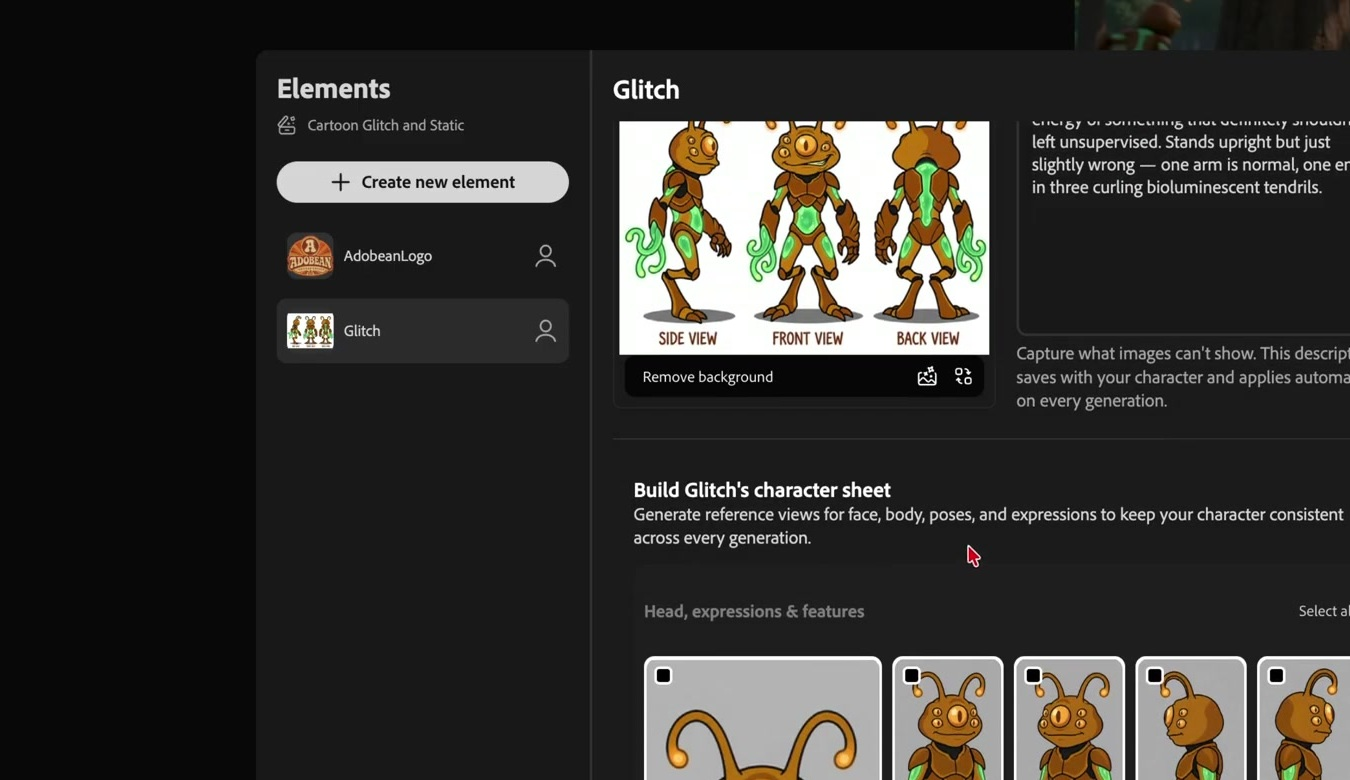
Adobe’s current documentation confirms this workflow. You can create a Character, Location, or Object element; upload reference media; name and describe the element; and, for a Character element, generate a character sheet with additional head, expression, feature, body, pose, and movement options.
That matters because consistency usually fails when a model sees too little information about a recurring subject. A single front-facing reference may not tell the model what the character looks like from behind, in profile, while moving, or with a different expression. A generated character sheet expands the visual definition of the element.
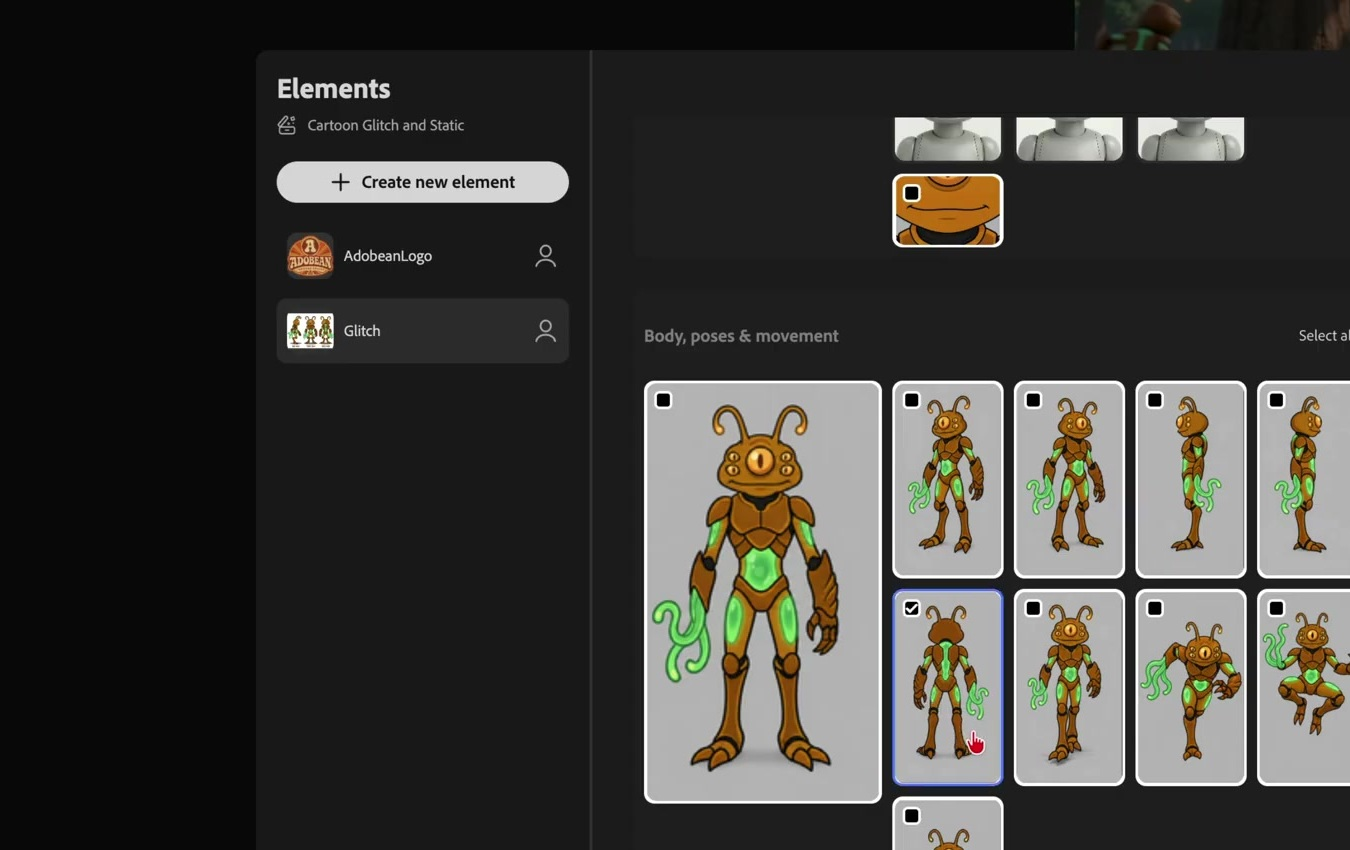
The video also shows removing weak character-sheet images and regenerating alternatives. That editorial step is important. More references are not automatically better references. If one generated pose introduces a wrong costume detail or an inconsistent face, keeping it can contaminate future generations. Curating the sheet is part of defining the character.
A beta-specific naming quirk
The presenter notes that his version of the beta rejects spaces in the element name. Adobe’s current help page simply instructs users to enter a name and does not document a general no-spaces requirement.
Treat that behavior as a beta UI constraint observed in the video, not a permanent Firefly rule. This is exactly the kind of small interface detail that can change between builds.
Reusing Elements in Prompts
Once an element exists, the video demonstrates calling it from the prompt area with an @-style reference. The interface recognizes the saved character and associates it with the new generation.
Adobe’s current help documentation describes the same concept through the Elements control in the generation bar: choose Image or Video, open Elements, and select the saved element name. Whether the final interface emphasizes an @ symbol, a picker, or both is secondary. The key capability is persistent reference reuse.
This changes prompt writing. Instead of spending half the prompt re-describing a character, you can devote more text to the new scene, action, camera direction, or mood while letting the Element carry the identity information.
For story content, serialized social video, recurring mascots, brand characters, and product campaigns, that can make Firefly Studio much more practical than a generation page built around isolated one-off outputs.
Reusing Prompts, References, and Settings
Another useful behavior in the walkthrough is loading a previous generation’s prompt back into the generation bar. The workspace can reuse earlier settings and references as a starting point for the next iteration.
Adobe’s current help documentation lists a Load all action for generations, which loads the prompt and generation settings back into the prompt bar. It also documents reusing existing references from previous generations.
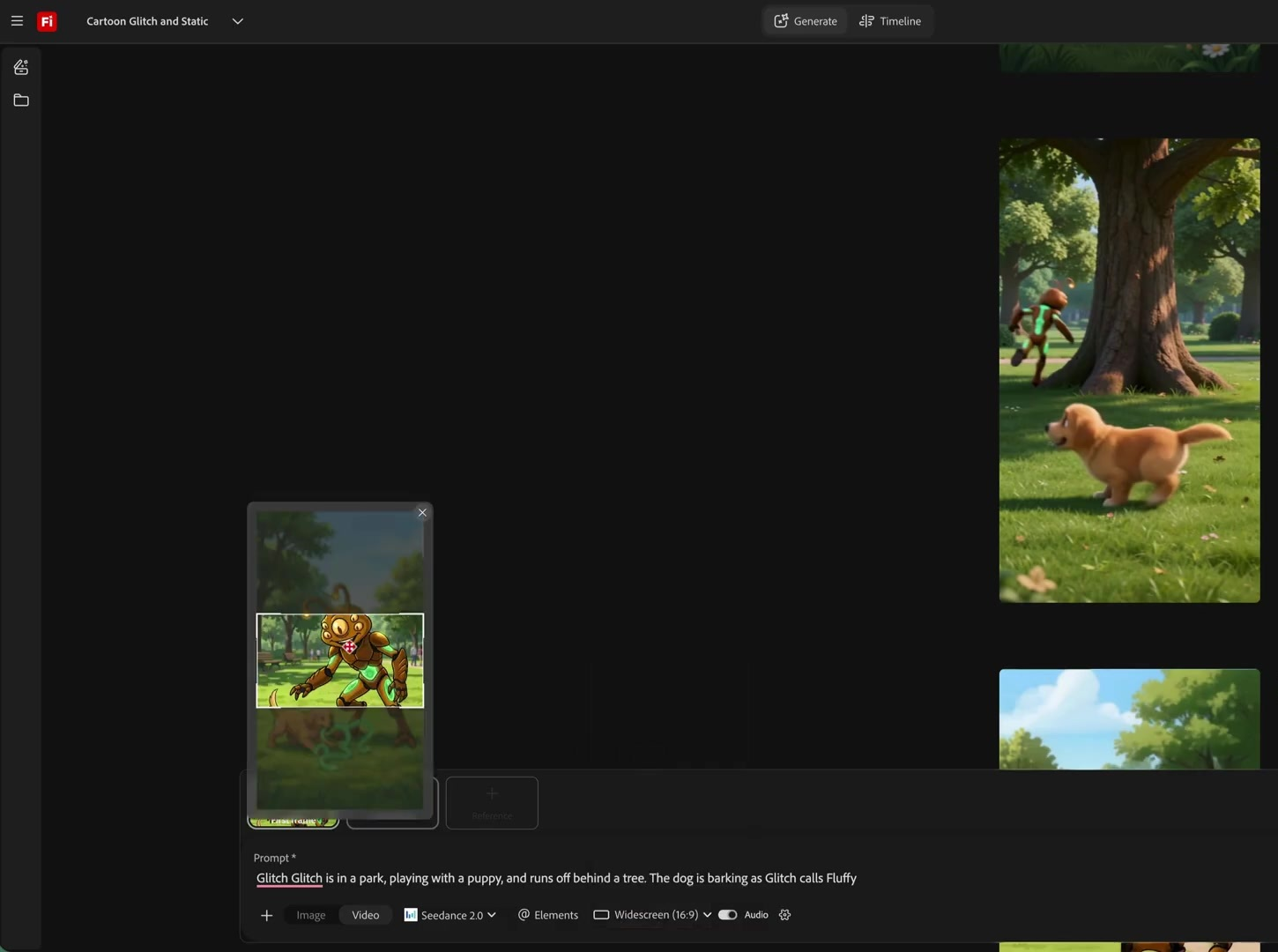
This is one of those features that looks small but becomes valuable after dozens of iterations. A successful generation is rarely just a prompt. It is a bundle of prompt text, reference media, model choice, aspect ratio, quality settings, and sometimes duration or audio behavior. Reusing the bundle is much faster than reconstructing it from memory.
How the Pieces Fit Together in a Real Workflow
The beta starts to make sense when you stop thinking about the panels as separate features and treat them as stages of one production loop.
A practical workflow based on the video looks like this:
- Create or open a Project for the campaign, story, or production.
- Bring in existing Creative Cloud assets such as logos, approved images, references, or previous project files.
- Create Elements for recurring characters, locations, products, or objects that need visual continuity.
- Generate with the model that fits the shot, using references and Elements when the model supports them.
- Review Generation history and keep only the useful results.
- Save selected outputs to Project media so the project has a curated working library.
- Add finished or promising clips to the Timeline and begin sequencing the piece.
- Reuse prompts, references, and Elements when producing the next shot rather than rebuilding context.
The main benefit is not that Firefly has a new panel arrangement. It is that generation, memory, asset organization, and assembly are being connected.
What Is Official Today, and What Belongs to the Video’s Beta Build
Several parts of the walkthrough are now clearly supported by Adobe documentation: Projects, Project media, Generation history, Generate and Timeline modes, reusable Elements, character sheets, Adobe and partner model selection, saving a generation to a project, and adding generated media to a timeline.
Other details should be treated more cautiously. The exact path used to enable the beta differs from Adobe’s current help page. The no-spaces element-name behavior shown in the video is not documented as a universal requirement. The exact model list and the location of individual controls can also change quickly.
There is also a broader naming issue. The video calls the experience Firefly Studio. Adobe’s help center currently uses new generation and editing experience, while Adobe’s product announcements describe the direction as an upgraded Firefly creative AI studio. All three phrases point to the same broader shift, but the help-center terminology is the safest wording when documenting the current beta interface.
Final Takeaway
Adobe Firefly Studio is most interesting when viewed as a context-preserving production environment, not simply another AI generator.
Projects give creative work a home. Generation history remembers experimentation. Project media separates intentional assets from the full stream of outputs. Creative Cloud file access brings existing work into the same space. Elements give recurring characters and objects a reusable identity. Partner models offer different strengths without forcing the user to leave Firefly. And Timeline turns selected generations into something closer to an actual production.
Because the experience is still in beta, individual controls will move and model availability will continue changing. The durable idea is more important than the current button layout: Firefly is trying to keep the creative context attached to the creative work from the first experiment through the final sequence.
For creators who regularly build multi-shot videos, recurring characters, branded campaigns, or projects that move between generation and editing, that is the part of the new Firefly experience worth watching.
Official Adobe Sources
- New generation and editing experience overview — Adobe Help (Sep. 8, 2026)
- Generate and edit content — Adobe Help (Aug. 19, 2026)
- Create an element — Adobe Help (Aug. 28, 2026)
- Partner video models — Adobe Help (Aug. 7, 2026)
- Seedance 2.0 in Firefly — Adobe Help (Jul. 20, 2026)
- Upgraded Firefly creative AI studio — Adobe Blog (Jun. 18, 2026)