
A publication-ready guide based on the supplied video tutorial, fact-checked against current OpenAI documentation.
The ChatGPT tool page gives a product overview; our practical ChatGPT Work guide shows a repeatable way to organize work.
ChatGPT Work changes the basic bargain of a normal AI chat. Instead of asking a question, reading an answer, and manually moving the result into the rest of your workflow, you can hand Work a larger outcome: analyze a folder, build a report, turn that report into a presentation, research the web, draft messages in a connected service, publish a lightweight site, or repeat a task on a schedule. The important shift is from “help me think” to “take responsibility for a multi-step job and give me something finished.”
The tutorial uses a fictional small coffee roaster called Basecamp Brew to make that difference concrete. The same project starts with sales files on the computer, produces a one-page analysis, reuses the findings in a wholesale deck, connects to cloud tools, builds a product-launch Site, researches competitor pages, and finally automates recurring inbox work. That continuity is what makes Work more interesting than a collection of isolated AI features.
|
Current-product note: ChatGPT Work is changing quickly. This article preserves the tutorial’s workflow while correcting time-sensitive details against current OpenAI documentation as of October 7, 2026. Exact models, permission labels, rollout status, and plan limits can vary by account or workspace. |
What ChatGPT Work is – and how it differs from Chat and Codex
The cleanest mental model is to treat Chat, Work, and Codex as different operating modes. Chat is for questions, brainstorming, quick analysis, and conversational help. Work is an agent for longer tasks that may involve research, files, connected services, approvals, and finished deliverables. Codex remains the development-focused environment for software engineering, repositories, tests, terminals, and code changes.
That distinction matters because a good Work request is usually framed around an outcome. “What does this spreadsheet mean?” is a normal chat question. “Analyze the sales files in this project, identify growth and anomalies, and save a one-page report for my team after I review a draft” is a Work job. The second request tells the system what sources to use, what deliverable to produce, and how the review process should work.
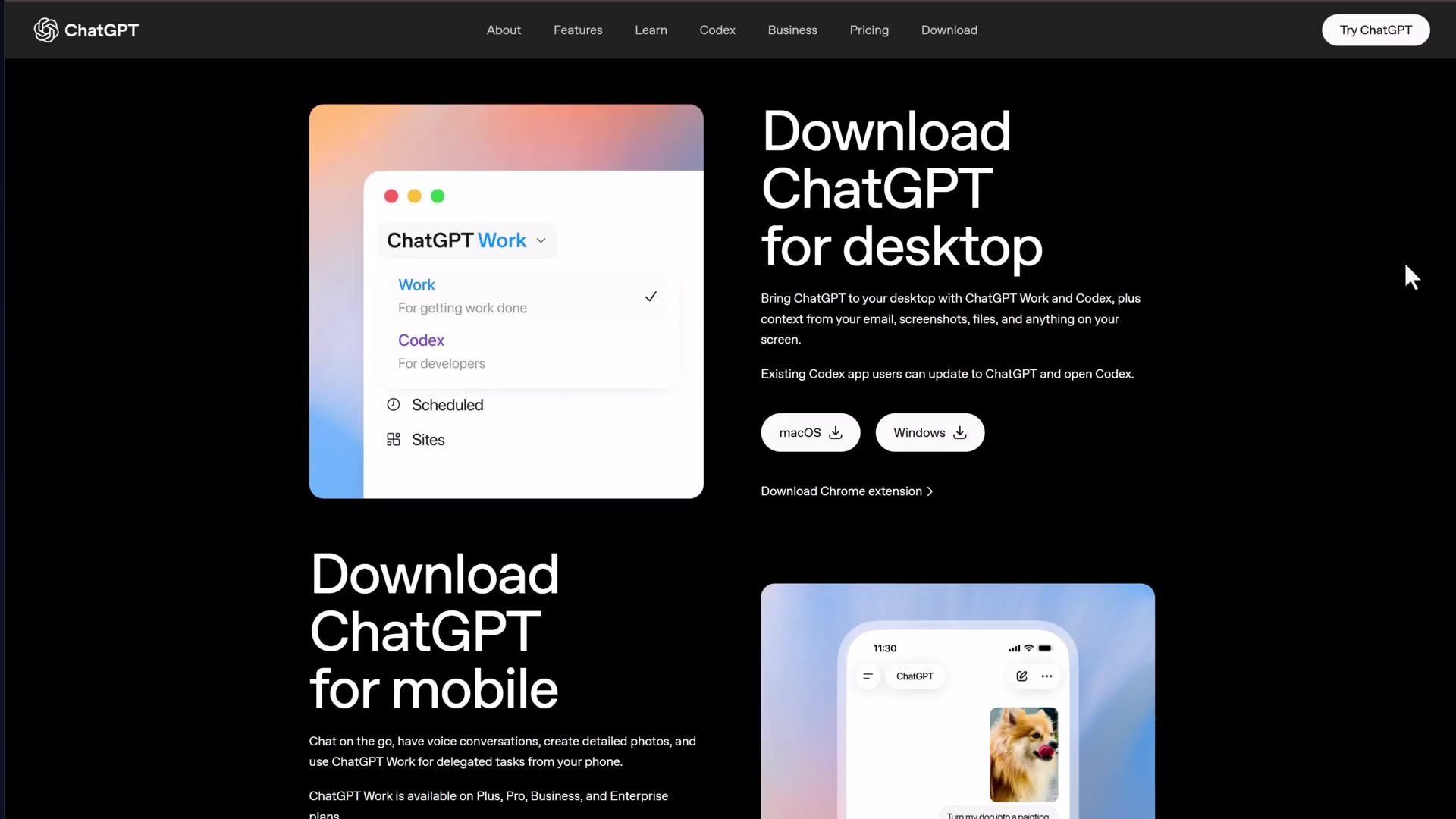
The video also spends time on the newer desktop app. OpenAI’s current documentation confirms that the newer app brings Chat, Work, and Codex together, while the older application may remain installed as ChatGPT Classic. If Work or Codex is missing from a desktop installation, updating or moving to the current desktop app is the right first troubleshooting step.
Where Work is available now
One sentence in the video deserves an update. The presenter says Work is included on every desktop plan, including Free, while web and mobile are paid-only. OpenAI’s current help documentation is more cautious: Work is available on web and mobile for eligible paid plans, and Work in the desktop app is available when it is included for your plan and workspace. Rollout and workspace controls can also affect what you see. In other words, do not assume a Free account will have the same Work access shown in the video just because the desktop app is installed.
The surfaces also have different strengths. Desktop is the important choice when a job needs local folders or desktop applications. Web and mobile run cloud Work and are better for tasks that should continue remotely. Cloud Work conversations sync across devices. Direct access to files sitting on your computer remains a desktop capability.
Set permissions before you hand Work real files or accounts
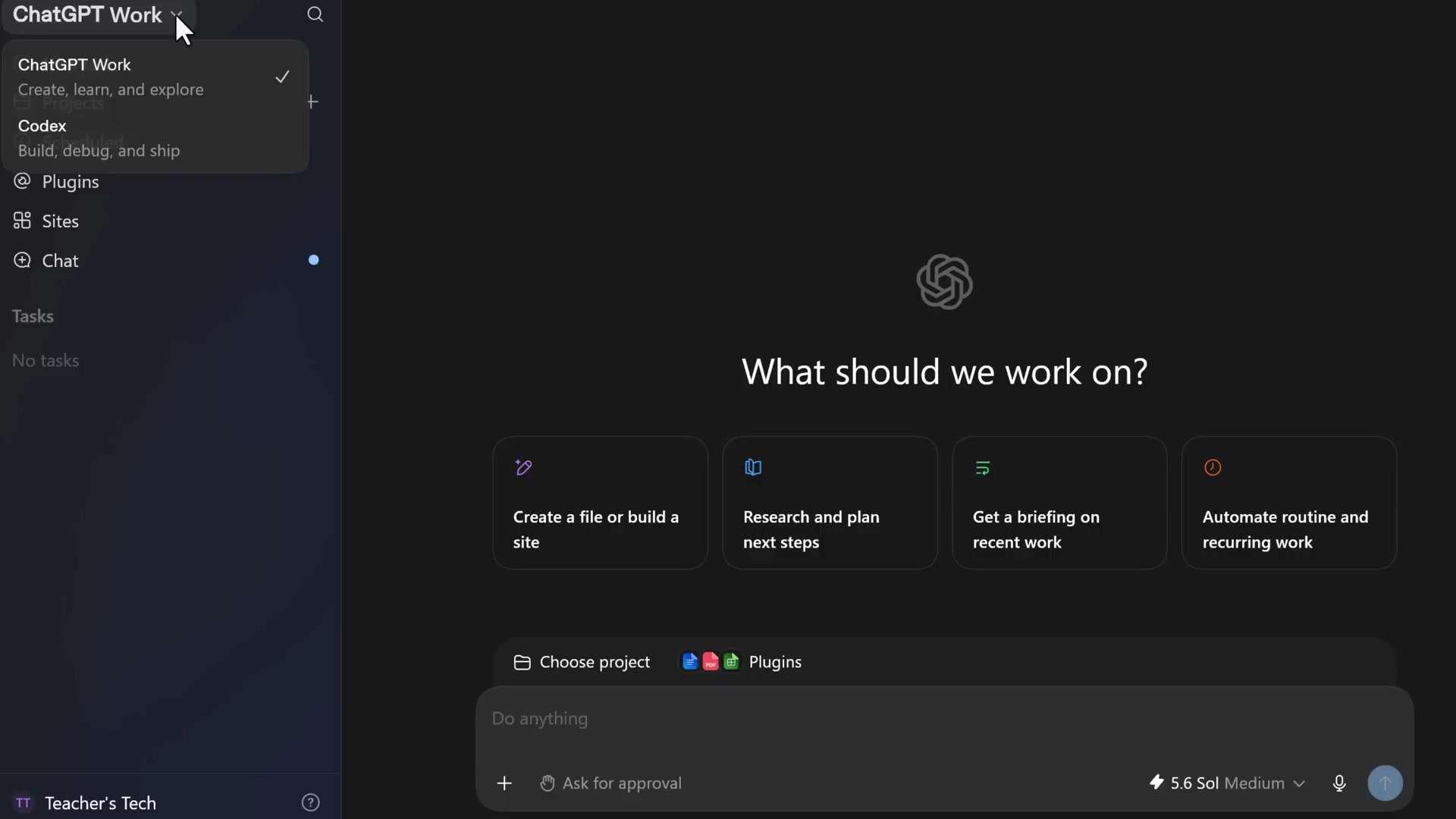
The tutorial’s best beginner advice comes before any impressive demo: decide how much autonomy you are comfortable granting. The desktop UI shown in the video offers broad local controls such as Ask for approval, Approve for me, and Full access. The creator starts conservatively so Work pauses before touching external files or the internet, then suggests loosening that only after you understand how the system behaves.
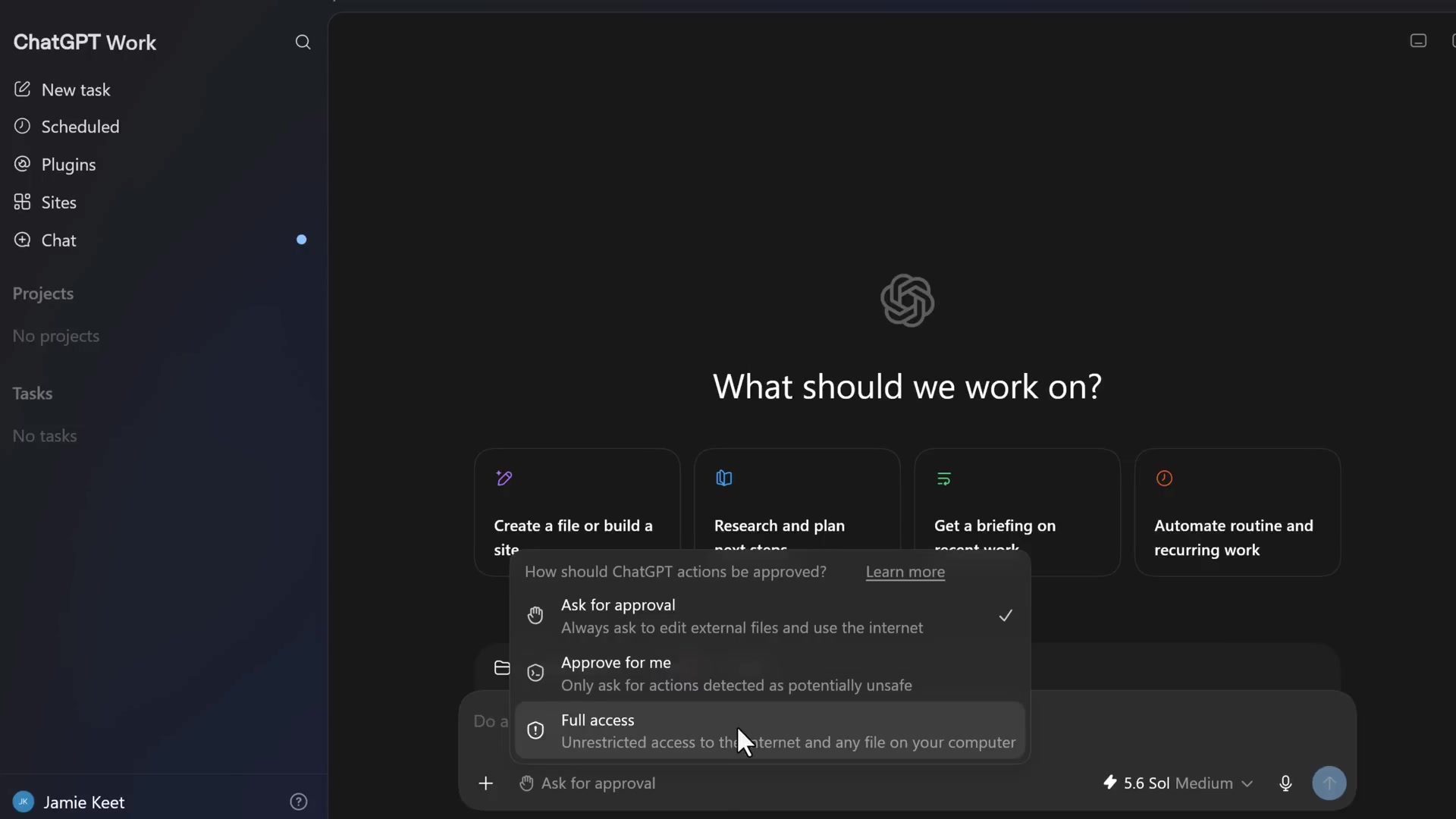
That safety principle remains sound, but the exact labels are not universal. Current connected-app permissions can appear as Always ask, Allow read actions, Allow low-risk actions, and, for some eligible app connections, Allow all actions. Workspace policies, provider permissions, and safety checks can still override an individual setting. A permission control changes when ChatGPT asks; it does not magically grant access that the connected service or administrator has not authorized.
For beginners, the practical rule is simple: start with the least access that still lets the task succeed. Give Work access to a specific project folder instead of an entire drive when possible. Let a Gmail workflow prepare drafts before you let any system send on your behalf. Approve browser or computer-use access only for the application or site the current job actually needs.
Choose speed and reasoning effort to match the job
The tutorial shows a Faster-to-Smarter control and uses a middle setting for most examples. Treat the exact control as interface-specific rather than a permanent rule. Model names, reasoning levels, and speed options change by plan and over time. The enduring idea is to reserve the heaviest reasoning for jobs where the quality improvement justifies the additional time and usage.
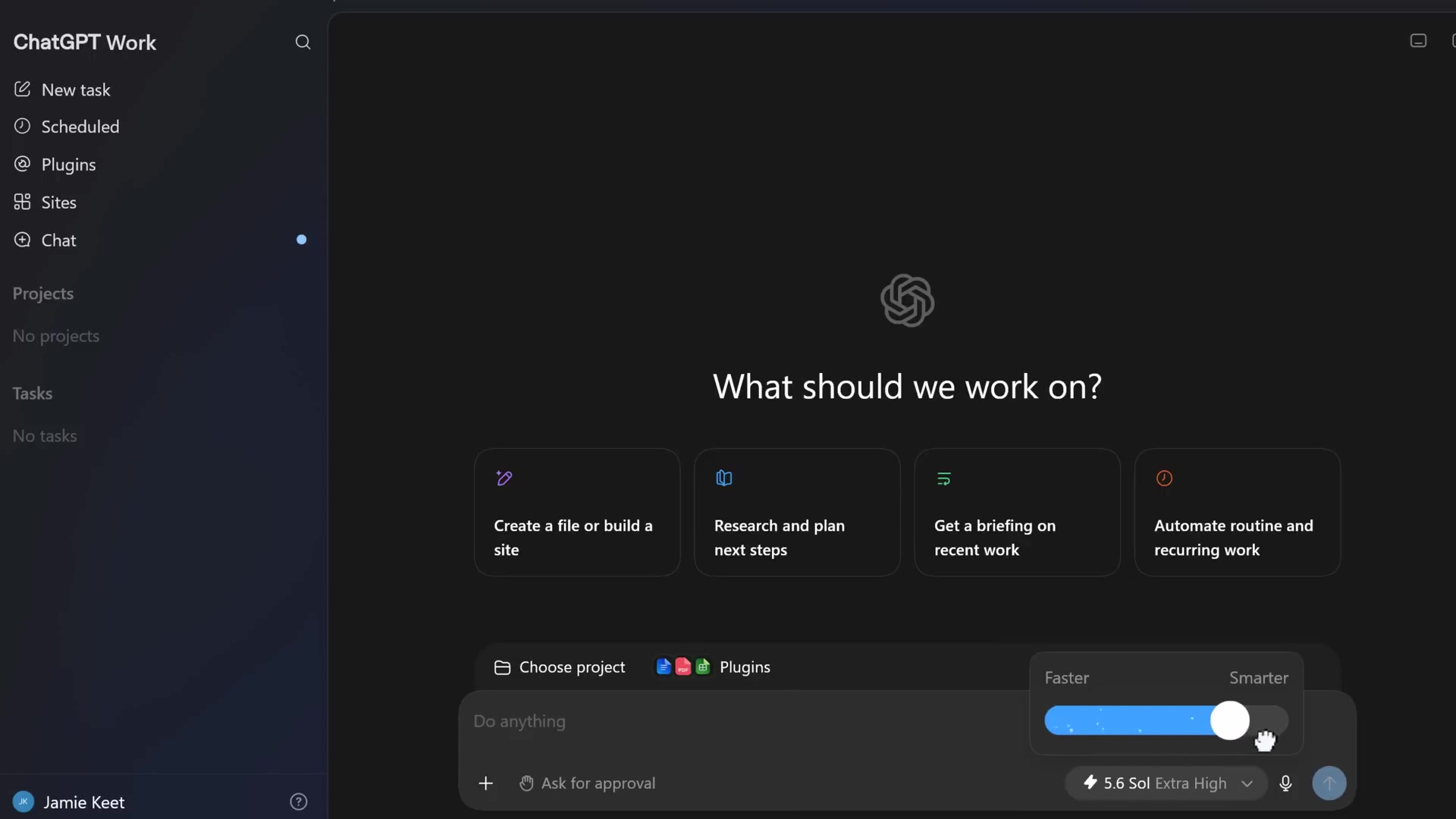
A simple sales summary, email triage, or routine file conversion rarely needs the most expensive reasoning mode. A messy research task, an ambiguous financial model, or a deliverable with many constraints may benefit from a stronger setting. When in doubt, begin around the default and increase effort only if the first result is not good enough.
Projects are the core desktop workflow
The strongest desktop feature in the tutorial is the ability to work from a project connected to a real folder. Basecamp Brew’s folder contains monthly sales data, brand notes, and a wholesale price list. Once the folder is opened as a project, later Work tasks can use the same context without repeatedly uploading the same files. Outputs can also remain alongside the source material instead of becoming a pile of downloads that you have to rename and relocate.
OpenAI’s current Work documentation supports this basic pattern: from the desktop app you can open a local folder or project and grant access only to the files the task needs. On web and mobile, Work cannot directly reach files sitting on your computer. That is the key reason to choose desktop when your workflow revolves around local source folders.
Write Work prompts around outcomes, sources, and review criteria
The creator recommends a prompt style that is more specific than everyday chat. In the sales example, the request identifies the source (“the files in this folder”), the analysis goal (which products are growing, flat, or unusual), the deliverable (a one-page report for the team), and the review rule (show a draft before finalizing). That is not an official syntax requirement; it is a practical prompting framework, and it is a good one.
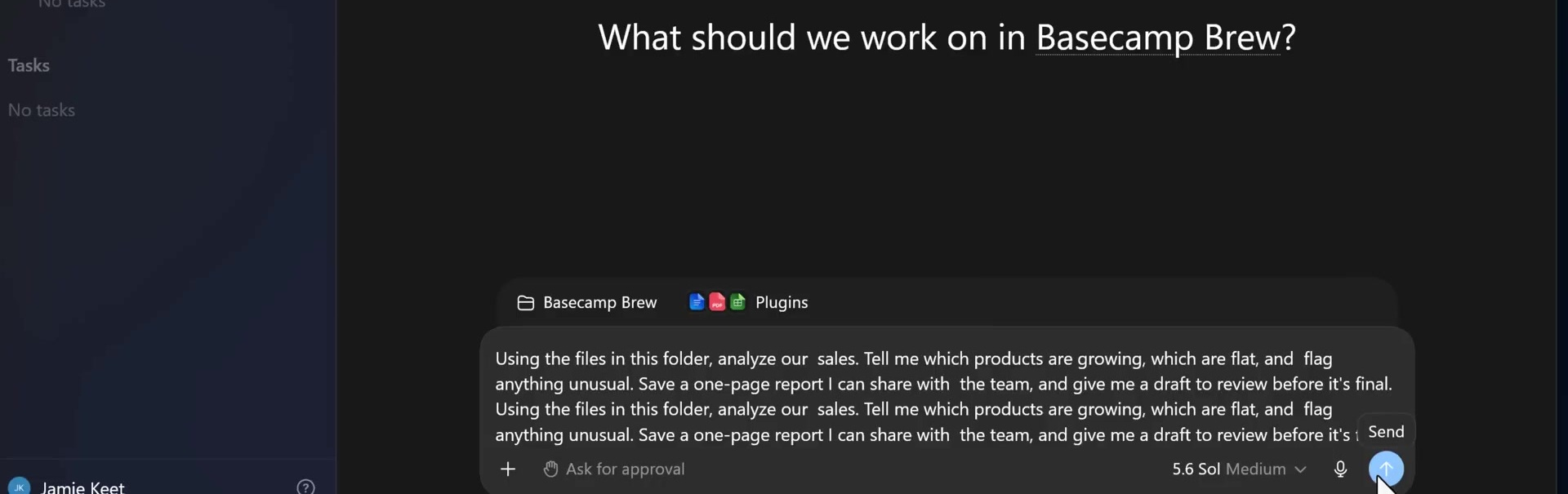
A reusable pattern looks like this: “Using [source], produce [deliverable] for [audience]. Include [required content]. Preserve [important constraints]. Before finalizing, show me [review checkpoint]. Save the result to [location].” This gives an agent a definition of done. It also reduces the chance that a technically correct answer arrives in the wrong format or at the wrong level of detail.
Follow the work, then review the deliverable instead of micromanaging every step
After the Basecamp Brew request is sent, Work does not behave like a normal chat that immediately streams an essay. It lays out how it intends to approach the job, asks when something is unclear, and exposes progress while it reads the files and creates the report. If an approval is needed, the task pauses at the decision point. If the user changes direction, the task can be redirected without restarting from zero.
The result is a draft report with product-level growth signals, a flat decaf line, and a one-off wholesale spike. The video’s useful detail is not the coffee data itself; it is the review loop. The creator asked for a draft, checked it in the preview pane, replied “Looks good,” and then let Work update the file. This is a healthier way to use an agent than trying to specify every micro-step up front: define the outcome carefully, observe the process, inspect the draft, and approve or revise the artifact.
Why use Work if normal Chat can analyze files too?
The tutorial makes a fair concession: for one isolated task, regular Chat can often get close. You could attach the same three files, ask for an analysis, and receive a useful report. The difference appears when the job is part of an ongoing working week. A project avoids reattaching the same context, and local Work can create or update files where the rest of the project already lives.
Think of Chat as a strong one-off collaborator and Work as an execution environment. Work becomes more valuable as the number of related steps grows: analyze the sales, turn the analysis into a deck, apply a reusable style, cross-check a price list in Drive, build a launch page, research competitors, and schedule tomorrow’s follow-up. Context and artifacts can accumulate around the same project instead of being manually shuffled from chat to chat.
Create files, then turn good work into reusable templates
The next Basecamp Brew task asks Work to create a six-slide wholesale presentation for a new espresso blend and to reuse numbers from the report it just created. The demo is intentionally cumulative: Work is not being handed the same data again. The project already has the report and brand material, so the new deliverable can build on them.
OpenAI’s current documentation confirms that Work can create and edit documents, spreadsheets, presentations, reports, and analyses, subject to the plan, file type, workspace settings, and surface. The best prompts specify the file type, intended audience, source material, required structure, and what must remain unchanged. For branded work, a reference file or reusable template is often more reliable than describing a visual style from scratch every time.
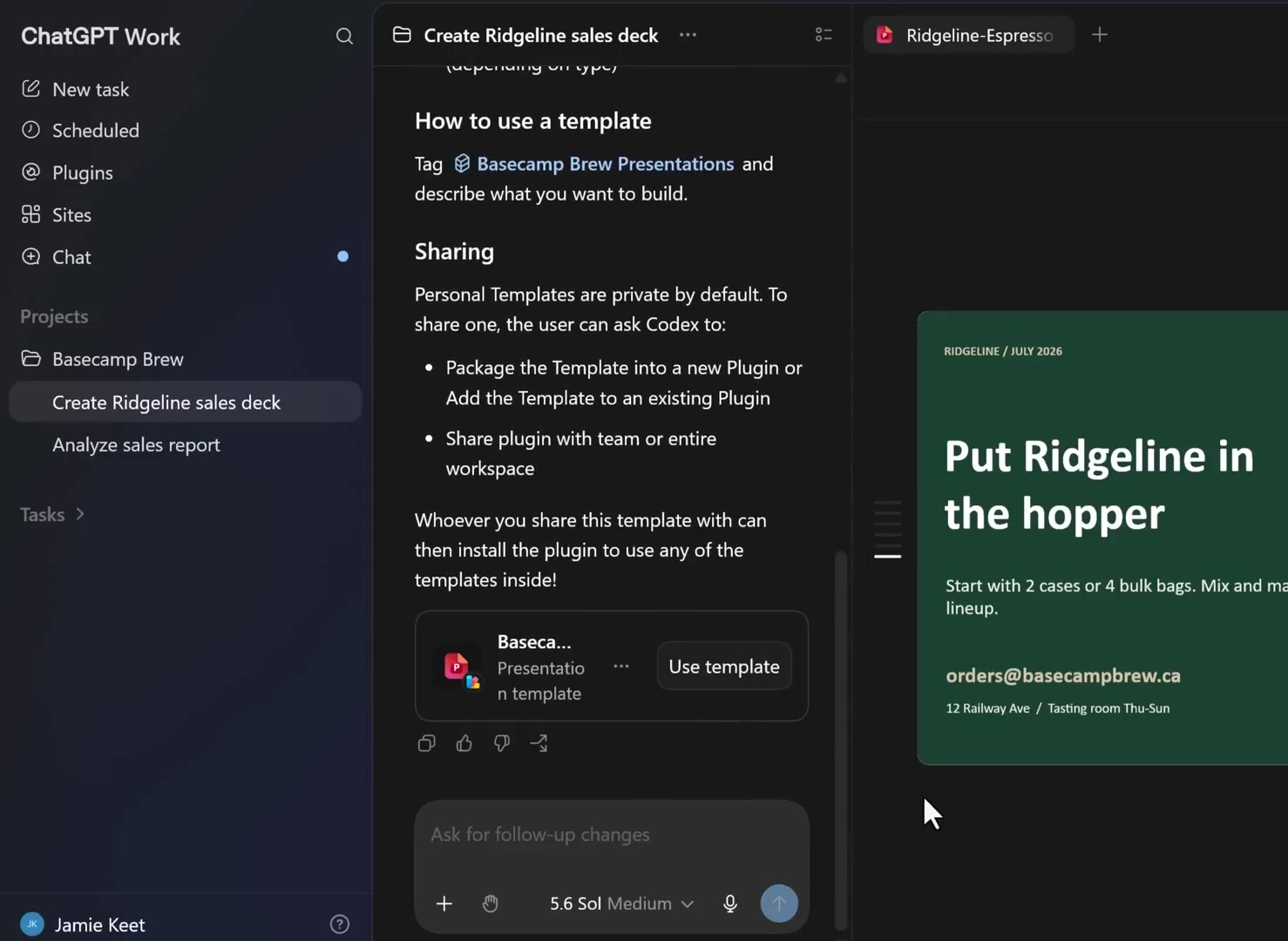
The video shows the finished deck being saved as a reusable template so future presentations can follow the same design. The concept is current, but the exact creation flow has evolved. OpenAI’s present documentation describes reusable templates through Template Creator, including @Template-Creator in Work on the web or Codex in the desktop app, with availability depending on plan and workspace. Templates are personal by default; a team can distribute them by packaging the reusable workflow into a plugin and publishing it to the appropriate workspace roles.
The desktop Pet is useful precisely because Work can take a while
One of the tutorial’s stranger features is also easy to understand once you use longer-running tasks: the desktop Pet. The video invokes it while a presentation is being built, then leaves the main ChatGPT window. The Pet remains visible and can signal when a task needs attention or approval, and clicking it returns to the task. The settings screen lets the user choose a character and adjust its size.
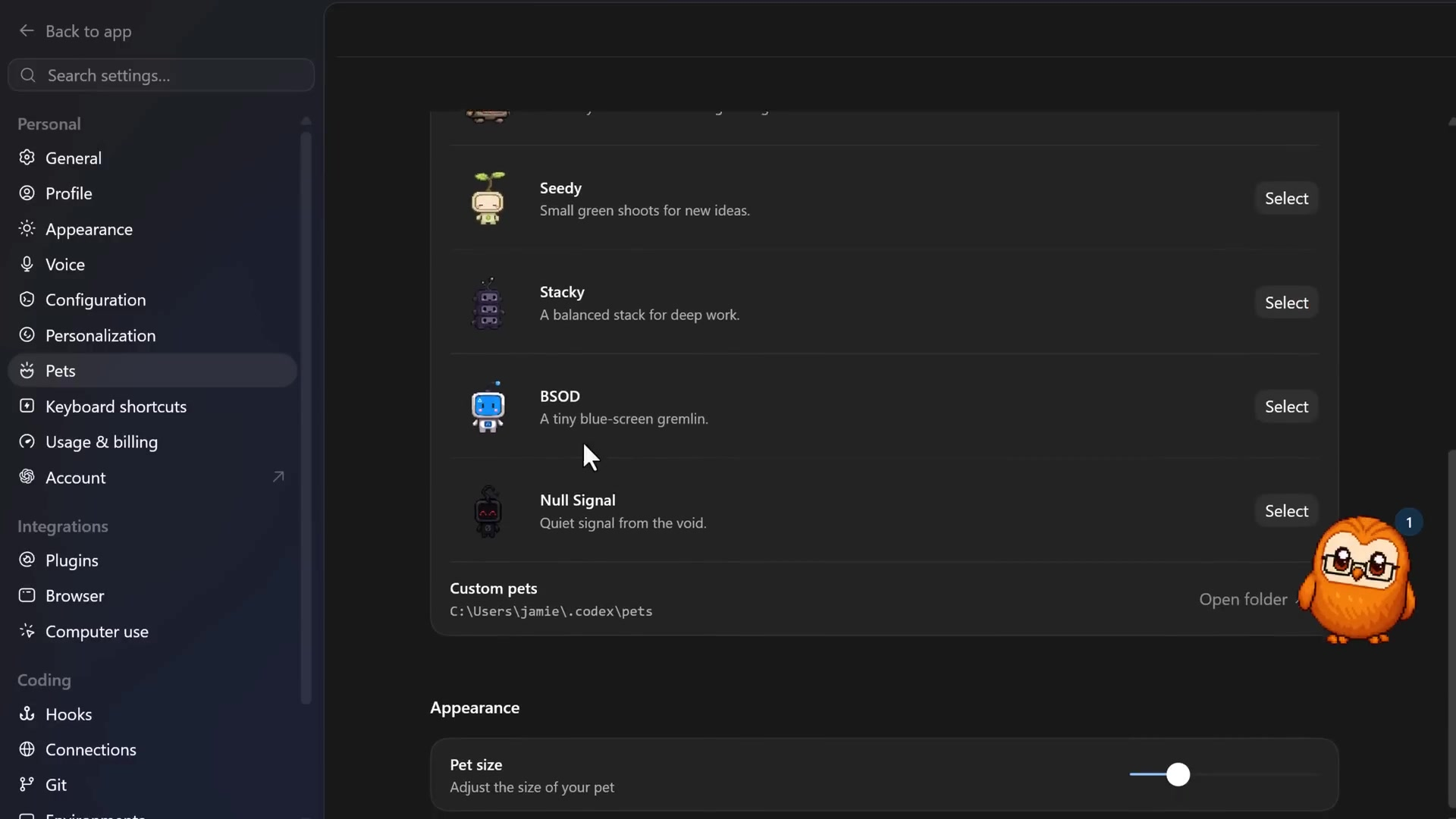
This is not a core Work capability, and you can ignore it completely. Its value is ambient status: if an agent needs several minutes, a small desktop indicator can be less distracting than repeatedly reopening the task to see whether it is done. OpenAI has continued to add desktop Pet controls, including quick task progress and typed quick chats in supported desktop builds.
Plugins are the toolbox behind broader workflows
The tutorial describes Work as the manager and plugins as the toolbox. That is a useful simplification. Current OpenAI documentation says a plugin can package reusable Skills, connected apps, app templates, and extensions. Some plugins are purely instructional; others connect ChatGPT to an external service or expose actions. The visible options depend on your plan, workspace policy, account connections, and the surface you are using.
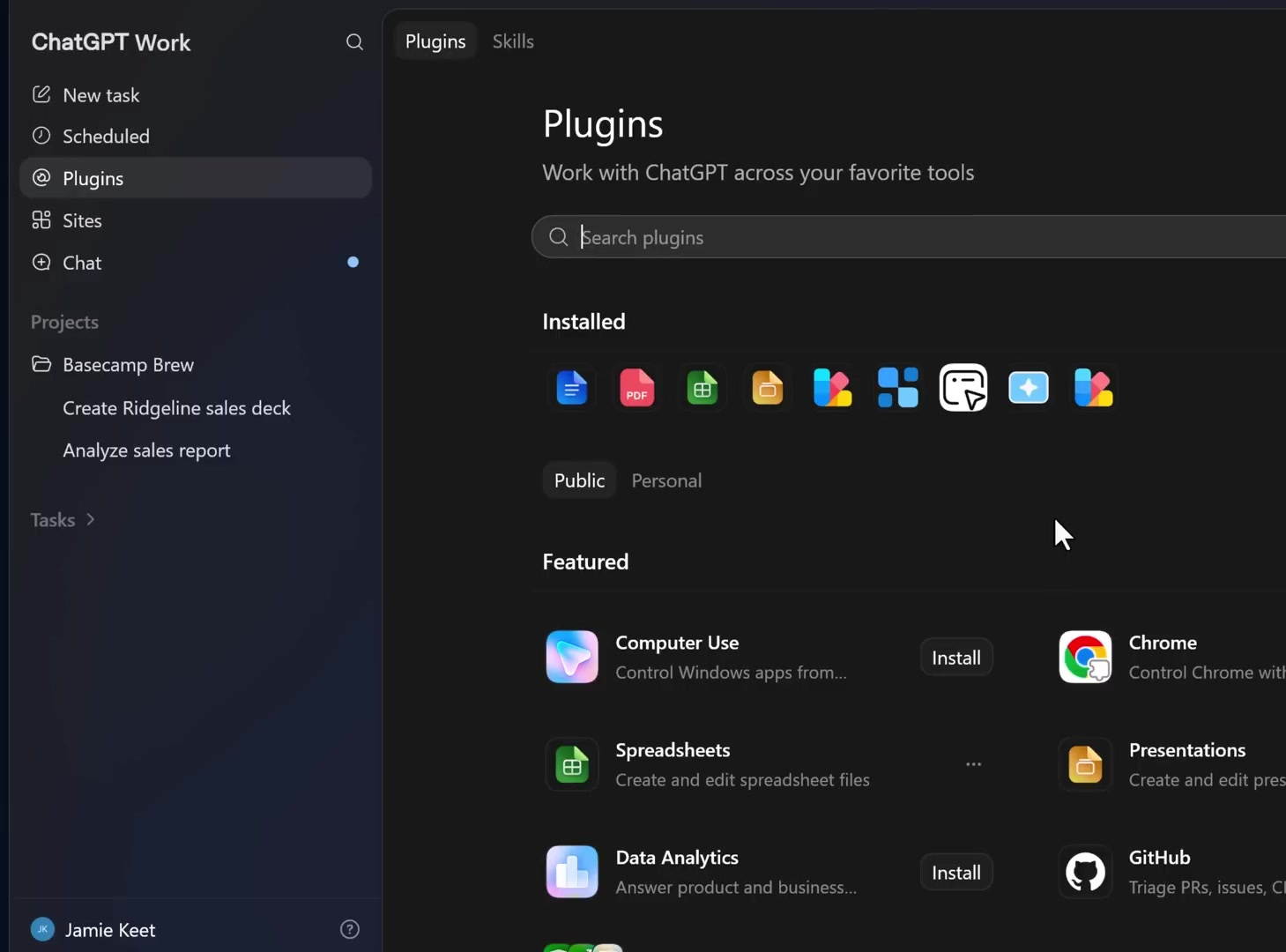
In the Basecamp Brew example, the creator connects Google Drive and Gmail. A specific tool can then be referenced in a prompt with an @ mention when that option is available. The point is not the @ symbol itself; it is that the source remains where it already lives. Instead of downloading a price list from Drive and uploading it to a chat, Work can use the authorized connection directly. Likewise, an inbox task can locate relevant wholesale inquiries and create Gmail drafts in place.
Connected apps do not bypass account security. ChatGPT can only use data and actions exposed by the app, authorized for the connected account, and permitted by any workspace rules. Higher-risk actions may still require explicit approval or may be blocked. For email, the tutorial’s “draft, then human sends” pattern is a sensible default because it keeps the irreversible step under human control.
ChatGPT Sites turns a prompt into a hosted lightweight web experience
The tutorial then moves from documents and decks to Sites. The example asks for a one-page Ridgeline Espresso launch page with tasting notes, wholesale pricing, and a contact section, using the project’s existing material. Work generates a hosted page, previews it, and gives the creator sharing controls instead of requiring a separate website builder for a small campaign page.
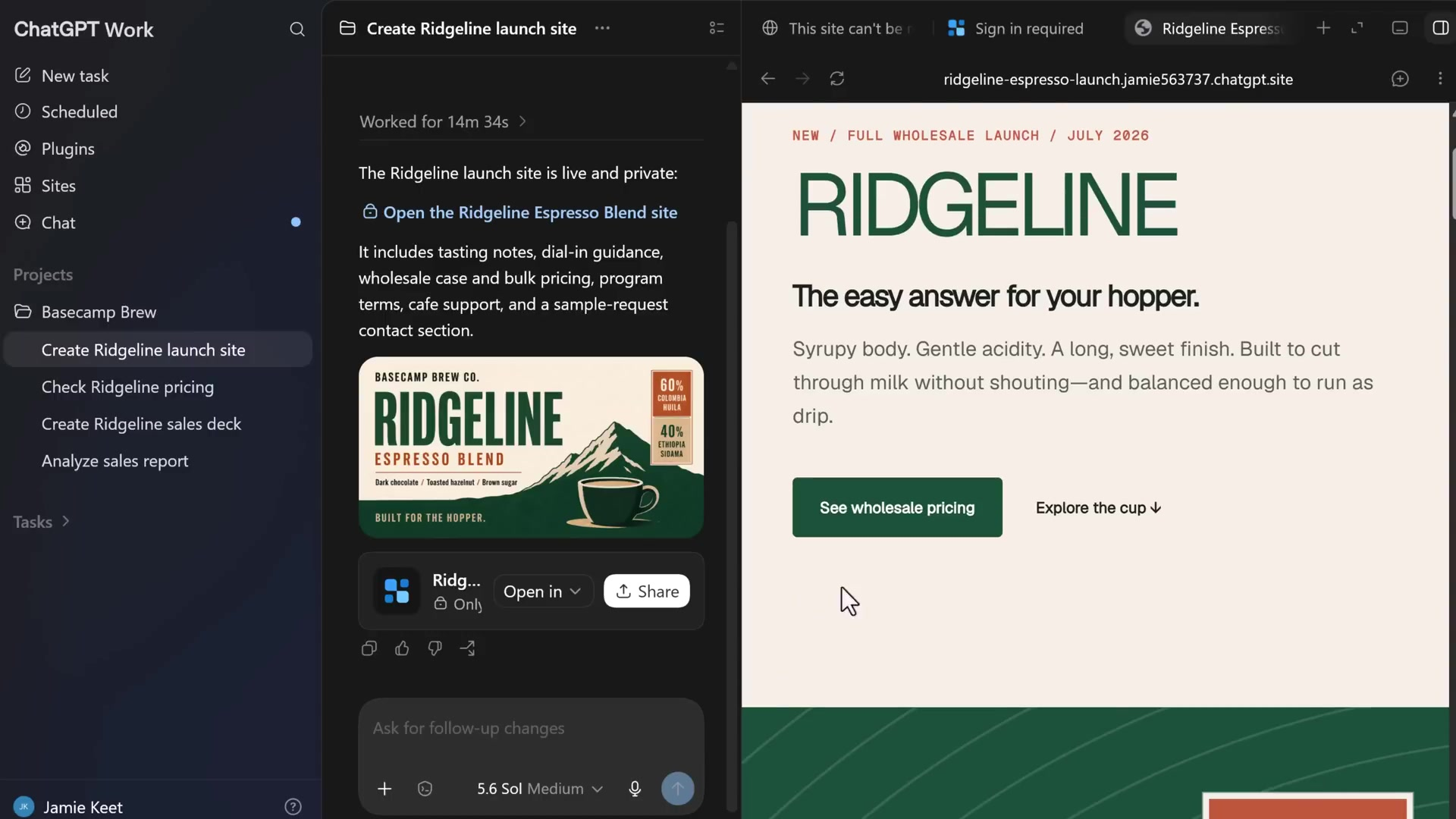
This is now an official product surface. ChatGPT Sites is in public beta and can create interactive websites and lightweight apps. Current availability includes ChatGPT workspaces, Plus, and Pro accounts; Sites is not available on Free or Go. Workspace administrators can control creation and publishing, and Enterprise public publishing is off by default unless an administrator enables it.
Private, workspace, named-viewer, and public sharing are different decisions
The video shows a simple private-versus-public switch. The current sharing model can be more granular. Depending on your account and workspace, a Site can be restricted to its owner and admins, shared with selected users or groups, shared across a workspace, shared with named external viewers, or published to anyone on the internet when public publishing is allowed. Before publishing, review the generated content, forms, links, files, access settings, and any connected-app behavior just as you would review a hand-built site.
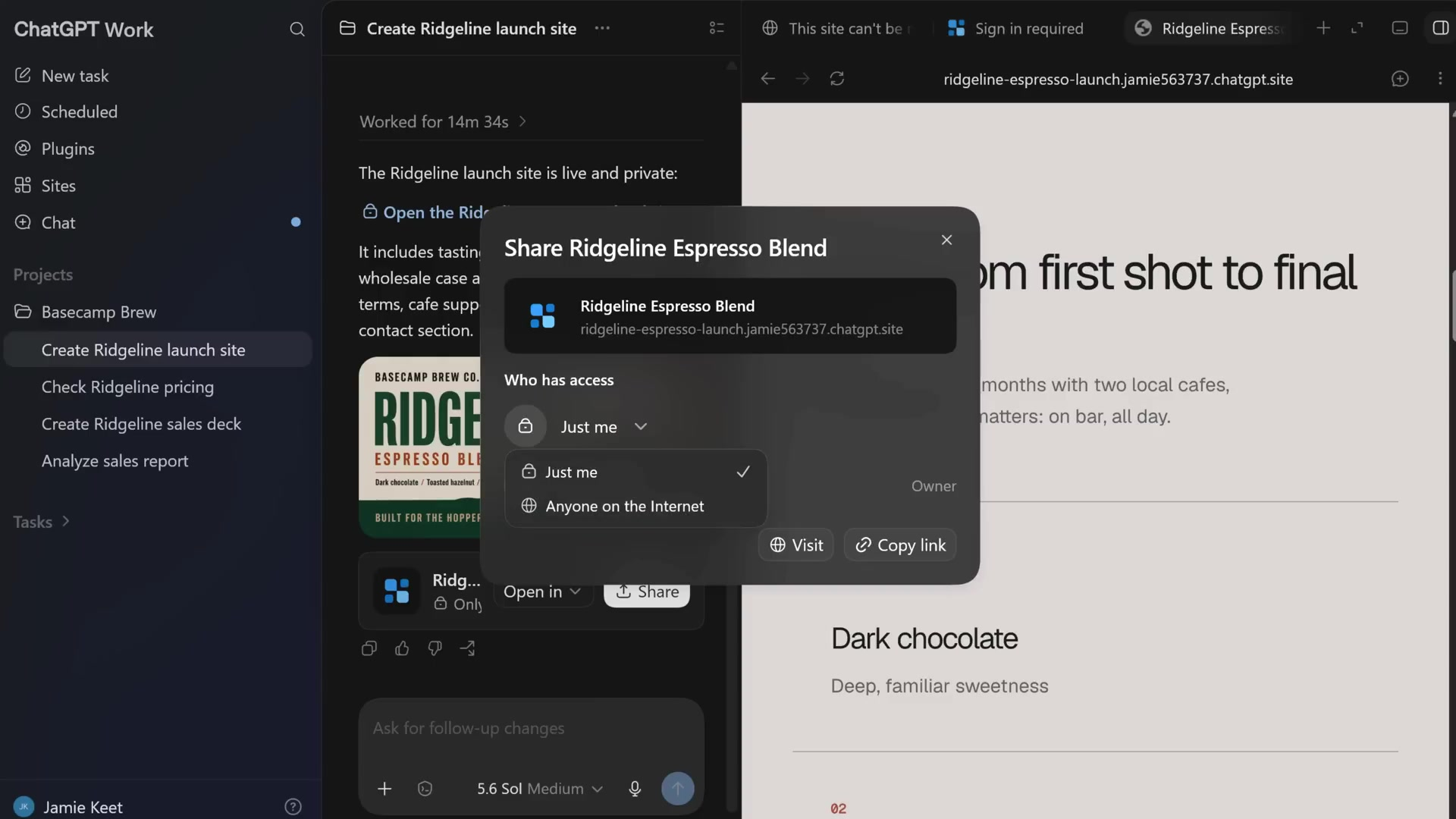
Sites are especially useful for dashboards, launch pages, trackers, internal portals, and prototypes where the interface itself is part of the deliverable. They are not a reason to skip basic web governance. If a Site contains customer information, internal data, third-party content, or connected-service access, the creator still owns the responsibility for what is shared and who can see it.
Use the built-in browser for research you can watch
The tutorial’s browser section shows ChatGPT and a web page side by side. The creator asks Work to research specialty-coffee wholesale pages and summarize how they present pricing. Work opens real pages in the built-in browser, reads across tabs, and reports the patterns it finds. Because the page is visible, the user can follow the evidence instead of treating web research as a black box.
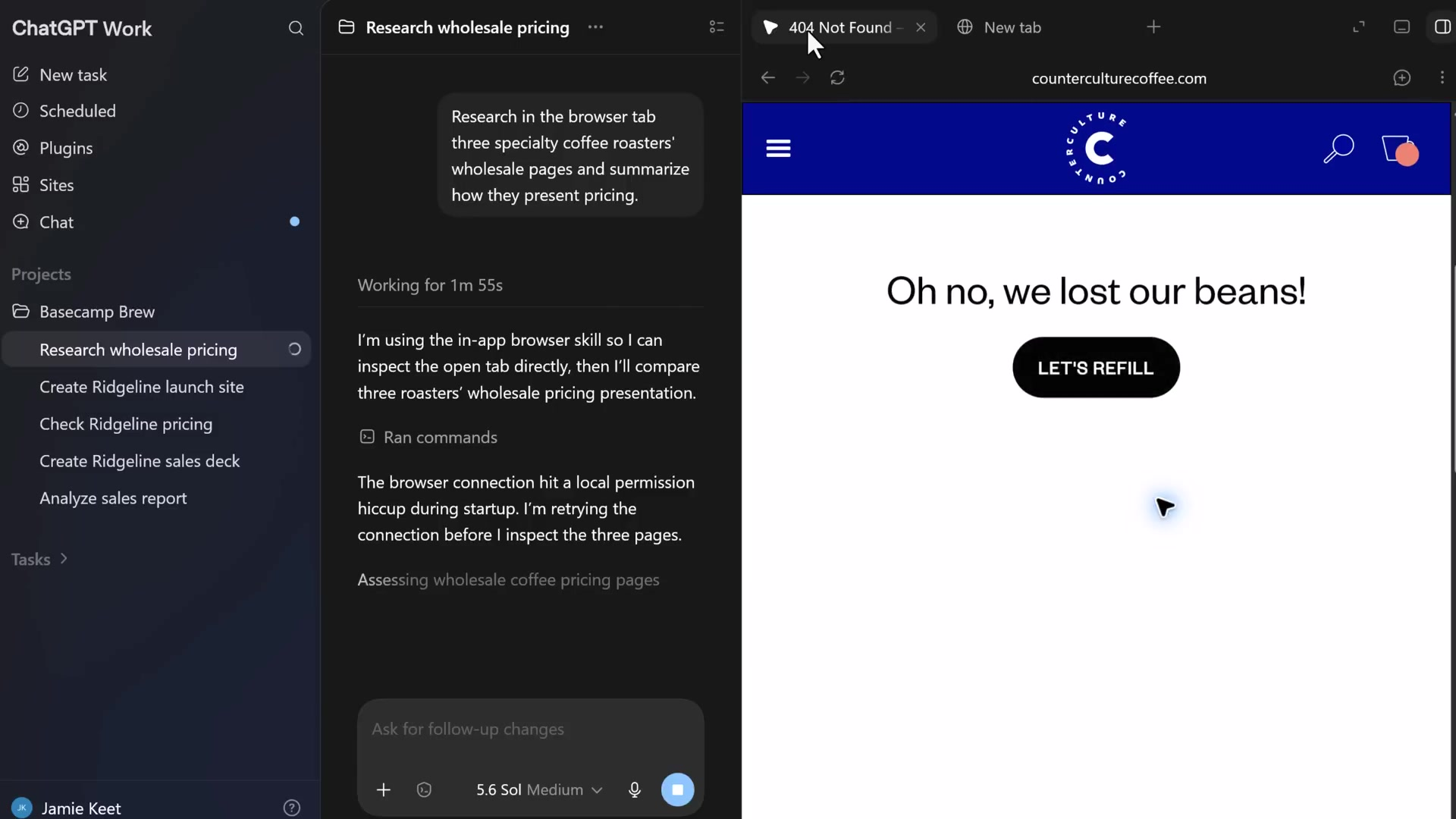
OpenAI currently distinguishes two browser experiences. The desktop built-in browser runs inside the ChatGPT app; you and ChatGPT can view the same tabs, sign in, navigate, download files, and work with supported site tools. Cloud browser is different: it gives Work a remote browser on an OpenAI-managed computer, is available on eligible paid plans, and can continue after you leave the conversation or close your own device. If a web task needs your local signed-in browser state or close supervision, desktop is the natural fit. If it needs to continue unattended in the cloud, use cloud Work when available.
Computer Use extends Work beyond the browser – with more risk
The video also demonstrates Computer Use, which can see, click, and type in supported desktop applications after the required plugin and permissions are enabled. This is the point where conservative access matters most. A browser research task is relatively contained; an agent controlling native applications can potentially touch files, accounts, and workflows that were never part of the original request if access is too broad.
The tutorial’s advice is the right one: grant only what the task needs. Current enterprise controls can restrict Computer Use to selected applications and can block or allow saved application approvals. Even on a personal account, you should treat every “always allow” decision as a scope expansion, not as a convenience toggle. Start with a bounded task, watch the behavior, and only persist permissions you actually want repeated.
Scheduled Tasks turn a useful one-off job into a repeatable system
After Work drafts wholesale replies from Gmail, the creator asks it to do the same thing every morning at 8:00. Work proposes a schedule, the user confirms it, and the task appears in the Scheduled area where it can be paused, edited, or removed. That conversion from “this worked once” to “run this again under clear conditions” is one of the most important patterns in the entire tutorial.
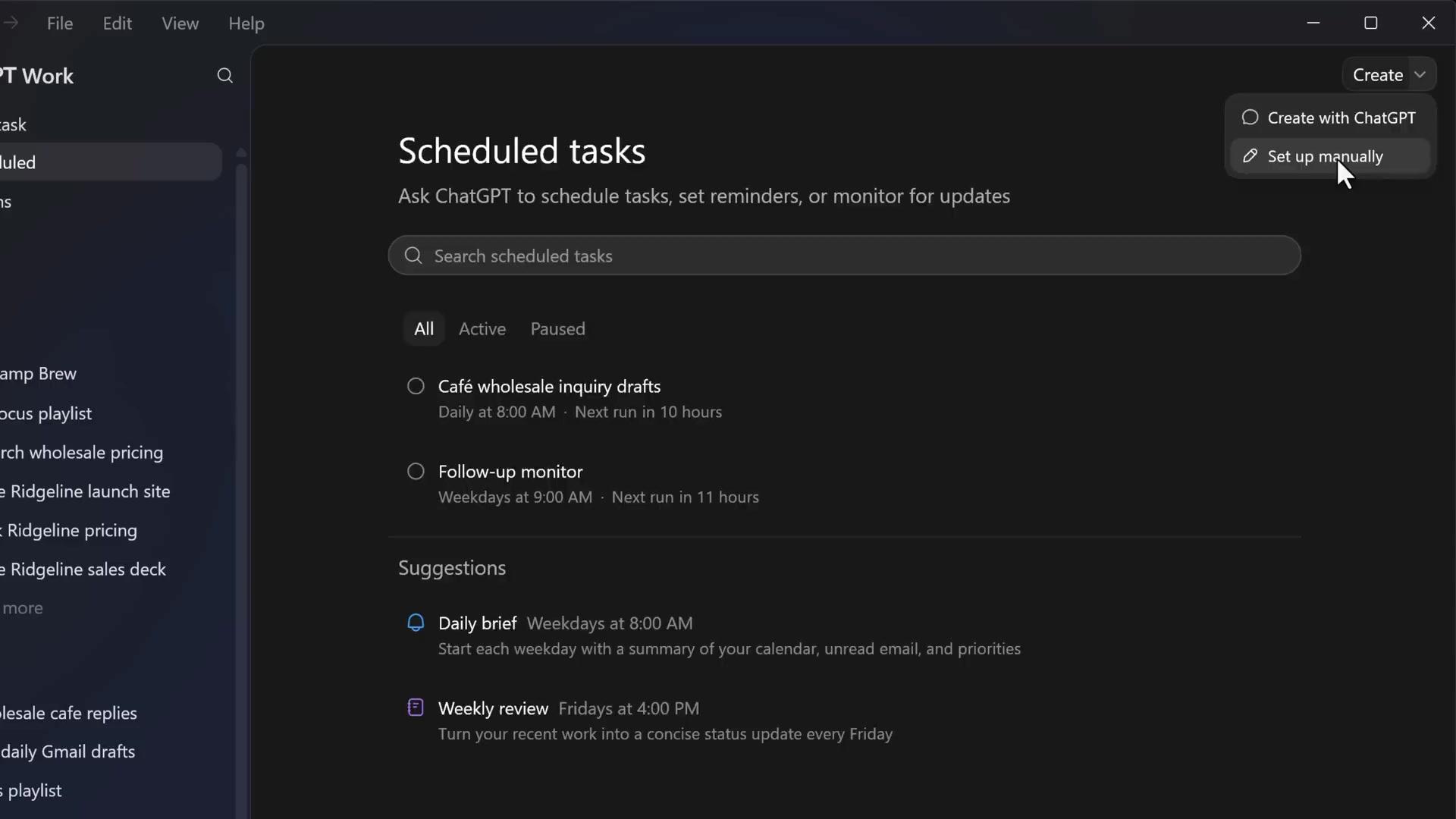
Scheduled Tasks can run once, recur on a schedule, respond to supported events, or monitor for a condition. Current active-task limits vary by plan. OpenAI’s help center currently lists 3 active tasks for Free and Go, 5 for Plus, 10 for Business and Edu, and 15 for Pro and Enterprise, while other plan or workspace limits can differ. Free accounts have additional scheduling restrictions, and event-triggered tasks are not available on Free or Go.
There is also an important local-versus-cloud distinction. The video warns that a schedule tied to the desktop computer depends on that computer being available. Current OpenAI documentation similarly distinguishes cloud Work from tasks that run only on your computer. Cloud browser tasks can continue remotely even after you close your device; a workflow that depends on local folders or local applications necessarily depends on the local execution environment. Choose the surface based on what the recurring job actually needs.
Web and mobile are not just smaller versions of desktop
The video closes with a quick tour of web and mobile. The most useful current distinction is not screen size; it is where the work runs and what it can reach. Cloud Work chats sync across web, mobile, and desktop. Web and mobile can use cloud plugins and cloud browser workflows, but they cannot directly open files sitting on your computer. Desktop Work can use local folders and, where allowed, desktop applications.
The video also describes a mobile Remote tab as a way to reach desktop Work projects. Current OpenAI documentation frames Remote primarily around supported desktop Codex chats, while cloud Work conversations themselves sync across devices. So the safest current expectation is: continue cloud Work naturally on web or mobile; use the Remote tab for supported desktop Codex access; and do not assume every local Work project can be driven remotely in exactly the way shown in an older interface.
Understand usage before you automate everything
Long-running agent work consumes a different kind of allowance than quick chat. The video advises reserving Work for finished deliverables and using regular Chat for quick questions. The current product model supports that strategy, although the exact accounting has evolved: Work and Codex share an agentic usage allowance on supported plans, while regular Chat has separate limits. Usage can depend on the model, reasoning effort, task size, and whether the job runs locally or in the cloud.
Check Settings > Usage for the limits and reset times actually attached to your account. Some plans use five-hour and weekly windows, and credits may be available for additional eligible usage. Do not plan a business-critical recurring workflow around a remembered message count from a video or blog post; the in-product usage screen is the authoritative place to see what remains for your account.
A practical beginner workflow for ChatGPT Work
If you are new to Work, you do not need to reproduce the entire Basecamp Brew demo on day one. Start with one real job that already has a clear input and output. A weekly report, a folder of research notes, an inbox triage routine, or a recurring status check is ideal because you already know what “good” looks like.
- Pick one bounded task with a concrete deliverable. Avoid “run my whole business” as a first experiment.
- Choose the right surface: desktop for local files and apps; cloud Work for tasks that should keep running remotely.
- Start with conservative permissions and expand access only when the current workflow truly requires it.
- State the source, the outcome, the audience, important constraints, and the review checkpoint in the prompt.
- Watch the first run closely. Correct assumptions early instead of waiting for a polished but wrong deliverable.
- Review the artifact itself – formulas, numbers, links, access settings, and layout – before relying on it.
- When a job is repeatable, save its structure as a template, Skill, or plugin workflow rather than rewriting the instructions from scratch.
- Only after a one-off workflow is reliable should you schedule it or connect a trigger.
The most important habit is to automate the stable part of a process, not the uncertain part. If every Monday report uses the same source folder, same metrics, same format, and same reviewer, that is a strong automation candidate. If the goal changes every week and the source data is inconsistent, keep a human review step until the process becomes predictable.
Final takeaway
ChatGPT Work is most useful when you stop treating it like a more powerful answer box and start treating it like a workspace for delegated outcomes. The tutorial’s Basecamp Brew example shows the progression clearly: connect context once, describe an outcome, let the agent work through the steps, review the artifact, reuse a good format, connect external tools only when needed, and schedule the workflow after it proves reliable.
The product will keep changing around that core loop. Buttons will move, plan limits will change, models will be renamed, and some features will arrive on one surface before another. The durable skill is learning how to scope the job: give Work the minimum access it needs, define what “done” means, insist on a review point for consequential actions, and turn successful one-off tasks into repeatable systems only after you trust the result.
Official sources checked
Current-product details were checked against the following OpenAI Help Center pages. Product availability and interfaces can continue to change after publication.
- ChatGPT Work and Codex
- Creating and editing documents, spreadsheets, and presentations with ChatGPT Work
- Plugins in ChatGPT
- Creating and using ChatGPT Sites
- Using the built-in browser in the ChatGPT desktop app
- Using cloud browser in ChatGPT
- Scheduled tasks in ChatGPT
- Managing usage with GPT-6 Astra in Work and Codex
- Managing app permissions in ChatGPT