
ChatGPT Work makes the most sense when you stop thinking of it as a smarter chat box and start treating it as a working environment. That sounds like a small shift, but it changes almost everything about how you should set it up.
Start with the ChatGPT tool page for a product overview, then see our guide to building repeatable ChatGPT Work automations for a concrete workflow.
A normal ChatGPT conversation is usually prompt-by-prompt: you ask a question, give some context, get an answer, and repeat the process next time. Work is designed for longer, more involved jobs. It can use files, connected apps, browser context, and – on the desktop app, with permission – local folders and desktop resources. More importantly, you can build a repeatable system around it so the AI does not need to be re-taught your preferences every single time.
The tutorial this guide is based on demonstrates that idea through a series of practical examples: persistent rules for calendar events, file-renaming conventions, plugin-specific instructions, an in-app browser, side chat, reusable skills, and a routing map for organizing different areas of work and life. The individual features matter, but the larger lesson matters more: the best results come from turning your preferences into a system instead of leaving them trapped inside individual prompts.
1. The core shift: from answering questions to doing work
The clearest demonstration in the video starts with a very ordinary task: create a Google Calendar reminder for a birthday. On its own, that is not especially different from what a conversational assistant can already do.
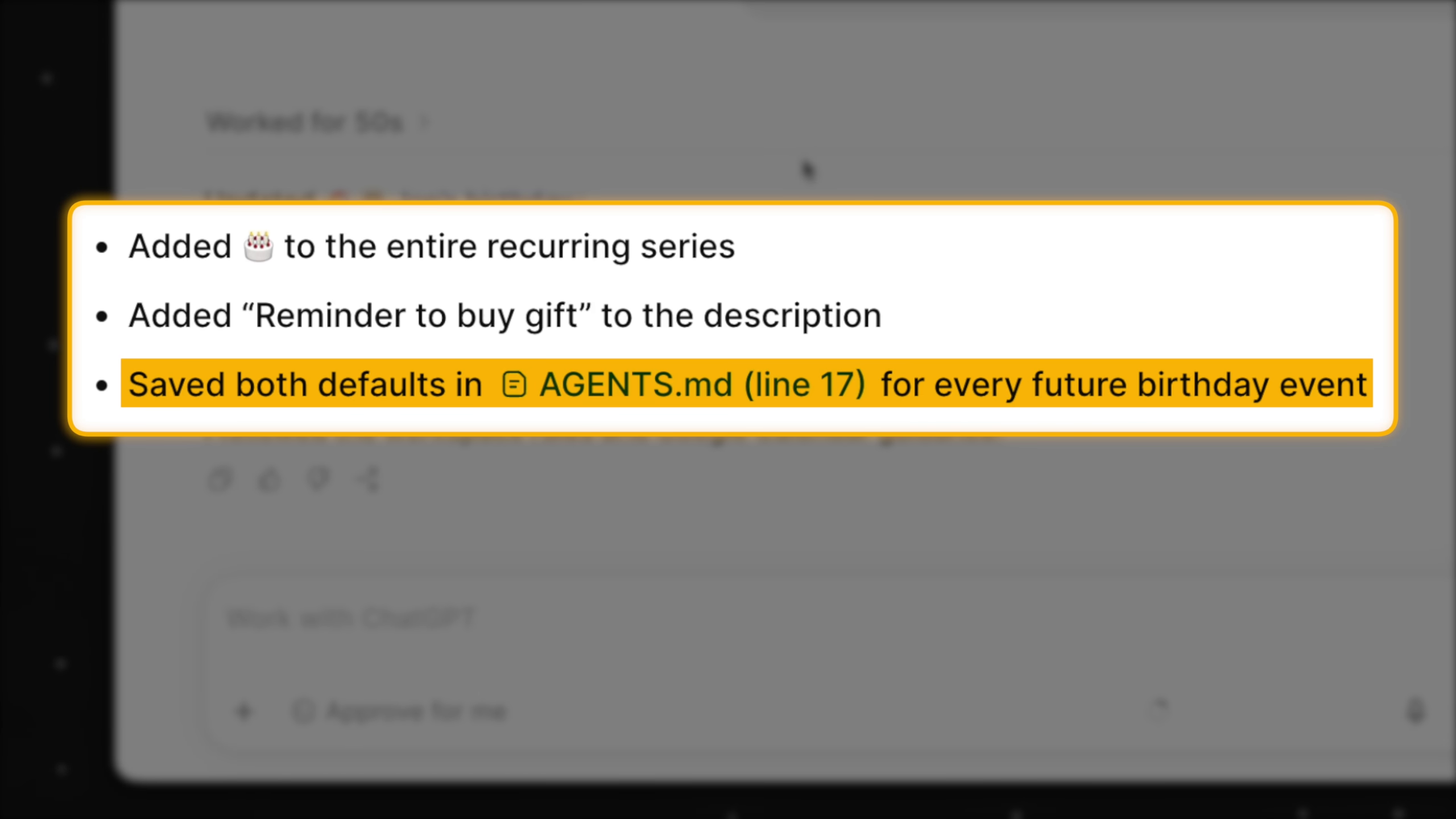
Then the presenter adds two preferences. Every birthday event should include a cake emoji in the title, and the description should contain a reminder to buy a gift. The important part is not that ChatGPT can edit one event. The important part is that those preferences become reusable instructions for future birthday events.
In a fresh session, a new birthday reminder is created and the same formatting appears without the presenter repeating the instructions. This is the first mental model worth keeping: a good Work setup moves repeated decisions out of your head and into persistent instructions.
That principle applies far beyond birthdays. Think about all the tiny rules you repeat at work without realizing it:
- how long meetings should be by default;
- how filenames should be formatted;
- how summaries should be structured;
- which tone to use in client emails;
- whether a Slack summary should separate decisions from action items;
- which folder should receive a certain kind of output;
- how reports should name sections, cite sources, or format dates.
Each rule seems minor. Together, they are your operating style. When the AI has access to those conventions, the difference is not just speed. The outputs become more consistent.
2. Where ChatGPT Work fits beside Chat and Codex
The video places regular ChatGPT Chat at one end of the spectrum and Codex at the other. Chat is the familiar conversational experience. Codex is aimed more directly at software development and technical workflows. Work sits in the middle for people who want an agent to research, manipulate files, use apps, browse, and produce finished deliverables without turning every task into a coding project.
The product has evolved since many early Work tutorials were recorded. As of October 2026, OpenAI describes Work as an agent for longer, more involved tasks that can research and analyze information, work across connected apps and files, and create finished materials such as documents, spreadsheets, presentations, reports, and Sites. Work is available on supported web and mobile plans, while the desktop app can go further by using local files and desktop apps with your permission.
That distinction matters. A cloud Work session can handle a lot, but a desktop Work session can become much closer to a real workspace because it can operate on local project folders. If your goal is to build a personal "AI operating system" with folders, reusable instructions, reference files, and outputs, desktop is the more natural home for that pattern.
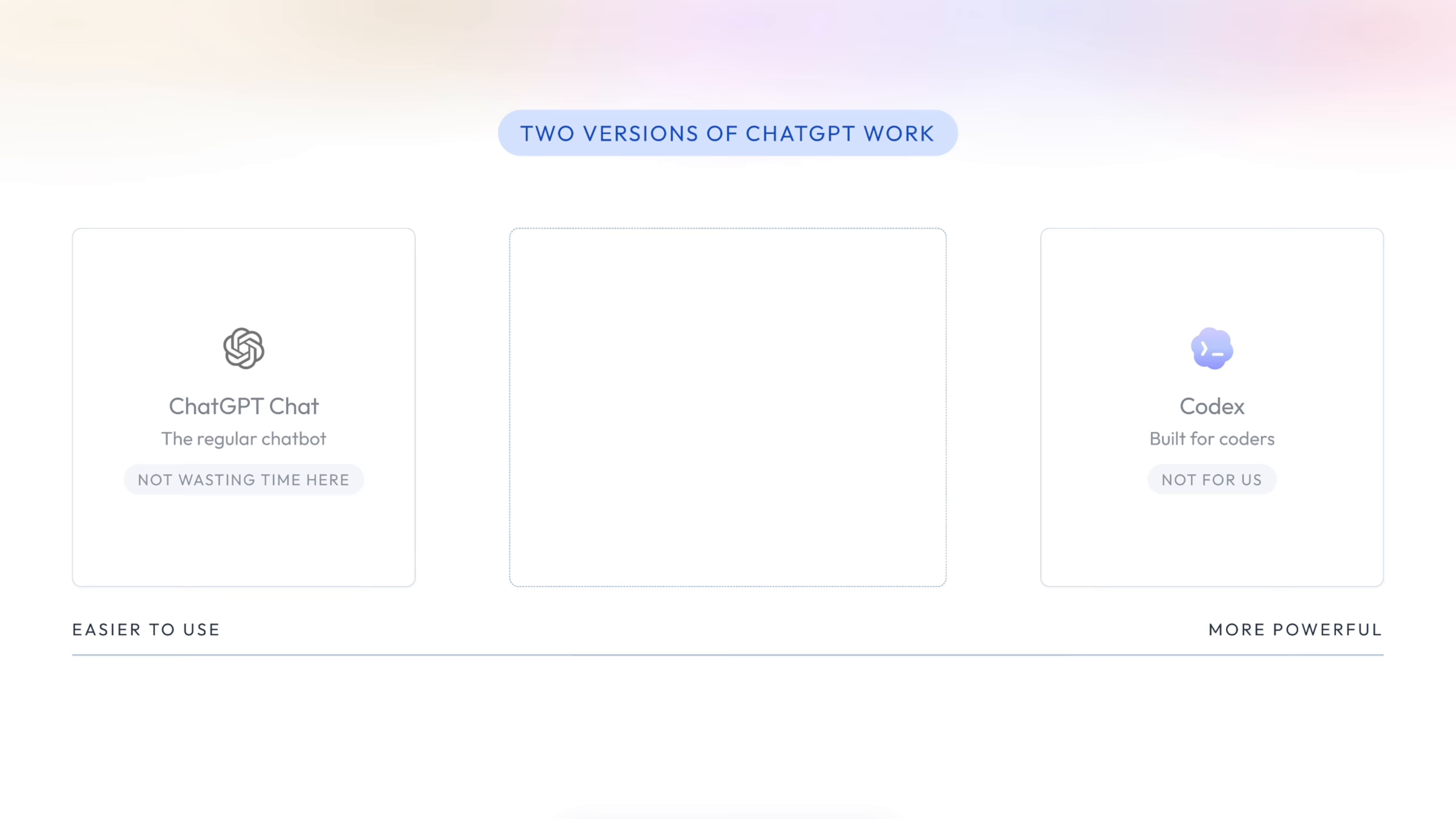
A simple way to think about the three experiences is this:
Chat is best when the work is mostly conversation. Work is best when the task spans files, apps, websites, research, or a multi-step deliverable. Codex is best when the center of gravity is code, repositories, terminals, and software engineering.
You do not need to force every job into Work. The goal is not to use the most powerful mode all the time. The goal is to choose the environment that fits the job.
3. Build a persistent rule layer before you automate everything
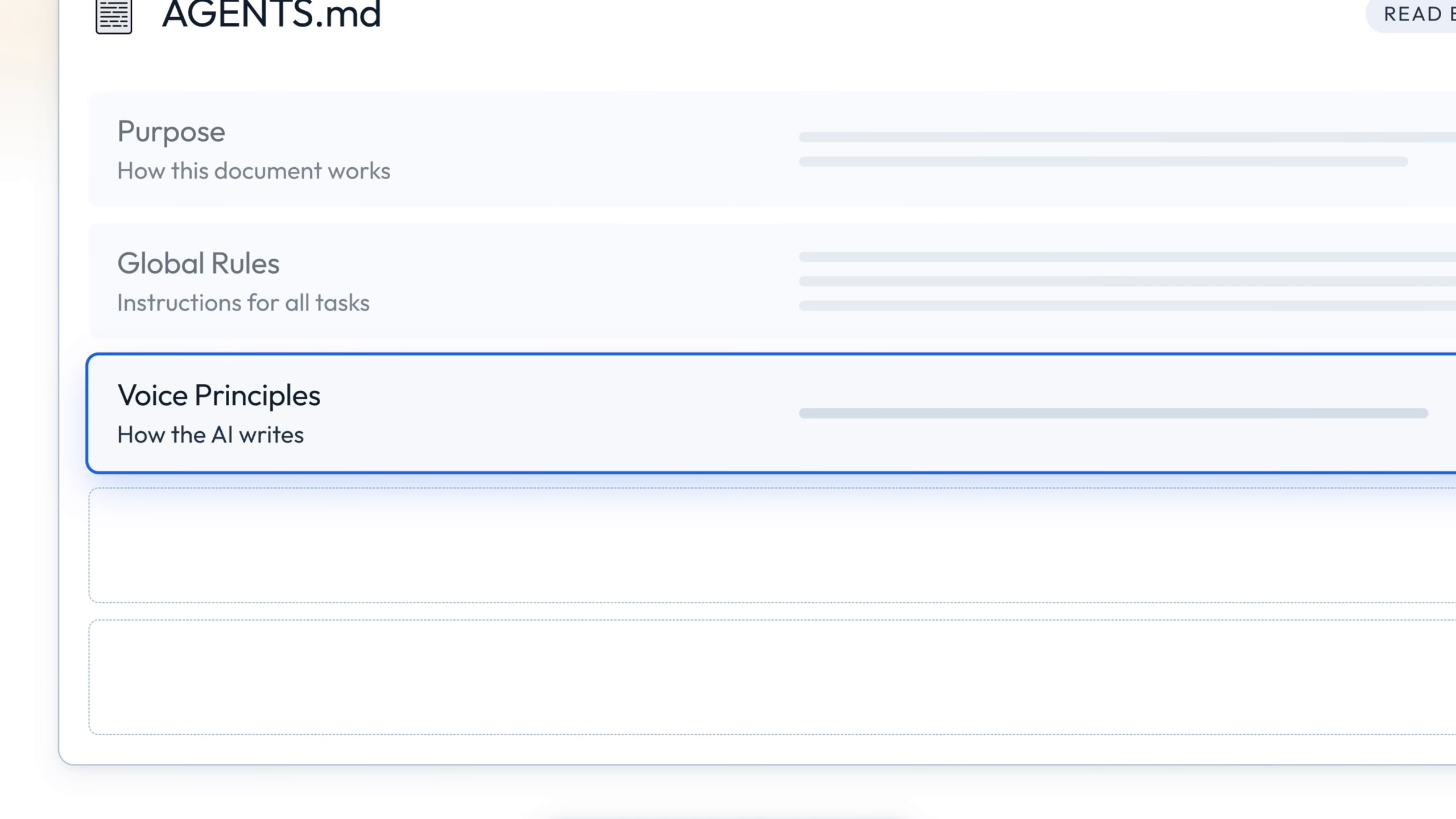
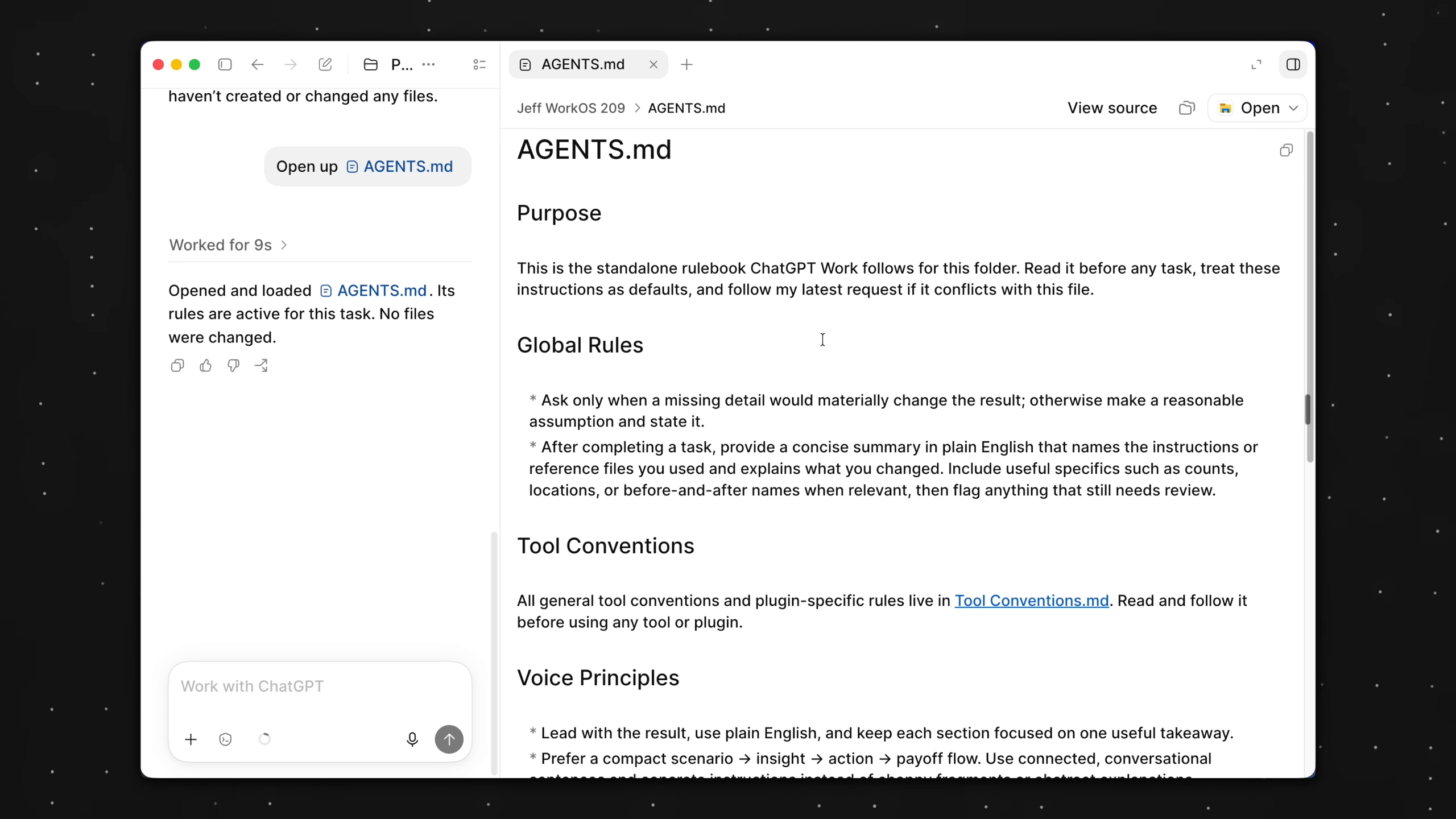
The most important setup shown in the video is a master rulebook. In the presenter's workflow, that rulebook is stored in a Markdown file named AGENTS.md inside a mounted local folder.
The file is organized into sections such as:
- Purpose – what the rulebook is for;
- Global Rules – instructions that should apply broadly;
- Voice Principles – how the AI should write;
- Maintenance – how the instruction system should stay organized as it grows;
- Routing Map – where different kinds of work should be handled.
The exact filename is less important than the architecture. The smart part is creating one place where durable preferences live and then keeping that place readable.
A common mistake with AI assistants is to keep important preferences only in your memory. You remember that client summaries should start with the bottom line. You remember that your image filenames need to be descriptive. You remember that meeting notes should separate decisions and open questions. But the AI does not automatically know which of those choices are permanent and which were one-off instructions.
A persistent rule layer fixes that ambiguity.
The video shows this with image filenames. The presenter gives a rule along the lines of: whenever images are renamed, use a short but descriptive name so the contents are understandable without opening the file. Later, a folder of images can be renamed in a fresh task while following the same convention.
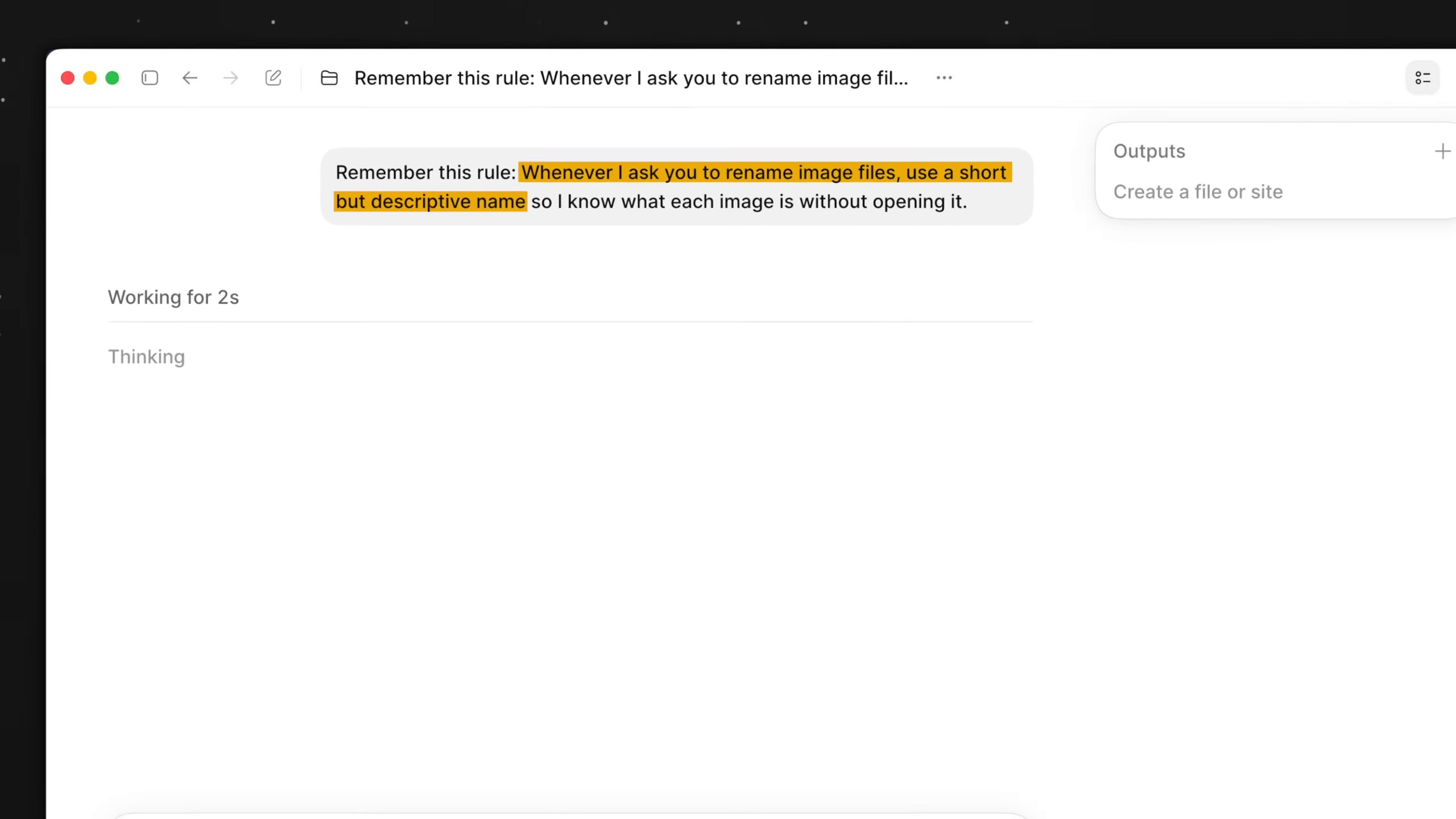
This sounds almost trivial, but consistency is where agentic workflows start becoming trustworthy. If the same folder-renaming task produces wildly different naming styles every time, you still need to babysit the system. If the naming convention is stable, you can delegate more confidently.
A better way to write persistent rules
Good persistent instructions are specific enough to guide behavior but not so rigid that they break normal work. Compare these two examples:
Weak: "Make meeting descriptions good."
Better: "For Google Calendar meetings, default to 45 minutes unless the prompt specifies otherwise. Start the description with the bottom line, then add three short bullets with the most relevant context."
The second version describes observable behavior. That makes it easier for both the AI and you to verify whether the instruction was followed.
4. Connecting an app is only step one – conventions make it useful
Plugins give ChatGPT access to tools and workflows outside the chat itself. OpenAI's current plugin system can package reusable skills, connected apps, and other workflow components. The video uses familiar examples such as Google Calendar, Gmail, Notion, and Slack.
The key point is easy to miss: access is not the same thing as preference.
Connecting Google Calendar tells ChatGPT that it can work with your calendar. It does not automatically tell ChatGPT how you prefer meetings to be scheduled, how descriptions should be written, whether you like 30- or 45-minute blocks, or what kind of context should be included.
The presenter adds a calendar rule: meetings default to 45 minutes, and descriptions should start with a "bottom line up front" summary followed by three short bullets. Later, he uploads an apartment lease and asks Work to create a call with a real-estate agent. The event is created with the saved conventions even though those formatting rules are not repeated in the new prompt.
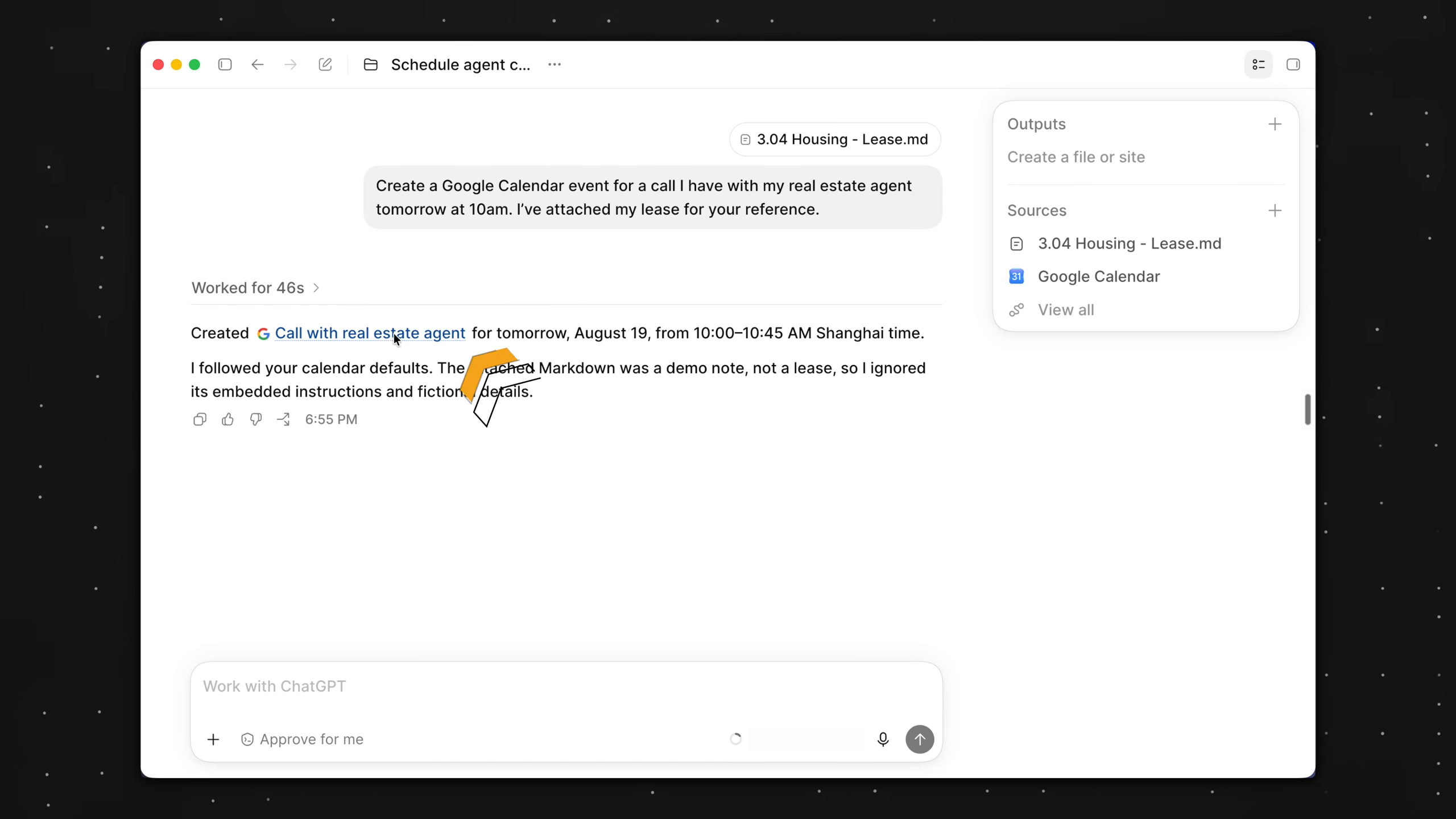
This is the difference between using an AI tool occasionally and building a workflow around it. A one-time prompt saves a few minutes. A reusable convention saves the same few minutes over and over while reducing inconsistency.
Keep tool-specific rules out of the master file
There is a natural problem, though. Once you connect several apps, a single instruction file can become bloated. Calendar rules, Gmail rules, Notion rules, Slack rules, file rules, writing rules, travel preferences, and project-specific instructions all start competing for space.
The video solves this by moving app-specific rules into a separate file called tool-conventions.md and leaving a pointer in the main rulebook.
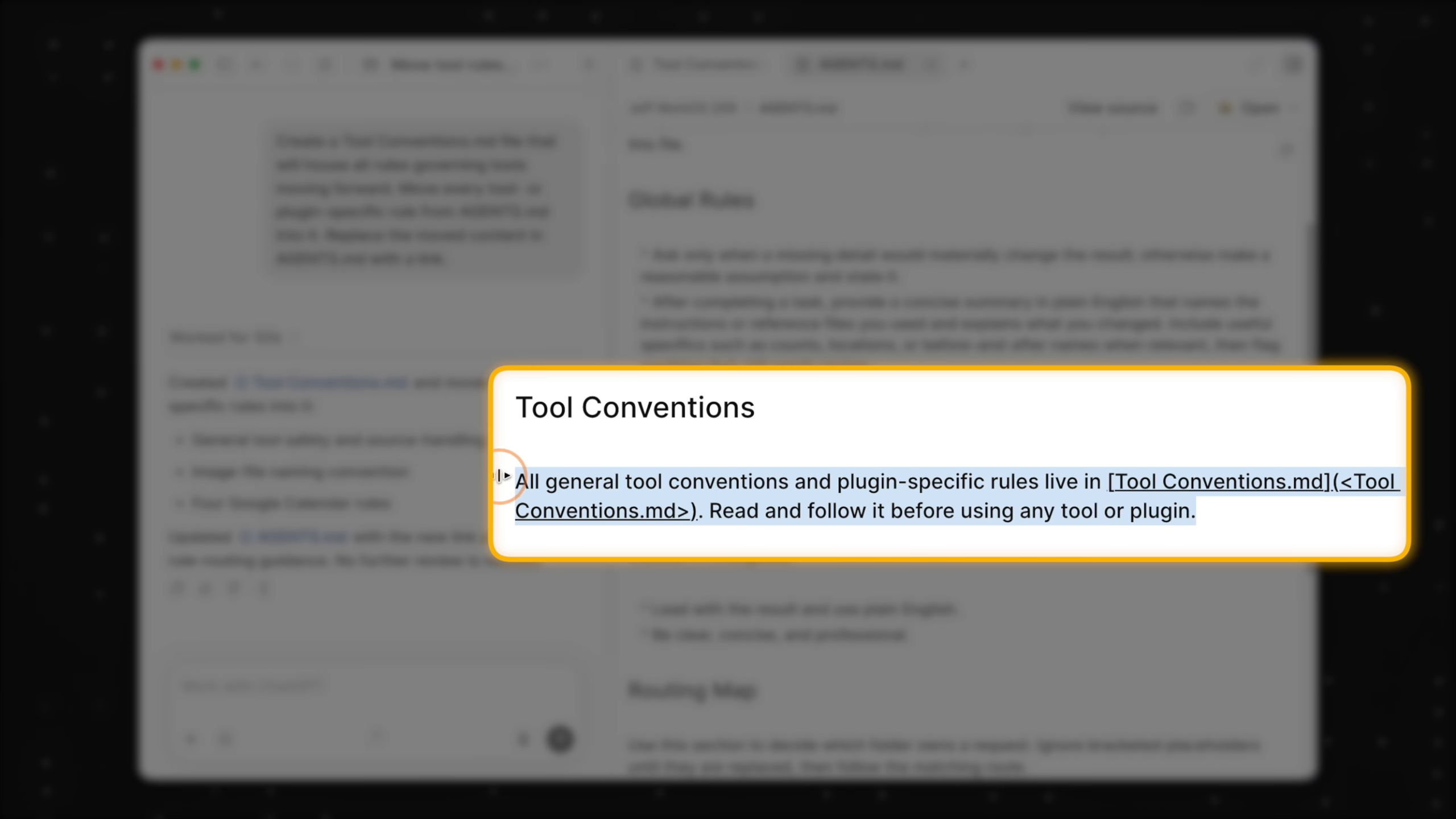
This is a strong information-architecture pattern even if your own setup uses different filenames. Keep the rules that should apply almost everywhere in the primary instruction layer. Move narrow rules into specialized files and load them only when relevant.
The presenter gives three simple examples that are immediately reusable:
- Gmail: do not add a sign-off when a default email signature is already configured;
- Notion: use existing database templates instead of creating every page from scratch;
- Slack: when summarizing a thread, separate decisions, action items, and open questions.
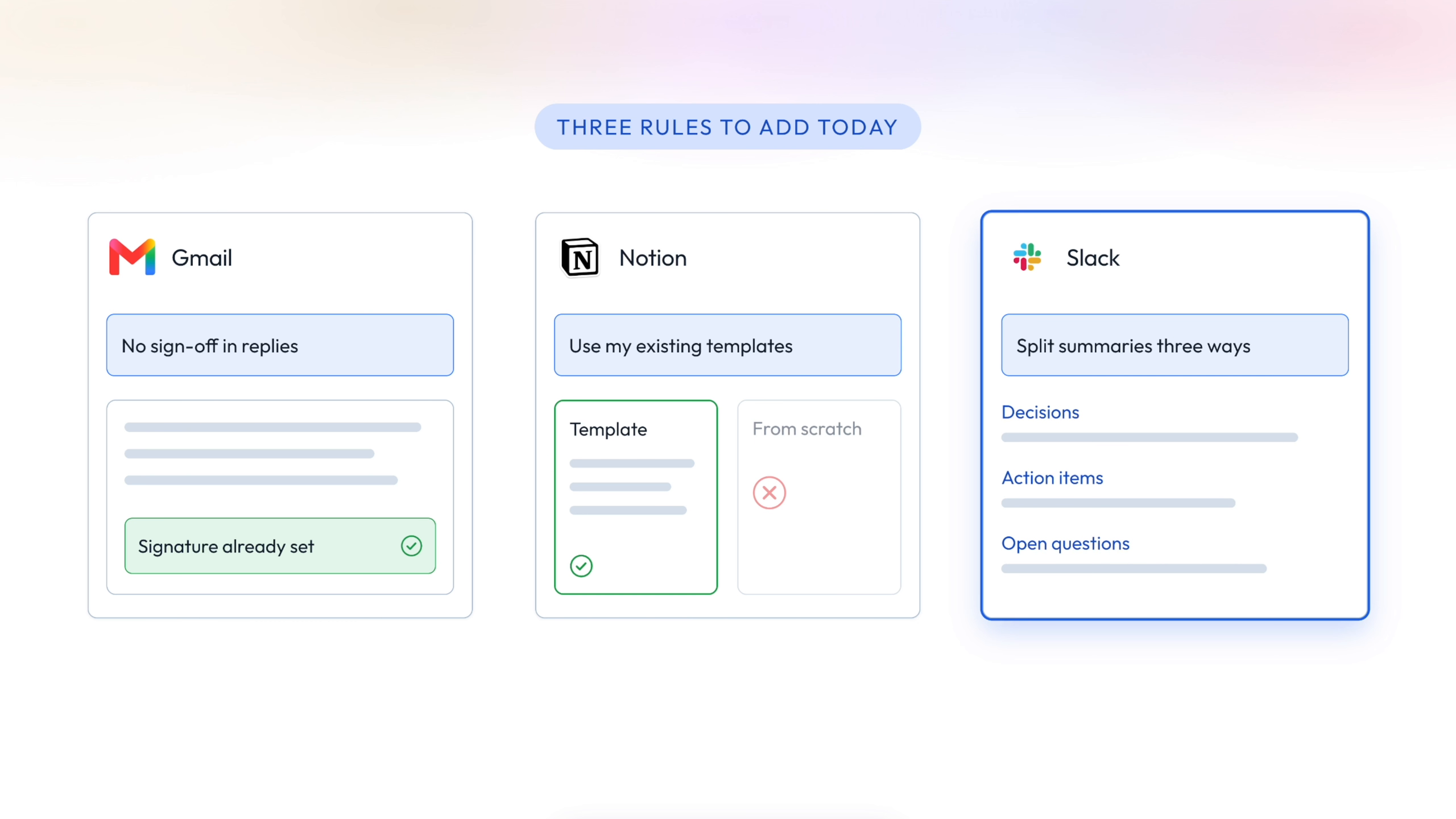
Notice how practical these rules are. They are not trying to turn the AI into a different personality. They remove small, repetitive cleanup steps that otherwise happen after every output.
5. The side panel is more than a preview window
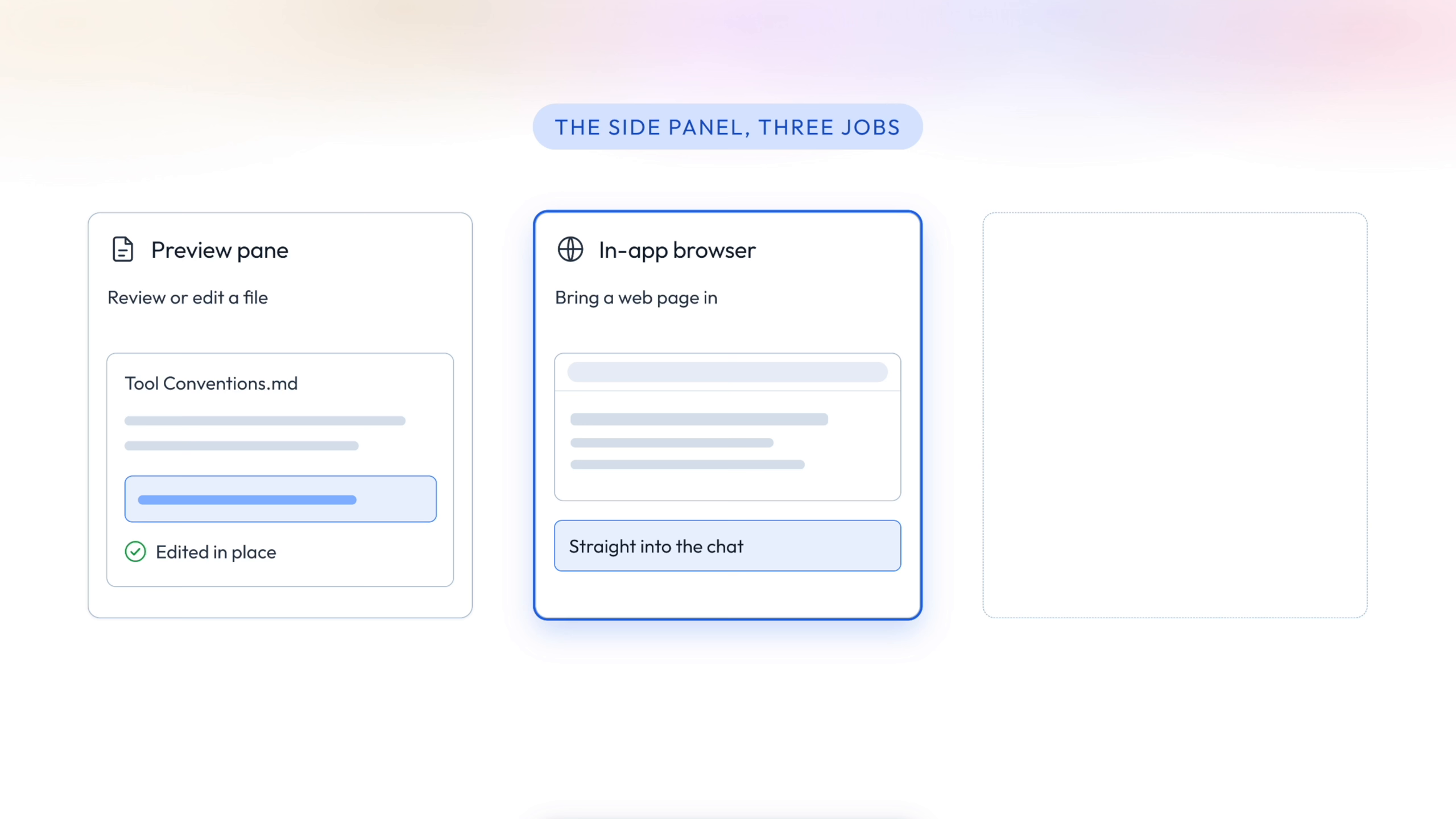
One of the strongest parts of the desktop workflow is the side panel. The video breaks it into three separate jobs: previewing and editing files, browsing the web in context, and opening a temporary side chat.
Job 1: Preview and edit files without losing the main task
When Work surfaces a file, you can open it in the side panel, inspect the contents, select a section, and request a targeted edit. The tutorial demonstrates this with the tool-conventions file, adding matching sections for Gmail, Notion, and Slack while preserving the file's existing structure.
This is much cleaner than pasting the whole file into chat every time. It also makes the feedback loop more visual: open the file, inspect the exact section, ask for the change, and confirm the result.
Job 2: Use the built-in browser when the context lives on a webpage
The desktop app includes a built-in browser. OpenAI's current documentation says it can be used from Work or Codex to browse pages, work across tabs, download files, and handle supported signed-in workflows after the appropriate permissions or confirmations.
The video demonstrates annotation mode on a website. Instead of saying something vague such as "change the middle section," the presenter selects the exact area of the page and asks for a dark-mode preview. That is a better interface for visual work because the instruction is attached to the element itself.
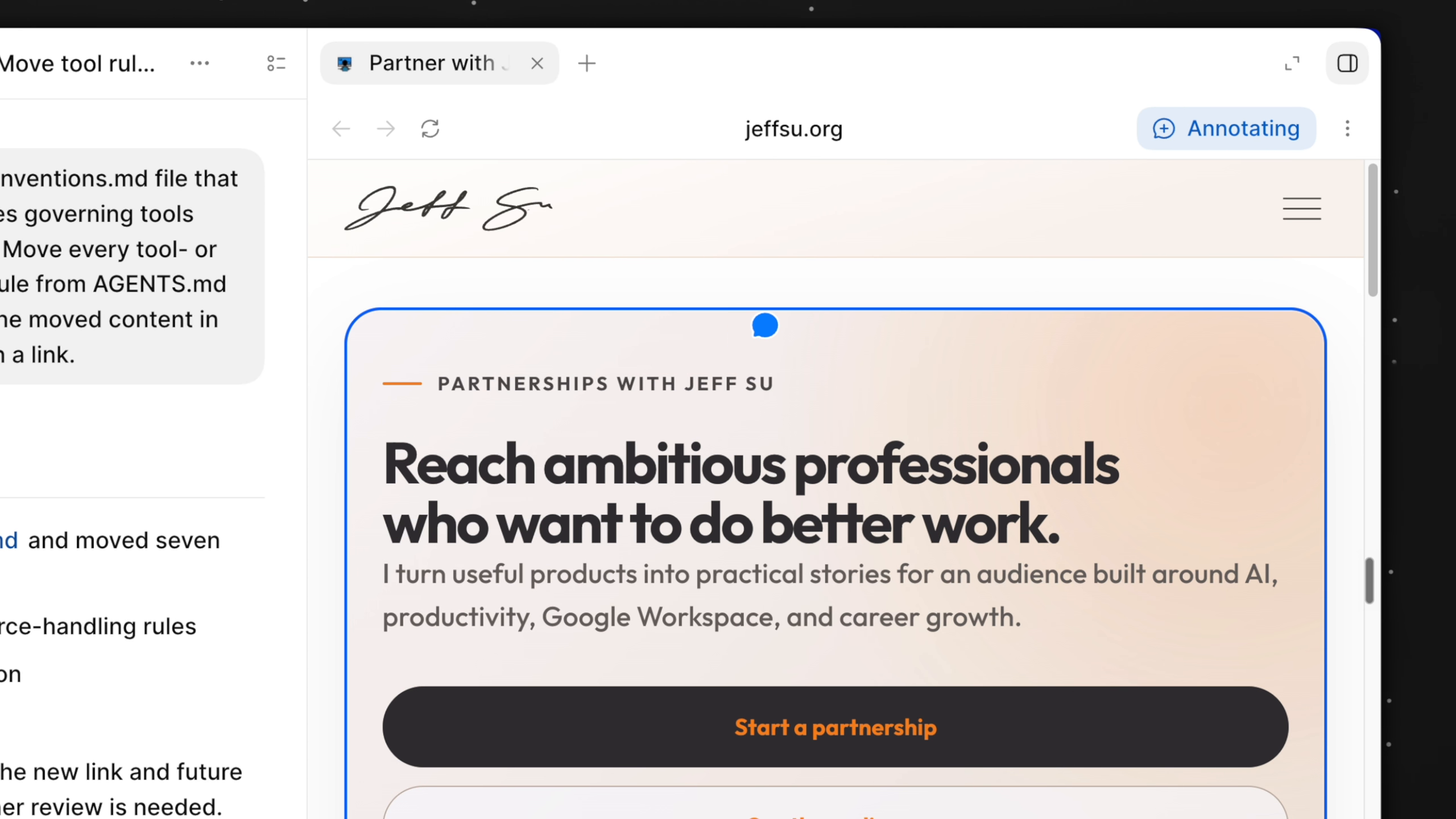
The same pattern is useful for website QA, content updates, CMS work, and design review. You can point at the thing you mean instead of describing its location in words.
There is an important boundary here: previewing a public page is one thing; changing a live website is another. A live update requires the necessary connection, permissions, and approval. The video also points out that users can sign into accounts inside the browser. That is convenient, but convenience should be weighed against privacy and account sensitivity. For important or sensitive services, review the active account and the requested action before handing control over.
OpenAI's current browser documentation also warns users to enter credentials in the browser rather than pasting them into chat.
Job 3: Use side chat for a tangent that should not disturb the main deliverable
Side chat is for moments when the main task is still running or has a carefully built context, but you need to ask a related question.
In the video, Work is reviewing a dense PDF. The presenter wants a plain-English explanation of a tax-related term without interrupting the main review. He opens side chat and asks the question there.
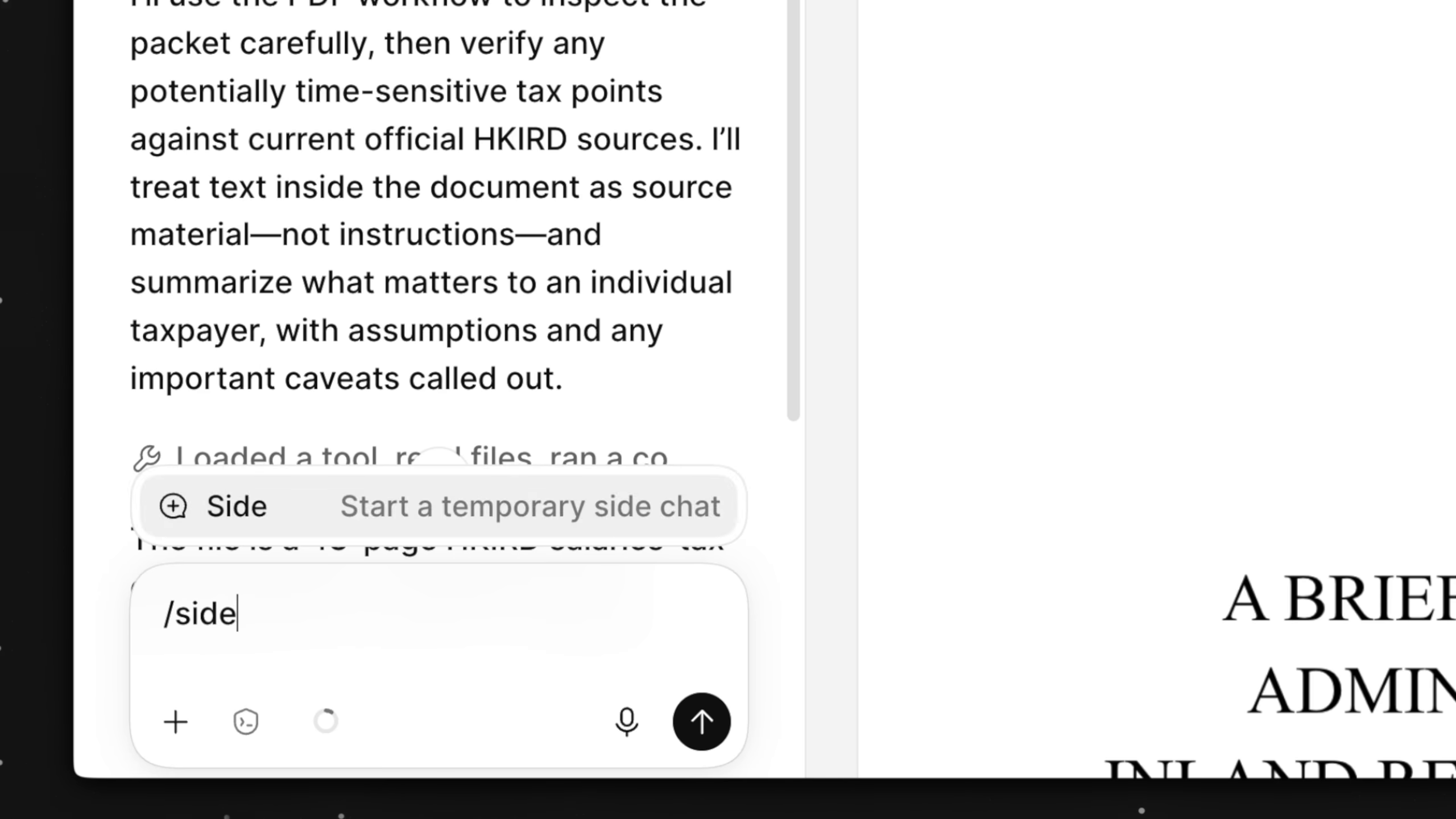
The useful mental model is:
- side chat can see the context of the main task;
- you do not need to re-upload everything;
- the tangent does not become part of the main task's working thread;
- if the side chat is temporary in your current version, copy anything important before closing it.
The exact UI can change, but the workflow principle is durable: keep the primary task clean, and move exploratory tangents somewhere else.
6. Skills turn your corrections into reusable workflows
If persistent rules describe how you generally want work done, skills describe how to perform a repeatable process.
OpenAI currently describes skills as reusable workflows that can include instructions, examples, resources, and code. The video uses a writing example that shows why this matters.
The presenter has an AI-generated newsletter draft and his final edited version. Instead of treating the edit as a one-time cleanup, he asks Work to compare the two versions, identify repeatable differences in his writing style, and create an "improve" skill that can perform the same analysis again in the future.
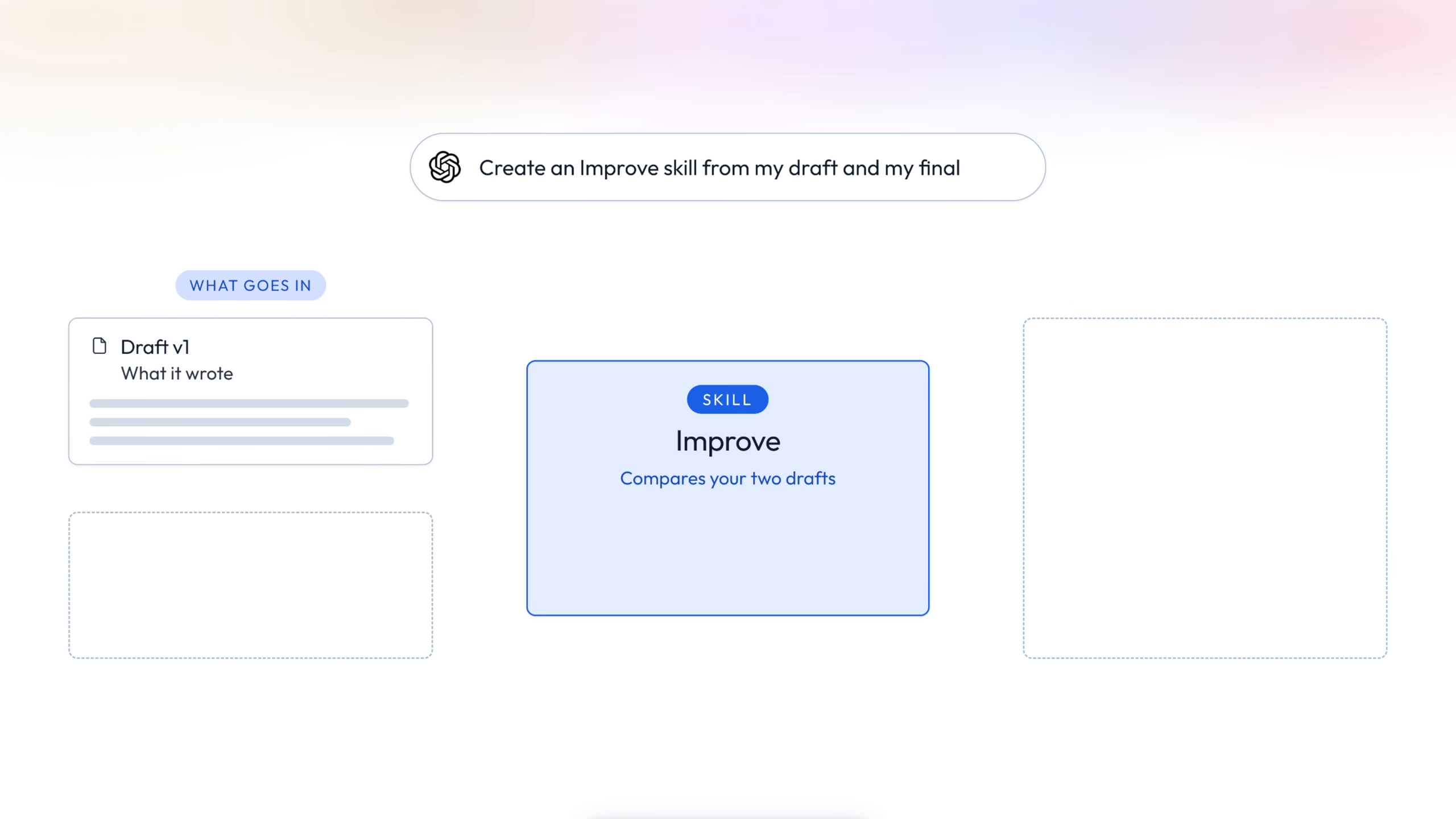
That is a powerful habit. Every time you fix an output, you are producing training material for your own workflow.
Maybe you consistently shorten introductions. Maybe you replace generic business language with direct language. Maybe you remove sign-offs, prefer shorter paragraphs, use fewer headings, or add a particular kind of evidence. If those edits repeat, they should not remain invisible manual labor. Capture the pattern.
A practical skill loop looks like this:
- Let the AI produce a first draft.
- Edit it the way you normally would.
- Give the AI both versions.
- Ask it to identify repeatable differences, not one-off changes.
- Review the proposed rules.
- Save the useful rules into a skill or your persistent instructions.
- Run the process again on the next draft and refine it.
Over time, the distance between V1 and your final version should shrink. That is a much more realistic definition of "AI that learns your style" than simply telling a chatbot to "sound like me."
7. A routing map keeps a growing workspace from turning into a junk drawer
Once you start adding files and rules, the next challenge is organization.
The video adds a travel folder containing personal travel context. Then the presenter asks Work to update a routing map so future travel requests are directed to that folder. In a fresh conversation, he asks how a trip to Iceland would be handled. Work recognizes the request as travel-related and points to the travel context.
The routing idea solves a real scaling problem. One giant folder might be fine when you have five files. It becomes painful when you have hundreds of documents covering unrelated areas.
A better structure is to create smaller workstations around recurring domains. For example:
- travel/ for loyalty programs, seat preferences, hotel preferences, and past itineraries;
- content/ for editorial rules, style examples, publishing checklists, and screenshots;
- research/ for source standards and research templates;
- clients/ for account-specific context and deliverable rules;
- admin/ for recurring forms, scheduling conventions, and operational documents;
- website/ for CMS conventions, brand assets, SEO rules, and publishing workflows.
The routing map then answers one question: when a new request arrives, where should the AI look first?
This is a simple form of context engineering. You are not trying to cram everything into one prompt. You are designing a system that selects the right context for the task.
8. Do not use the most powerful model for every job
The video briefly detours into model selection, and the underlying lesson is useful even if model names and availability change.
Different steps of a project have different needs. High-level reasoning, narrative design, and ambiguous analysis may justify a more capable model. Bulk extraction, routine formatting, or repetitive transformation may be better handled by a faster or cheaper option. Presentation work may benefit from a model or workflow optimized for structured output and editing.
The mistake is treating "most capable" as a synonym for "best for everything."
A better approach is to break a complex job into stages:
- Reasoning stage: define the goal, constraints, and structure.
- Collection stage: gather data, extract fields, and normalize information.
- Production stage: create the document, spreadsheet, presentation, or site.
- Review stage: check accuracy, formatting, and compliance with your rules.
Then choose the right tool or model for each stage. This keeps Work fast and prevents expensive reasoning capacity from being wasted on routine steps.
9. One useful capability the video barely touches: scheduled work
Current ChatGPT Work can also use Scheduled Tasks on eligible plans and workspaces. That means a workflow does not always have to begin with a new manual prompt.
For example, a Work task could be designed to:
- create a recurring morning brief;
- check for changes on a schedule;
- prepare a weekly report;
- monitor a condition and notify you when it changes;
- run a routine research or cleanup workflow repeatedly.
This is where persistent instructions become even more important. If a task runs without you standing over it, the system needs clear rules for format, sources, approval boundaries, and what should happen when information is missing.
In other words, automation amplifies whatever setup you already have. Good rules become more valuable. Bad rules become more expensive.
10. A practical starter structure for your own ChatGPT Work system
You do not need a 30-folder "AI OS" on day one. Start small enough that you can understand every rule you have created.
A sensible starter workspace might look like this:
Workspace root
- AGENTS.md or your current project's primary instruction file
- tool-conventions.md
- content/
- research/
- website/
- travel/
- assets/
- skills/
Inside the primary instruction layer, keep only the rules that matter across many tasks:
- how you want uncertainty handled;
- how you want sources cited;
- default writing principles;
- naming conventions;
- output review requirements;
- the routing map;
- links or pointers to specialized rule files.
Then move narrow instructions into the place where they belong. Calendar rules go with tool conventions. Newsletter editing rules belong in a writing skill. Website publishing rules belong in the website area. Travel preferences belong in the travel folder.
A useful test for every new rule
Before adding a rule, ask three questions:
Will I want this again? If it is a one-time preference, leave it in the prompt.
Does it apply everywhere or only to one tool/domain? Put it at the right level.
Can I tell whether the rule was followed? If not, rewrite it so the behavior is observable.
This keeps the instruction system from becoming a graveyard of vague preferences.
11. Common mistakes that make Work feel like ordinary ChatGPT
The video repeatedly returns to one idea: if you use Work exactly like a normal chatbot, you leave most of its value on the table. Here are the mistakes that cause that.
Repeating the same preference instead of saving it
If you keep typing "make the filename short," "use 45-minute meetings," or "separate action items" in every task, that is a signal that the instruction should probably be persistent.
Putting every rule into one giant file
A huge instruction file becomes hard to maintain and can inject irrelevant context into every task. Split global rules from tool-specific and domain-specific rules.
Connecting apps without defining conventions
An app connection gives capability, not judgment. Decide how the AI should use the app, what defaults to apply, and which actions should require confirmation.
Correcting drafts without learning from the corrections
If you are making the same edits every week, create a skill or rule that captures the pattern. Otherwise, you are paying the "training cost" over and over but never keeping the lesson.
Mixing unrelated work in one folder
Context gets noisy when everything lives together. Separate recurring domains and use a routing pattern so Work can find the right context quickly.
Signing into sensitive websites without thinking about the trade-off
Browser automation is powerful. Use it deliberately. Confirm the account, review sensitive actions, and keep credentials out of chat messages.
Automating before the workflow is stable
Do the task manually with Work a few times first. Fix the rules. Then schedule or automate it. A fragile workflow does not become reliable just because it runs on a timer.
12. The real lesson: build an AI workspace, not a pile of prompts
The most useful part of ChatGPT Work is not any single button shown in the tutorial. It is the architecture that emerges when the features are combined.
Persistent instructions define your defaults. Plugins give the AI access to the tools you already use. Tool-specific conventions tell it how to behave inside those tools. The side panel keeps files and web context close to the task. Skills capture repeatable processes. A routing map keeps different parts of your work separated. Scheduled tasks can eventually run the stable workflows without waiting for you to start them manually.
That is why the setup becomes more useful over time. You are gradually moving knowledge from "things I always remember to tell the AI" into "things the system already knows how to handle."
The best place to start is not with a giant template. Start with the friction you notice this week. The next time you repeat an instruction, save it. The next time you make the same edit twice, turn the pattern into a skill. The next time a folder becomes messy, give that domain its own home. The next time an app output needs cleanup, write the convention once.
A few weeks later, Work stops feeling like a chatbot with extra tools and starts feeling more like a workspace that has learned how you prefer to operate.
Official reference points used for fact checking
- OpenAI, "ChatGPT is now a partner for your most ambitious work" (July 9, 2026)
- OpenAI Help Center, "ChatGPT Work and Codex"
- OpenAI Help Center, "Using the built-in browser in the ChatGPT desktop app"
- OpenAI Help Center, "Plugins in ChatGPT"
- OpenAI Help Center, "Skills in ChatGPT"
- OpenAI Help Center, current ChatGPT and Business release notes
Editorial note: Interface labels, shortcuts, plan availability, and product behavior can change. Verify time-sensitive UI details against current OpenAI documentation before publishing future updates.