
A practical guide to reusable Skills, fact-checked for current ChatGPT Work behavior
Visit the ChatGPT tool page for product details, then see our ChatGPT Work automations guide for tasks that should run with less manual effort.
The biggest idea in this video is not any individual prompt. It is the shift from asking ChatGPT to do a task once to teaching it how you want that task done every time.
That is what Skills are for. OpenAI currently describes a Skill as a reusable, shareable workflow that can contain instructions, examples, scripts, and supporting resources. Once installed, ChatGPT can use a relevant Skill automatically, or you can select one explicitly. That makes a Skill closer to a small operating procedure than a long prompt you keep in a notes app.
The video demonstrates seven patterns the creator uses in ChatGPT Work: turning dense outputs into visual interfaces, sending completion notifications, handing projects between AI systems, consulting another AI through the browser, forcing an interview before execution, bundling a multi-step business workflow, and using Remotion Skills to create motion graphics. There is also a bonus example built around ChatGPT desktop pets.
The useful part is not that everyone should copy the exact same setup. The useful part is seeing what kinds of repeated decisions are worth packaging into a Skill.
What has changed since the video was recorded
A few interface details in the recording should be treated as historical rather than universal.
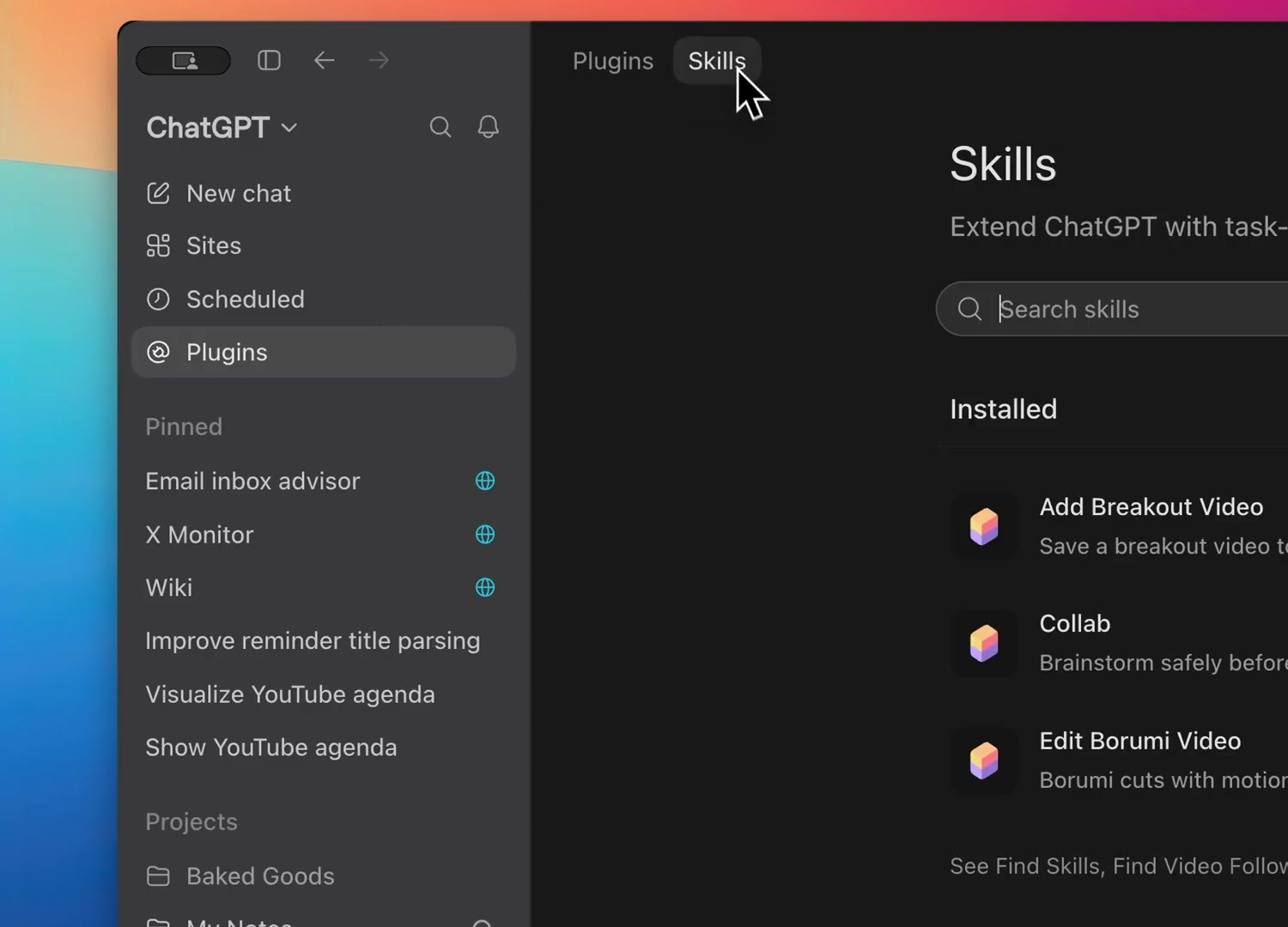
The video invokes Skills with a slash command. OpenAI's current Skills documentation says ChatGPT can use relevant Skills automatically or you can select one explicitly with an @-mention. Skill availability also depends on plan, workspace settings, and product surface, so the exact menu and installed set can differ from what appears in the recording.
ChatGPT Work itself has also become more capable around the edges of these workflows. Current OpenAI documentation says Work can use connected tools, files, browser-based interactions, and scheduled or monitoring tasks. That matters because a custom Skill now often acts as the orchestration layer around built-in capabilities rather than replacing them.
The practical takeaway is simple: copy the workflow logic from the video, not every button label.
1. Visualize: turn an answer into something you can actually inspect
The first Skill is called Visualize. The creator presents it as a way to transform a normal text-heavy ChatGPT response into a more visual, interactive result.
His example is a folder containing household budgeting, savings, and spending information. Without the Skill, ChatGPT returns a conventional written answer. With Visualize, the same underlying information is reorganized into a dashboard: headline numbers for spending and savings, a visual breakdown of where the money goes, a table of known costs, and a switch between monthly and annual views.
That example shows an important use case for Skills: they can define an output experience, not just a tone of voice. If you routinely ask for the same kind of analysis, the Skill can encode how the result should be structured every time.
For financial planning that might mean a dashboard with totals, categories, exceptions, and a comparison view. For a content team it might mean a campaign board with status cards and a calendar. For a researcher it might mean a sortable evidence table plus a short narrative interpretation.
The best candidates are tasks where the raw answer is technically correct but cognitively expensive. A Skill can repeatedly impose the representation that makes the information easiest for you to use.
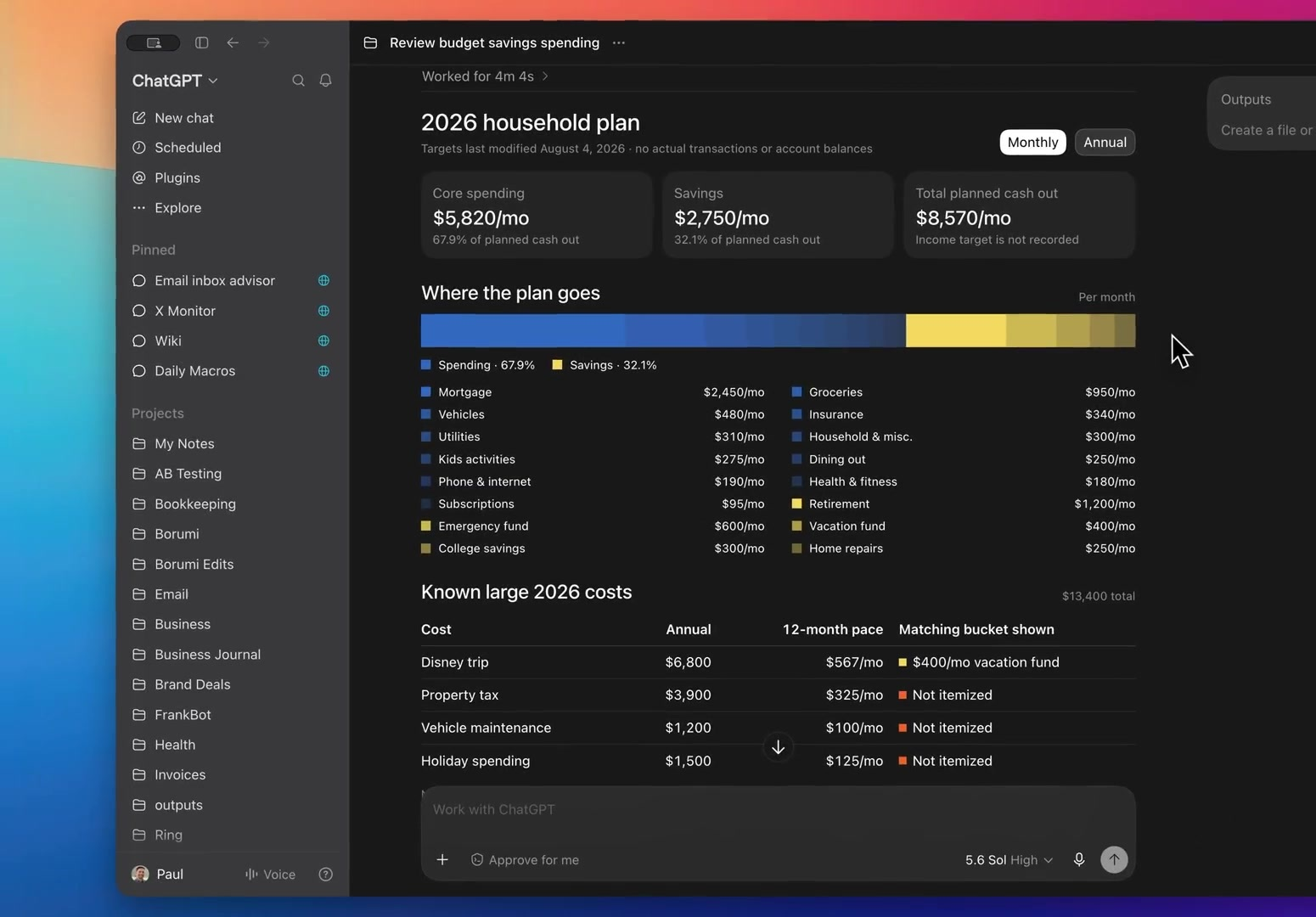
The video describes Visualize as a preloaded Skill in that particular setup. Because preinstalled Skills and interfaces can change, it is safer to think of the example as a pattern: define the visual structure you want, then let the Skill reproduce it whenever the same class of task appears.
2. LMK: add a reliable completion signal to long-running work
The second Skill solves a different problem: knowing when a task is finished after you walk away from the computer.
The creator calls this Skill LMK, short for “let me know.” In his setup, LMK sends a push notification through Pushover when ChatGPT finishes work that he does not want to sit and watch.
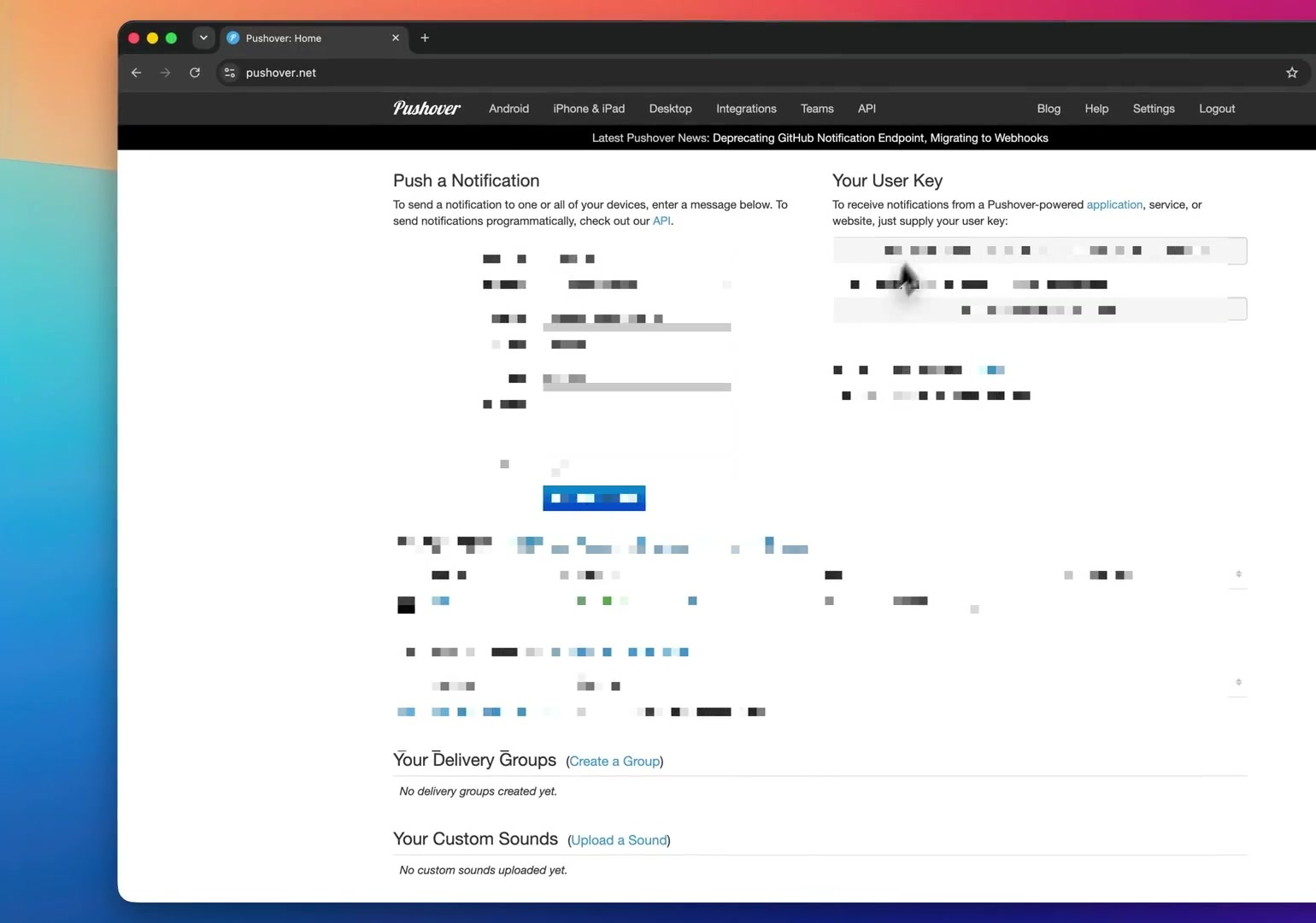
The setup shown in the video uses two pieces of Pushover configuration: a user key and an application API token. The creator's Skill then walks through that configuration and reuses it later whenever he wants an external completion alert.
Pushover currently lists individual access at $4.99 as a one-time purchase per platform, with a free trial. That is essentially the “about five dollars once” pricing described in the video.
Where this becomes more interesting is automation. The creator shows an example running on a Mac mini that monitors trending topics on X. Instead of checking the feed all day, he lets the workflow research in the background and pushes a notification only when something looks important enough to deserve attention.
That is a better mental model for LMK than “notify me when ChatGPT is done.” The Skill is really an escalation rule: do the routine monitoring silently, then interrupt the human only when there is a result worth seeing.
There is one important current-product update. ChatGPT Scheduled Tasks now supports one-time and recurring tasks, monitoring for changes, and native push or email notifications in supported configurations. That means an external Pushover layer may be unnecessary for many ordinary reminders today. LMK is still useful when you want a custom destination, an external API, or a notification rule that belongs to a larger personal automation.
If you build a version of this pattern, treat API tokens and user keys as credentials. Keep them out of public Skill files, screenshots, and shared prompts, and use the platform's supported secret or connection mechanisms when available.
3. Handoff: move a project to another AI without losing the plot
The Handoff Skill addresses a problem anyone using several AI systems will eventually hit: one model has the context, but another model is better suited to the next part of the job.
A bad handoff is just a pasted chat history. It is long, noisy, and forces the receiving model to reconstruct which decisions matter.
The video’s Handoff Skill instead creates a compact project packet. It includes the objective, what has already been done, decisions already made, relevant files or links, unresolved problems, and what should happen next. The receiving AI gets the minimum context needed to continue without rereading the entire original conversation.
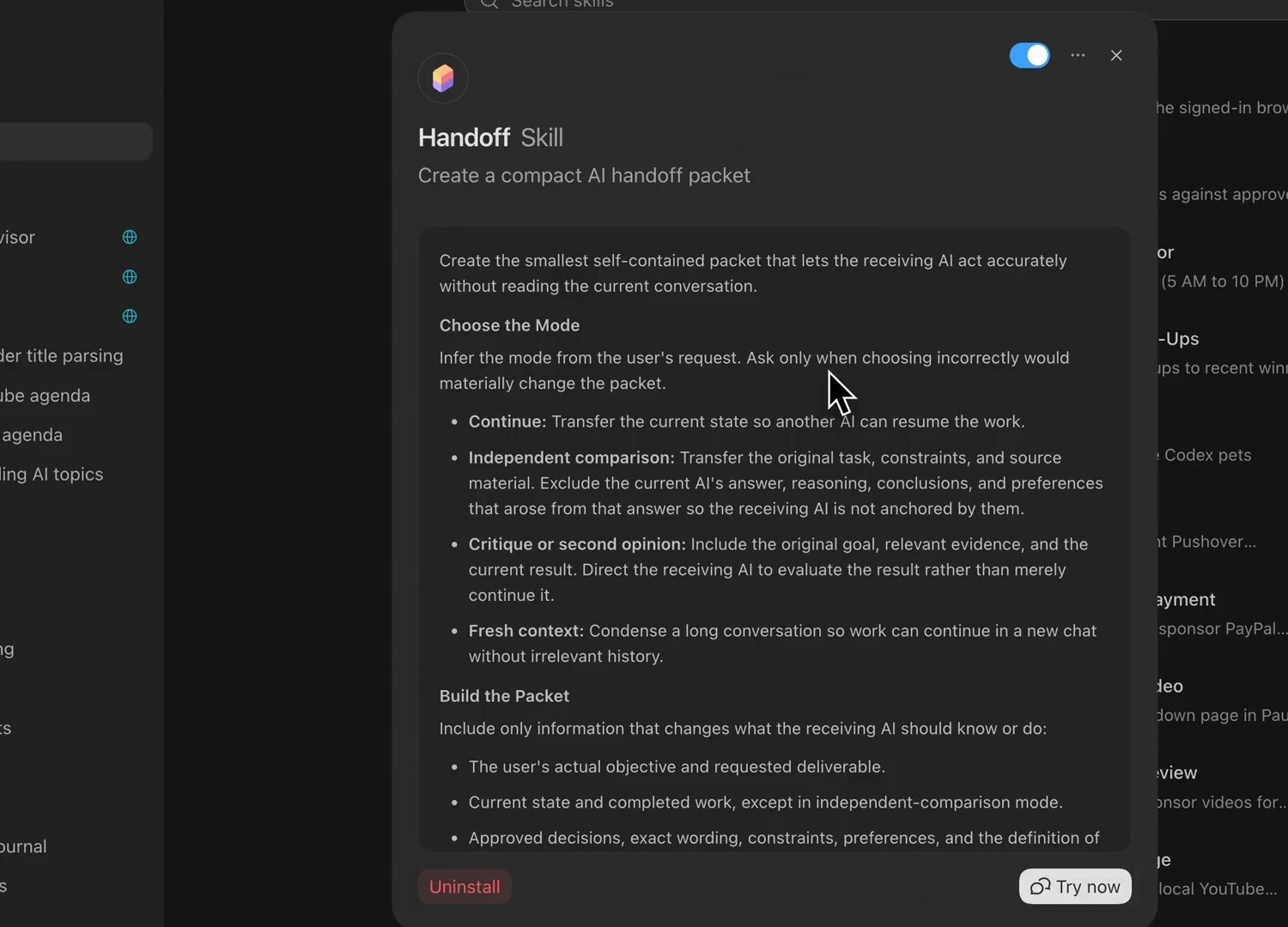
The creator demonstrates this with an iPhone app project. ChatGPT had reached a point where it was not getting past a particular problem, so he generated a handoff, brought it into Claude, let Claude solve the issue, and then carried a new handoff back into ChatGPT.
That is a much more disciplined way to use multiple models than repeatedly asking each one the same question from scratch.
A good handoff template usually needs five things:
- Goal: what success looks like.
- Current state: what exists right now.
- Decisions: choices that should not be reopened casually.
- Assets and constraints: files, links, technical limits, deadlines, style rules, or policies.
- Next action: what the receiving AI should do first.
This pattern is valuable even if you never switch AI providers. You can use the same structure when moving work from one long conversation to a fresh one, passing a task from research to implementation, or handing a project from one teammate to another.
4. Ask: consult another AI without transferring the whole project
Handoff is for moving responsibility. Ask is for getting a second opinion while keeping the main task in ChatGPT Work.
The creator built Ask around browser use. The Skill tells ChatGPT to open another AI service in the browser, ask a focused question there, bring the useful answer back, and fold it into the main work.
His examples show why the distinction matters. If he is researching a topic where conversation on X is especially important, he may ask Grok for that perspective. If he prefers a different model's image generation for a particular job, he may route the image request there instead of abandoning the larger ChatGPT task.
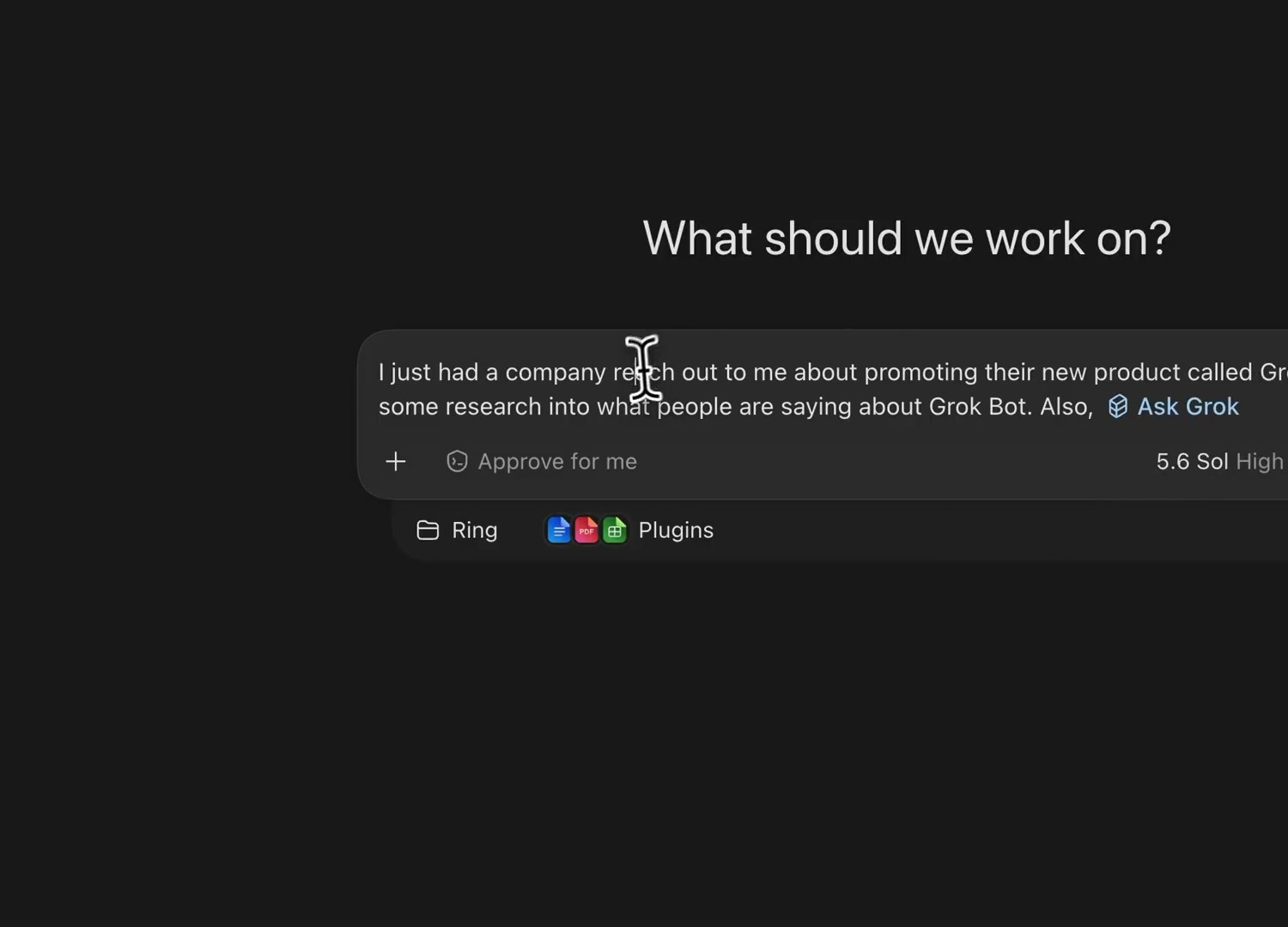
The architecture is simple: ChatGPT remains the coordinator, while specialist tools become callable resources.
Current OpenAI documentation supports the broader capability behind this pattern. ChatGPT Work can use a cloud browser on supported sites, including signed-in workflows, and the desktop app can also work with supported site tools. Availability and approval requirements vary, so “Ask another AI in the browser” should be treated as a personal workflow design rather than a guaranteed behavior on every account or website.
The video also says ChatGPT does not have real-time access to X. That kind of platform-access statement can change quickly, so it should not be treated as a permanent product rule. The durable lesson is narrower: when another system has information or a capability you value, a Skill can formalize how ChatGPT consults it and how the answer is incorporated.
5. Grill Me: force clarification before execution
One of the most useful Skills in the video is also one of the simplest conceptually.
The creator calls it Grill Me. Its job is to stop ChatGPT from charging ahead before the task is actually defined.
Instead of immediately building, writing, or configuring something, the Skill interviews the user first. It looks for hidden assumptions, unresolved choices, missing requirements, and details the user may not have realized need to be specified. Only after both sides are aligned does the Skill allow execution to begin.
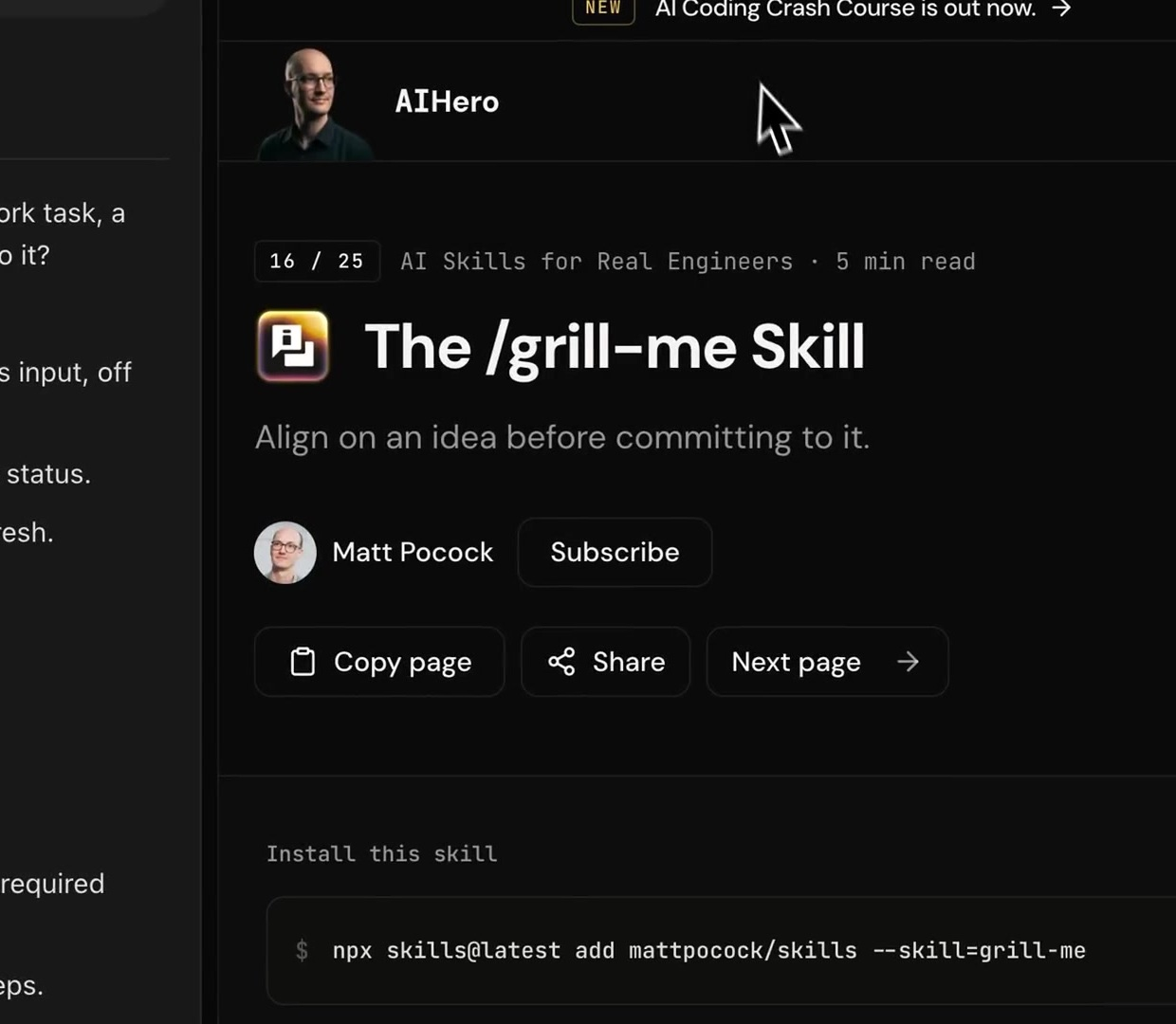
The video credits the original idea to Matt Pocock and explains that the creator uses a lighter, faster version for his own work.
This is a strong example of why Skills can improve quality even when they do not add a new tool. The Skill changes decision order. It makes “understand first, execute second” a hard workflow rule instead of a suggestion the model may or may not follow.
OpenAI's current ChatGPT Work experience includes a Plan mode that similarly gathers context, asks questions, and proposes a step-by-step plan before work begins. That reduces the need for a generic Grill Me Skill in some situations. A custom version is still useful when the questions need to be domain-specific—for example, a video brief that must establish audience, runtime, format, visual style, CTA, source assets, and approval constraints before production starts.
The best version of this Skill should also know when to stop asking. Endless clarification becomes its own form of friction. A practical rule is to ask only questions that can materially change the output, then summarize the agreed brief and request a final go-ahead.
6. Multi-step Skills: package the boring workflow, not just the prompt
The sixth example is the most important if your goal is real automation.
The creator has a Skill called Sponsor Video Review. After recording a sponsored video, he gives the Skill a link to the corresponding Obsidian page. From there, the workflow knows what to do.
According to the demonstration, it opens Vimeo and finds the correct upload, captures the review link, drafts an email to the sponsor in Gmail, updates scheduling and status information in Obsidian, and then alerts the creator so he can quickly review the draft before sending it.
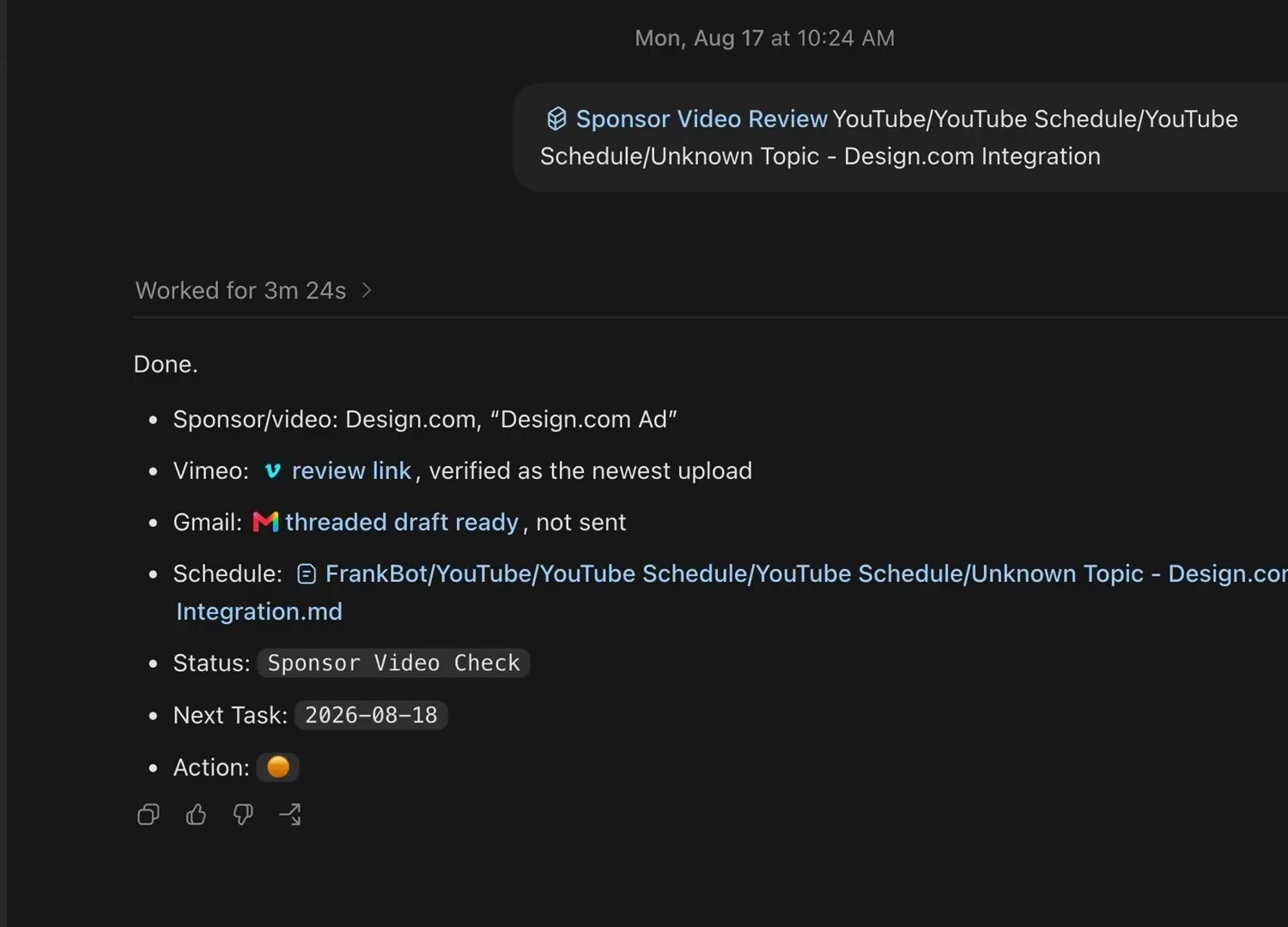
What makes this different from a long prompt is that the Skill bundles a sequence of actions that would otherwise require repeated context and repeated navigation.
The creator points out that this workflow combines several capabilities: browser interaction for Vimeo, a Gmail plugin for the email draft, and local file access for the Obsidian notes. OpenAI's current plugin model is designed around this same idea. A plugin can package Skills together with connected apps or tools, so the reusable instructions and the capabilities they call can live in one workflow.
This is the section of the video worth copying even if none of the earlier Skills fit you directly. Look for work that has all three characteristics:
- you do it repeatedly;
- the steps are mostly predictable;
- the cost comes from context switching rather than difficult judgment.
Those are excellent candidates for a multi-step Skill.
A useful way to discover them is to watch yourself work for a week and write down every sequence that makes you think, “I have done these same five clicks and three copy-pastes before.” That is usually a better automation backlog than brainstorming flashy AI use cases from scratch.
Bonus: Hatch and desktop pets as a task-status interface
The video pauses before the final Skill to show a playful feature in the ChatGPT desktop app: pets.
In the recording, a pet can stay visible above other apps and signal when a task needs attention or has finished. A separate Hatch Skill lets the user describe a custom pet or provide reference images, and the resulting character can then be selected from settings.
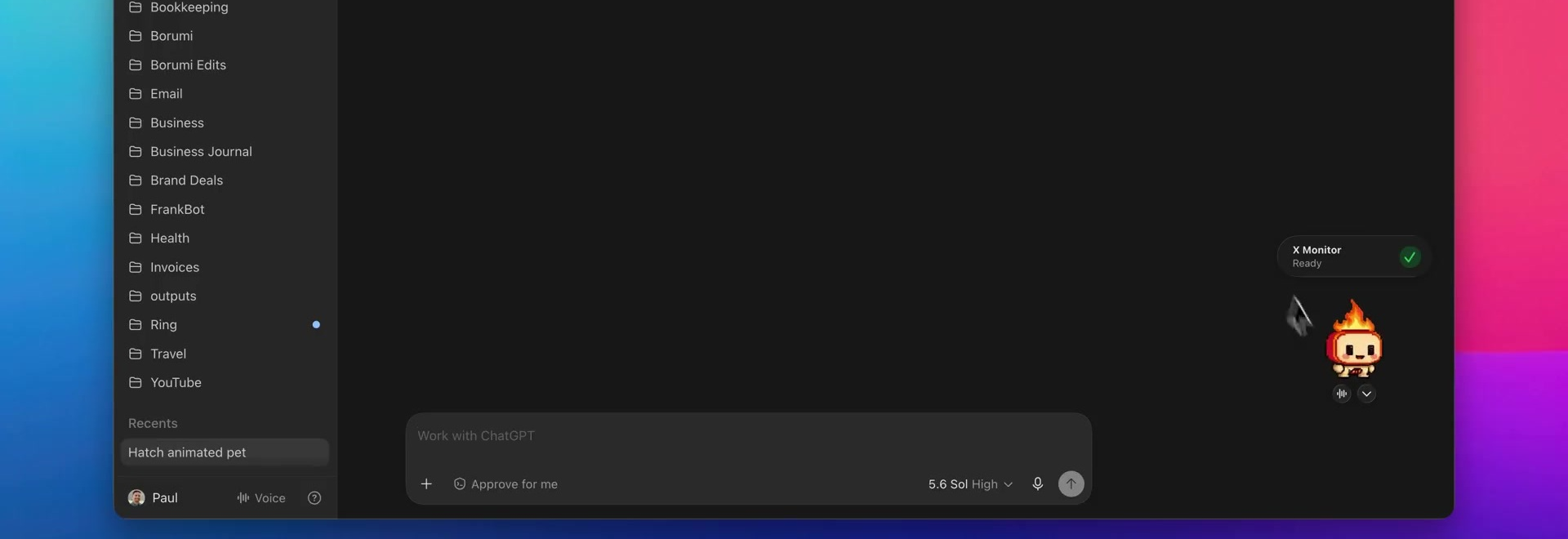
The creator makes a small paperclip-like character and uses the feature as both a bit of personality and a persistent status indicator.
This is a bonus rather than a core productivity pattern, and public OpenAI help documentation for Pets/Hatch is not currently as prominent as the documentation for Skills, Work, plugins, browser use, and Scheduled Tasks. Treat the exact UI as version-specific. The broader design idea is still useful: background AI work needs a clear signal for “working,” “needs input,” and “done.” Whether that signal is a pet, a push notification, a desktop badge, or an automation message is secondary.
7. Remotion: let a plugin bring its own specialist Skills
The final example shifts from personal Skills to a package of Skills that comes with a plugin.
The creator uses Remotion, a React-based framework for programmatic video creation. In the video, installing the Remotion plugin exposes a set of specialized Skills for areas such as best practices, captions, project creation, documentation, maps, and interactivity.
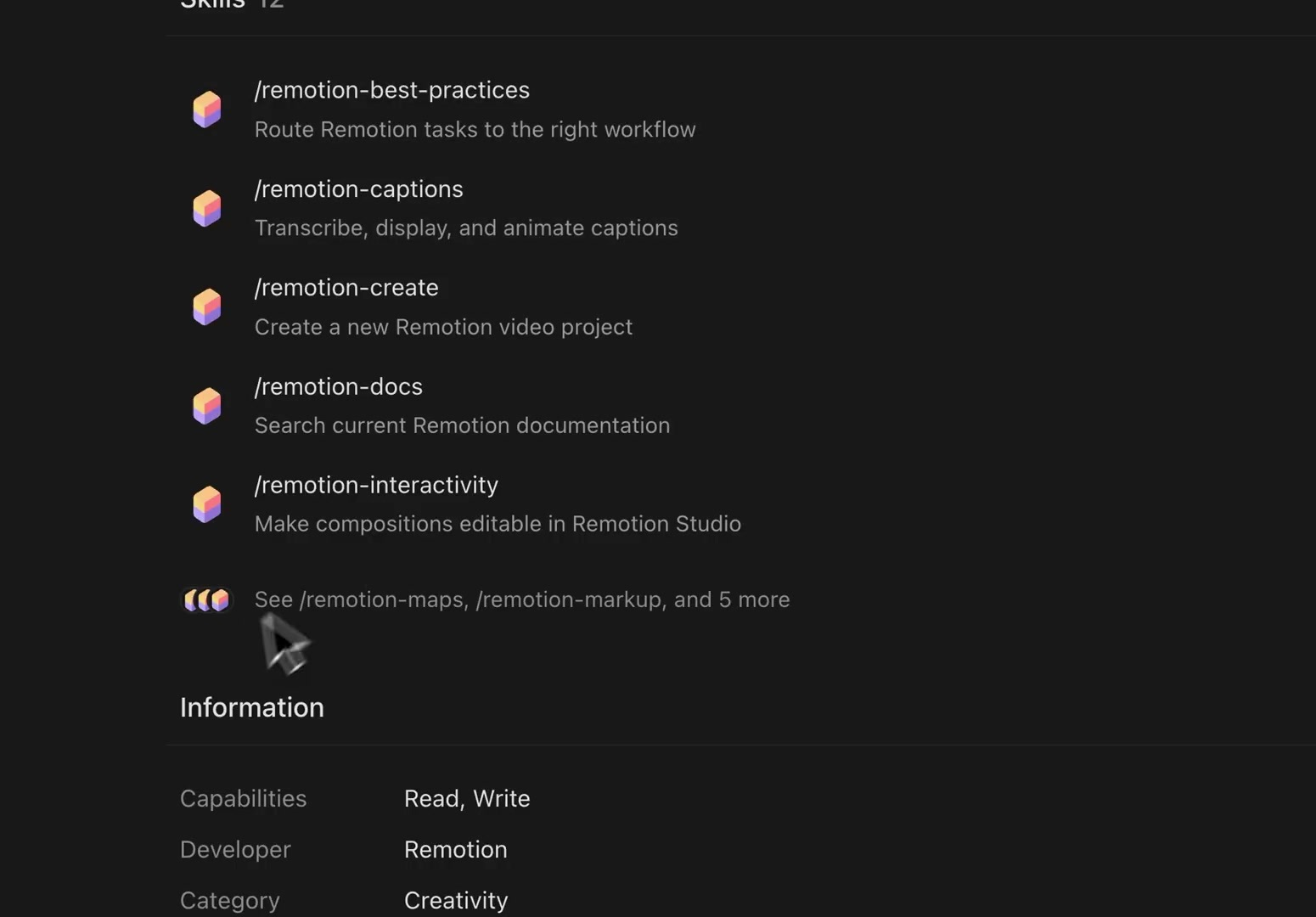
The important part is that the user does not have to manually select the correct low-level Skill for every request. He can ask for a motion graphic in ordinary language, and ChatGPT can route to the relevant Remotion guidance as needed.
Remotion's current documentation still supports this general model: its docs describe using the ChatGPT desktop app with a Remotion plugin, and the Remotion project maintains a family of Agent Skills. The exact count and names can evolve, so the “12 Skills” shown in the recording is best treated as a snapshot rather than a permanent specification.
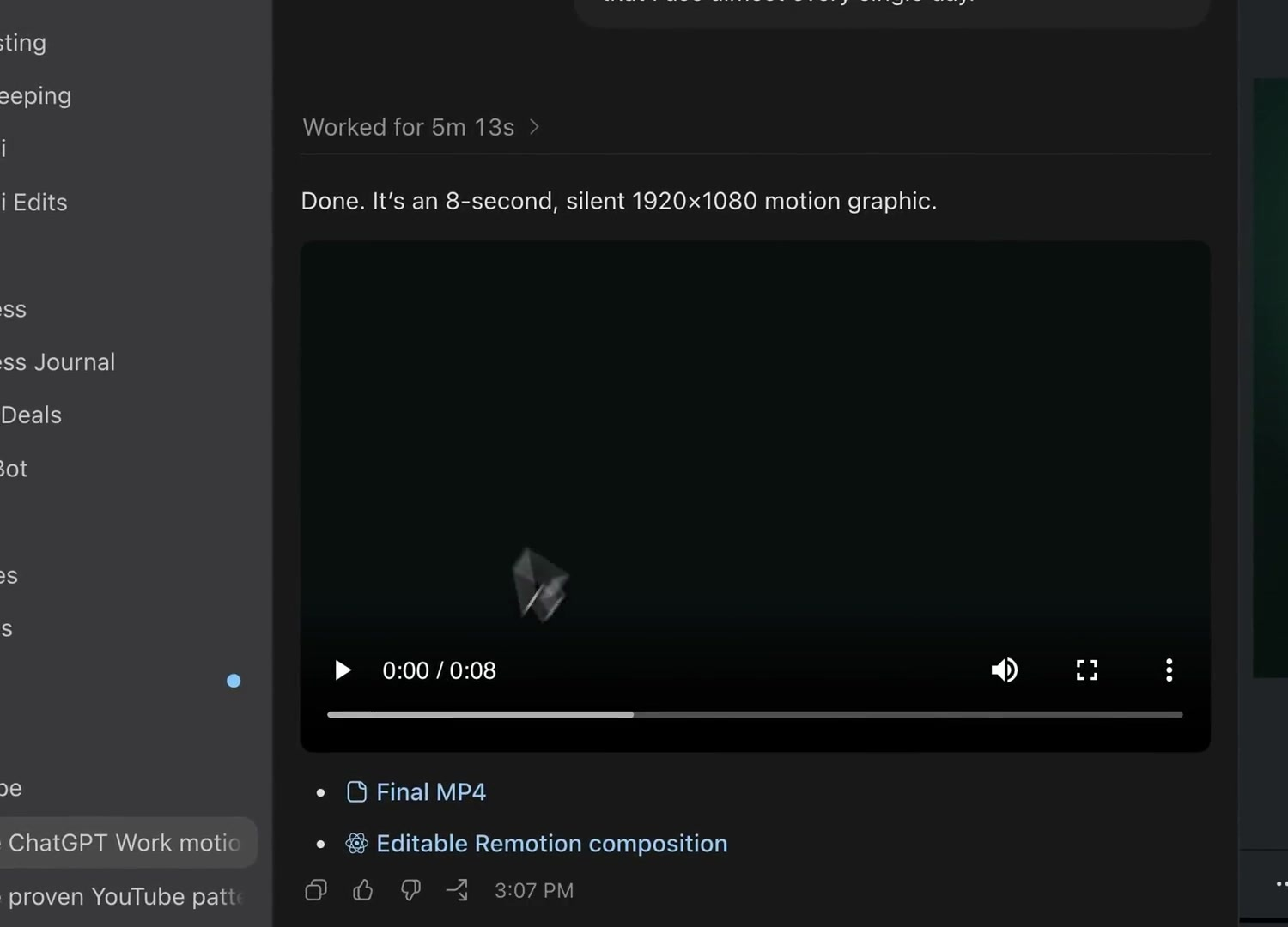
This is a powerful Skill architecture because it separates user intent from implementation knowledge. The user says, “Create this kind of motion graphic.” The plugin and Skills encode the domain rules for how to do that well.
That pattern applies far beyond video. A finance plugin can carry accounting-specific Skills. A developer plugin can carry deployment and debugging Skills. A sales plugin can carry qualification and follow-up workflows. The user should not have to memorize the internal capability map if the system can route correctly.
The seven patterns, compared
|
Pattern |
Best for |
What the Skill standardizes |
|
Visualize |
Dense results that are hard to scan |
Output structure and presentation |
|
LMK |
Background work and monitoring |
Completion or escalation notifications |
|
Handoff |
Moving a project between models or sessions |
Context packaging |
|
Ask |
Getting a specialist second opinion |
Delegation and result reintegration |
|
Grill Me |
Ambiguous tasks with costly wrong assumptions |
Clarification before action |
|
Multi-step workflow |
Repetitive operational sequences |
Tool order, state changes, and approvals |
|
Remotion-style plugin Skills |
Complex domains with many sub-capabilities |
Domain expertise and automatic routing |
The bonus pet example sits outside that table because it is primarily a status interface rather than a workflow definition.
How to design your own Skill from these examples
The fastest way to build a useful Skill is not to start with “What cool thing can AI do?” Start with a repeated piece of work you already understand.
Then define five layers.
1. Trigger
Write down when the Skill should be used. A trigger can be explicit—“when I say sponsor review”—or semantic—“when the user wants a project transferred to another AI.”
A strong trigger reduces accidental use and makes automatic routing more reliable.
2. Inputs
List what the workflow needs before it can start: a file, a project URL, a folder, a target AI, an approval threshold, a deadline, or a desired output format.
If a missing input would make the result wrong, the Skill should ask for it instead of guessing.
3. Procedure
Turn the repeated workflow into ordered steps. This is where the video’s best examples shine. Handoff has a consistent packet structure. Sponsor Video Review has a tool sequence. Grill Me has a clarification gate before execution.
Keep the procedure concrete enough to reproduce but not so brittle that a minor interface change breaks the entire workflow.
4. Approval and stop points
Decide what ChatGPT may do autonomously and what requires human review. Drafting an email and stopping for approval is very different from sending it automatically. Updating a local status field may be safe; publishing a video may not be.
Good Skills make those boundaries explicit.
5. Output and quality checks
Define what “done” looks like. A Handoff packet should contain the next action. A research workflow should cite sources. A video workflow may need a rendered preview plus an editable project. A notification workflow should stay quiet when nothing meaningful happened.
Quality checks are what turn a reusable prompt into a reliable workflow.
Which Skill should you build first?
If you are new to Skills, start with the workflow that causes the most repeated explanation, not the one that sounds most advanced.
For many people that will be a Grill Me-style brief builder or a Handoff template because neither requires external services. They make the model more consistent using instructions alone.
The next step is a multi-step Skill that touches tools you already use. The Sponsor Video Review example works because the creator already has a stable process across Vimeo, Gmail, and Obsidian. The Skill does not invent that business process; it automates a process that already exists.
Only after that would I reach for a more elaborate browser delegation or custom notification system. Those can be powerful, but they add accounts, permissions, credentials, and more places where a workflow can fail.
Final takeaway
The strongest Skills in this video do not make ChatGPT “smarter” in a vague sense. They make it more predictable.
Visualize says how results should be represented. LMK says when the human should be interrupted. Handoff says how context should travel. Ask says when another system should be consulted. Grill Me says what must happen before execution. A multi-step Skill says how tools should be sequenced. Remotion-style Skills encode specialist knowledge so the user can stay focused on the outcome.
That is the real value of Skills: they turn your preferred way of working into reusable operating logic.
Once you notice that, the question changes from “What prompt should I write?” to “What part of my workflow am I tired of explaining twice?”
That is usually where the first useful Skill is hiding.
Current product references
- OpenAI Help Center — Skills in ChatGPT (current Skill behavior, installation, availability, and @-mention use).
- OpenAI Academy — Using skills and ChatGPT Work (reusable workflow concept and Work use cases).
- OpenAI Help Center — Scheduled tasks in ChatGPT (recurring tasks, monitoring, push and email notifications).
- OpenAI Help Center — Using cloud browser in ChatGPT (supported browser-based Work tasks).
- OpenAI Help Center — Plugins in ChatGPT (plugins can include Skills and connected apps).
- Pushover — Pricing (current individual pricing and trial terms).
- Remotion — Creating a new project and Remotion Agent Skills (ChatGPT desktop/plugin and Skill-based video workflow).