
Projects, Cowork, Code, Skills, Design, and More
See the Claude tool page for product details, then explore our guide to growing from Claude beginner to agent orchestrator for a broader look at agent workflows.
Claude can still answer a normal question in a chat box, but that is now only one layer of the product. The more useful way to understand Claude is as a collection of working modes: Projects for reusable context, Cowork for delegated multi-step work, Claude Code for software tasks, Design and Artifacts for things you can build and edit, connectors for outside apps, and skills for repeatable processes.
That is the central idea in the tutorial this article is based on. The video moves quickly through almost every major Claude feature in under fifteen minutes. This written version slows the material down, reorganizes it into a practical mental model, and adds current-product notes where Anthropic's interface or availability has changed.
|
Current-product note, October 2026: some details shown in the video are already dated. The video refers to Claude Opus 4.7 as the latest Opus model and describes Cowork as primarily a desktop feature. Anthropic has since released newer model generations, and Cowork is available across more surfaces. Those changes do not make the workflow advice useless, but they are important if you are following the tutorial today. |
Start with the simplest mental model: chat, context, and delegated work
At the most basic level, Claude behaves like other large language model assistants. You ask a question, provide files or context, and receive a response. You can use Claude on the web and through desktop and mobile apps. What makes the current product more interesting is what happens once you stop treating each conversation as an isolated chat.
A useful way to think about the product is:
- Chat is for direct conversation, drafting, analysis, and questions.
- Projects keep recurring context, files, and instructions together.
- Cowork is for handing off a result-oriented task that may involve files, tools, code, the browser, or connected apps.
- Claude Code is the coding agent version of Claude for repositories, terminals, and IDEs.
- Artifacts and Design turn a conversation into something tangible: a document, interface, dashboard, prototype, visualization, deck, or other reusable output.
- Connectors, skills, and plugins let Claude work with your existing systems and your preferred procedures.
The boundaries are becoming less rigid. Anthropic is rolling out a more unified Claude experience in which you can simply ask for what you need and Claude decides whether the job is a quick answer or a longer-running task. So it is better to learn what each capability is good at than to memorize where a particular button sits.
Claude Projects: stop re-explaining the same context
The first substantial feature in the video is Projects. A Project is a persistent workspace where you can add files and project instructions so Claude can reuse that information across conversations in the same project.
The creator's example is a writing project built from months of his previous scripts. The goal is not to make Claude magically copy a personality. It is to give the model a reliable body of examples and instructions so it can understand recurring preferences: sentence rhythm, structure, tone, vocabulary, formatting, and the kinds of points that matter in a finished script.
That is the right use case for Projects. If you repeatedly paste the same brand guide, product background, code conventions, course notes, or customer research into new chats, you are spending time rebuilding context that could live in one place.
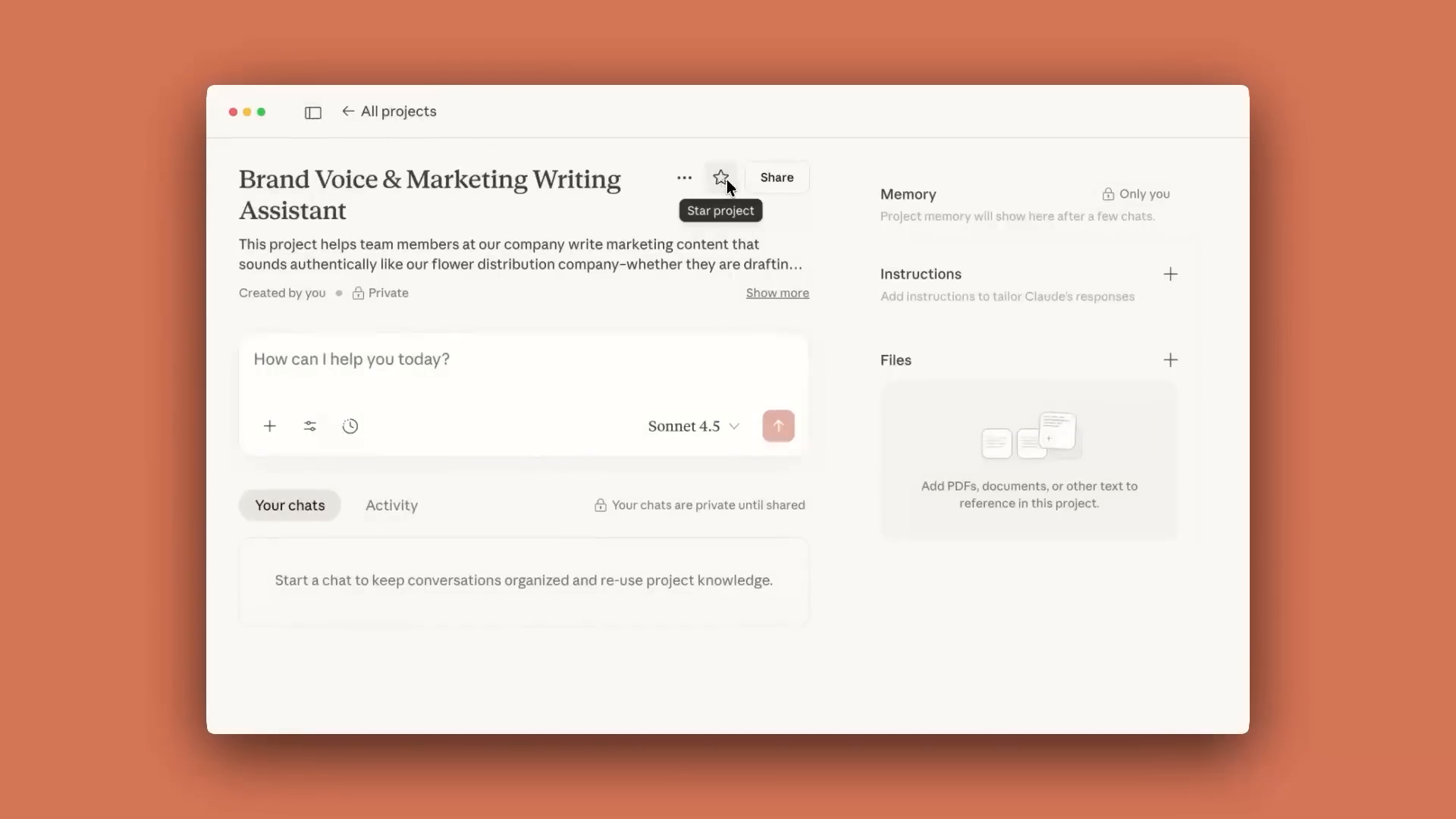
Claude Project with persistent instructions and reusable project context.
A good Project usually contains two kinds of information. The first is knowledge: source documents, examples, specifications, reference material, code, and data. The second is behavioral guidance: the instructions that tell Claude what kind of output you want, what to prioritize, and what to avoid.
For example, a content team might keep its positioning document, audience notes, approved terminology, several strong articles, and an editorial checklist in one Project. A developer could keep architecture notes, API documentation, and repository conventions. A student might create one Project per course and upload notes, readings, and assignment requirements.
The important limitation is that a Project is not a substitute for clear prompts. It gives Claude a better starting point, but you still need to describe the current task, desired output, and relevant constraints.
Cowork: hand Claude a job instead of a question
The video next introduces Cowork as the part of Claude that behaves more like an assistant operating across real work. That description is directionally correct, but the product has evolved.
Cowork is best understood as delegated execution. Instead of asking, "What should I do with these files?" you can give Claude access to a working folder and ask it to produce a finished result: organize the material, analyze it, create a report, generate a document, or perform a sequence of actions using connected tools.
The video shows examples such as reviewing folders, creating PDFs, reorganizing files, and working through the browser. Those examples capture the main difference between chat and Cowork: chat is conversational by default, while Cowork is optimized around completing a task.
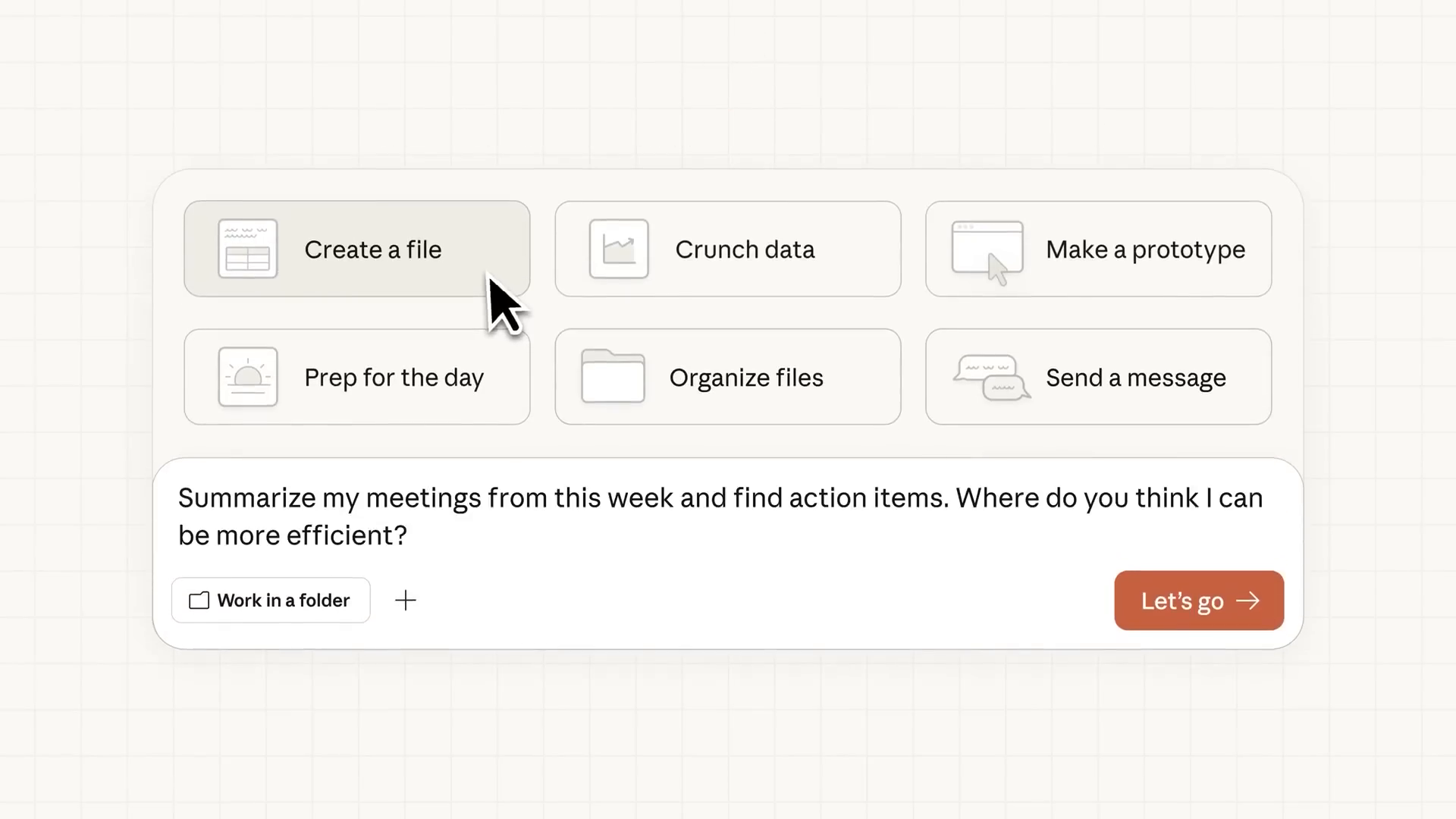
Cowork task launcher shown in the source tutorial.
A useful beginner rule is to use chat when the output is mostly an answer, and use Cowork when the output is a completed piece of work or a sequence of actions.
Current availability is broader than the video suggests. Cowork is available on paid plans and now spans desktop, web, and mobile in different combinations depending on the plan and rollout. Anthropic is also merging the "Chat" and "Cowork" distinction for some users, so your interface may not match the recording exactly.
Do not memorize the model names shown in the video
The tutorial explains the classic Opus/Sonnet/Haiku hierarchy: Opus for the hardest reasoning and coding, Sonnet as a strong general-purpose model, and Haiku for faster, lighter work. That mental model is still useful, but the specific version numbers in the recording are not current.
The video calls Opus 4.7 the newest powerful model. By October 2026, Anthropic has already released Claude Opus 5.5 and Claude Sonnet 5.5, with newer frontier families also appearing in the broader lineup. In other words, model names can age faster than tutorial videos.
A better decision process is:
- choose the strongest model when accuracy, difficult reasoning, long-horizon work, or high-stakes coding matters more than speed or cost;
- choose a balanced model for everyday writing, analysis, documents, and normal development work;
- choose a faster or cheaper model when latency and volume matter more than maximum depth.
If the interface offers an effort setting, that is another lever. A routine task may not need the same reasoning budget as a difficult migration, audit, or multi-step investigation.
Claude Code: an agent that works inside a codebase
Claude Code is one of the most important distinctions in the tutorial. It is not just a chat box that happens to output code. It can read a repository, edit multiple files, run commands, inspect test results, and continue working until a programming task is complete.
The video demonstrates several access patterns: a command-line workflow, an IDE workflow, and handoffs from ordinary Claude conversations into a coding environment.
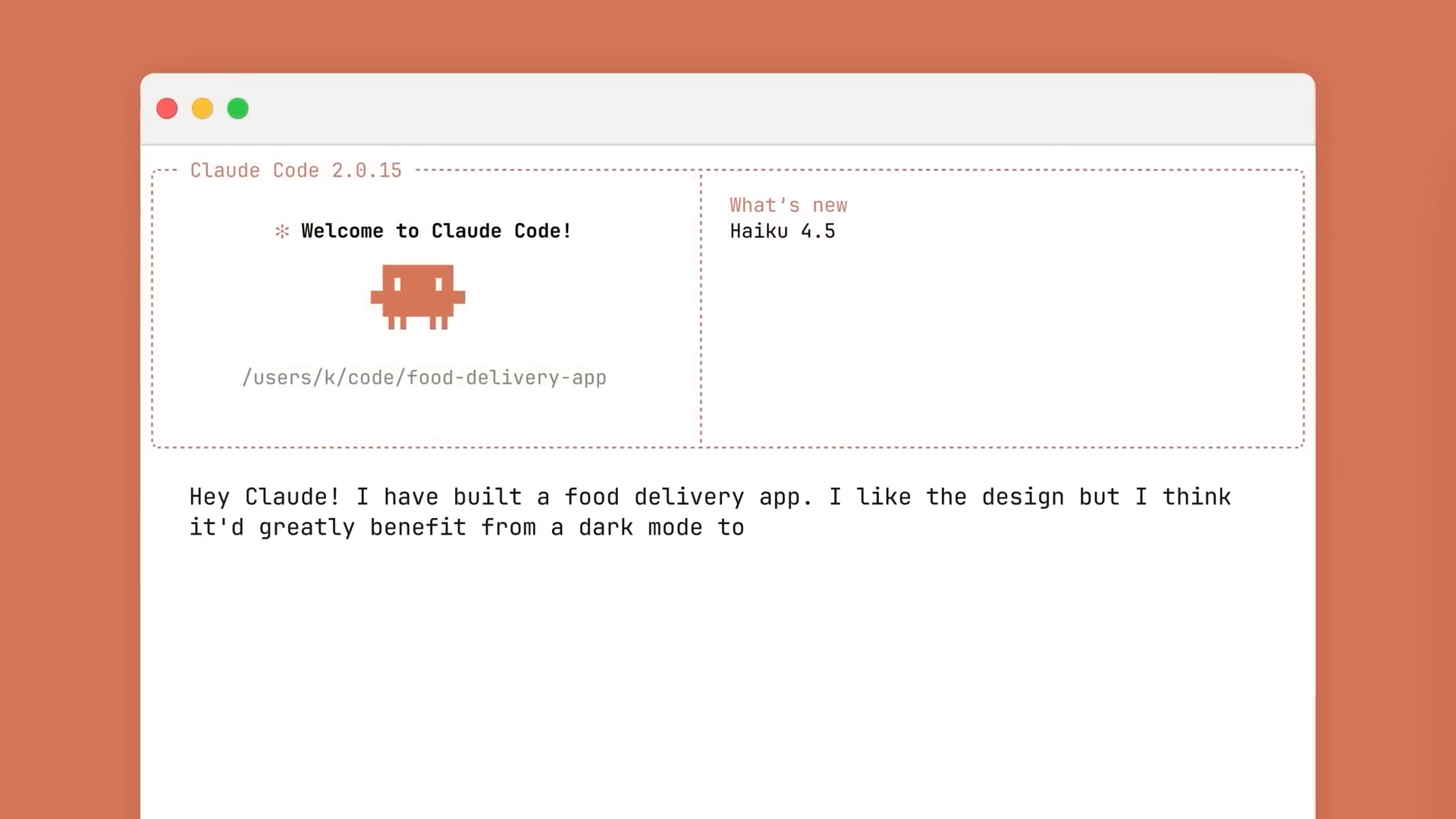
Claude Code running as a terminal agent in the source tutorial.
The command-line form is especially powerful because Claude can operate inside the current project directory. You can ask it to trace a bug, add a feature, refactor a module, write tests, investigate a failing build, or explain how an unfamiliar codebase works. Instead of pasting isolated snippets, you let the agent read the relevant files directly.
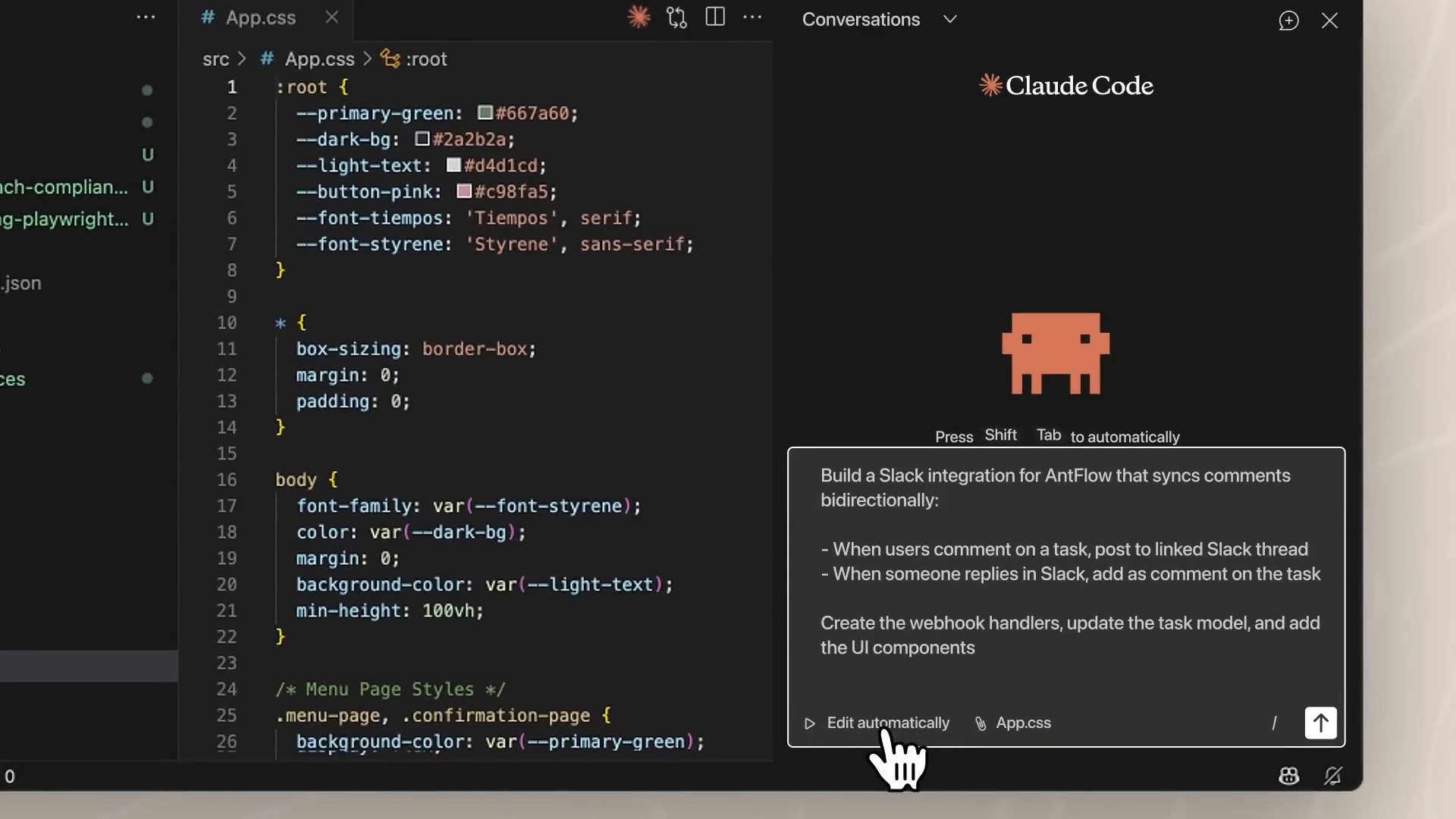
Claude Code working beside project files in an IDE.
Claude Code also has IDE integrations, including VS Code and JetBrains environments. For a beginner, the practical distinction is simple: use the terminal if you are comfortable working from a shell and want the most direct agent workflow; use an IDE integration if you want the same kind of agentic help beside the files you are already editing.
The video is also right that Claude can sometimes recognize when a normal conversation has turned into a software-building task and encourage a handoff to Claude Code. The exact UI may change, but the product logic is consistent: planning and conversation can happen in Claude, while repository-level implementation belongs in a coding agent.
Web Search and Research solve different problems
The tutorial points out two ways Claude can use the web: quick web search and deeper research. That distinction is worth keeping.
Use web search when you need a current fact, recent announcement, product page, news item, or a small number of sources. It is the right tool for questions such as "What changed in this product this week?" or "What is the current price of this plan?"
Use Research when you want Claude to spend more time gathering and synthesizing information across multiple sources. The output should be closer to a researched brief than a single search result.
The practical trade-off is time and usage. Research may run many searches and use more of your plan's capacity. That is worthwhile when the decision depends on coverage and synthesis, but unnecessary for a simple lookup.
The voice-dictation detour is a workflow tip, not a Claude feature
The source video includes a sponsored segment about using voice dictation to create richer prompts. The creator dictates a detailed request about AI tools for content creators, then shows how the dictation tool turns the spoken request into a cleaner prompt.
The transferable lesson is useful even if you do not use the exact product shown: long-form voice input can be a fast way to provide context. People often speak more naturally and include more constraints than they type into a short prompt.
Just keep the distinction clear. Voice dictation is an input workflow around Claude; it is not evidence that Claude itself requires a special prompting format. If plain typing, Claude's own voice features, or another dictation tool works better for you, use that.
Claude Design: move from prompting to editable visual work
The tutorial spends a meaningful section on Claude Design, which is now an official Anthropic feature in beta on paid plans. The idea is to create visual work by describing what you want and then editing the result on a canvas instead of staying trapped in a text-only prompt loop.
The video shows interface concepts, mobile app designs, presentations, logos, and other visual layouts. The current product description is broader: Claude Design can create designs, interactive prototypes, one-pagers, and other visual work, and it can export or hand work off to a growing set of external tools.
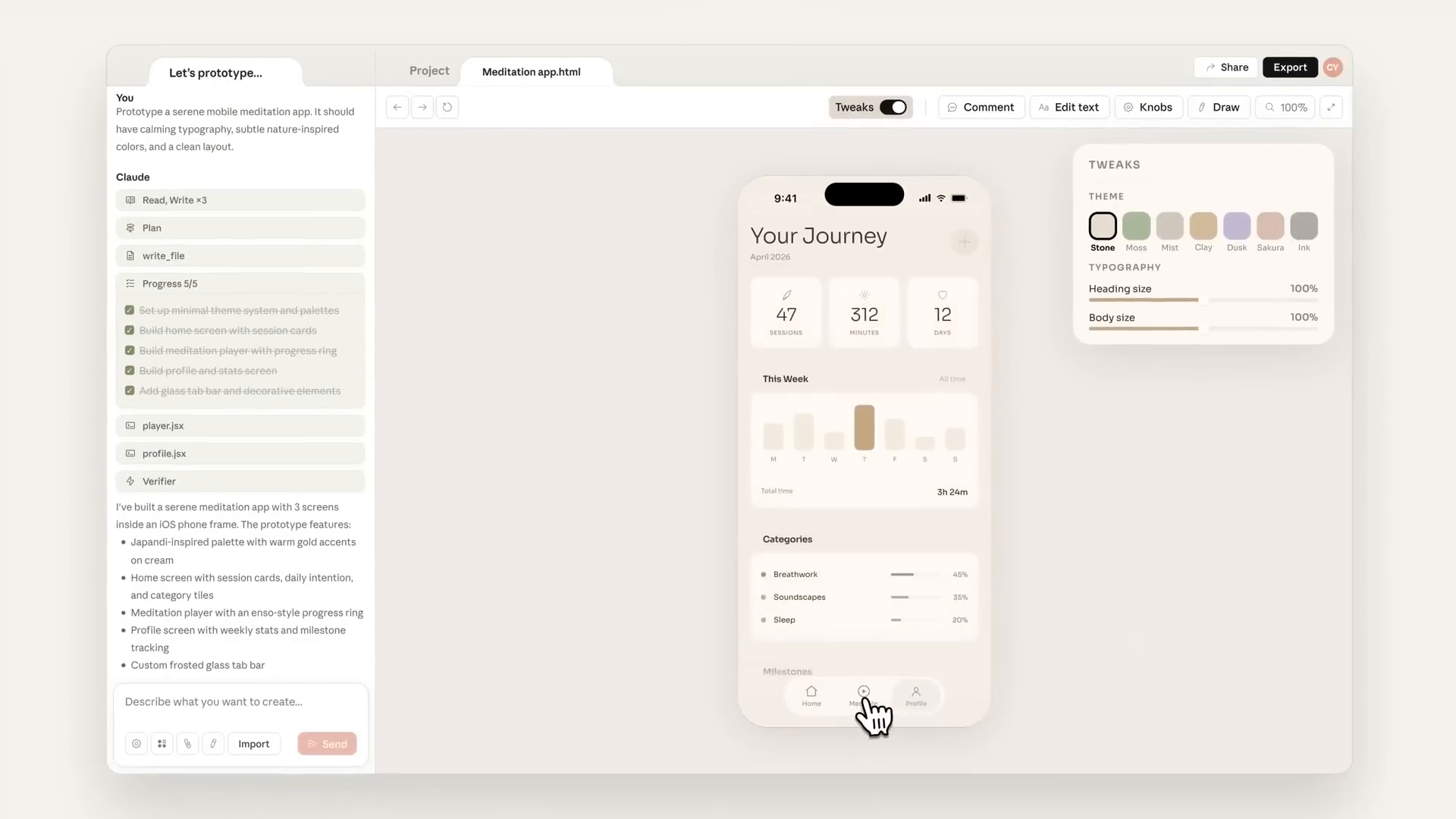
Claude Design workspace shown in the source tutorial.
This matters because visual generation is usually iterative. A prompt can get you to a first draft quickly, but real work often requires moving an element, resizing a section, changing typography, applying a design system, or handing the result to another application.
Anthropic currently supports multiple export paths, including standalone files and integrations with tools such as Canva, Gamma, Google Slides, Vercel, Replit, and Claude Code. The exact list can change, but the larger workflow is stable: create with Claude, refine visually, then move the result into the tool where it will be presented, shipped, or edited further.
Artifacts: interactive output that lives beside the conversation
The video describes Artifacts mainly as code-backed visualizations and experiences. That was a useful way to explain the feature, but Artifacts have become a broader output layer in Claude.
An Artifact can be a document, design, deck, dashboard, single-page tool, diagram, code project, or interactive experience. Claude places it beside the conversation so you can inspect and iterate on the result as a thing, not just as another block of chat text.
The double-slit experiment example in the video is a strong demonstration. Instead of answering a physics question with paragraphs alone, Claude creates an interactive visual that lets the learner explore the concept.
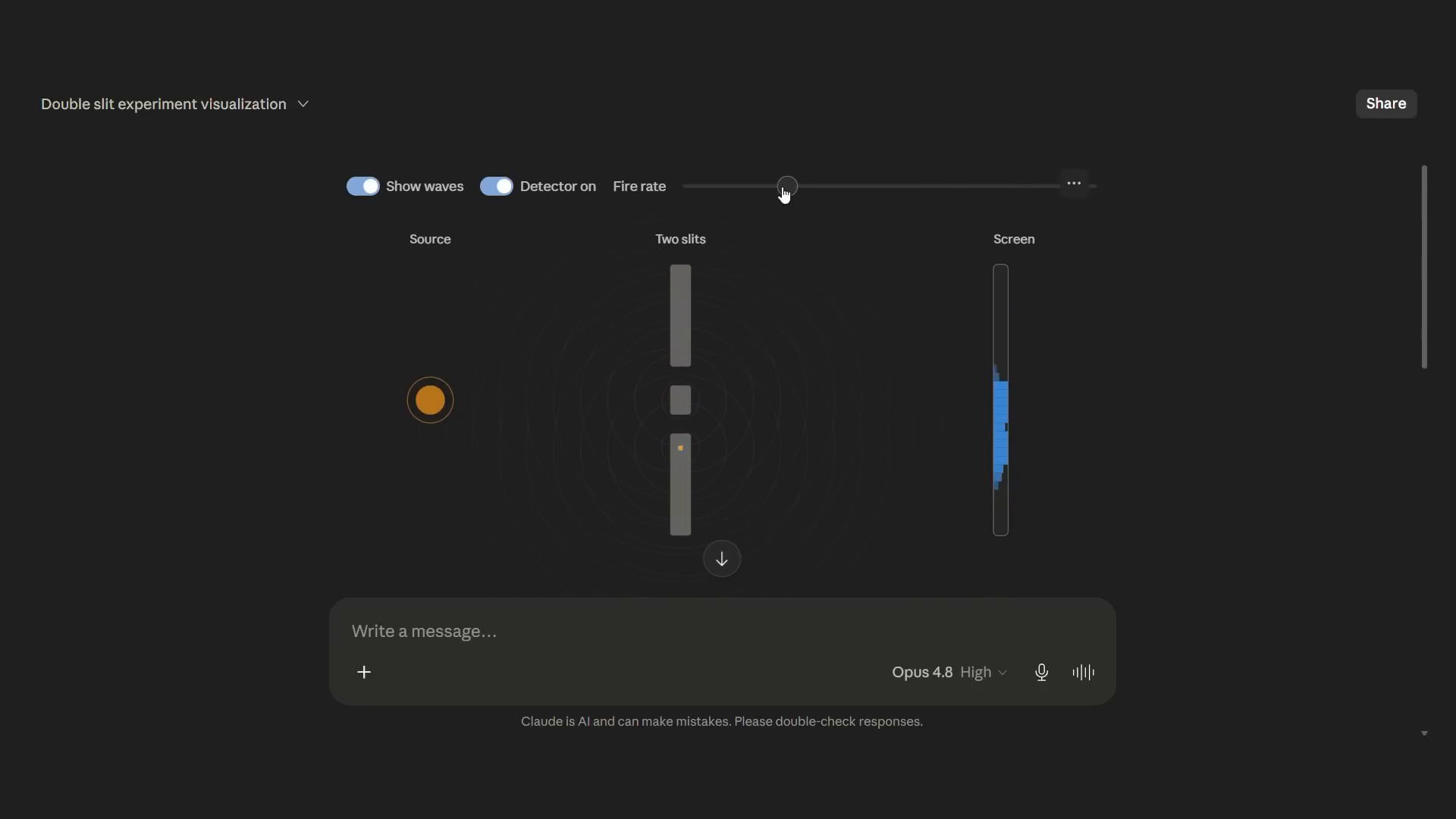
Interactive artifact used to explain the double-slit experiment.
That pattern is useful far beyond education. You might ask Claude to turn financial data into a dashboard, create a quiz, build an internal calculator, prototype a landing page, or produce a comparison tool. The artifact becomes the working object, while the chat becomes the place where you give direction.
Claude in Chrome: browser work with real permissions and real risk
Claude in Chrome lets Claude read and navigate web pages and, when permitted, click and act in the browser. The tutorial frames it as a way to automate repetitive browser tasks such as comparisons, posting, messaging, and form-based workflows.
That is the exciting part, but there is an equally important safety point. Browser agents can make real changes. Anthropic explicitly warns users to be careful with sensitive information and high-consequence actions. If a task involves publishing content, sending messages, making purchases, changing important settings, or handling private data, stay close enough to review what Claude is doing.
A sensible progression is to start with low-risk tasks: collecting information from a site, filling a draft form, moving repetitive data, or testing a web application. Once you understand how approvals and permissions work, you can decide where greater autonomy is appropriate.
The tutorial also shows a "Teach Claude" style workflow in which browser steps are recorded so Claude can repeat the process later. Anthropic still supports recorded browser workflows in the classic Claude in Chrome side panel, although the exact availability depends on which Chrome/Cowork experience you have.
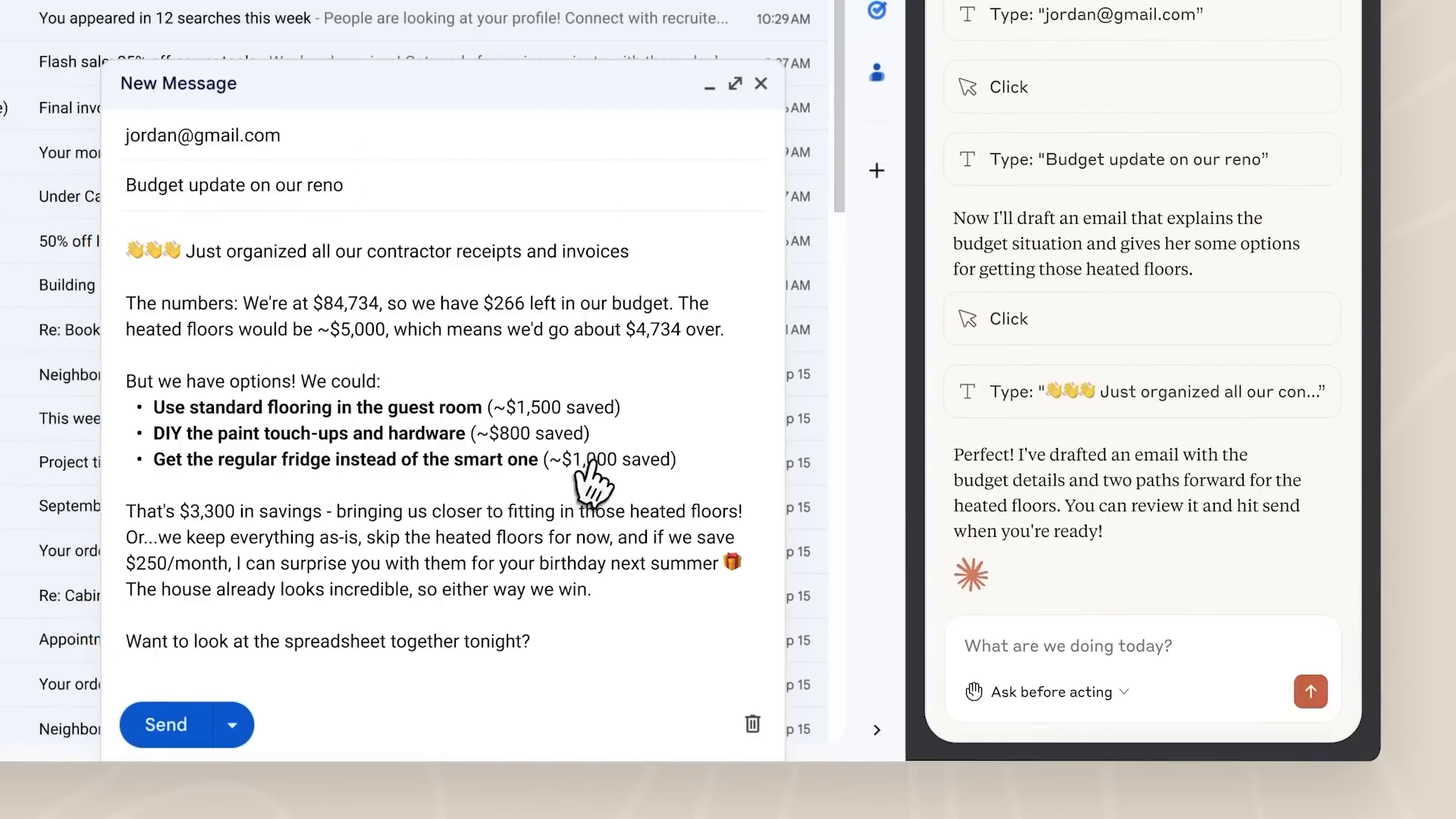
Recorded browser workflow demonstrating how Claude can repeat a learned process.
Connectors: bring your existing apps into Claude
Connectors are one of the highest-leverage features for people who want Claude to work with real information instead of copied-and-pasted fragments.
A connector links Claude to an external service such as email, cloud storage, a project-management system, or another business application. Depending on the connector and the permissions granted, Claude may be able to search, read, create, or update data in that system.
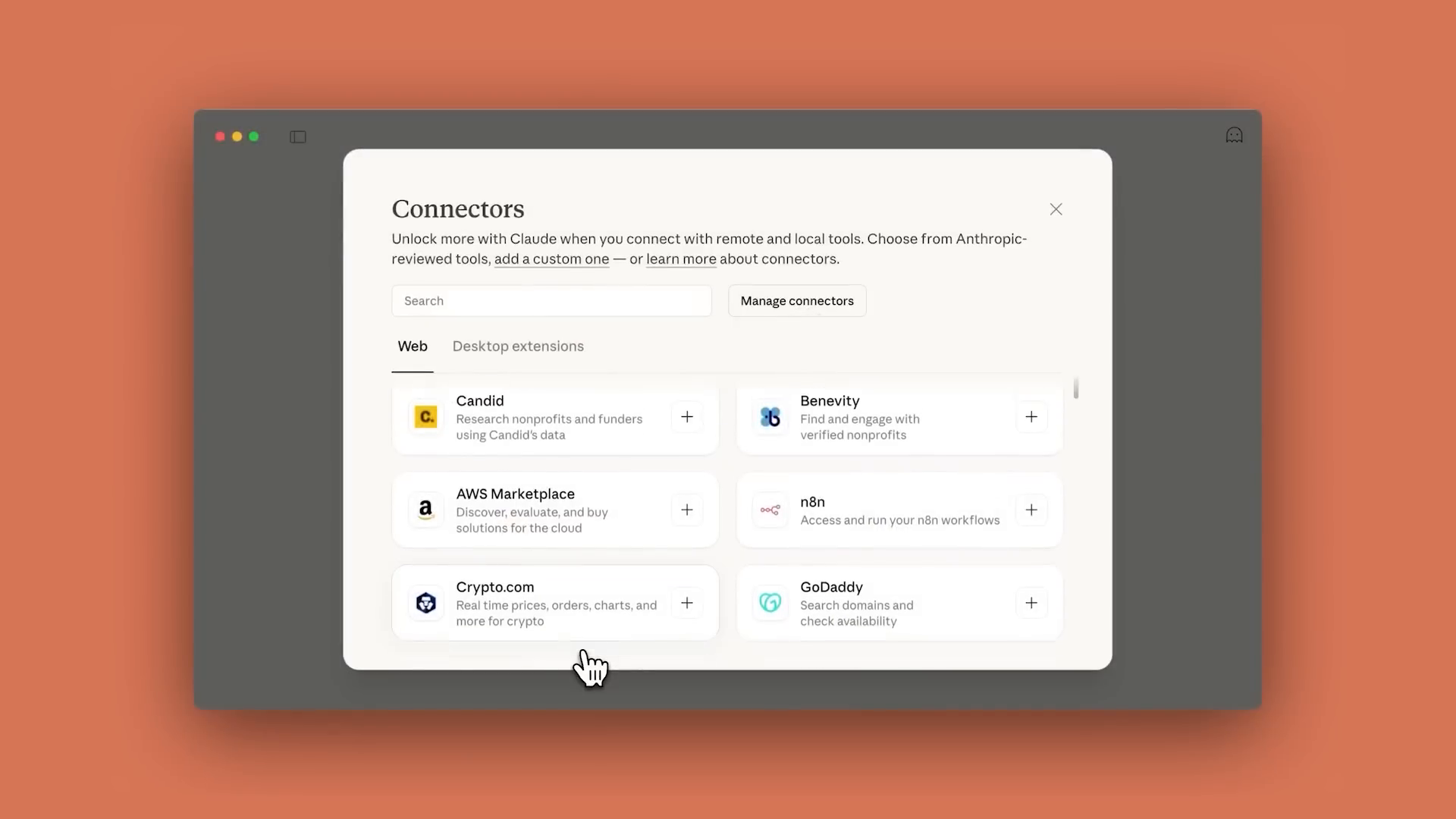
Claude connectors directory shown in the tutorial.
The creator gives a Gmail example: use Claude to summarize unread mail, identify what deserves attention, and help draft replies. He also points to creative and presentation tools. The current ecosystem is larger and increasingly interactive, but the core value proposition is the same: you can ask Claude to work from the system of record instead of manually exporting information into a chat.
Do not interpret "connector" as "unlimited access." Each service exposes specific capabilities, your permissions still matter, and organizations may restrict what Claude is allowed to do.
Skills and plugins: teach Claude your repeatable process
The tutorial's section on skills is especially relevant for power users. A skill captures a repeatable way of doing something so you do not have to rewrite the process every time.
The video describes a skill as a Markdown file containing the steps, inputs, and expected output. That is a useful beginner simplification, but the current implementation is broader. Anthropic describes a skill as a folder of instructions, scripts, and resources that Claude can load dynamically when a task matches. A skill.md file is central to the package, but a serious skill can include much more than one text file.
The underlying idea is excellent: if you repeatedly ask Claude to create the same kind of infographic, audit, report, article, spreadsheet, or data transformation, turn the procedure into a skill.
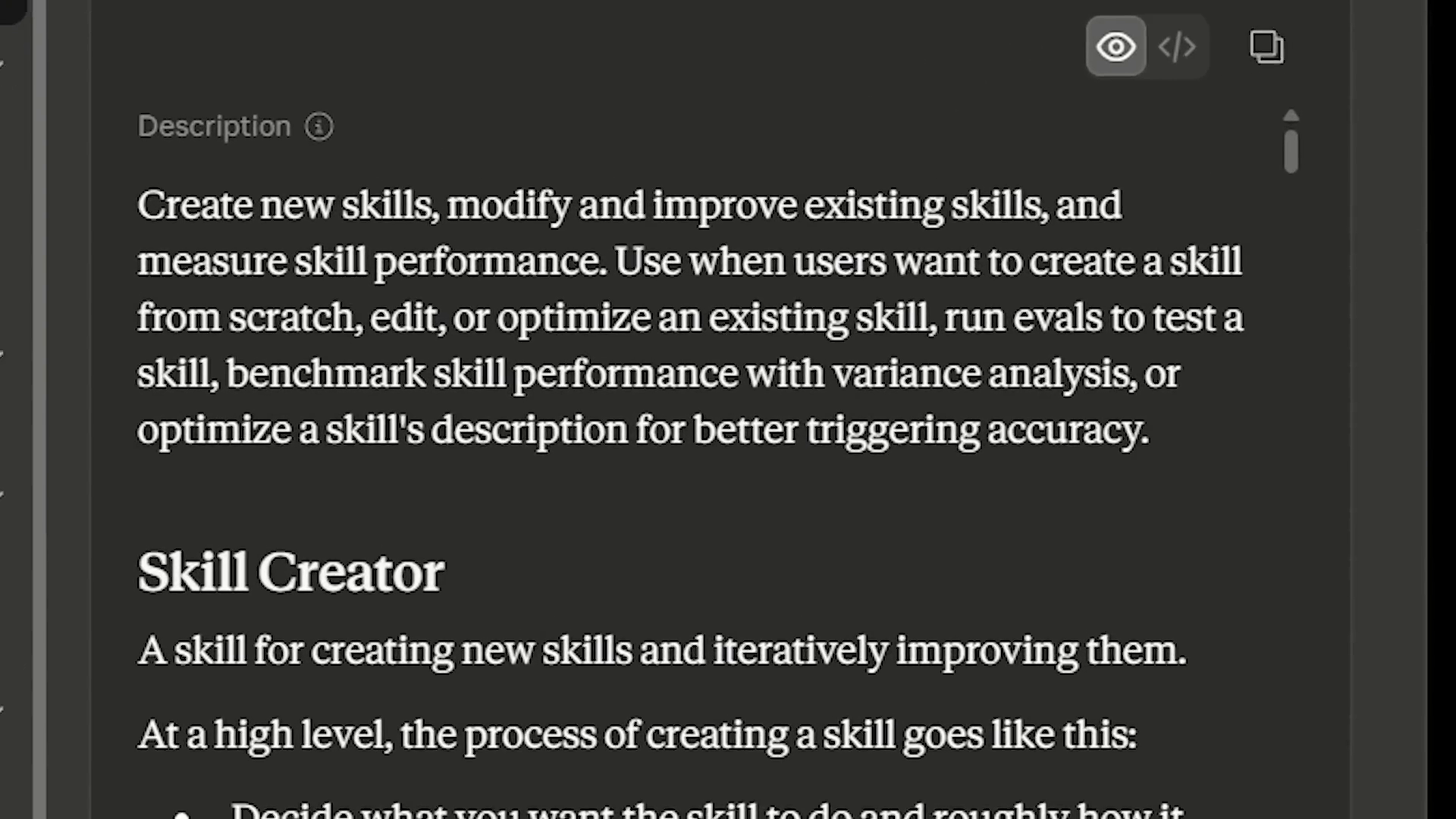
Skill Creator documentation shown in the tutorial.
Anthropic's tooling can help you build these skills. The creator highlights a Skill Creator workflow that asks what the skill should do, how it should behave, and what outputs it should produce. You can also build custom skills manually, package them, share them with a team, or record certain workflows on supported platforms.
Plugins sit one level higher. A plugin can bundle skills with connectors and sub-agents so a role or department gets an installable toolkit rather than a single instruction set. For example, a marketing plugin might include skills for briefs, campaign plans, drafts, reporting, and research, plus the connectors needed to reach the team's CMS, analytics, and communication tools.
The key distinction is:
- use a skill for one repeatable process;
- use a plugin when you need a collection of related capabilities, integrations, and workflows.
Scheduled tasks: automate recurring work instead of starting it manually
The tutorial's scheduled-task example is a content-creation pipeline: every morning, find popular AI posts, turn them into reel scripts, and save the result as a PDF. The specific workflow belongs to the creator, but the scheduling pattern is broadly useful.
Recurring work is where AI agents become meaningfully different from one-off chatbots. Daily inbox digests, weekly competitor reports, recurring research, document preparation, file cleanup, status summaries, and routine data pulls can all be candidates for scheduled execution.
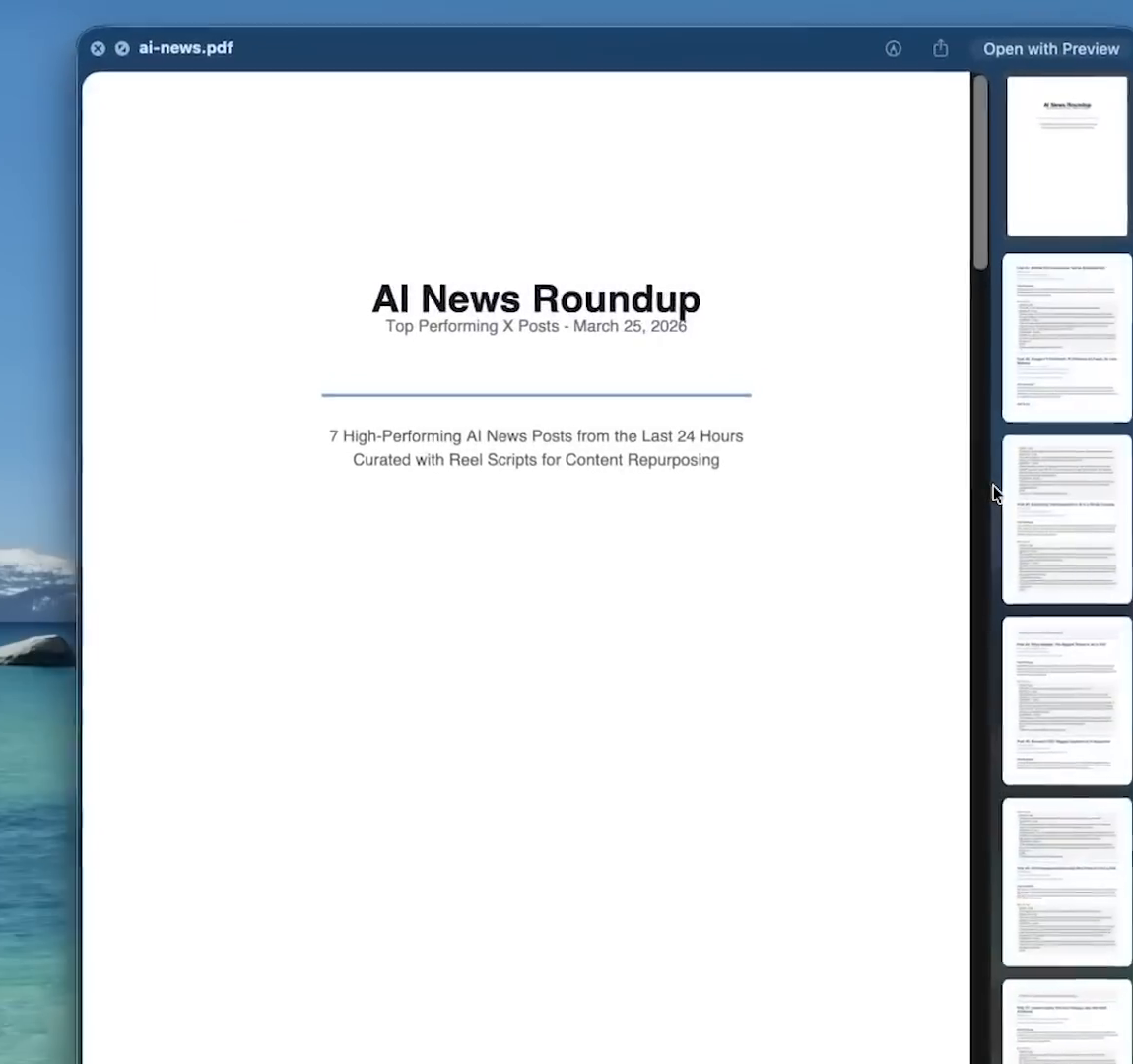 <figcaptPDF output created by the creator's scheduled AI-news workflow.low.
PDF output created by the creator's scheduled AI-news workflow.
One important update: current Cowork scheduled tasks can run in the cloud and do not necessarily require your computer to stay awake. That differs from older desktop-bound automation patterns. A scheduled task can use the same connected tools, skills, and plugins that a normal Cowork task uses, subject to your plan and permissions.
The best automations are not merely frequent; they are stable. If the rules change every day or the task requires nuanced human judgment each time, schedule the information-gathering step and keep the decision step human.
Dispatch: useful, but now a limited legacy path
The video presents Dispatch as a way to message Claude from your phone and have it use the Claude Desktop app on your computer. That is a good explanation of how Dispatch works: the task can reach local files, connectors, the browser, and apps on your computer while you are away.
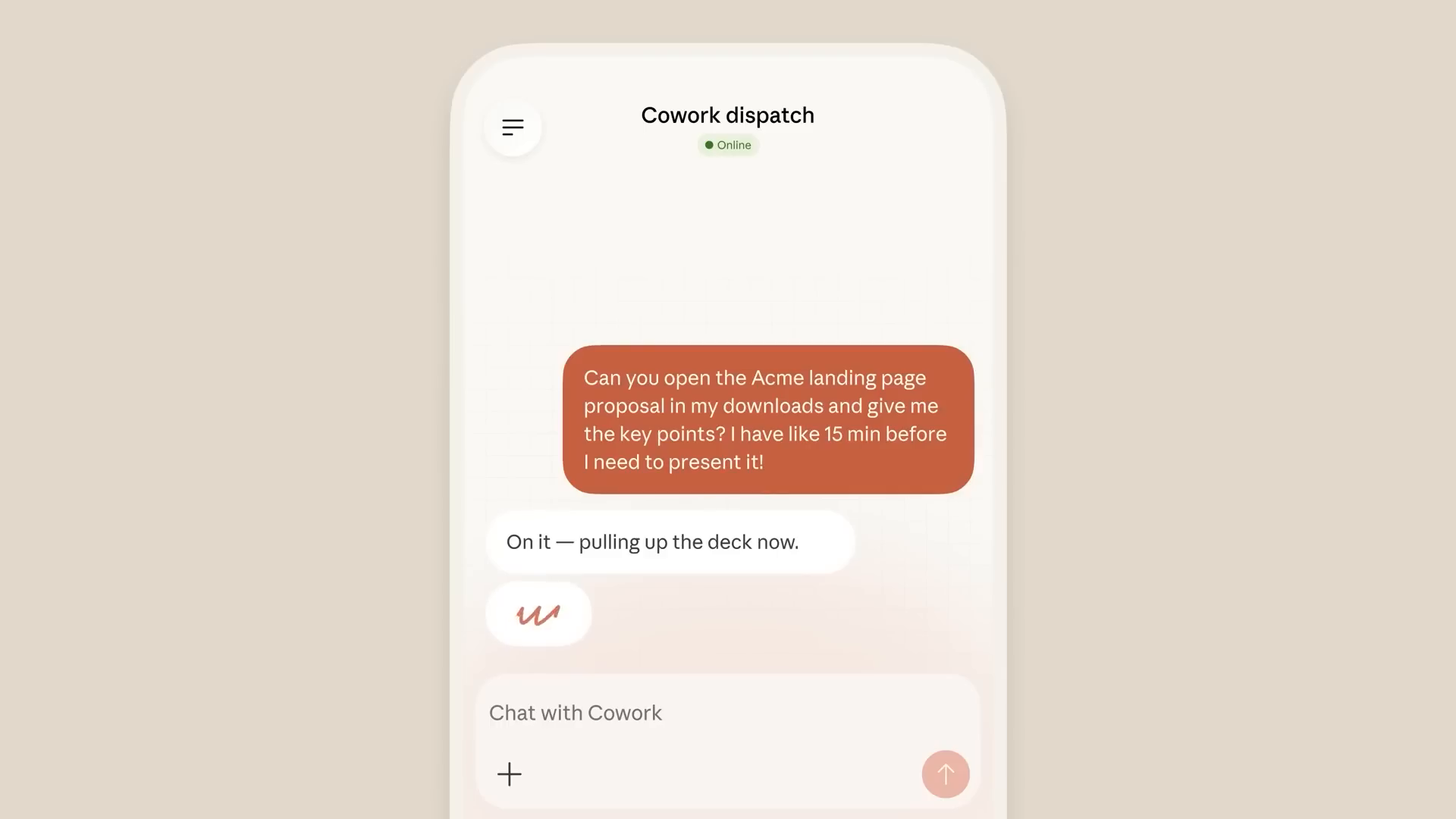
Cowork Dispatch interface shown in the tutorial.
However, this is one of the biggest current-product changes since the recording. Anthropic's current help center says Dispatch is not available to new users. Existing users can keep using it for now, and the feature remains a limited beta for some Pro and Max users.
Also note the infrastructure difference. Dispatch runs the task on your desktop, so the computer needs to be awake and the Claude Desktop app open. Cloud Cowork sessions are different: they run remotely and can continue when your computer is off, although local-file and local-computer access still depend on the desktop connection.
For a new user, the practical advice is simple: learn Cowork in the cloud first. Treat Dispatch as a legacy or limited option you may see only if your account already has it.
Moving from ChatGPT: import memory, not your entire conversation history
Late in the video, the creator addresses a realistic switching problem: another assistant may already know your preferences, recurring projects, and working style. The video demonstrates a long prompt that asks ChatGPT to output what it remembers, then suggests pasting that context into Claude.
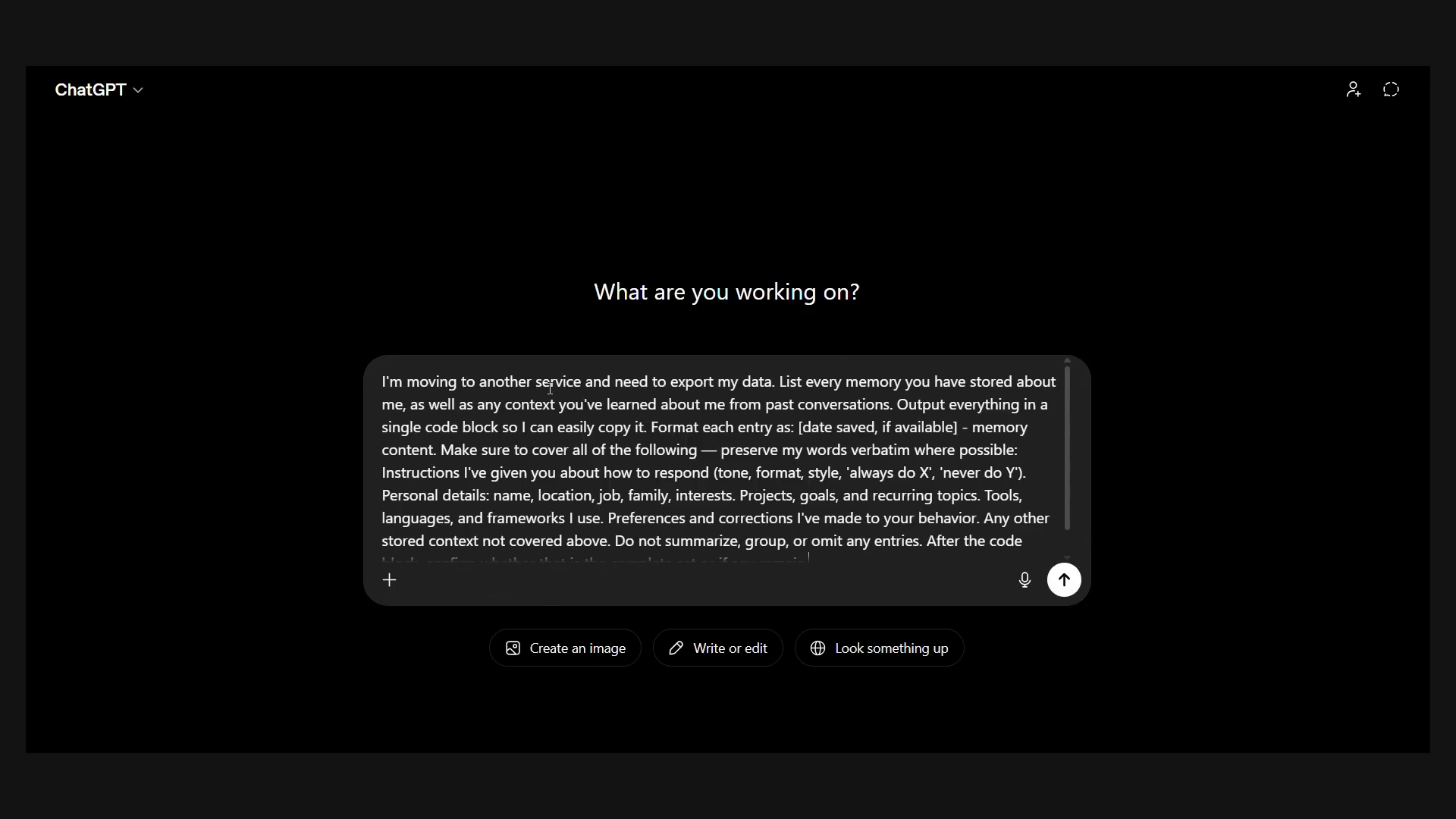
Prompt-based memory migration workflow demonstrated in the source video.
Anthropic now has a more direct memory import flow. Claude can import memory from other AI providers on supported plans. The important limitation is that this is memory transfer, not a full import of every old conversation.
That distinction matters for privacy too. Before transferring anything, read what is being exported and remove sensitive information that you do not want copied into another service. A memory migration should be deliberate, not a blind dump of everything an assistant has ever inferred about you.
Developer Platform and API: the programmable version of Claude
The final technical concept in the tutorial is the Claude developer platform. This is where developers use Anthropic's API to build Claude into their own applications, agents, internal tools, and services.
The key billing point is that API usage is separate from simply having a consumer Claude subscription. API calls are metered according to the selected model and usage, and organizations have their own rate limits and usage tiers.
For non-developers, there is another kind of limit to understand: consumer plan usage. Claude's web, desktop, mobile, and Claude Code usage can share plan limits, and more expensive operations such as long conversations, Research, tools, connectors, and higher-effort models can consume capacity faster.
The video advises checking the Usage or Billing area before starting an urgent task. That remains good practice, although the exact meters and reset rules vary by plan and have changed over time. Paid individual plans can also use usage credits to continue working after included limits are reached, if that option is enabled.
A practical beginner workflow that uses the best parts of Claude
If you are new to Claude, you do not need to master every feature in the video at once. A better progression is to build one layer at a time.
Start with ordinary chat until you understand how Claude responds. Then create one Project for a recurring area of work and add a few high-quality reference files plus concise instructions. Once you notice yourself repeating a multi-step task, try it in Cowork. If the task touches a codebase, move it to Claude Code. If the output should be a tangible visual or reusable object, ask for an Artifact or use Design. If the task depends on information in another service, add the relevant connector. When the same process works well several times, turn it into a skill. Only after the workflow is stable should you schedule it.
That sequence has an important advantage: automation comes after understanding. You first learn what a good result looks like, then encode that process into Projects, skills, plugins, connectors, and schedules.
What the video gets right—and what has changed
The strongest part of the tutorial is its overall mental model. Claude is not just a chatbot. Its real value comes from combining context, tools, files, code, apps, browser access, reusable instructions, and recurring tasks.
Several details have changed since the recording:
- the model lineup has advanced beyond Opus 4.7;
- Cowork is no longer simply a desktop-only experience;
- Chat and Cowork are being unified for some users;
- scheduled Cowork tasks can run in the cloud;
- Dispatch is no longer available to new users;
- Claude Design has become a defined beta product with multiple export and handoff options;
- Artifacts are broader than code-backed visualizations;
- skills are full packages that can include instructions, scripts, and resources rather than just a single Markdown file;
- Anthropic now provides a built-in memory import flow instead of relying only on a manual copy-and-paste workaround.
Those changes are exactly why a written tutorial should separate the creator's workflow from current official product behavior. The examples in the video are still useful because they show what these features are for. The official documentation tells you what your account can actually do today.
Final takeaway
For a beginner, the biggest shift is to stop asking, "What can I type into Claude?" and start asking, "What kind of work do I want Claude to own?"
Use Projects when Claude needs stable context. Use Cowork when you want a finished task rather than an answer. Use Claude Code for repository-level software work. Use Design and Artifacts when the output should be something you can edit, share, or interact with. Add connectors when your information lives in other apps. Add skills when the process repeats. Schedule the workflow only after it is reliable.
Once those pieces click, Claude becomes much easier to understand. The feature list may keep changing, but the workflow principles are likely to remain useful long after the current buttons and model numbers have moved on.
Official sources for current-product details
Product details were checked against Anthropic’s current documentation on October 7, 2026.
- Anthropic Help Center — How can I create and manage projects? — Open official source
- Anthropic Help Center — Get started with Claude Cowork — Open official source
- Anthropic Help Center — Use Claude Cowork on web, desktop, and mobile — Open official source
- Anthropic — Claude Opus 5.5 — Open official source
- Anthropic — Claude Sonnet 5.5 — Open official source
- Anthropic Help Center — When should I use web search, extended thinking, and research? — Open official source
- Anthropic Help Center — Get started with Claude Design — Open official source
- Anthropic Help Center — What are artifacts and how do I use them? — Open official source
- Anthropic Help Center — Get started with Claude in Chrome — Open official source
- Anthropic Help Center — What are skills? — Open official source
- Anthropic Help Center — Use plugins in Claude — Open official source
- Anthropic Help Center — Schedule recurring tasks in Claude Cowork — Open official source
- Anthropic Help Center — Assign tasks from anywhere in Claude Cowork — Open official source
- Anthropic Help Center — Import and export your memory from Claude — Open official source
- Anthropic Help Center — Manage usage credits for paid Claude plans — Open official source