
A practical 2026 guide to Tab, Agent, Plan Mode, checkpoints, Cloud Agents, and safe AI-assisted coding.
Cursor can feel deceptively familiar the first time you open it. The file explorer, editor tabs, terminal, themes, and extensions all look like a conventional development environment. Then the AI layer appears: inline predictions, codebase-aware conversations, multi-file edits, terminal execution, plans, checkpoints, model choices, and agents that can keep working after you leave the editor.
That combination is what makes Cursor useful, but it is also what makes the first hour confusing. The fastest way to learn it is not to memorize every button. It is to understand which level of autonomy you are asking for at each step.
The workflow demonstrated in the source tutorial moves through that progression well: install Cursor, open a safe practice project, learn Tab, ask questions against real code, then graduate to multi-file work and autonomous Agent tasks. The core teaching still holds in 2026. A few names and plan restrictions have changed, so this article separates the video’s workflow from Cursor’s current product behavior.
1. Install Cursor and start with a disposable project
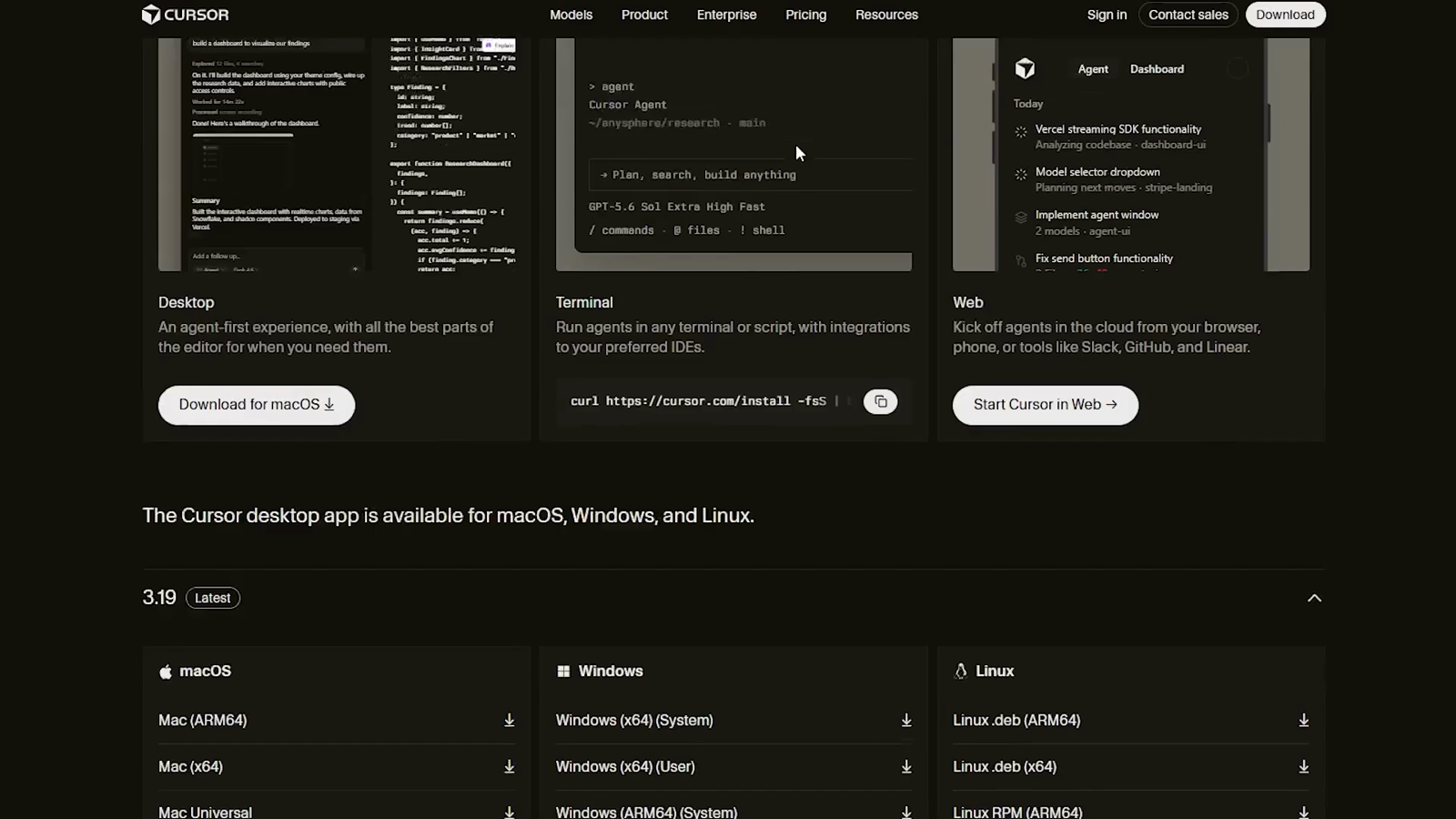
The tutorial begins at Cursor’s download page and recommends installing the build for your operating system. Cursor’s current documentation supports macOS, Windows, and Linux, and the product can also be used through web and terminal workflows. On Windows, the official quickstart lists Windows 10 and later; macOS support starts at macOS 12, while Linux offers native package options as well as AppImage.
The most useful beginner advice in the video comes immediately after installation: do not learn on an important production repository. Create a throwaway folder or a small test project. Agentic tools can touch many files quickly, and even a correct-looking change can have side effects you did not anticipate.
A practice project lets you learn three things without pressure:
1. how Cursor chooses context;
2. how it presents and applies edits;
3. how to inspect and undo AI-generated changes.
If you already use VS Code, Cursor provides migration tools for settings, themes, keybindings, and extensions. Cursor is built from the VS Code codebase, so much of the editing experience is intentionally familiar. One caveat matters in 2026: Cursor uses the Open VSX registry for third-party extensions, so not every extension distributed only through Microsoft’s marketplace is guaranteed to map perfectly. Treat extension migration like dependency migration: verify the plugins you actually rely on rather than assuming a one-click import is identical in every environment.
2. Understand the editor before using the AI
The source video pauses to orient beginners around the main layout. That is worth doing. A typical Cursor workspace still has familiar editor components, but the AI surface is more central than it is in a standard code editor.
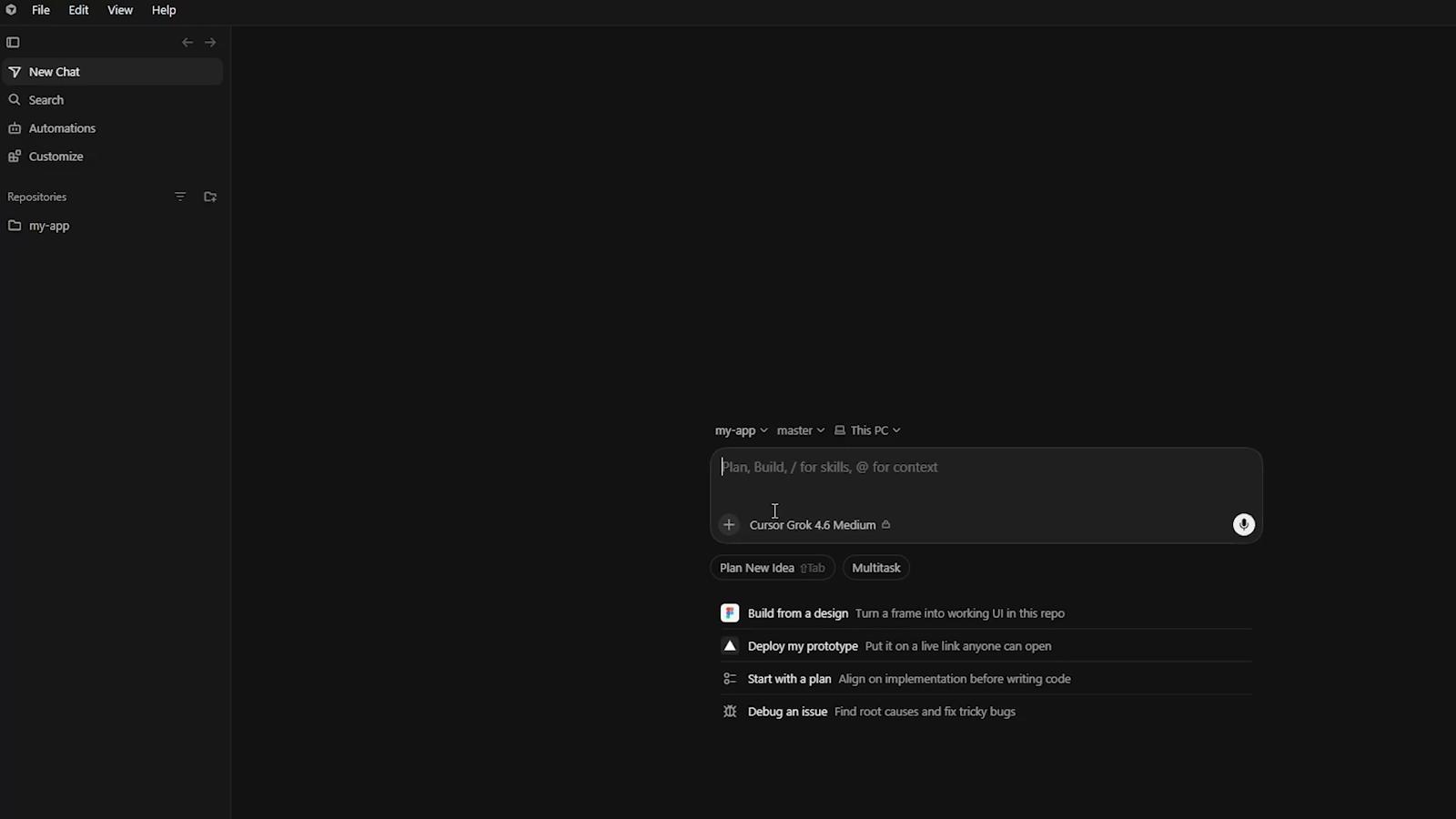
Think of the interface as four working areas:
- Project/files: the repository or folder Cursor can inspect.
- Editor: where you read and directly modify code.
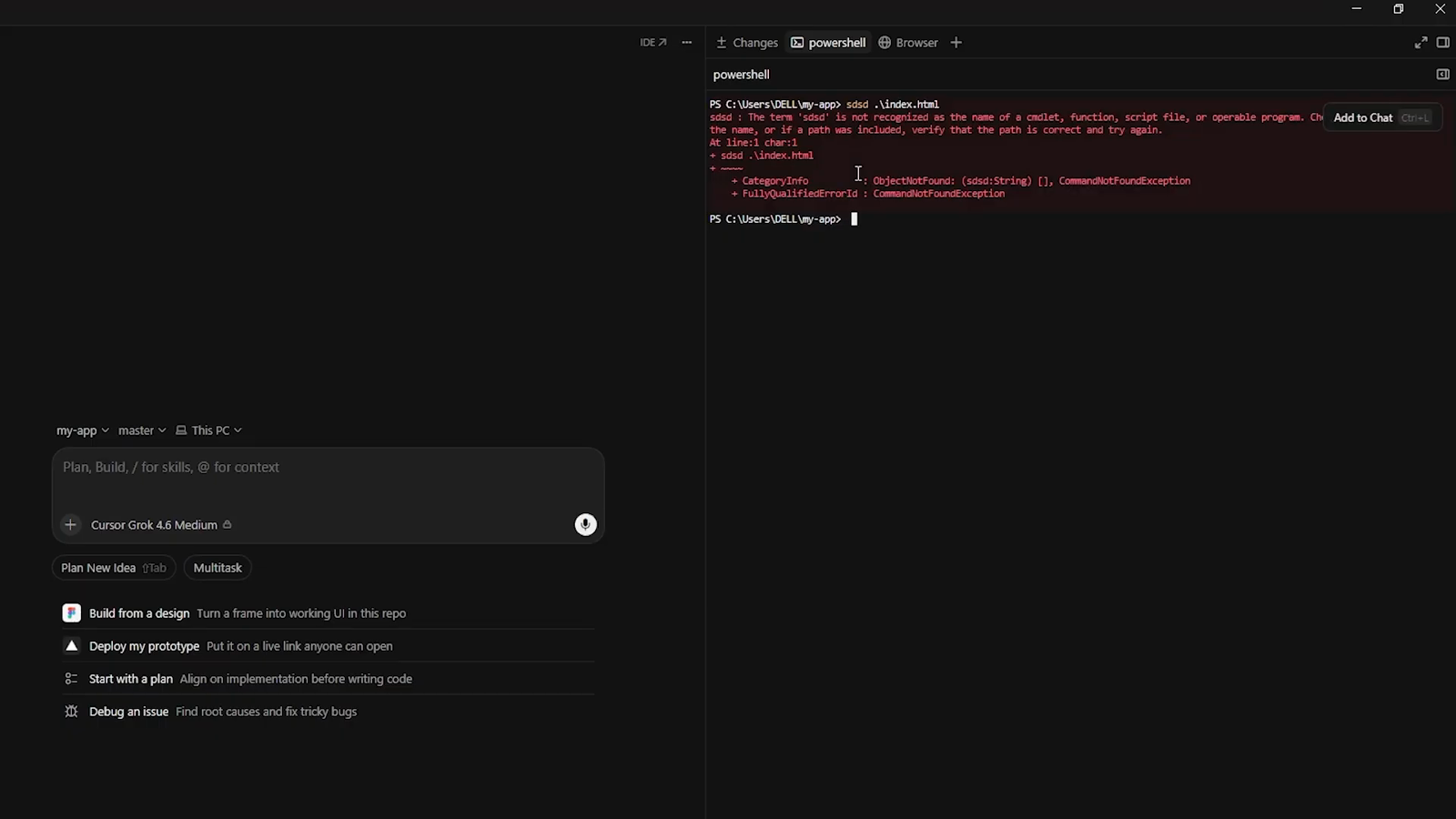
- Terminal: where commands, dev servers, tests, linters, migrations, and scripts run.
- Agent surface: where you ask questions, describe changes, plan work, and let the AI use tools.
The key mental model is that Cursor is not just a chatbot embedded beside a text editor. Its Agent can search files, edit code, execute terminal commands, inspect results, and iterate. That is substantially more power than simply pasting a code snippet into a generic chat window.
For that reason, beginners should learn the low-autonomy features first.
3. Start with Cursor Tab: the lowest-friction AI feature
Cursor Tab is the feature you can use almost unconsciously. It appears while you type and offers a prediction as gray “ghost text.” Press Tab to accept it, press Escape or keep typing to reject it.
The important part is that modern Cursor Tab is more than single-line autocomplete. Cursor’s current documentation says Tab can make multi-line suggestions, add missing imports, predict related edits, and even propose changes in another file when a change needs to ripple across the codebase.
That matches the spirit of the tutorial’s example: rename or reshape something in one place, and Cursor may predict the next edit you are likely to make elsewhere. After accepting one suggestion, another Tab can jump you to the predicted next editing location.
A good training exercise is intentionally repetitive code. Type the first part of a pattern and watch what Cursor predicts. Accept only the suggestions you understand. If the suggestion is wrong, ignore it rather than trying to “fight” the autocomplete.
This establishes an important habit that carries into Agent work later: AI output is a proposal, not an instruction.
For the product overview behind these beginner steps, see the Cursor tool profile.
4. Use Agent as a codebase-aware conversation partner
The video next moves into what it calls chat: ask a question and let Cursor answer with awareness of your repository. This is where Cursor starts to feel meaningfully different from a normal editor.
A generic AI chatbot only sees what you paste into the conversation. Cursor can search the current project, read referenced files, inspect neighboring code, and answer questions in that context. Useful beginner prompts include:
- Explain the main entry points in this codebase.
- What does this function do, and what calls it?
- Why is this error happening?
- Trace how a request moves from the route layer to the database.
- Which files would need to change to add a dark mode toggle?
The source tutorial demonstrates the difference by asking Cursor to explain material visible in the project. The resulting answer is tied to the local files and terminal state rather than being a generic programming explanation.
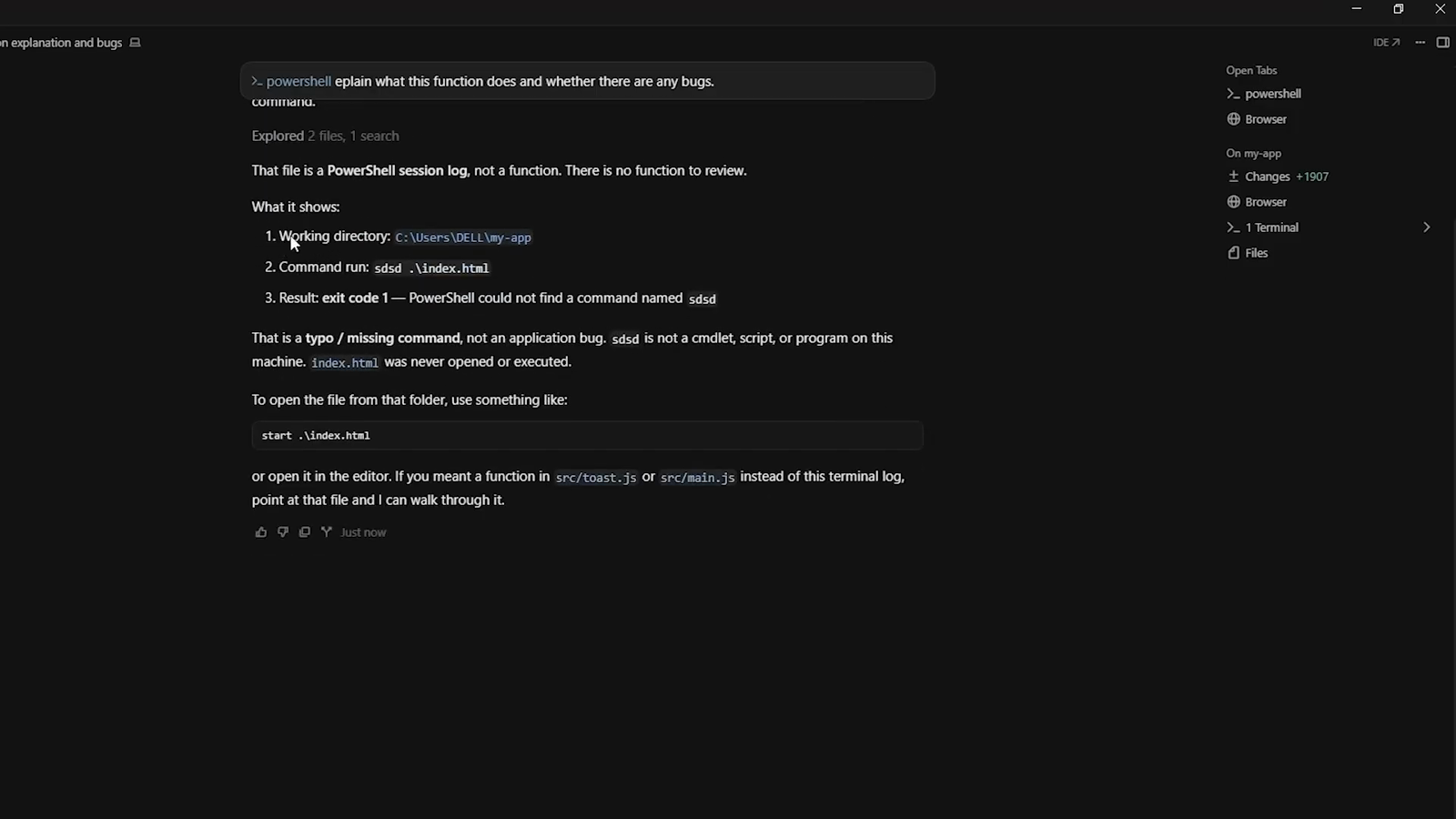
Cursor’s current quickstart explicitly recommends beginning this way: ask Agent to explain an unfamiliar codebase, identify entry points and key modules, then make one small, safe change. That progression is much safer than opening a repository and immediately asking the agent to rewrite a feature.
File context still matters
The video’s advice to reference specific files or folders remains useful. Cursor can search for relevant context itself, but targeted references reduce ambiguity when you already know which files matter. Current troubleshooting guidance also recommends using @ file or folder references when Agent is missing important context.
The goal is not to stuff as much code as possible into every prompt. It is to give the agent the smallest set of context that reliably describes the problem.
5. Watch context and model choice, but do not obsess over the meter
The video shows Cursor’s context-usage display and recommends keeping an eye on it during longer conversations. That is sensible, especially for large repositories and long-running tasks.
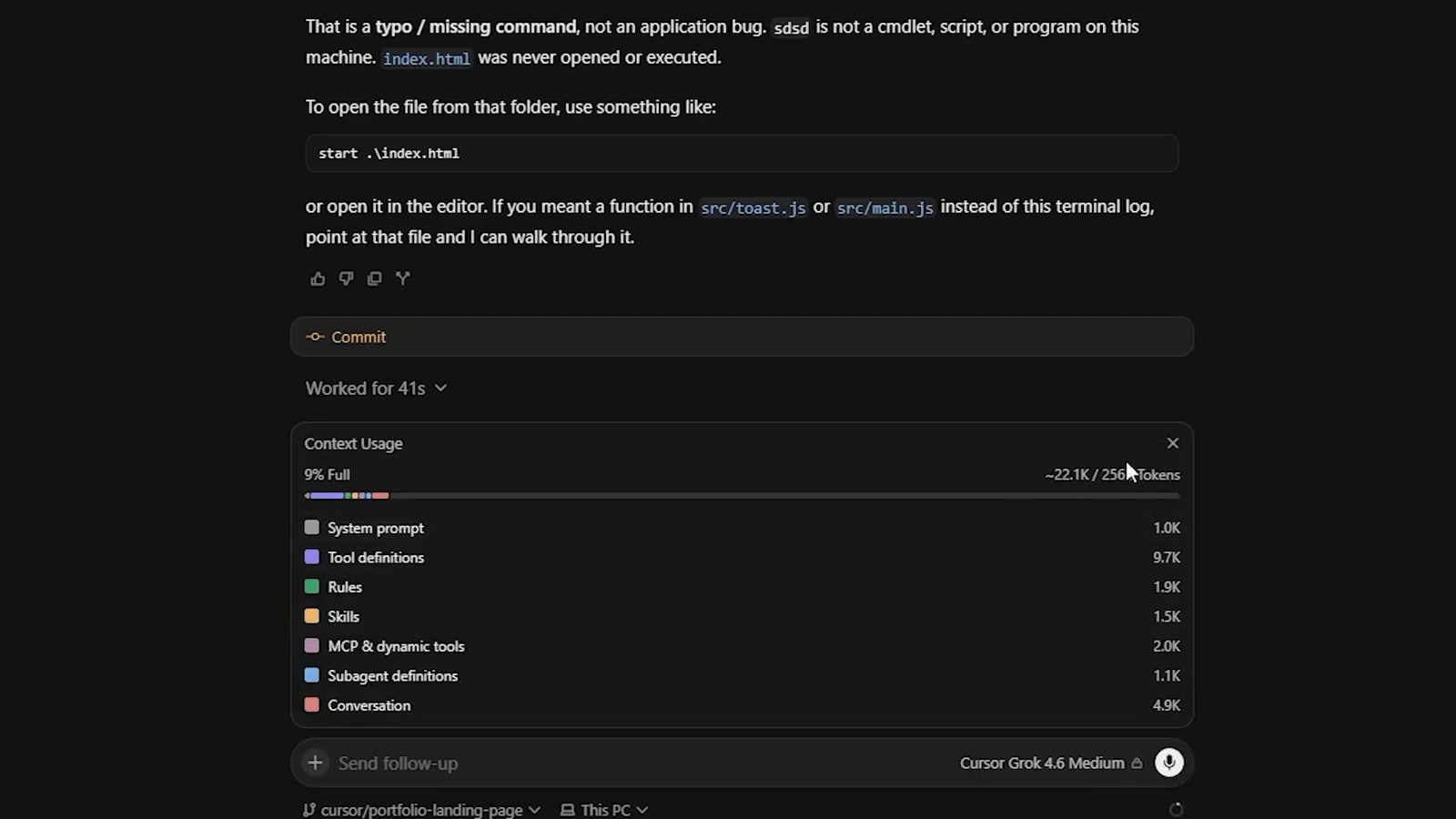
A long conversation can accumulate system instructions, tool definitions, rules, file content, subagent results, and earlier messages. More context is not automatically better. If you finish one feature and switch to an unrelated task, starting a fresh conversation can give the model a cleaner problem to solve.
The model picker also matters because different models trade speed, cost, and reasoning quality differently. Cursor’s current pricing documentation notes that model selection affects how quickly included usage is consumed. The right habit is therefore practical rather than ideological: if a task is not going well, changing the model or starting with a clearer plan can be more productive than repeating the same prompt five times.
6. The video’s “Composer mode” has changed meaning
This is the biggest terminology update in the tutorial.
The recording presents Composer as the place to make coordinated changes across multiple files, then treats Agent mode as a more autonomous paid feature that can run terminal commands and correct itself. That distinction reflects an earlier Cursor product shape.
In current Cursor, Agent is the primary assistant for complex multi-file coding tasks. It can search the codebase, edit files, run terminal commands, fix errors, and verify its work. Meanwhile, Composer is also the name of Cursor’s own coding model, with Composer 2.5 positioned as a fast, cost-efficient model for agentic coding.
So if you are following the tutorial today, translate its older terminology like this:
- “Use Composer to edit several files” -> Use Agent for a well-scoped multi-file task.
- “Switch to Agent when you need terminal execution” -> Agent already handles terminal execution and verification.
- “Composer is a paid-only mode” -> Not as stated. The current Hobby plan includes limited Agent requests and access to Composer, while paid plans raise limits and add capabilities such as Cloud Agents.
The underlying lesson is still correct: describe the outcome and boundaries of the change instead of dictating every line of implementation.
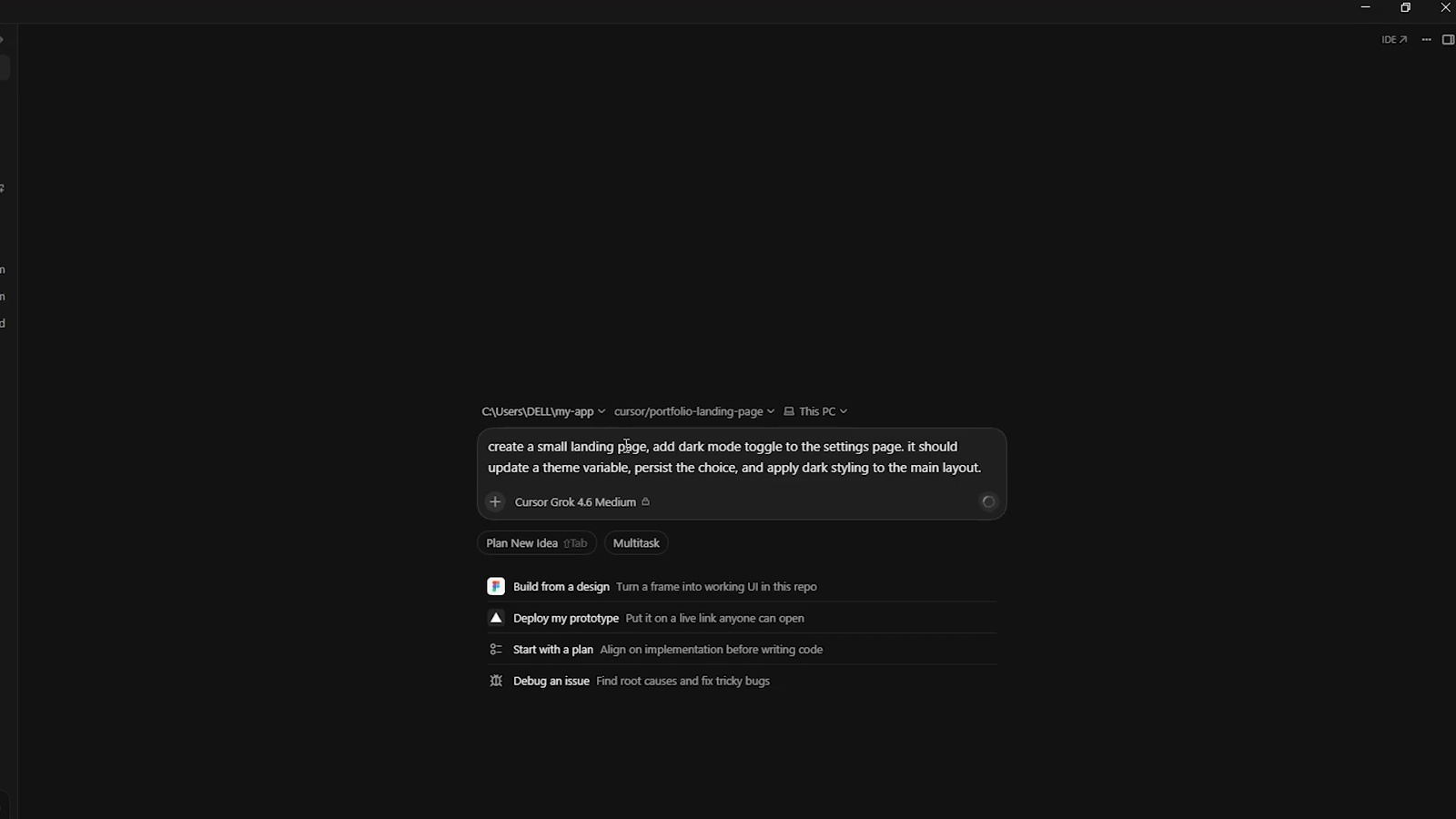
For example, the tutorial asks Cursor to create a small landing page and add a persistent dark-mode toggle. That is a good agent task because it has a concrete result and clear boundaries. “Rebuild my whole app” is not.
A better prompt is closer to:
Add a dark-mode toggle to the settings page. Persist the choice locally, apply it to the main layout, and keep the current light theme as the default. Show me the files you changed and run the existing checks afterward.
That gives the agent freedom to choose the implementation without leaving the success criteria vague.
7. Use Agent for implementation, not blind delegation
The next step in the video is a more autonomous request: add email-and-password authentication using the existing database setup and run a test to confirm it works.
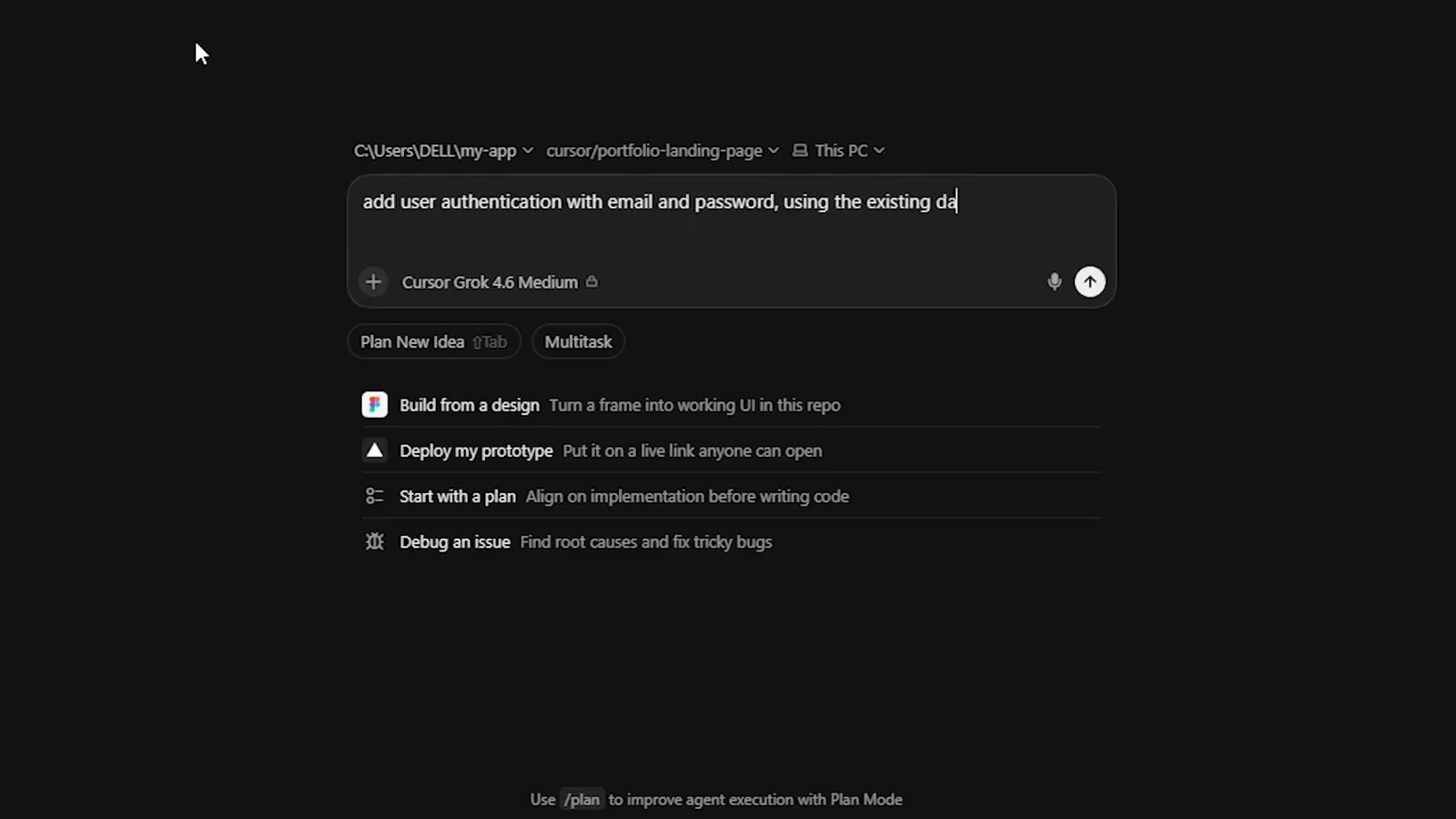
Current Cursor Agent can do exactly the class of work the video describes. It has tools for file editing, codebase search, terminal execution, and other operations. It can inspect failures and continue iterating instead of requiring you to manually copy every error back into chat.
That does not mean it should be unsupervised.
Authentication, payments, permissions, migrations, data deletion, deployment configuration, and security-sensitive code deserve stricter review than a CSS tweak. The source tutorial makes this point directly: autonomy changes the speed of work, not your responsibility to understand what shipped.
A safe review loop is:
1. define the outcome and constraints;
2. let Agent research the codebase;
3. review the plan for large tasks;
4. watch or inspect the changed files;
5. run tests, linting, type checks, or a local build;
6. manually verify the user-facing behavior;
7. commit only after the diff makes sense.
The source demonstration eventually produces a concrete set of changed files and explains how the feature was implemented.
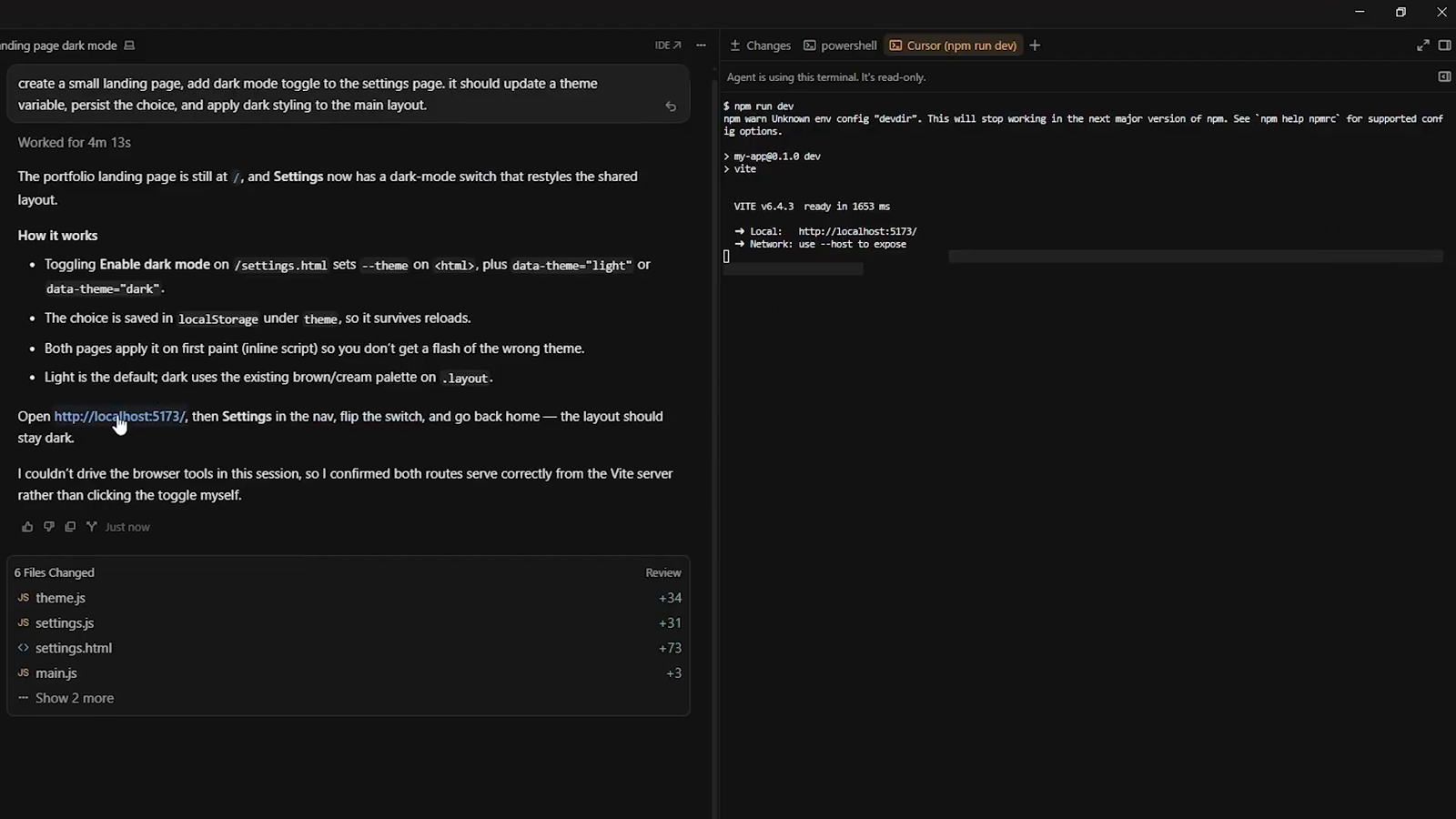
That result is much more valuable than a confident prose answer because you can inspect what actually changed.
8. Plan Mode and checkpoints are control systems, not extra ceremony
The video recommends Plan Mode for larger jobs and checkpoints as a way to recover if an agent run goes in the wrong direction. Both remain current features.
Cursor’s Plan Mode researches the codebase, asks clarifying questions, produces a reviewable implementation plan, and waits for approval before building. It is particularly useful when a task touches many files, has multiple reasonable approaches, or involves architecture choices.
Checkpoints provide a different kind of protection. Cursor automatically saves snapshots of modified files during Agent sessions. If the run takes a bad turn, you can restore an earlier checkpoint. Cursor’s documentation is careful about what this is: checkpoints are a local Agent undo mechanism, not a replacement for Git.
Use both systems for different purposes:
- Plan Mode catches a bad approach before implementation.
- Checkpoints let you recover from a bad implementation after work has started.
- Git remains the durable project history you should use for meaningful milestones.
For a beginner, this layered control is more important than learning every advanced model setting.
9. “Background Agents” are now Cloud Agents
The video introduces background agents near the end, but its description is no longer precise. The current product calls them Cloud Agents (formerly Background Agents).
A Cloud Agent does not simply keep running in your local terminal. Cursor moves the task into a remote development environment with its own virtual machine, repository, dependencies, secrets, and network access. The agent can plan, edit, run commands, test the work, and report back later. Because the work is remote, you can close your laptop and check the result afterward.
Current Cursor also lets users start Cloud Agents from web or mobile surfaces, and Cursor Automations can trigger them on schedules or events such as pull requests, Slack messages, webhooks, GitHub/GitLab activity, and Linear events.
That makes Cloud Agents powerful, but it also raises the importance of environment configuration, secret handling, repository permissions, and review. Treat a cloud agent like a junior developer with command-line access to a prepared environment, not like a harmless autocomplete feature.
Cloud Agents are a paid-plan capability in the current pricing structure; the free Hobby plan is designed around limited local Agent usage rather than the full remote-agent workflow.
10. Verify the result in the browser, not just in chat
The tutorial’s sample feature is useful because the result is visible: Cursor creates a small portfolio page and a dark-mode workflow, then the user opens the local app to inspect it.
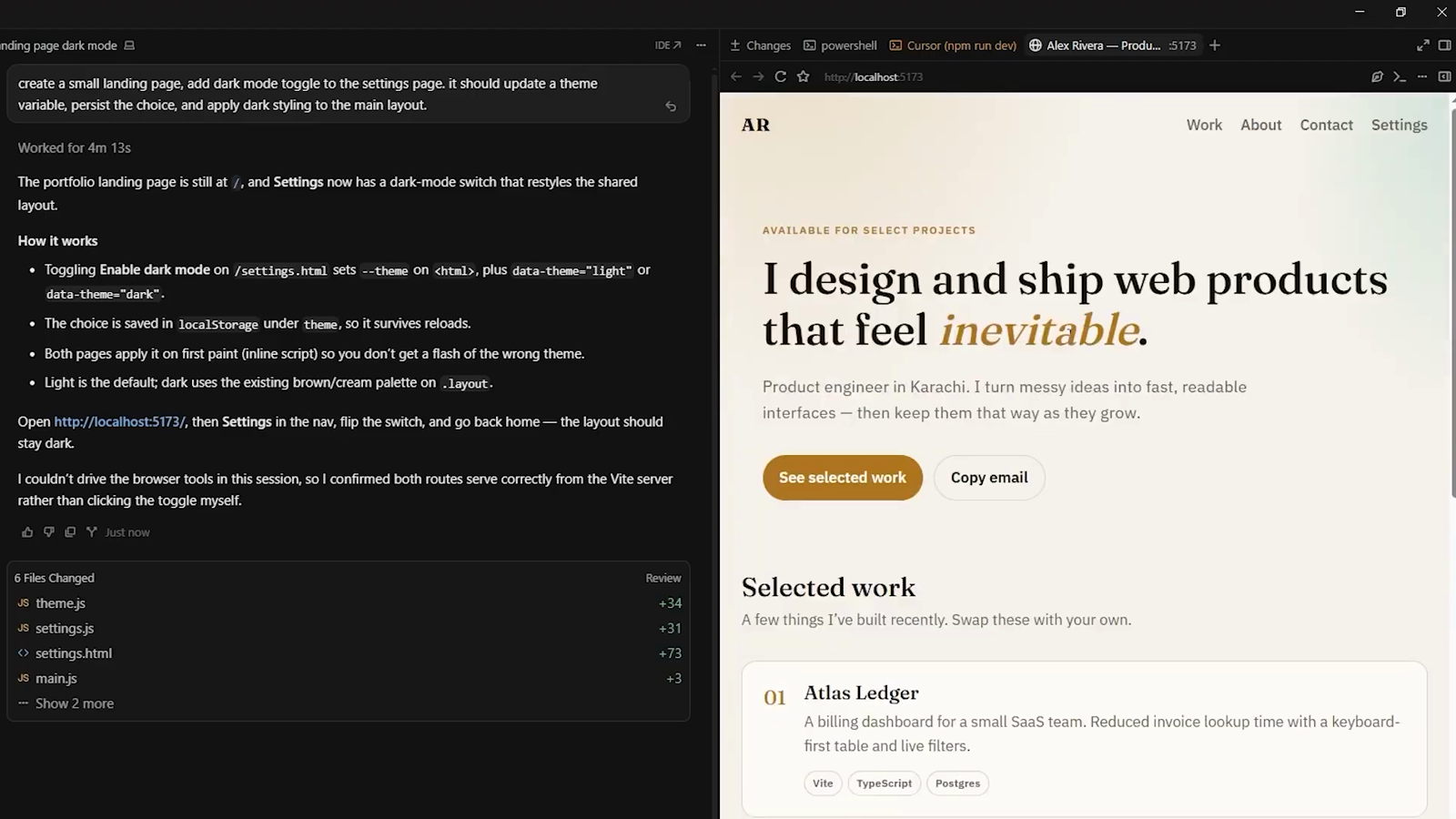
This is the right way to finish an agentic coding task. A passing terminal command is evidence, but it is not the same as testing the product behavior.
Current Cursor Agent also has browser-control capabilities that can navigate pages, interact with elements, take screenshots, and help verify visual changes. Even when you use those tools, human review still matters. Check the real route, click the real control, resize the page, test the error state, and make sure the interface matches what you asked for.
11. Current Cursor pricing: what the recording gets right and wrong
The source tutorial quotes Hobby as free, Pro around $20 per month, and Pro+ around $60. Those headline prices still match Cursor’s current pricing page as of October 2026. Cursor also offers Ultra at $200 per month and team tiers.
The feature description is where the recording is outdated.
| Plan | Current individual price | Practical beginner takeaway |
|---|---|---|
| Hobby | Free | Limited Agent requests and access to Composer; useful for learning and light use. |
| Pro | $20/month | Higher Agent limits, frontier models, and paid-plan features including Cloud Agents. |
| Pro+ | $60/month | Roughly 3x Pro Agent limits. |
| Ultra | $200/month | Much larger Agent allowance for heavy use. |
Paid Pro, Pro+, and Ultra plans also include unlimited Tab completions according to Cursor’s current models-and-pricing documentation. Exact usage economics can change because different models have different costs, so treat screenshots from any pricing tutorial as a point-in-time reference and check Cursor’s live pricing page before subscribing.
Most importantly, the video says Agent is unavailable on the free plan. That is no longer correct: Cursor’s current billing documentation explicitly says Hobby users can use Agent, Chat, and Tab completions with limited usage.
12. Four beginner mistakes worth avoiding
The tutorial closes with mistakes, and these are some of its strongest lessons.
Accepting every AI suggestion
Tab, Agent, and code diffs should all be reviewed. AI can produce syntactically plausible code that is wrong for your architecture, security model, or business logic.
Asking vague questions
“Fix my app” forces the agent to guess both the problem and the definition of success. “Fix the null error when checkout receives an empty form, keep existing validation behavior, and add a regression test” is far easier to verify.
Skipping plans and rollback points
For multi-file or risky changes, Plan Mode and checkpoints reduce the cost of being wrong. Use them before the task feels out of control.
Treating one model as universally best
Different models are better suited to different tasks, and Cursor’s available models evolve quickly. If the result is poor, improve the prompt, tighten the scope, or switch models rather than assuming the entire tool is incapable.
13. A better first-hour learning path
If you are opening Cursor for the first time, you do not need every feature in the product. This sequence is enough:
1. Install Cursor and import only the editor settings you actually need.
2. Open a throwaway project or a small repository you understand.
3. Use Tab for simple predictable edits.
4. Ask Agent to explain the project before asking it to change anything.
5. Make one small change and review the diff.
6. Ask Agent to run the project’s normal checks.
7. Try a scoped multi-file feature.
8. Use Plan Mode before a bigger change.
9. Restore a checkpoint once on purpose so you understand recovery.
10. Only then experiment with Cloud Agents or long-running autonomous work.
This progression gives you the benefit of AI without skipping the basic engineering loop: understand, change, test, review, commit.
Once the basics feel familiar, our Cursor AI Review 2026 explains the broader feature set and tradeoffs.
Final takeaway
Cursor is easiest to learn when you stop thinking of it as a single AI feature. It is a ladder of autonomy.
Tab predicts the next edit. Agent can reason over your codebase and make changes. Plan Mode lets you approve an approach before implementation. Checkpoints give you a local safety net. Cloud Agents move longer-running work into remote environments. The further you climb, the more important scoping, tests, diffs, permissions, and human review become.
The source tutorial is a solid beginner walkthrough because it moves in that direction gradually. The main updates for 2026 are product terminology and access: Agent is available in limited form on Hobby, Composer is now also Cursor’s own coding model, and Background Agents have evolved into Cloud Agents with remote environments and automation support.
Learn the low-risk tools first, keep your tasks specific, and make verification part of the prompt. That is the difference between using Cursor as an impressive demo and using it as a dependable development tool.
If you are also comparing coding assistants, our Claude tutorial for beginners covers a different workflow.
Current official references
Cursor Pricing (cursor.com/pricing) • Cursor Documentation (cursor.com/docs) • Composer (cursor.com/composer)